

Adobe After Effects — Mac download
Download (8.8 GB) Earlier builds
Ticked

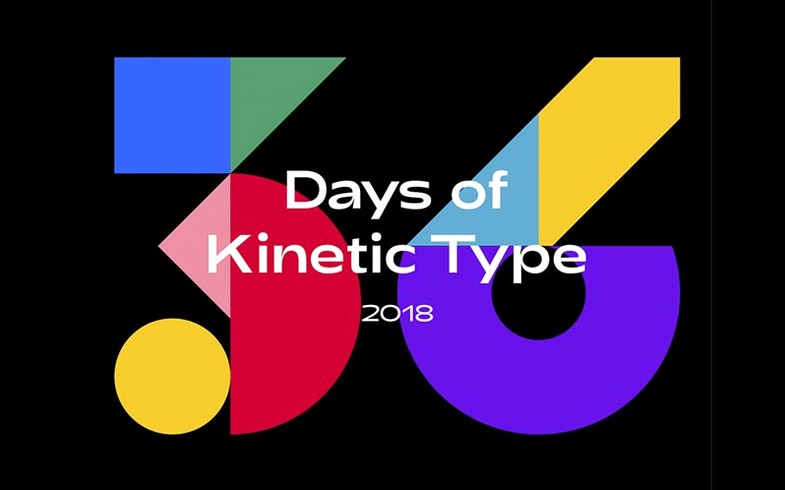
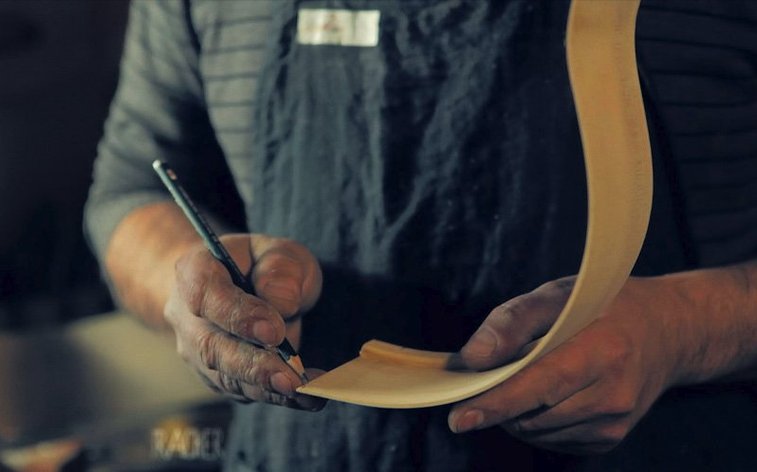
One timeline, dozens of layers, and a render queue that can take over your evening. After Effects 26.5 is Adobe's motion graphics and compositing tool for macOS 14 Sonoma and later. It handles animation, visual effects, and video post-production on both Apple Silicon and Intel hardware.
Animating text, logos, and compositing layered footage
- Animating text, illustrations and logo reveals
- Building title sequences and credit rolls from scratch
- Removing unwanted objects from video footage
- Stabilising shaky handheld clips
- Isolating foreground elements with background removal
- Compositing multiple video and graphics layers into one shot
Expect a deep interface and 16 GB minimum RAM
- 16 GB of RAM is the minimum; more is better with complex compositions
- Needs 8 GB of free disk space for installation alone
- Display resolution of 1440x900 or higher required
- Interface is deep — expect a learning curve for advanced features
Building an animated logo reveal — start to finish
Open After Effects and import your logo file. Drag it into the composition timeline. Set your composition duration to six seconds — enough for a smooth reveal without dragging.
- Right-click the logo layer and select Pre-compose. Name it “Logo Base”.
- Apply Effect > Generate > Fill to override the original colour if needed.
- Add a Trim Paths effect via a shape layer mask. Animate the End property from 0% to 100% over two seconds.
- Drop a Glow effect on an adjustment layer above the logo. Keyframe the Glow Intensity to peak at the moment the trim animation finishes.
- Ease the keyframes — select them, press F9, then tweak the speed graph for a fast start and slow settle.
- Add a subtle scale bounce. Keyframe Scale from 95% to 105% and back to 100% across 15 frames after the reveal completes.
- Create a solid background layer in a deep colour from the brand palette. Drop opacity to 90% for a slight transparency that works on overlays.
- Export via Composition > Add to Render Queue. Choose ProRes 4444 for client delivery or H.264 for preview sharing.
Check the final frames for banding in the glow. If it appears, add a 1% noise layer on top set to Overlay blending mode — just enough to break up gradient steps without being visible.
Changing the frame rate after starting shifts every keyframe
- Ignoring the composition frame rate before starting. Changing from 30 fps to 24 fps midway shifts every keyframe position. Set it once, in the Composition Settings dialog, before placing a single layer.
- Animating position and scale on the same layer without an anchor point adjustment. When an object scales from the corner instead of its centre, the anchor point is off. Use the Pan Behind tool (Y key) to reposition it before keyframing.
- Stacking effects without pre-composing. A blur applied before a colour correction gives different results than the reverse order. Pre-compose sections of your work so the render pipeline processes effects in predictable sequence.
- Letting the project accumulate unused assets. Importing fifteen stock clips and using three bloats the project file. Run File > Dependencies > Reduce Project every few hours to strip what sits idle.
- Skipping RAM preview of a small work area. Rendering the full composition to check a half-second transition wastes time. Set the work area bar to cover only the segment you are testing and preview just that range.
It runs natively on Apple Silicon without Rosetta
Does it run on Apple Silicon without Rosetta? Version 26.5 runs natively on both ARM and Intel. You will not need Rosetta for After Effects itself — only if a legacy plug-in or the CCXProcess helper triggers the prompt during installation. The package includes instructions for that case.
Can I keep an older version alongside 26.5? You should remove any previous After Effects build before installing. The installation instructions specify a clean setup. Two versions sharing preference files and plug-in folders can cause launch failures and font cache corruption.
How much disk space does it really need after caching? The installer demands 8 GB free. After a week of work, the Media & Disk Cache folder can grow by another 30–50 GB. Point the cache to an external SSD in Preferences > Media & Disk Cache before you start your first project.
Is Camera Raw included in the base download? No. The package provides a separate download link for Camera Raw if your workflow involves raw image sequences or stills from cameras. Install it only if you import raw files directly into compositions.
Shorten the auto-save interval to 10 minutes
- Set the auto-save interval to 10 minutes. The default is 20, and losing 19 minutes of keyframe work on a complex rig stings. Go to Preferences > Auto-Save and lower it.
- Pin the most-used panels. Keep the Effect Controls panel docked next to the Composition panel. Drag the Preview panel to the right side of the timeline. Closing panels you rarely use — Metadata, Libraries — clears screen space for the timeline.
- Create a folder of go-to presets on day one. Save an animation preset for your most common move — a fade-and-slide up, for example — and store it in the User Presets folder. Drag it onto any layer instead of rebuilding from scratch.
- Test the render queue with a short export. Render a five-second ProRes clip early, even if the project is not finished. You want to catch codec errors, missing fonts or GPU driver snags before the deadline, not during it.
- Learn one keyboard shortcut per session. Start with U (reveal all keyframed properties) and LL (collapse or expand audio waveforms). Muscle memory on these two alone saves minutes per hour when navigating dense timelines.
- Percentage-based guide positioning added
- Edge pinning for guides
- Custom guide colours now supported
- Improved guide editing controls
- Object Matte results cache to disk between sessions
- macOS 14 Sonoma or later
- Apple Silicon or Intel processor
- 16 GB RAM minimum
- 8 GB available disk space for installation
- 1440x900 display resolution or higher
Questions the team asks
Yes, version 26.5 supports both Apple Silicon and Intel-based Macs running macOS 14 Sonoma or later.
The app imports a wide range of video, image and audio formats common to the Adobe ecosystem, with additional raw camera support via the included Camera Raw download.
Object Matte results can now be cached to disk, so previously processed frames persist between sessions instead of recalculating each time.








Comments 0
Sign in or create an account to add a comment.
No comments yet. They go up after moderation.