
A Better Finder Attributes — Mac download
Download (13 MB) Earlier builds
Ticked
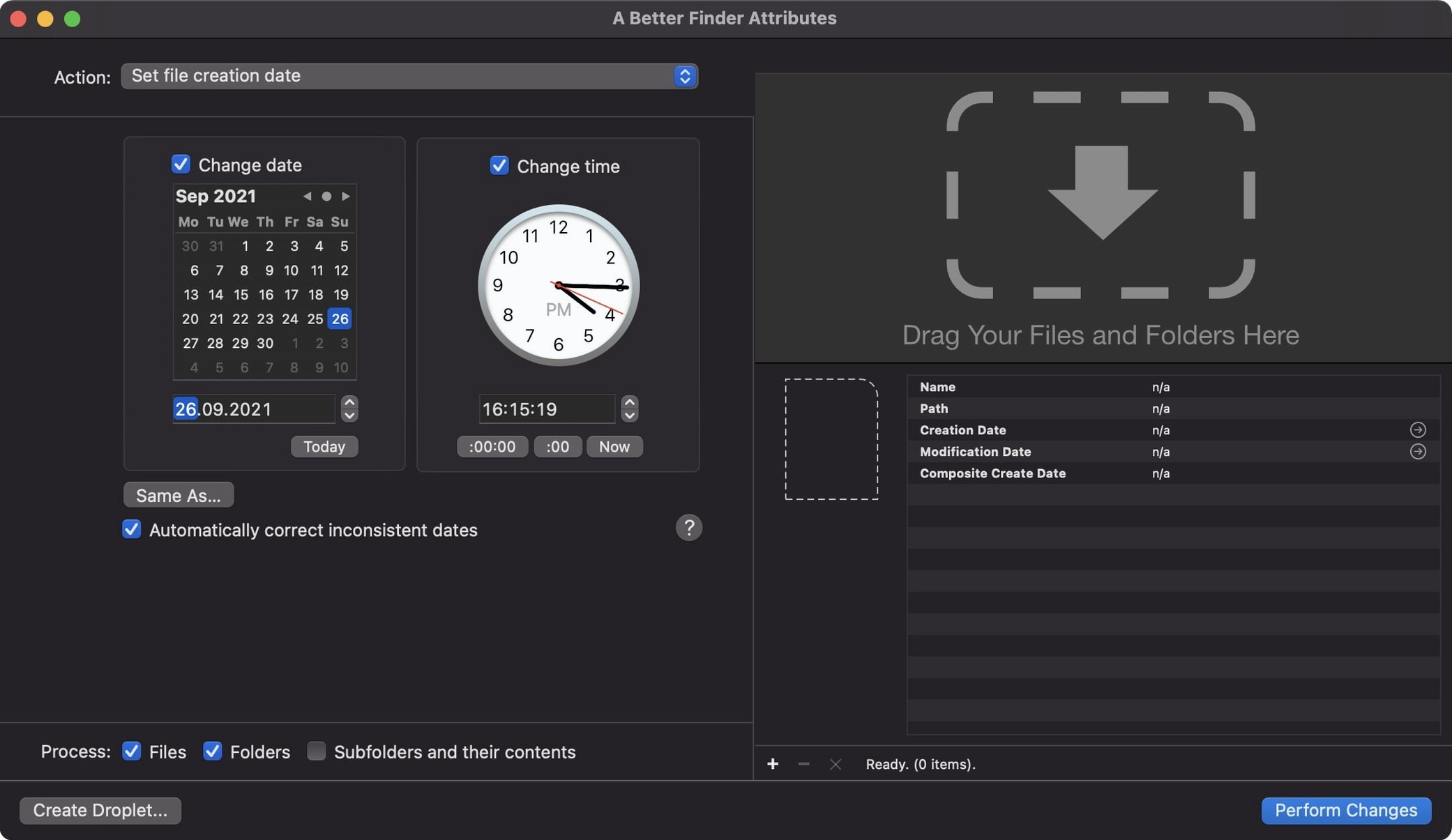
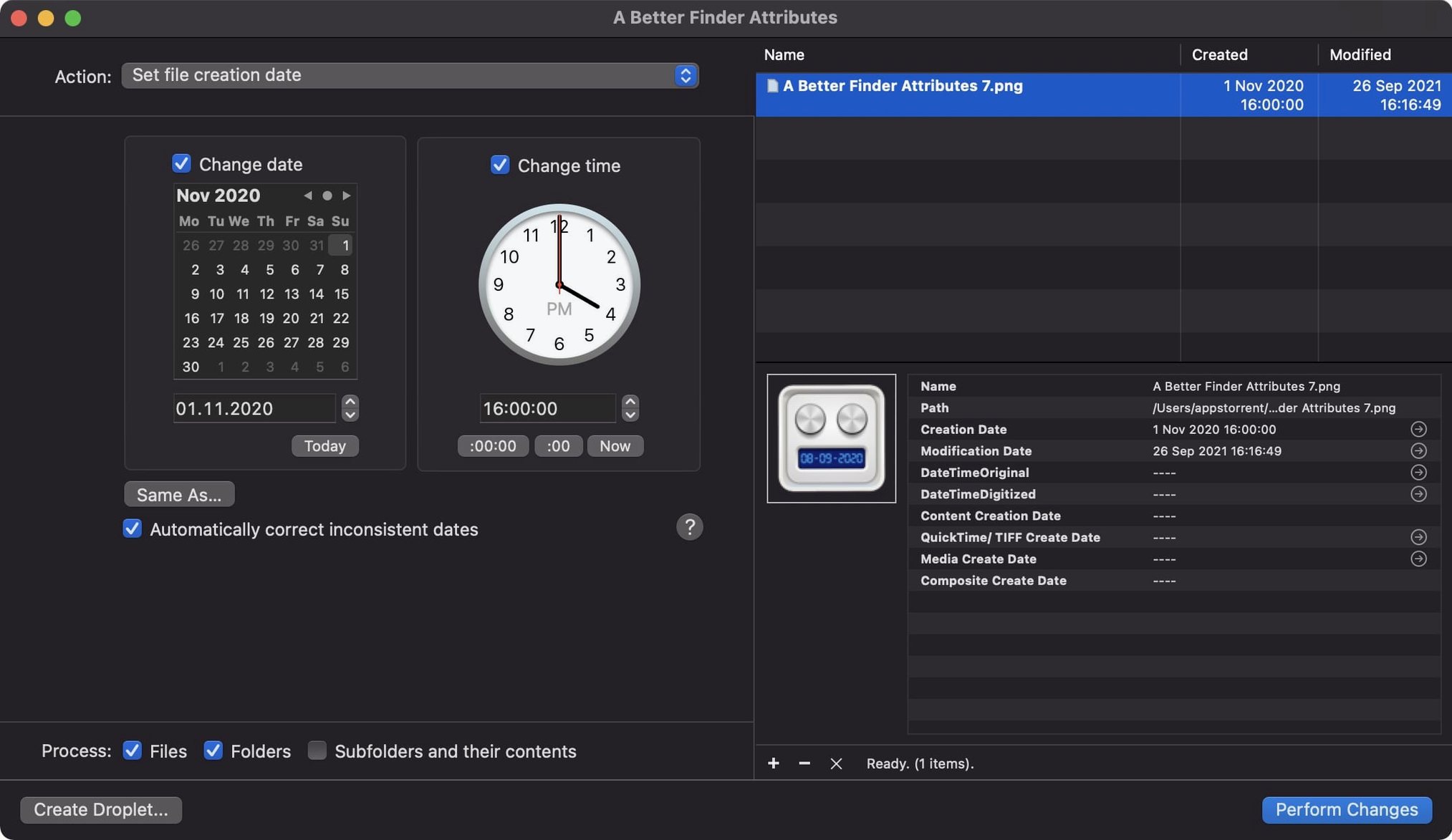
Version 7.50 fixes a persistent one-hour DST error when writing QuickTime creation dates. It also accepts a wider range of GPS coordinate formats in the change tag action, and keeps IPTC Date Created and EXIF time zone offsets in sync when embedding dates.
Fix QuickTime offsets and photo date syncs
- Write QuickTime creation dates. Select a batch of movie files and set the QuickTime date. Photos and Final Cut Pro now read the content creation date correctly — no more one-hour offsets.
- Sync embedded dates in photos. Adjust EXIF dates on a folder of JPEG or RAW files. Version 7.50 keeps the IPTC Date Created and EXIF time zone offsets aligned in one action.
- Add GPS coordinates. Use the change tag action to paste coordinates from a clipboard. The new parser handles more formats, so copy from a map or text file and apply it directly.
- Batch-adjust RAW file dates. Drag in CR2, NEF or CIFF files. Shift creation or modification dates by a fixed offset. The tool writes straight into the metadata, no sidecar files needed.
Start with a small test set of files to check the results. The date correction logic works across JPEG EXIF and all common RAW types, so the same workflow applies whether you are fixing a camera clock drift or matching timestamps across devices.
A workflow: fix camera clock drift after a trip
- Gather the files. Select all photos from the trip — JPEGs, CR2s, NEFs — in one Finder folder. Drag the folder onto a better finder attributes.
- Check the offset. Identify one photo where you know the correct time. Note the difference between its current EXIF shooting time and reality. Say the camera was 2 hours and 14 minutes behind.
- Set the adjustment. In a better finder attributes 7, choose Adjust EXIF Timestamps. Enter
+02:14:00in the time shift field. Tick both EXIF date and file modification date to keep everything aligned. - Run a test. Select three files first, apply the change, and verify in Preview or Finder. Confirm the dates look right.
- Apply to all. Select the full set and run the action. The tool writes the corrected date into each file's metadata and, if selected, syncs the file modification date to match.
Duplicate folders and add a date column
- Lock down your backup first. Before using a better finder attribute on a large folder, duplicate it. A quick
Cmd+Don the folder gives you an undo that needs no software. - Set a Finder column for dates. In list view, add the Date Modified and Date Created columns. Sorting by them immediately shows which files still carry wrong timestamps.
- Use the info button. Version 7.50 added an info button to the title bar. Click it on any file to inspect its current metadata — EXIF, file dates, all of it — before committing a batch change.
- Save a preset for recurring fixes. If you regularly shift dates by the same offset, save the action settings. Next time, drag files in, load the preset, and run.
Version 7.53 is live. The full change list sits on the Publicspace site — head there for the detail.
- macOS 14.6 or later
- Apple Silicon or Intel 64-bit
Questions the team asks
Version 7.50 requires macOS 14.6 or later and runs on both Intel and Apple Silicon Macs.
It adjusts date and time data in CR2, NEF, CIFF files and all other RAW types listed in the app description, plus JPEG EXIF.







Comments 0
Sign in or create an account to add a comment.
No comments yet. They go up after moderation.