

4K Video Downloader — Mac download
Download (247 MB) Earlier builds
Ticked
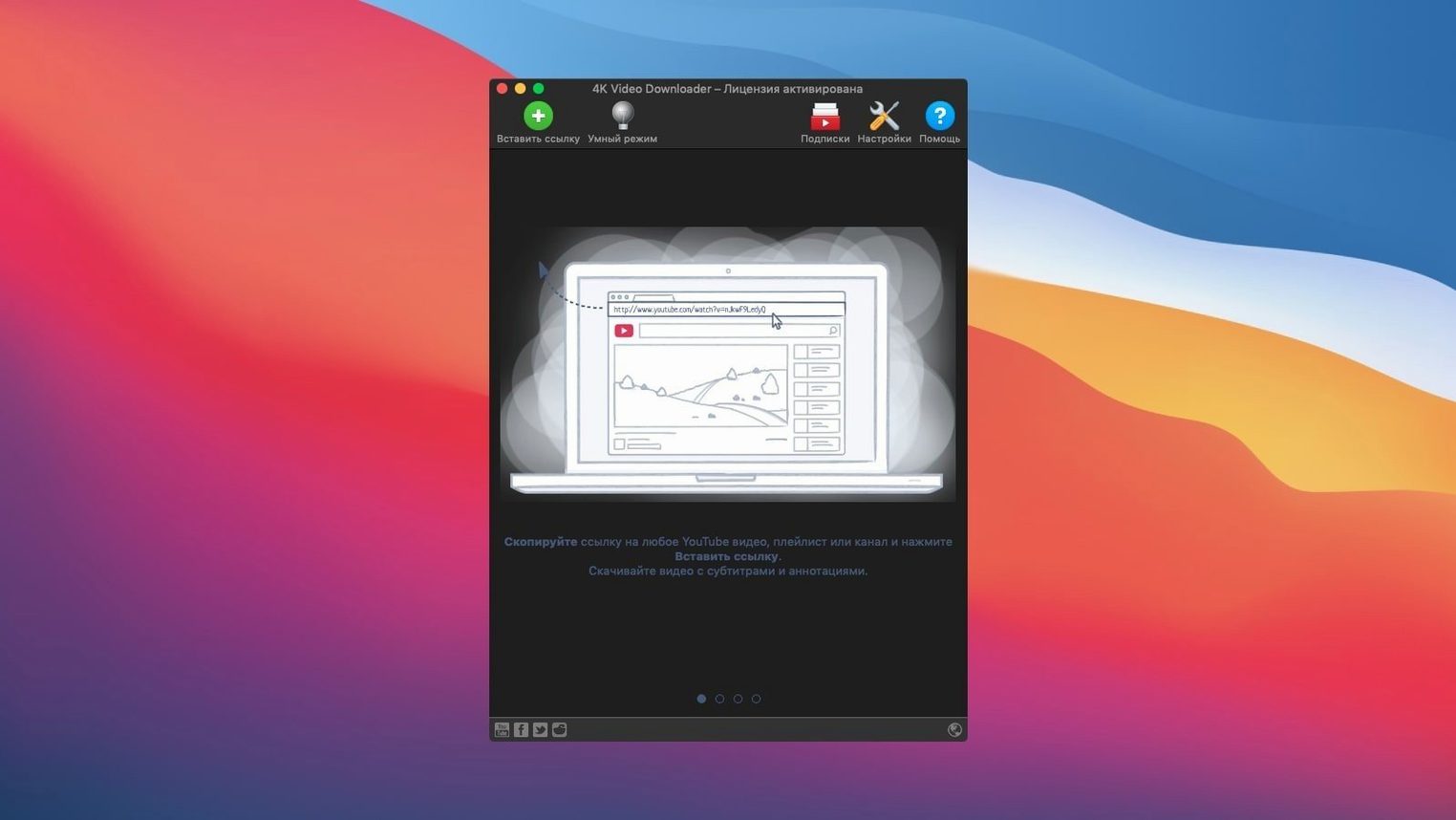
4K Video Downloader is a straightforward Mac app for saving online videos, audio and subtitles to your drive.
| Quick facts | |
|---|---|
| Version | 26.3.5 |
| Developer | OpenMedia LLC |
| macOS | 12 or later |
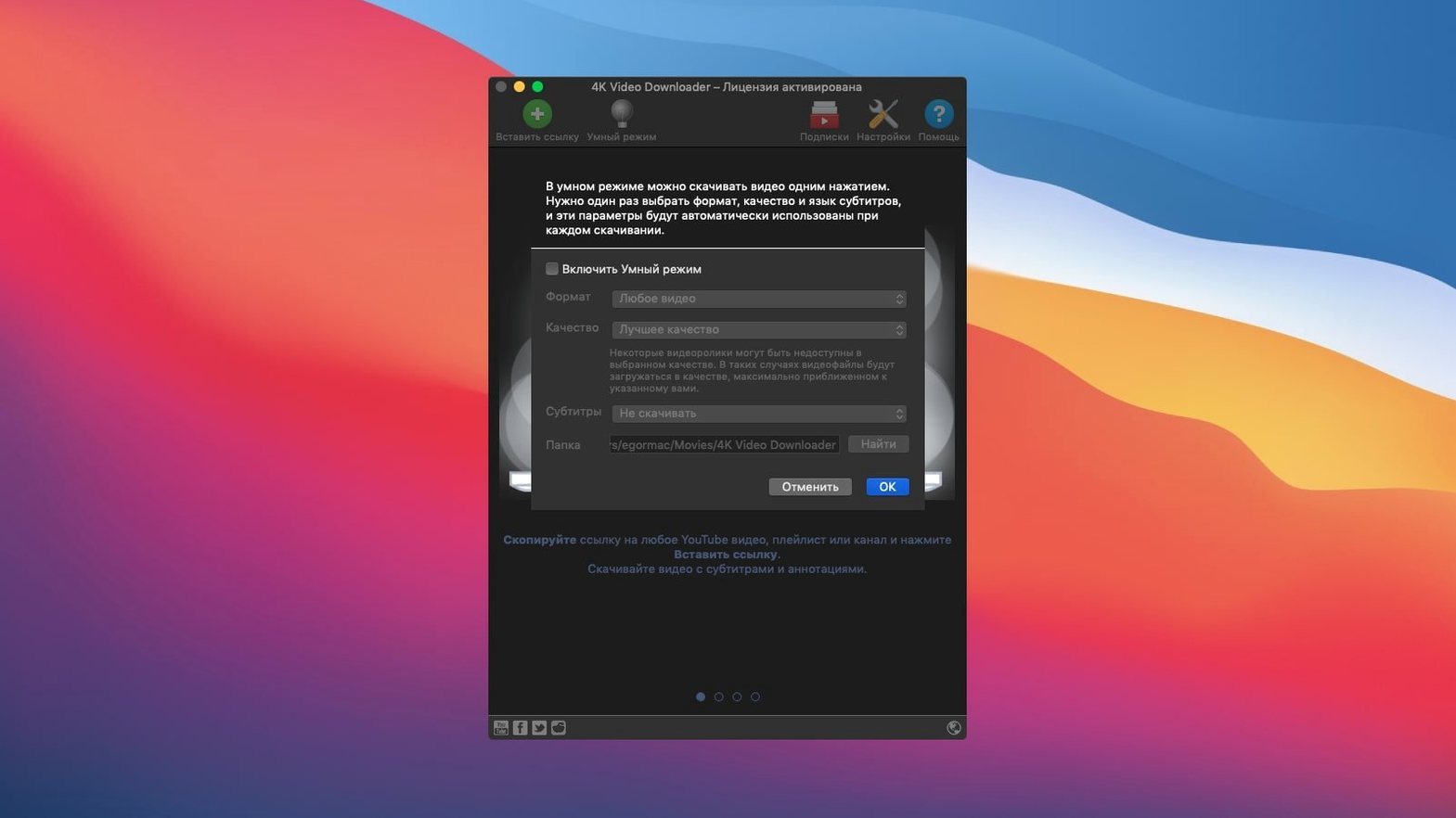
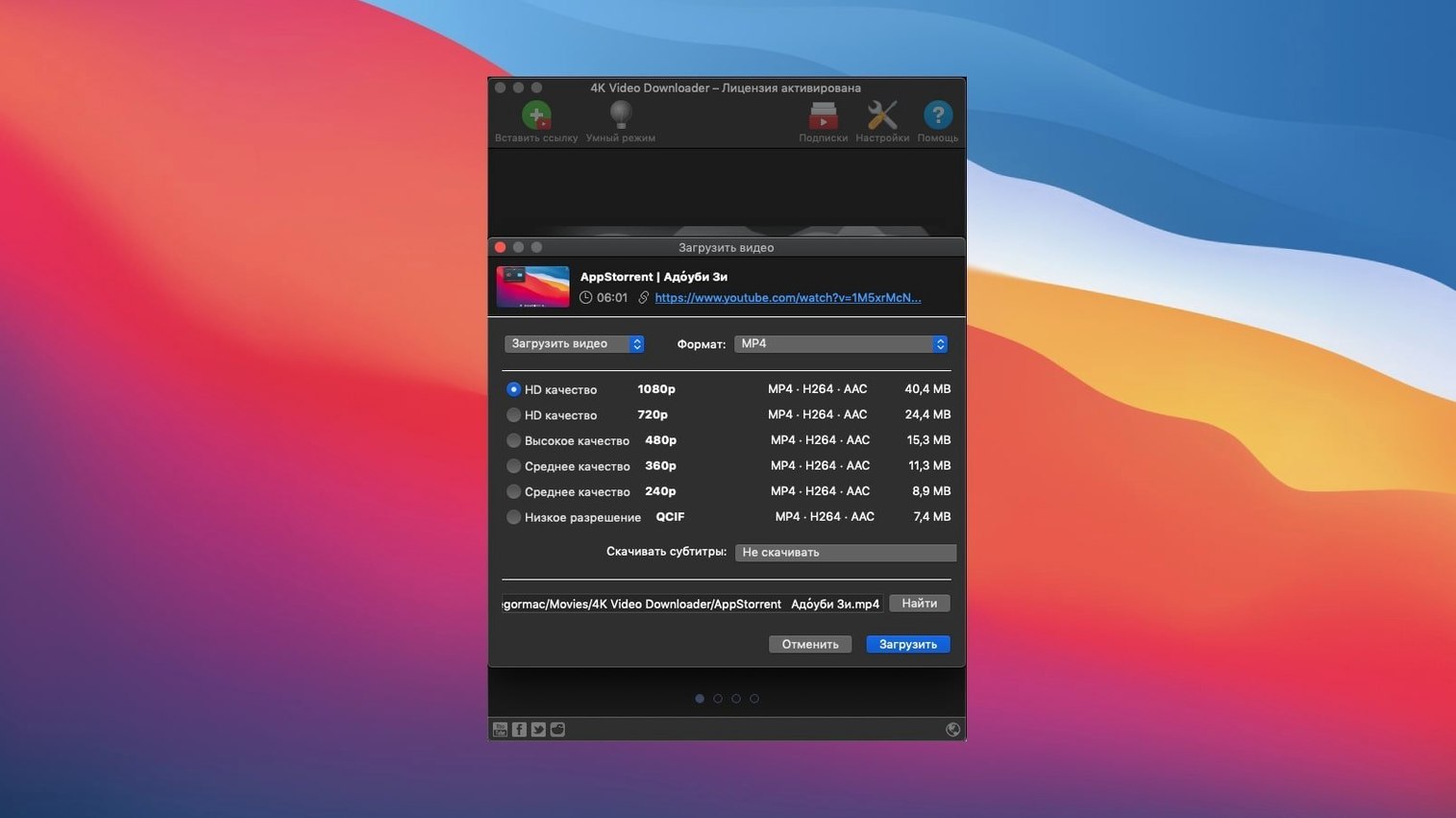
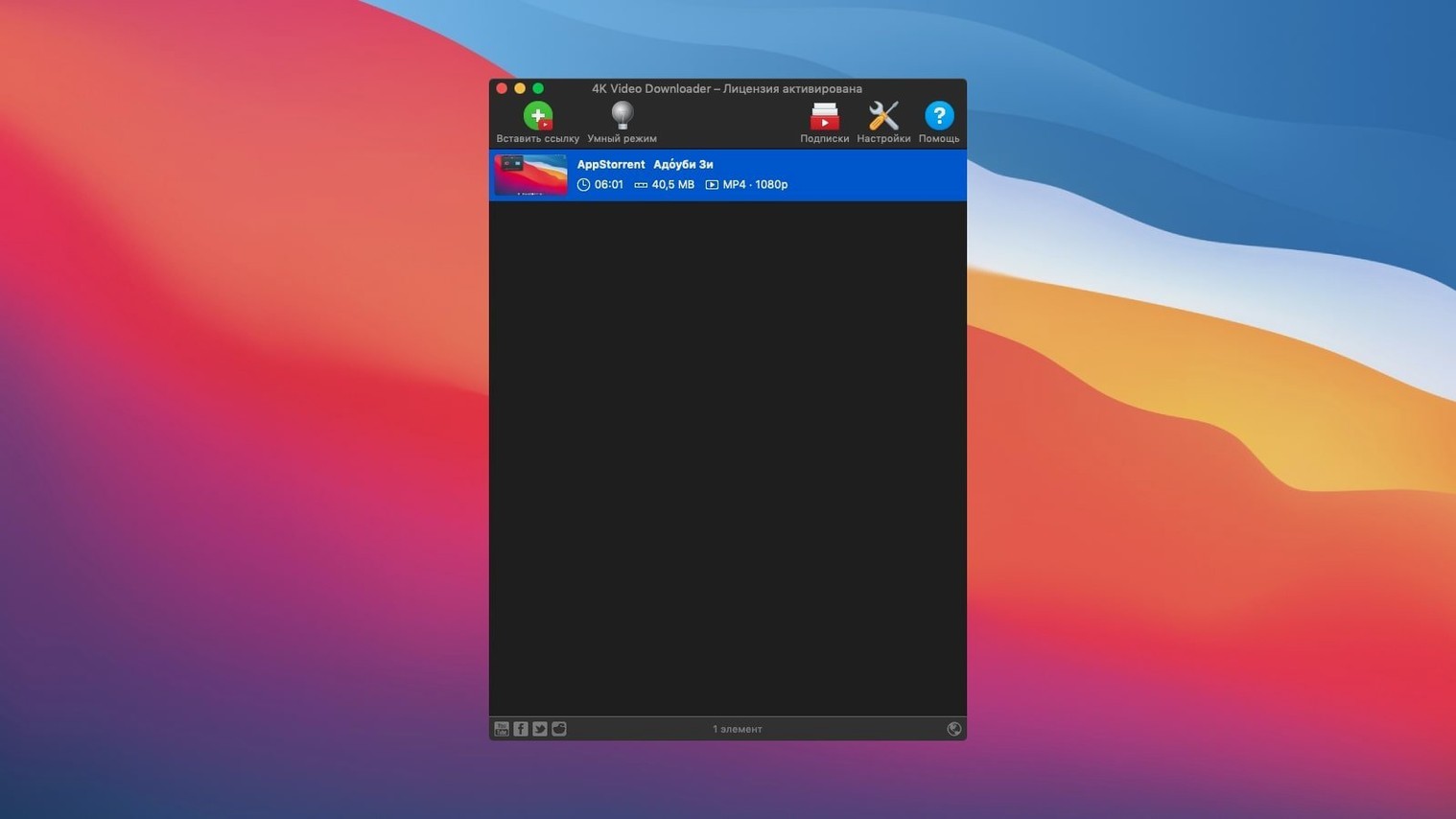
Say you need a crisp 1080p copy of a tutorial video for a workshop where Wi-Fi is unreliable. Open the app and paste the YouTube link. Smart Mode kicks in if you have set it—apply a one-click rule that picks MP4, 1080p, and saves to a fixed folder. The download lands as a single .mp4 file, and if you ticked the subtitle option, an .srt file appears alongside it. For a playlist, grab every video in one batch and optionally generate an M3U file to keep them ordered. The same flow works for pulling audio: switch the format to M4A or MP3 before hitting download.
A 1080p clip lands in under a minute on a 100 Mbps line
Speed depends on your connection, not the app itself. On a 100 Mbps line a 1080p video lands in under a minute. 4K files take longer—expect two to four minutes for a five-minute clip. The app does not throttle or cap throughput. What you notice instead is consistent network saturation, visible in Activity Monitor while a download runs.
Stability holds up across long sessions. Queue twenty videos from a playlist and walk away; the app works through them without pausing, crashing or skipping. Parsing errors sometimes appear on age-restricted or region-blocked content, but regular public videos download without complaint. Memory use sits around 120–180 MB during active downloads, dropping to half that when idle. CPU load stays under 5% on Intel Macs once the video starts writing to disk. The initial link parsing spikes briefly—maybe two seconds—then settles.
On older Intel machines running macOS 12, the app feels light. No background daemons, no login items, no menu bar icon unless you enable one. It does not index your drive or phone home during pauses. If you leave it open overnight with an empty queue, resource use flatlines.
Offline playlists for trainers dodging venue Wi-Fi roulette
- Trainers and workshop leads. Offline copies of demonstration videos save you from venue Wi-Fi roulette. Download a playlist once, keep it on an external SSD, and you are ready for any room.
- Language learners. Grab a YouTube series with SRT subtitles. Watch a clip, read along, replay the tricky sentence. The subtitle file lives next to the video—open it in a text editor to review vocabulary.
- Commuters with patchy signal. Queue a few long-form videos in 720p before leaving home. Smaller files, faster transfers, and no buffering wheel on the train.
- DJs and sample collectors. Pull audio-only M4A or MP3 from interviews, live sets, and rare uploads on SoundCloud or YouTube. Smart Mode set to MP3 320 kbps makes this a two-click job.
- Archivists and researchers. Channels and playlists saved in bulk, with an M3U file that preserves the original order. Useful when source material might disappear.
Beginner mistakes to sidestep
- Pasting the wrong URL. A channel link looks different from a video link. If you want a whole channel, use the Paste Url button, not the simple link field. The app prompts for format once it recognises the link type.
- Ignoring Smart Mode. New users often pick format and quality manually for every download. Set Smart Mode once—say, MP4, 1080p, subtitles on—and every paste after that runs with zero clicks. Toggle it off for one-off exceptions.
- Downloading 4K for a phone screen. A 4K file is four times the data of 1080p. If the video plays on a 6-inch screen, 720p looks identical and transfers faster. Match resolution to the playback device, not the maximum available.
- Forgetting the subtitle tick box. Subtitles are not on by default. If you need them, tick the box before the download starts. Retrofitting means re-downloading the whole file.
- Closing the app mid-queue. The queue pauses but does not vanish. Reopen the app and it picks up where it stopped, but a few users assume the list is lost and re-add everything. Check the main window first.
Turn on clipboard monitoring to grab links without pasting
- Clipboard watching. Turn on clipboard monitoring in preferences. Copy any supported link and the app grabs it automatically—no need to switch windows and paste. Disable it when you copy links for other purposes.
- M3U generation for playlists. When you download a playlist, tick the M3U option. The resulting file opens in VLC or IINA and plays the videos in the original order, with track names preserved. Useful for courses and album-length mixes.
- Subtitle embedding. Instead of a separate SRT file, choose to embed subtitles directly into the MP4. The text becomes a selectable track in any player. Cleaner folder, same result.
- Format-specific shortcuts. Right-click a link in the queue to change format for that single item without touching Smart Mode. Handy when a playlist mixes music videos and podcasts—grab the podcasts as audio-only.
- Drag-and-drop links. Drag a URL from Safari straight into the app window. No copy-paste needed. Works for single videos and playlist URLs alike.
- Proxy support in preferences. If your network routes traffic through a proxy, set it once in the app. Downloads then follow the same path as your browser, avoiding blocked requests on restricted networks.
- macOS 12 or later
- Intel 64-bit processor
Questions the team asks
Yes. You can download subtitles as a separate SRT file or have them embedded directly in the video file.
It supports MP4, MKV, M4A, MP3, FLV and 3G formats for videos and audio.









Comments 0
Sign in or create an account to add a comment.
No comments yet. They go up after moderation.