

VOX: MP3 & FLAC Music Player — Mac download
Ticked
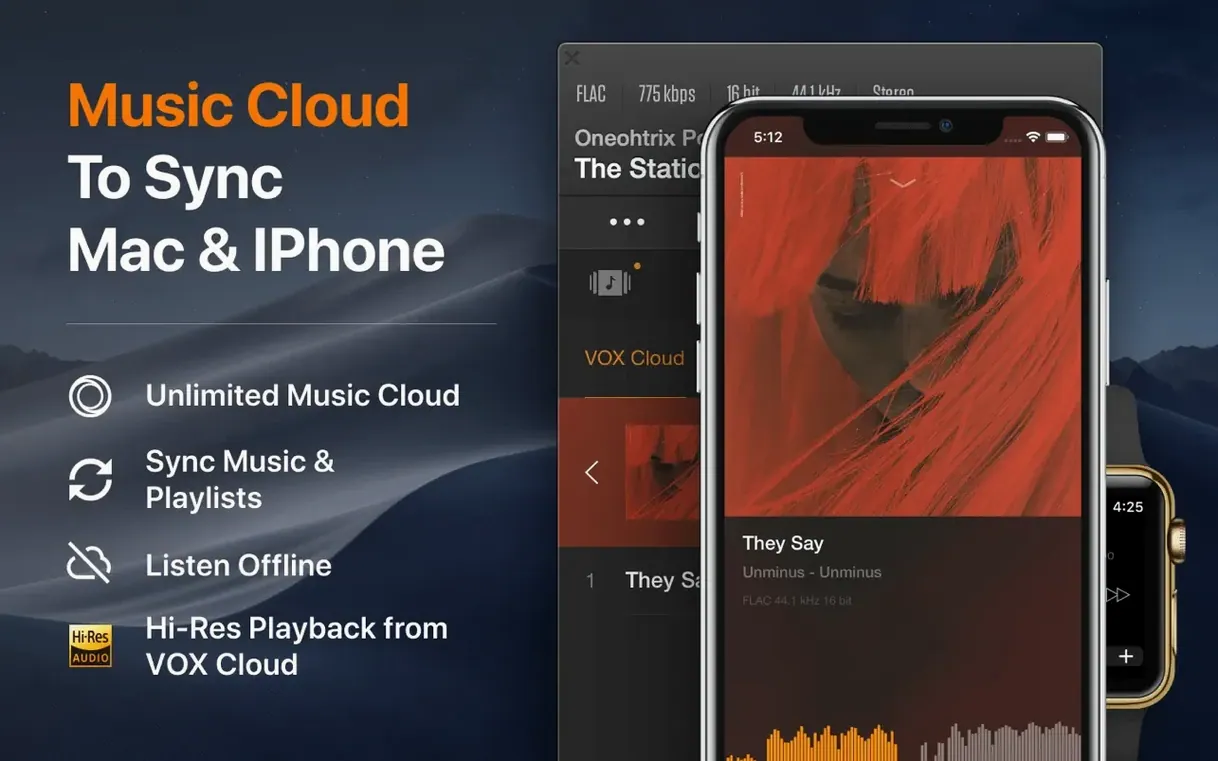
You drop a fresh FLAC album onto a network drive. VOX reads the CUE sheet instantly. The track listing appears, and playback starts without touching iTunes.
The current version, 3.7.7, needs macOS 10.15 or later. It runs on Apple Silicon Macs and 64-bit Intel machines. If your hardware checks out, you get a dedicated audio engine built for local libraries.
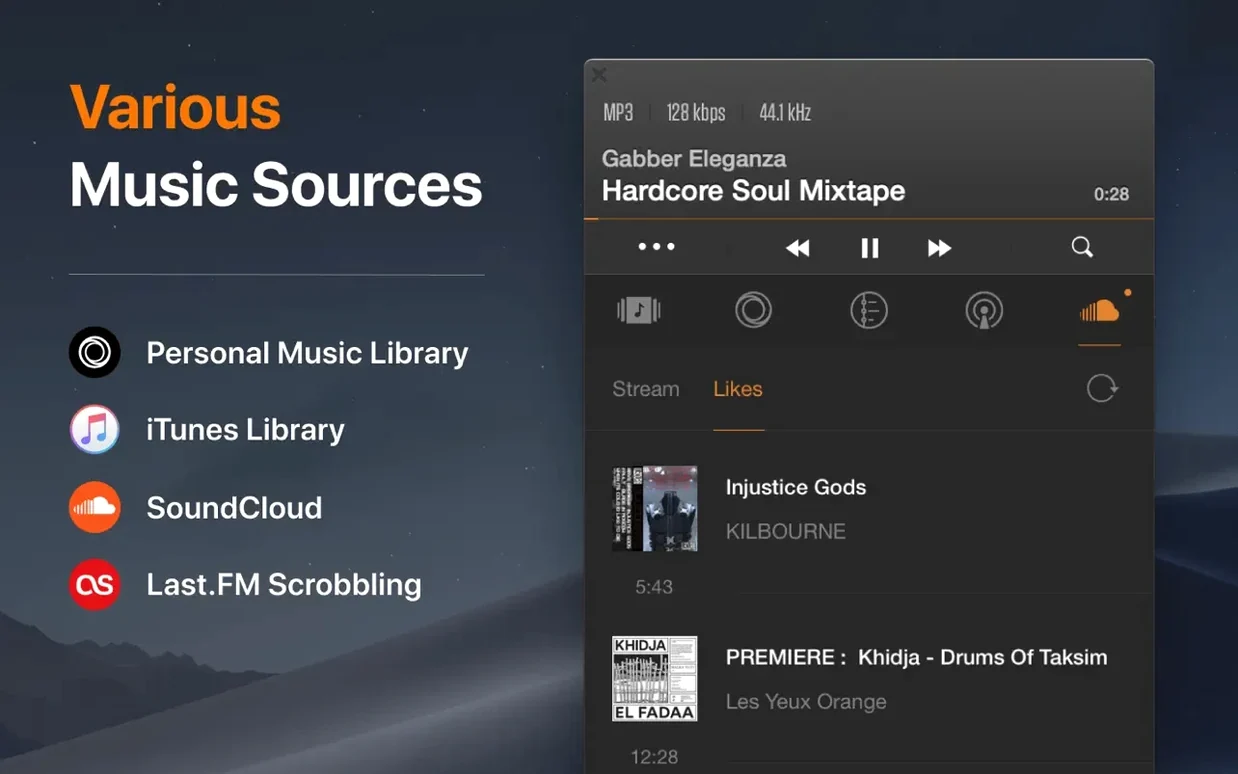
Format support covers FLAC, APE, ALAC, WAV, DSD, MP3, WMA, and OGG. You can pull files from internal disks, NAS devices, or standard network shares. Multichannel 5.1 playback works, and playlists in M3U, PLS, and XSPF load without conversion.
Drag folders, not single tracks
- Adding files one by one. Dragging entire folders onto VOX’s window is faster. The app scans subfolders and keeps the folder structure intact.
- Ignoring CUE sheets. If a single FLAC file sits alongside a .cue file, open the CUE. Beginners double-click the FLAC and see one long track. VOX splits it properly when you feed it the CUE.
- Forgetting the audio engine switch. VOX uses its own engine by default. Some users toggle to system output in preferences and wonder why 24-bit/192 kHz files sound flat. Leave it on the VOX engine for Hi-Res material.
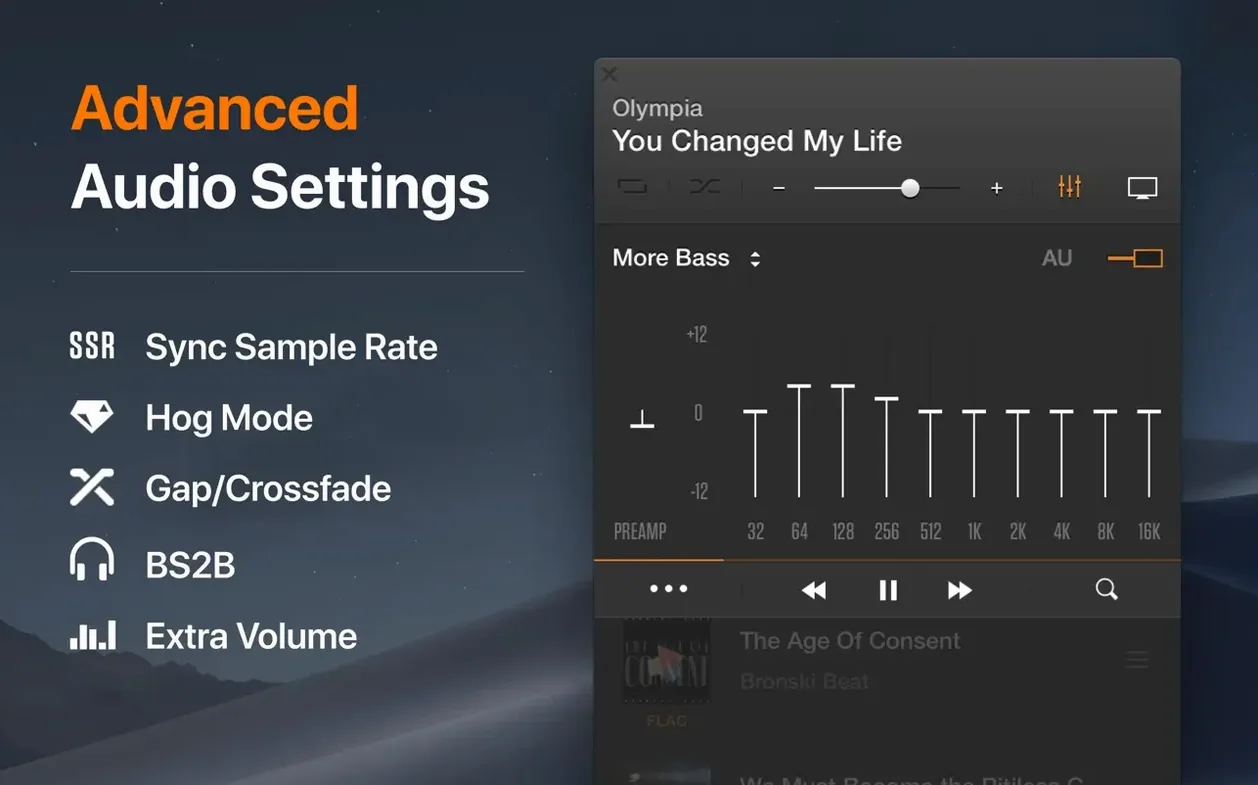
- Skipping the equaliser setup. The stock flat profile works, but a quick adjustment to the built-in presets or a saved custom curve makes older MP3 rips listenable again.
- Letting the library panel stay empty. Adding a watched folder under preferences means new downloads appear automatically. Relying on drag-and-drop alone means you rebuild the library every session.
Workflow: cueing a downloaded live set
- Download a live recording — typically one large FLAC plus a .cue file.
- Open VOX. If the source folder is on your NAS, mount it first in Finder.
- Drag the .cue file onto the VOX dock icon. The track list populates with proper titles and timestamps.
- Check the playback format badge in the status bar. It should confirm the bit depth and sample rate.
- Assign a colour label in VOX’s tag editor. Use a simple convention like “Live” to make future filtering quick.
- Create an M3U playlist. Drag the split tracks into a new playlist and save it. The M3U stays portable — useful if you also use VOX on another Mac with the same network path.
- Set the output. For a live set with stereo crowd mics, keep it on 2.0. For a surround mix, select the 5.1 option before hitting play.
Interface language options are English, Russian, Traditional Chinese, and Japanese. That’s the whole deal—a straight playback tool with no storefront attached.
- macOS 10.15 or later
- Apple Silicon or 64-bit Intel processor









Comments 0
Sign in or create an account to add a comment.
No comments yet. They go up after moderation.