

Aiarty Video Enhancer — Mac download
Download (182 MB) Earlier builds
Ticked
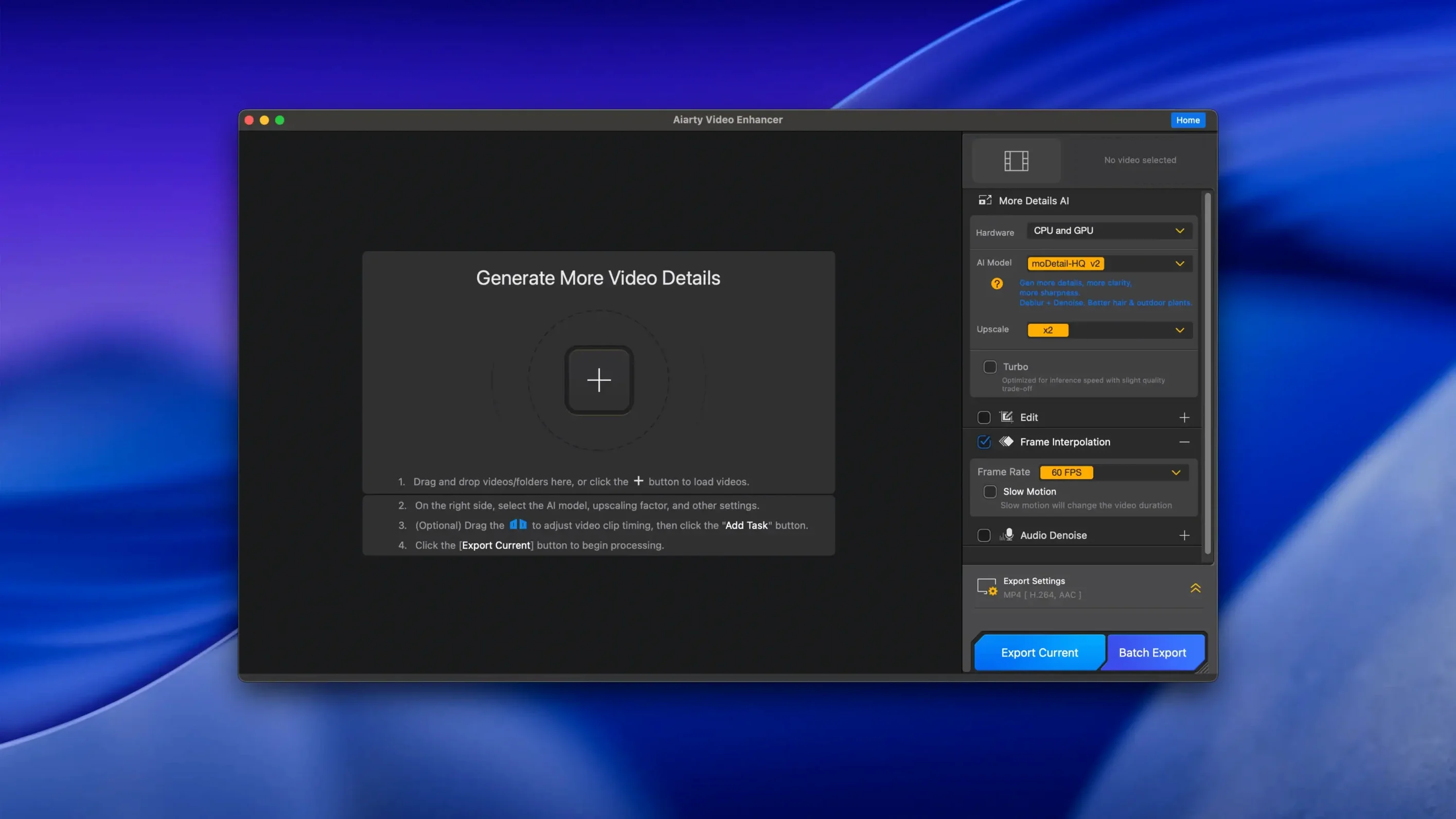
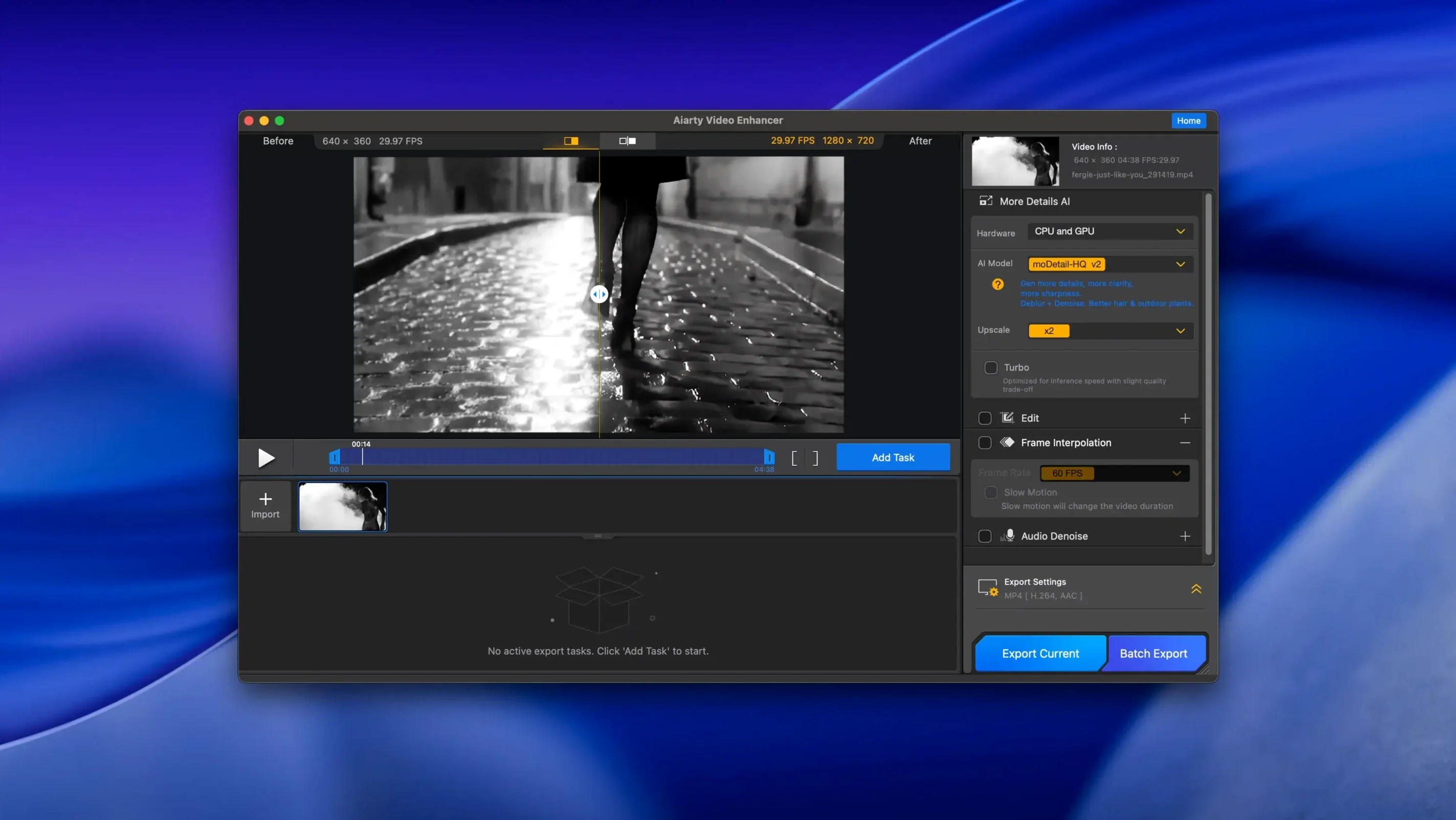
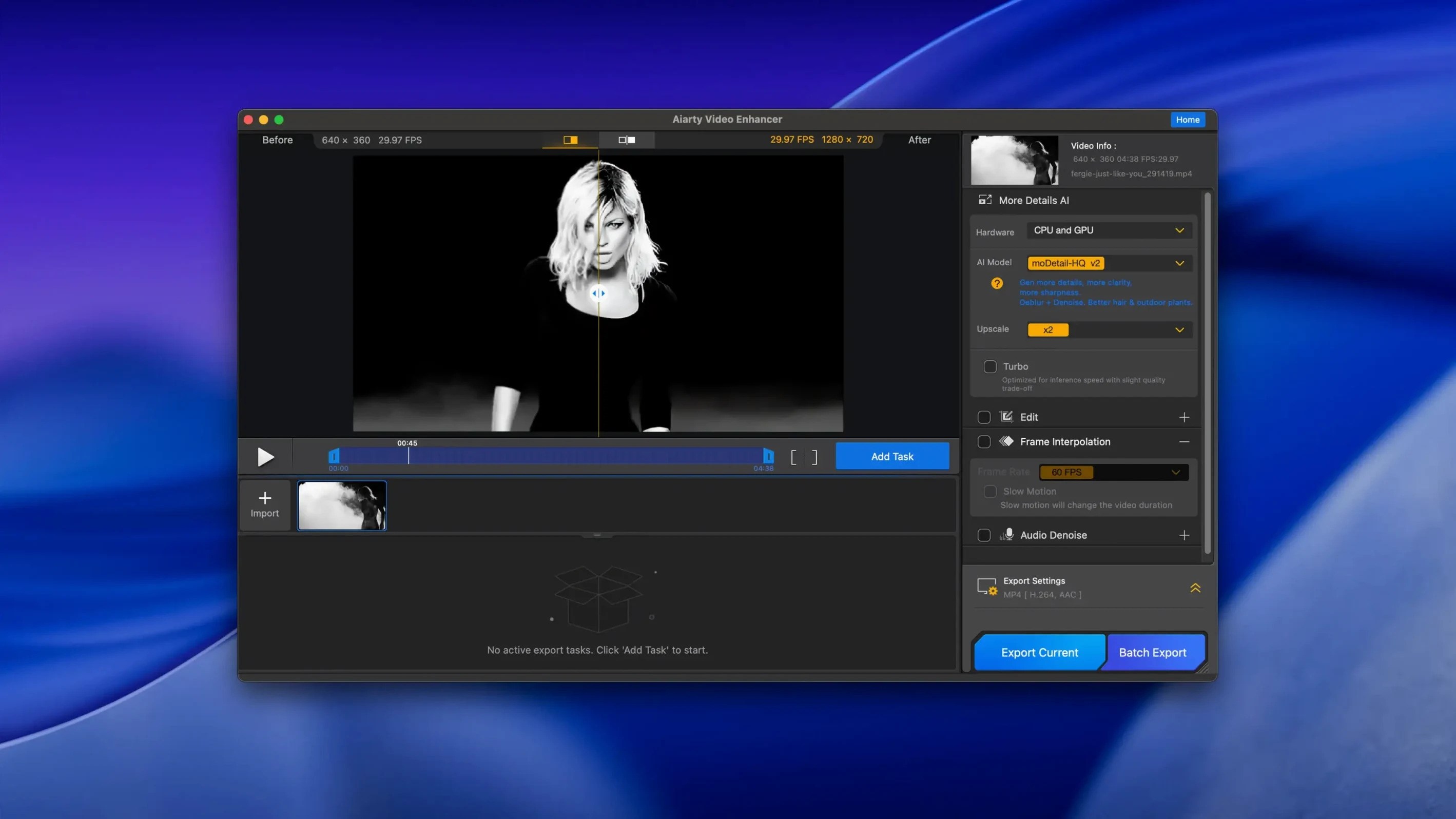
A VHS transfer of a family wedding sits on the Mac desktop. The clip is soft, the audio has a constant hiss, and the colours look washed out. The file gets dropped straight into Aiarty Video Enhancer 3.8.
The AI model for denoising is selected first. A small preview window renders a five-second chunk so you can check grain removal without committing to the whole file. Next, the upscale to 4K is queued alongside the Audio Denoise module, which tackles the background hiss and lifts the voices in one pass.
The export starts. Midway through, the machine is restarted for an unrelated update. The resumable export picks up from where it left off — no re-rendering the first half. With CUDA memory optimisations on the Nvidia GPU, the encode stays stable even on longer clips.
Real-world scenario — archivist
A local history volunteer has a batch of digitised MiniDV tapes from the early 2000s. The footage is interlaced, underexposed in several scenes, and the built-in mic picked up a low hum throughout. The volunteer is not a colourist or a sound engineer — she just needs the clips watchable for a community screening.
She drags a folder of clips into Aiarty. The low-light enhancement model is applied across the batch. The Audio Denoise module is turned on with the default strength. She queues the lot, sets output to MKV, and walks away. Two hours later the batch finishes. The hum is gone, faces are visible in the dimly lit shots, and the files play smoothly on the projector.
Stacking every model at once and skipping previews
- Stacking every model at once. Denoising, deblurring, upscaling, and detail enhancement all on the first pass. The preview render takes forever and the result often looks over-processed. Work one or two models at a time.
- Skipping the preview chunk. A five-second test render on a tricky section saves hours. Dark scenes and fast motion are the best test candidates.
- Exporting to the same drive as the source footage. On Intel Macs with spinning disks, read and write contention slows the whole job. Use a separate drive for exports when possible.
- Ignoring the Audio Denoise module entirely. New users focus on the picture and forget the audio tools. Ticking that one box before export fixes half the complaints about old recordings.
Picking up exports from the last completed frame
- Resumable exports. Version 3.8 added this. If the Mac restarts or the app closes, the export continues from the last completed frame. No need to babysit long renders.
- MKV output. Also new in 3.8. MKV preserves multiple audio tracks and subtitles without re-encoding them separately — useful for archived rips and multi-language projects.
- Model preview comparison. Click and hold on the preview window to see the original frame. Release to see the processed result. Quick A/B without exporting a test file.
- Batch queue persistence. The queue survives an app quit. If you build a long queue and need to shut down, it is still there next launch.
The finished MKV lands back on the desktop. Playback is sharper, the audio is clean, and the file is ready to share.
- Resumable exports added — interrupted renders now continue without restarting.
- MKV support added for container flexibility.
- CUDA memory optimisations for smoother GPU processing on long sequences.
- macOS 11 or higher
- Intel or Apple Silicon Mac
- 8 GB RAM minimum
- 512 GB or more disk space
- Dedicated GPU with 4 GB VRAM or more on Intel Macs









Comments 0
Sign in or create an account to add a comment.
No comments yet. They go up after moderation.