
AlDente — Mac download
Download (12 MB) Earlier builds
Ticked
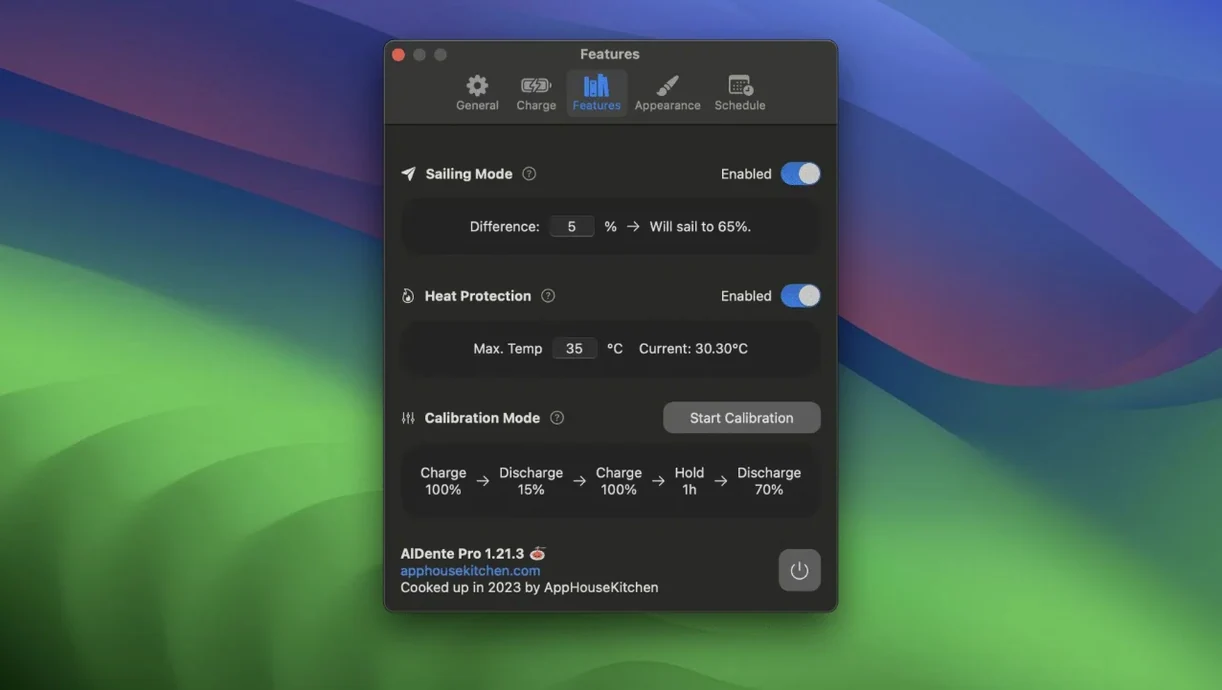
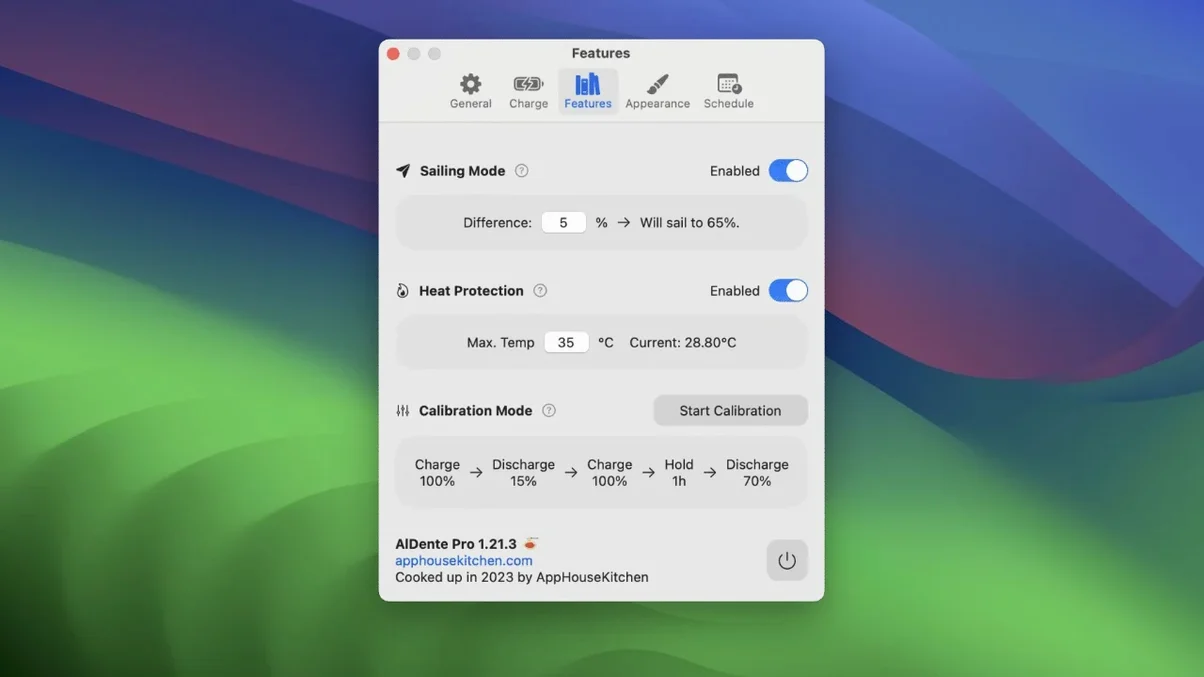
Al Dente runs on most Apple silicon and Intel MacBooks. It is a macOS utility from AppHouseKitchen that keeps the battery from sitting at 100% for hours on end.
- Sets a user-defined charge limit — the battery stops charging once it hits your chosen percentage.
- Sailing Mode lets the charge drift within a small window instead of holding a fixed number. Good when you are plugged in for days.
- Heat protection pauses charging automatically if the battery temperature climbs too high.
- Works on both ARM and 64-bit Intel MacBooks, with a single build for each architecture.
- Shows charge state and temperature in the menu bar, so you see what is happening without opening a window.
- Interface ships in 16 languages — English, German, Portuguese, Spanish, Dutch, Arabic, Greek, and nine others.
The idea is simple: lithium-ion cells degrade faster when they sit at full charge in a warm machine. Al Dente gives you a ceiling and a thermal safety net. The menu bar readout keeps the numbers visible, and Sailing Mode handles the edge case where you stay plugged in around the clock.
Quick fixes when the limit doesn't stick
A few things trip people up. Here is what I see most often and how to sort each one.
MacBook still charges past the limit after sleep
macOS wakes the machine briefly for maintenance tasks. During that wake window, the SMC can push charge beyond your set ceiling. The fix: enable Launch at Login in Al Dente preferences. That way the helper re-applies the limit the moment you open the lid. On Apple silicon, also check that Disable Sleep is off — leaving it on drains the battery overnight for no reason.
Sailing Mode drifts too far
The default sailing band is 5%. On some MacBooks — especially older Intel 16-inch models — the charge controller overshoots that window. Tighten the band to 3% in the Sailing Mode settings. If overshoot persists, drop the top of the band by another 2%. The hardware charge chip on those machines is just a bit slow to react.
Menu bar icon shows wrong percentage
After a macOS update, the helper and the system report can fall out of sync for a charge cycle. Run a full discharge down to 15%, then let it charge back to your limit. That recalibrates the internal gauge. No need to reinstall.
Heat protection triggers too often in summer
The default temperature threshold is 35°C. A warm room plus a case can push idle temps close to that line. Bump the threshold to 38°C in preferences. The battery datasheets for recent MacBook models allow up to 40°C before accelerated ageing becomes a concern, so 38°C is still conservative.
See the battery percentage right in the menu bar
- Launch at Login — turn it on. Without it, the limit only applies after you manually open the app.
- Show battery percentage in menu bar icon — off by default. Switch it on so you see the number at a glance, the same way you would with the stock indicator.
- Charge limit — the default is 80%. If you rarely unplug, drop it to 70%. If you unplug mid-afternoon most days, 80% is fine. Below 60% and you sacrifice too much runtime for a tiny longevity gain.
- Sailing Mode band — set to 3% instead of 5% if your charge controller overshoots. Leave it at 5% otherwise; the wider band means fewer tiny top-ups.
- Heat protection threshold — 35°C works for most indoor use. Raise to 38°C if you work in a warm room without air conditioning.
How a freelance editor uses it
A video editor working from a rented desk spends eight hours plugged into a CalDigit dock, then packs the MacBook for client meetings at cafés. Before Al Dente, the battery sat at 100% all morning — warm dock, sustained charge, exactly the conditions that degrade cells fast. Now the charge limit sits at 75%. The machine reaches that ceiling by 9:30 a.m. and stays there, drawing power straight from the dock. Heat protection paused charging twice last July when the office hit 31°C.
At 4 p.m. they unplug and head out. The battery is at 74% — enough for three hours of offline timeline review with screen brightness at 70%. No need to carry a power adapter. The menu bar readout shows the percentage and a green "sailing" indicator when the dock was keeping things within a 3% band earlier in the day. Calibration Mode gets a run once a month on a quiet Sunday; the full discharge-to-15% cycle resyncs the gauge so the on-screen number means something.
That single change — a 75% cap plus Sailing Mode — cut the battery cycle count growth rate in half compared to the previous year. The machine still holds a full work session on battery, and the editor never thinks about the setting. It just works.
- Fixed visual glitches in the Popover that showed up in early macOS betas.
- macOS 12 Monterey or later
- Apple silicon or Intel MacBook (64-bit)
Questions the team asks
It works with most Apple silicon and Intel MacBooks. The app provides separate builds for ARM and 64-bit Intel architectures.
Yes. Its heat protection feature pauses charging when the battery temperature rises above a safe threshold, then resumes once it cools down.
Sailing Mode lets the battery level float within a small range around your set limit rather than locking at a fixed percentage. It suits users who rarely unplug.









Comments 0
Sign in or create an account to add a comment.
No comments yet. They go up after moderation.