

AnyTrans for iOS — Mac download
Ticked
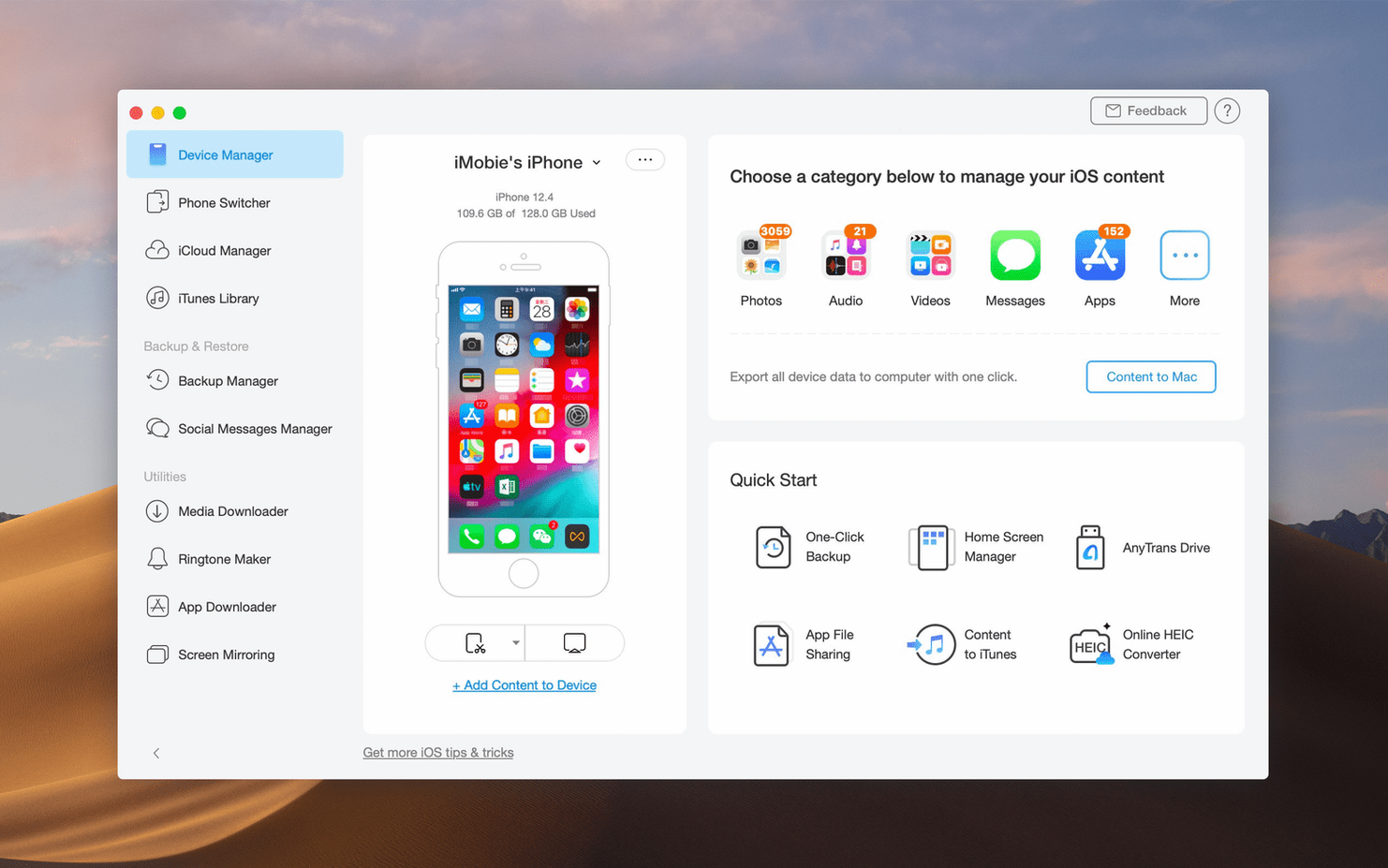
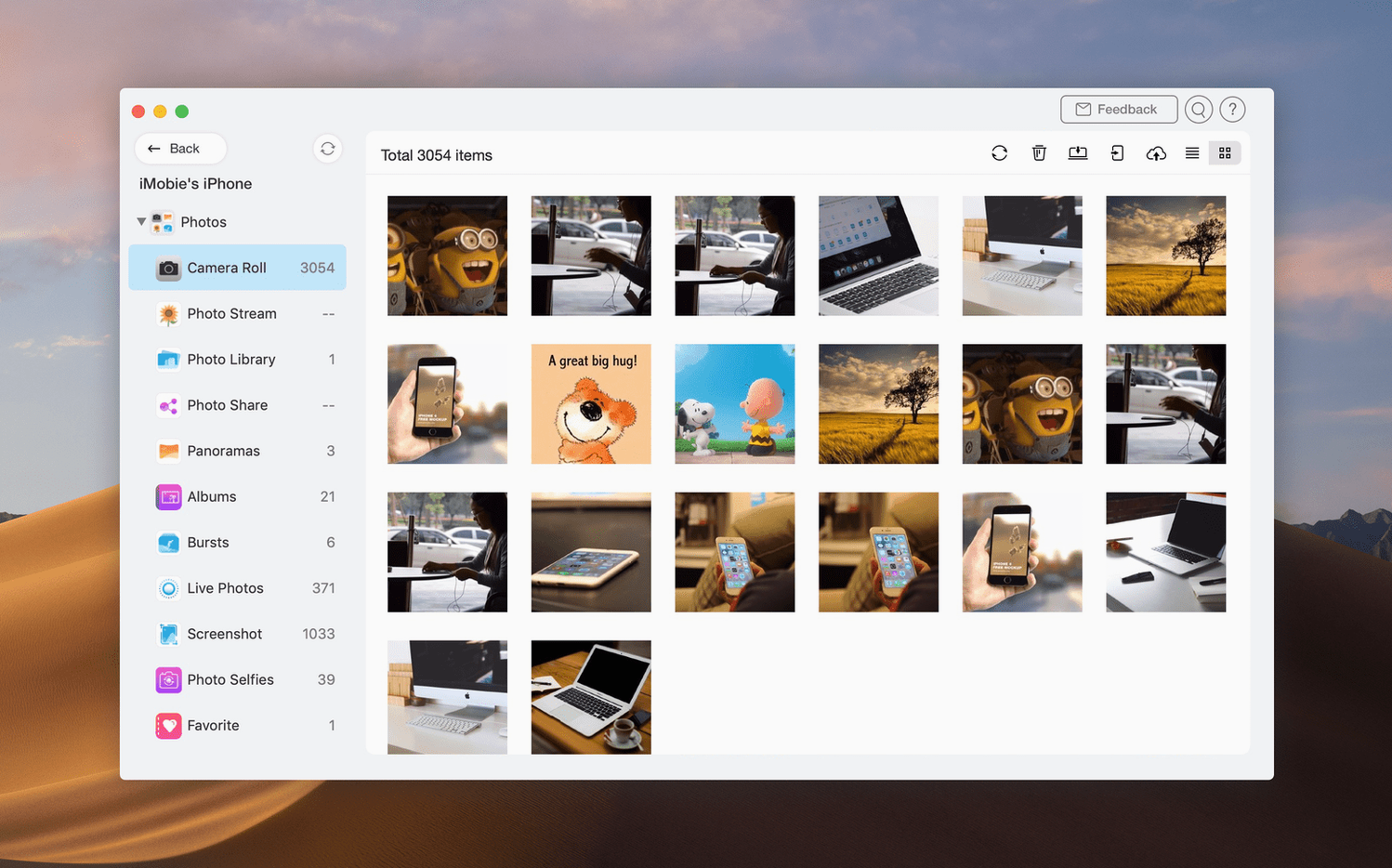
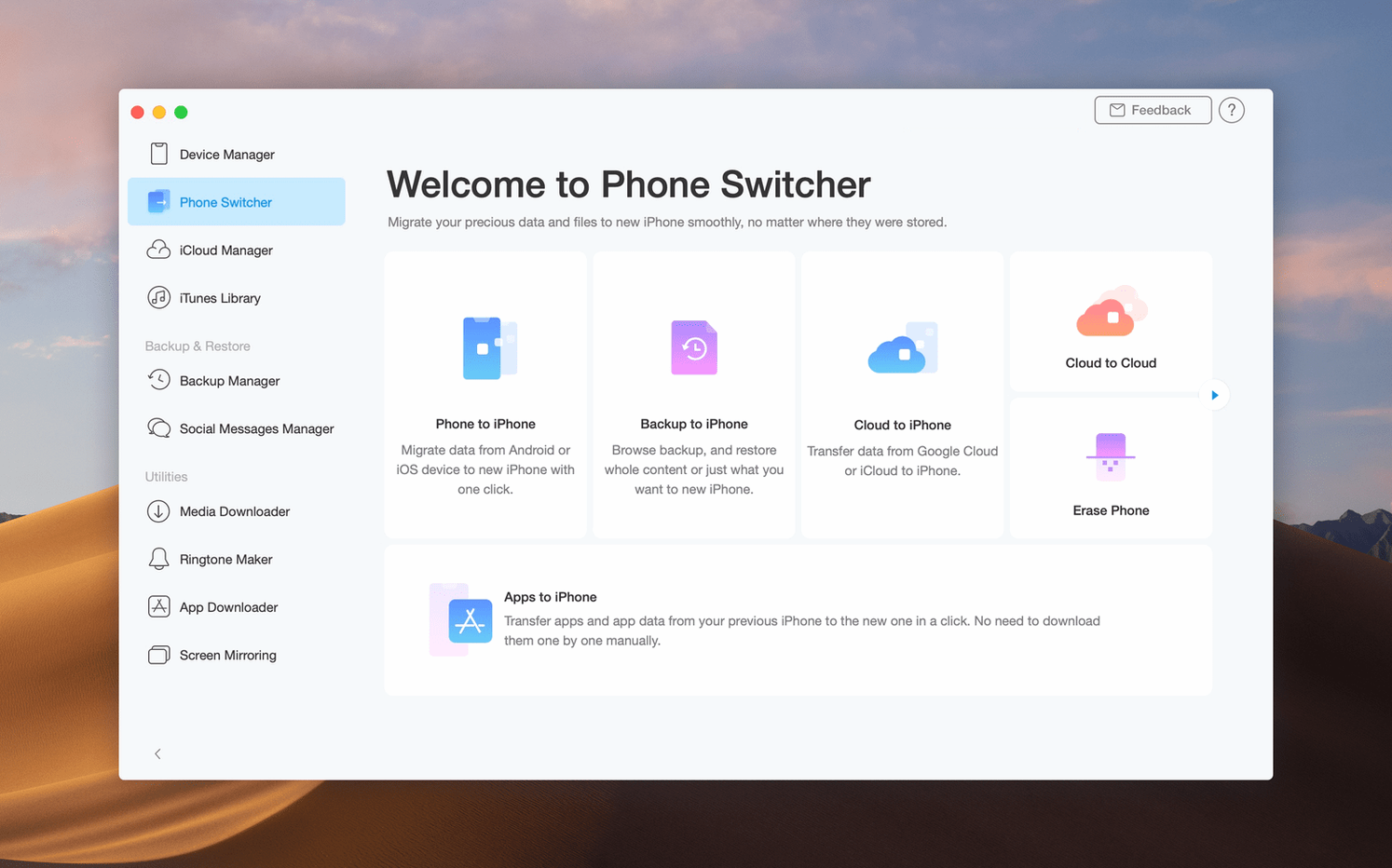
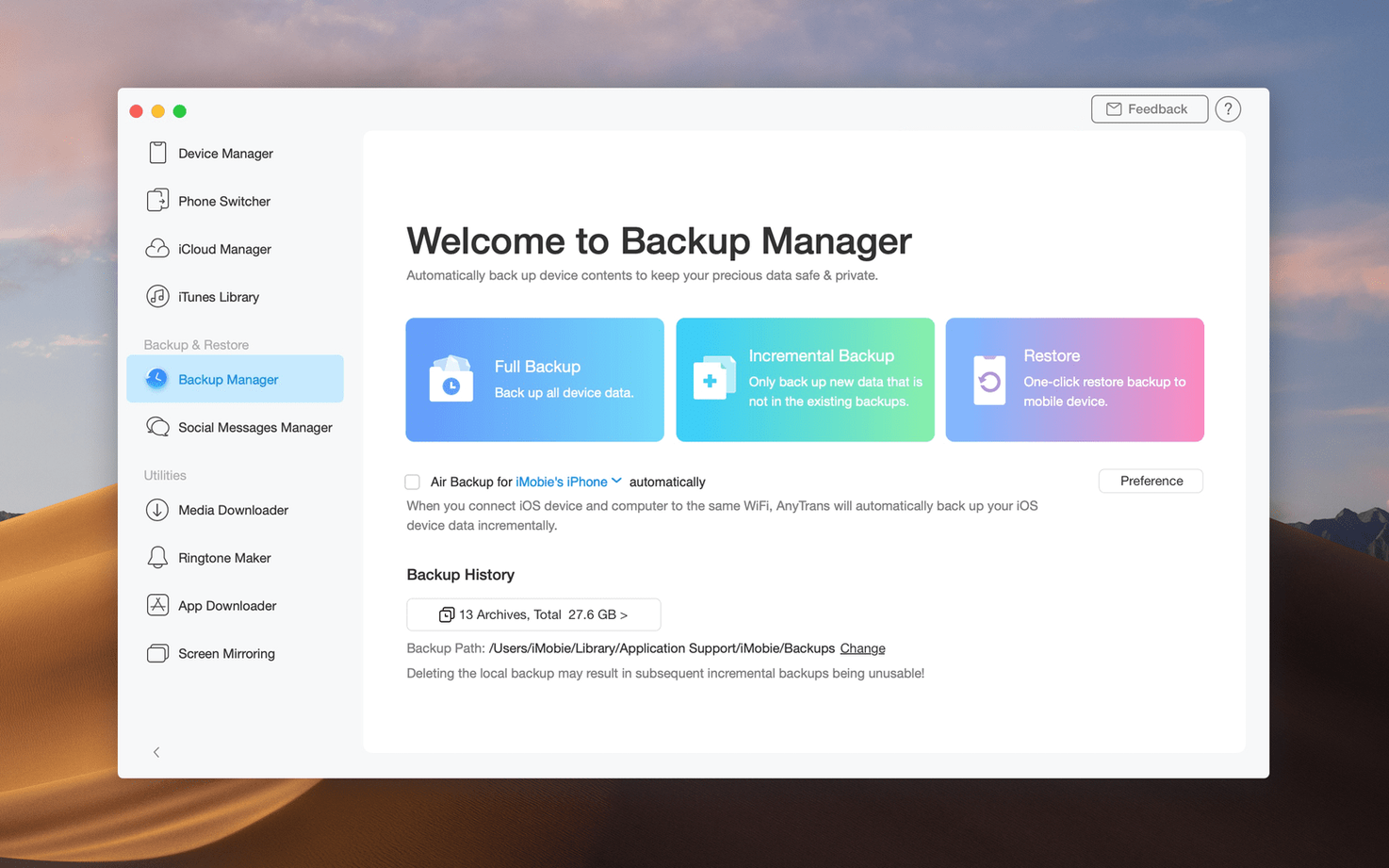
Compatibility check
AnyTrans for iOS 8.9.14 requires an Intel Mac running macOS 10.13 High Sierra or newer. Apple Silicon Macs are not natively supported. A USB connection handles the heavy lifting for transfers and backups.
Move data between devices
Shift content from Android or an older iPhone to a new one. Pull music and playlists from an iTunes library onto your Mac or straight to an iPhone.
Manage iCloud and backups
A full transfer workflow: old iPhone to new iPhone
Moving to a new iPhone sounds straightforward. In practice, selective transfers often trip people up. Here is a clean workflow using AnyTrans for iOS, start to finish.
- Connect both devices. Plug the old iPhone into a USB port. Once it appears in AnyTrans, connect the new iPhone to a second port. Both show up as separate icons in the device bar.
- Choose Device Manager. Click the new iPhone icon, then open Device Manager. This sets it as the destination for incoming data.
- Pick content categories. On the old iPhone, select the categories you want: Messages, Photos, Contacts, Music. Leave out anything you do not need. The category view shows file counts, so you know exactly how much is moving.
- Merge or replace. AnyTrans asks whether to merge content with existing data on the new iPhone or replace it entirely. Merging keeps both old and new messages; replacing wipes the destination first.
- Start the transfer. A progress bar tracks each category. Large photo libraries take longer. The app keeps both devices awake during the transfer.
- Verify. Once finished, open a few messages and photo albums on the new iPhone. Everything lands in the stock apps — Photos, Messages, Music — not a separate container.
The same steps apply when moving from an Android device via the Android to iOS option. That path handles contacts, photos, and media without requiring a factory reset.
Right-click an item to export it straight to a dated Mac folder
Some features sit just below the surface and save real time once you spot them.
- Category-specific export to Mac. Right-click any photo, playlist or conversation thread and choose Export to Mac. The app dumps the files into a dated folder on your desktop — no full backup required.
- Media downloader queue. Paste a link from one of 900-plus supported websites, and AnyTrans grabs the audio or video file directly. Queue several links and walk away. Files land in a folder you set once in preferences.
- iCloud account switcher. Under the iCloud tab, you can sign into two different Apple ID accounts and drag content from one to the other. Handy when consolidating work and personal libraries.
- One-click iPad clone. The Clone Device button copies everything from an iPad to a Mac in a single pass. Useful before selling or wiping a device.
- Search bar in every category. The search field filters within Messages, Music, Photos and Contacts. Type a contact name, and AnyTrans shows every thread and attachment tied to them.
Tracks moved with AnyTrans still show up in the Music app
AnyTrans is not a walled garden. It works alongside built-in Mac tools and a few third-party staples.
- Finder and the Music app. Tracks moved from an iTunes library to an iPhone via AnyTrans still appear in the Music app. Photos exported to the Mac land in a standard folder that the Photos app can import with a simple drag-and-drop.
- Time Machine. iOS backups saved to the Mac sit as standard folders in your user directory. Time Machine picks them up in its regular backup cycle, so you get versioned copies of your device snapshots.
- Android file transfers. The Android migration tool pulls contacts and media into a temporary workspace. From there, you can push them to an iPhone or export a clean folder for use with other apps like VLC or Finder tags.
- Safari downloads. The media downloader integrates with Safari: copy a URL from any browser tab, paste it into AnyTrans, and the file saves locally. No extra extension needed.
- Spotlight. Backups and exported folders are indexed by Spotlight. Search for a contact name or photo filename, and the results include files AnyTrans pulled from the device.
For anyone using an Intel Mac as the hub for several iOS devices, AnyTrans for iOS slots into a workflow alongside Finder, Music, and Photos without demanding you abandon Apple's own tools. It extends what is there, rather than replacing it wholesale.
Save iCloud files locally on your Mac. Move content between iCloud accounts and back up iOS data without relying solely on iTunes.
- macOS 10.13 High Sierra or later
- Intel processor
- USB connection for device transfers
Questions the team asks
Yes, it can transfer content from one iCloud account to another, and save iCloud files directly on your Mac.









Comments 0
Sign in or create an account to add a comment.
No comments yet. They go up after moderation.