

Apple Remote Desktop — Mac download
Download (16 MB) Earlier builds
Ticked
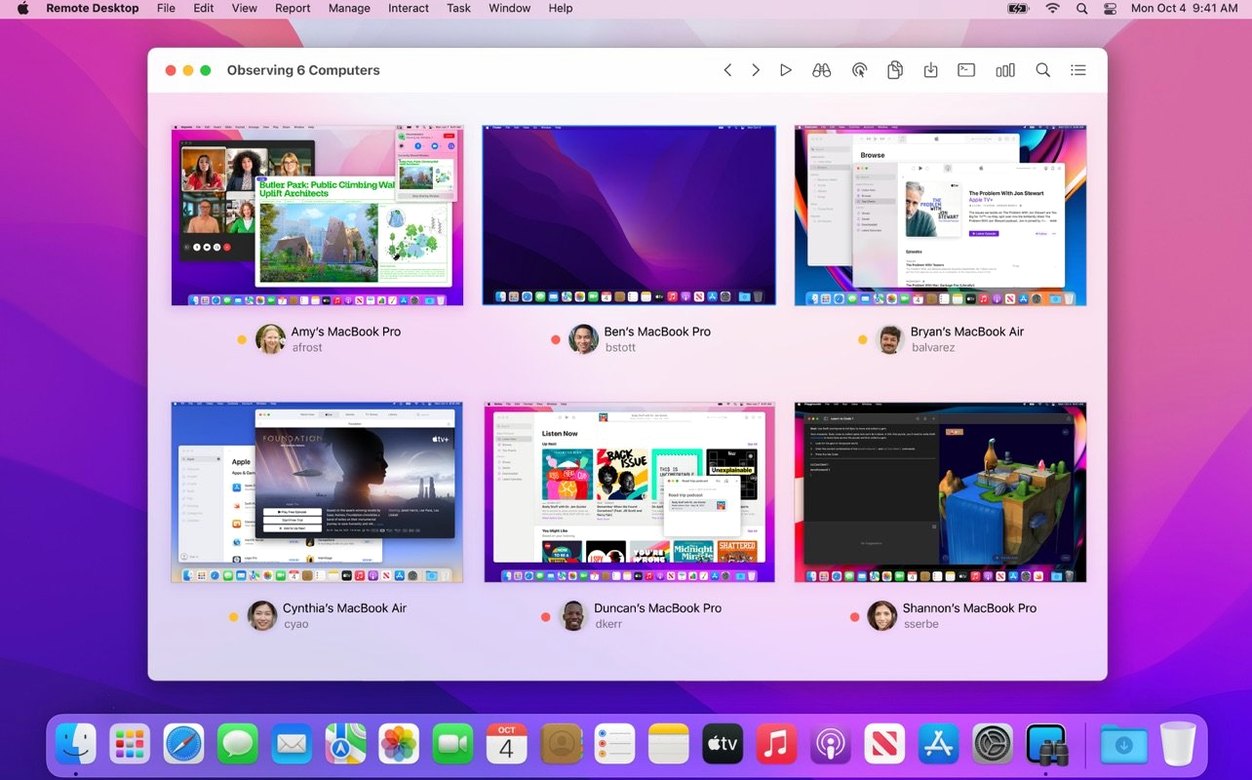
Ad-hoc screen sharing works fine for a one-off assist. When you have a lab, a classroom, or a fleet of Macs to keep in shape, you need a proper admin tool.
Remote Desktop, defined
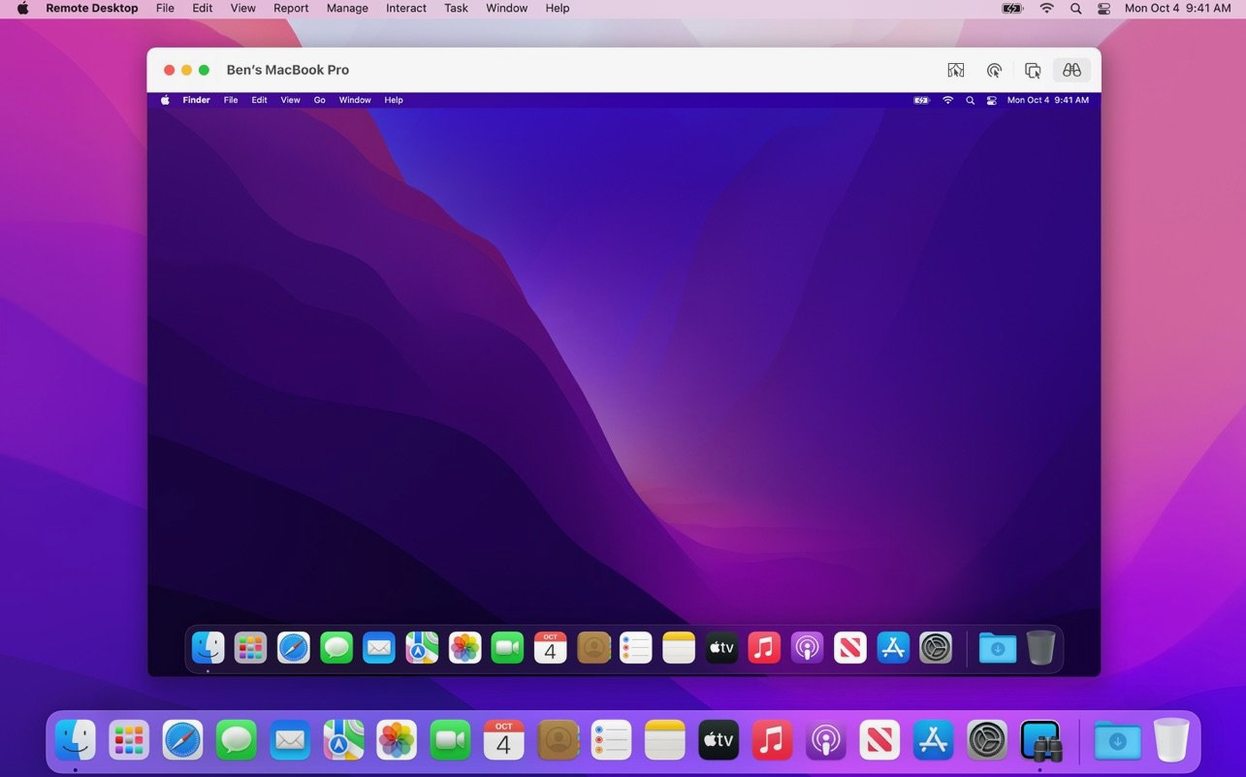
Screen control — View and take over a remote Mac’s display. Curtain Mode hides the client screen while you work.
Task server — Schedule software installs for offline machines. The job queues and runs when the Mac reappears on the network.
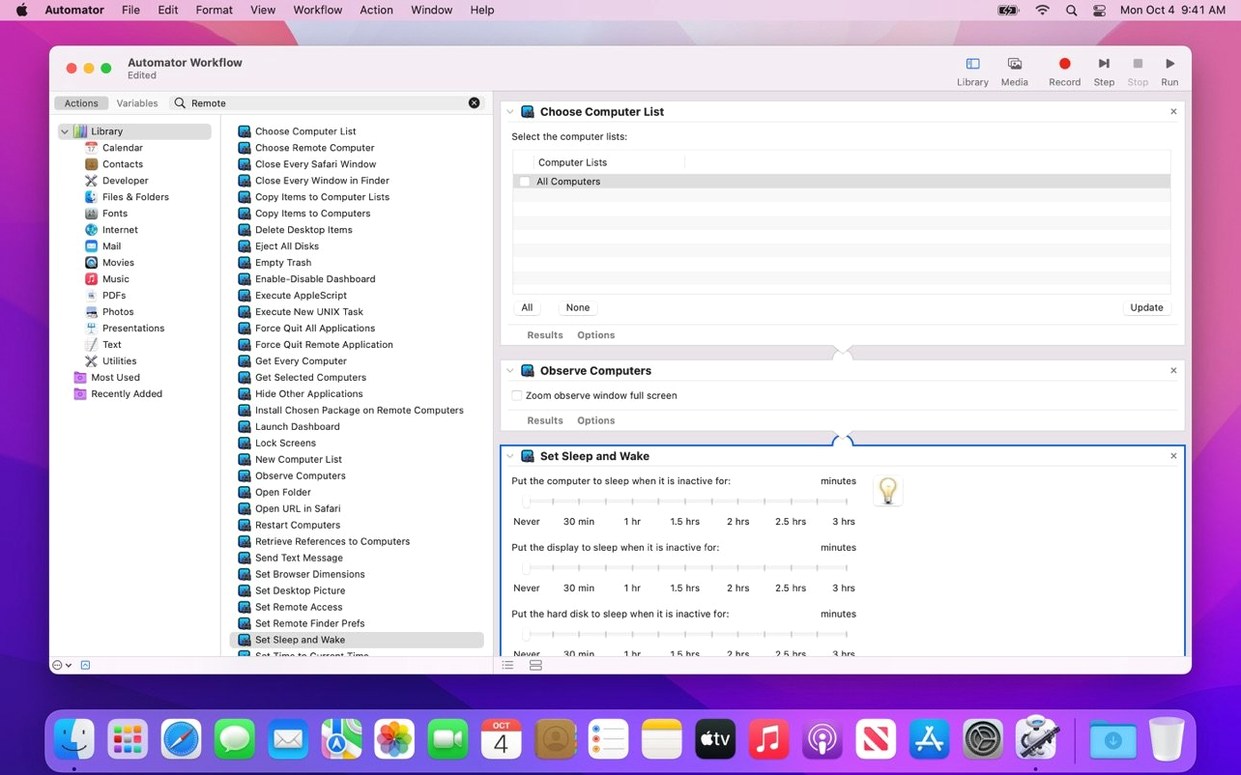
Automation engine — Over 40 built-in Automator actions. Chain together reports, shutdowns, and software pushes without scripting.
Asset discovery — Pull user login history and application usage reports across all managed Macs.
File pipe — Drag files between admin and client. Copy and paste text straight across computers.
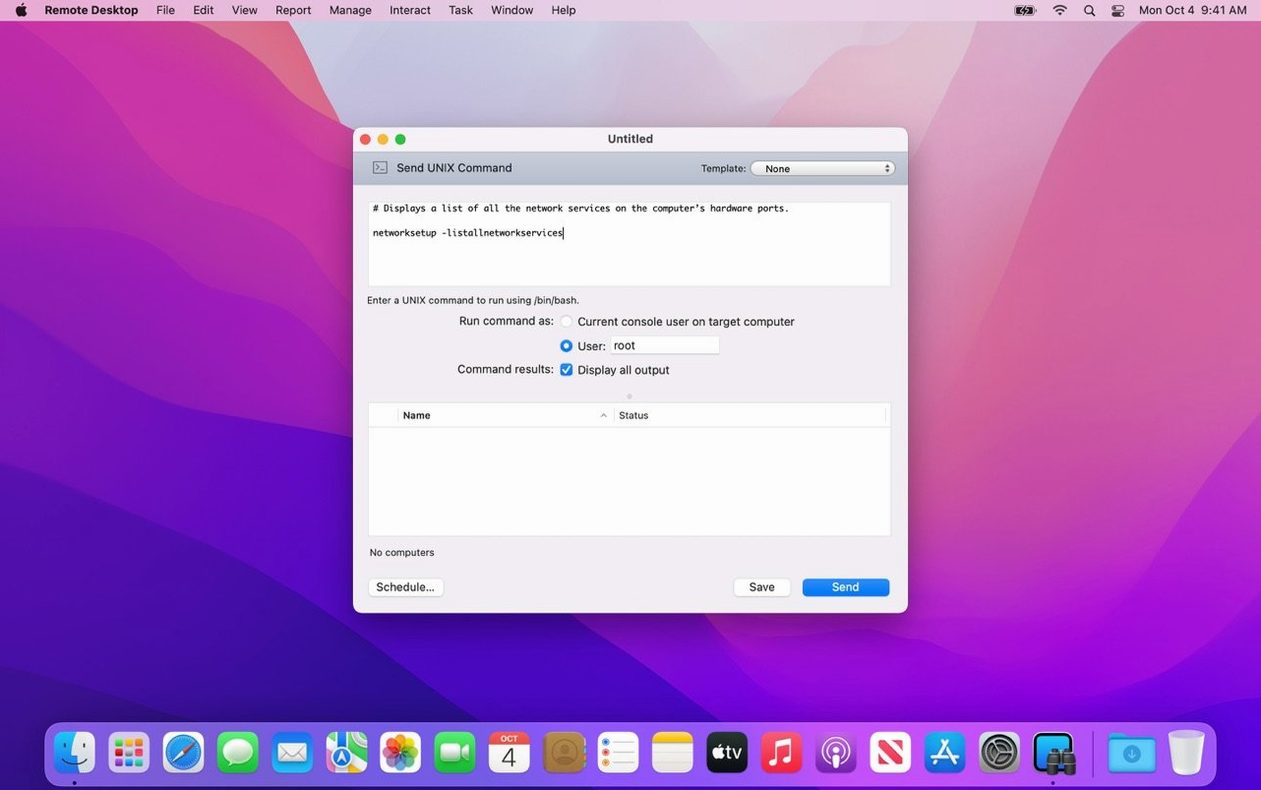
Multi-machine commands beyond single-screen sharing
Screen Sharing (the built-in app) handles one Mac at a time. Apple Remote Desktop layers on multi-machine commands — lock every screen in a room, reboot a whole lab, or push a package to thirty machines in one go. It talks to the same VNC-based screen sharing you already use, just scaled up.
For deeper fleet management, Jamf Pro handles MDM enrolment and policy. Remote Desktop remains the quick, direct line for the tasks MDM wasn't built for: live screen control, drag-and-drop file transfers, and ad-hoc reporting on what users are actually running.
What to ask before deploying across your fleet
Does the client need to be on every Mac I manage?
For full remote control, yes. The Remote Desktop Client service runs on each managed Mac. Without it, you can still connect via standard VNC, but you lose Curtain Mode, drag-and-drop file copy, and scheduled tasks. Install the client once and it sits quietly in the background.
Client-side load during idle and active sessions
The client service uses negligible resources when idle — a few megabytes of RAM and no CPU to speak of. During an active screen-sharing session, encoding the display stream adds a small load on the client Mac. On any Mac that runs macOS 15.5 or later, the impact is barely noticeable during normal use.
Can I manage Macs that are off-site?
Yes, but it takes a little network legwork. Remote Desktop works over a VPN or through a properly configured firewall. Machines need to be reachable by IP or hostname. For Macs that drop off the network regularly, schedule tasks ahead of time — the task server queues them and runs the job next time the machine checks in.
How to bring an invisible client Mac back into view
- Client Mac won't appear in the scanner. Check that Remote Management is enabled in System Settings > General > Sharing on the client. Tick the box for the admin user and make sure at least "Observe" and "Control" are selected.
- Screen control connects but the screen is blank. Curtain Mode may already be active from a previous session. Use the toolbar to disable it, or check that the client Mac isn't asleep. Wake-on-LAN from the admin console usually sorts it.
- Package install fails silently. Run a test install on one machine first. The package must be signed and notarised, or the client Mac will refuse it. Check the Remote Desktop task history window for the exact error — it's more specific than the on-screen alert.
- Copy and paste stops working between machines. This happens after a network hiccup. Disconnect and reconnect the screen-sharing session. The shared clipboard reinitialises on each new connection.
Workflow: pushing a software update to a lab
Say a security update drops and you need it on twenty-four iMacs in a teaching lab before morning.
- Grab the installer package. Drop the .pkg file onto your admin Mac. Make sure it is signed — unsigned packages get blocked silently on the client side.
- Select the lab group. In the Remote Desktop sidebar, click the lab computer list you have already set up. If you haven't grouped them yet, create a new list and drag the lab Macs into it.
- Schedule the install. Choose Manage > Install Packages. Pick your .pkg, then tick "Schedule this task." Set the time for 2 a.m. The task server holds the job even if some Macs are asleep or off-network now.
- Add a post-install restart. Chain a second task: Manage > Restart. Set it to run ten minutes after the install finishes. Both tasks appear in the task queue for the group.
- Verify in the morning. Open the task history window. Every completed install shows a green checkmark. Tap any failed machine to see the error log — usually a disk space issue or a Mac that never came online.
The whole setup takes three minutes. No USB sticks, no walking around, no chasing machines that someone shut down early.
- Compatible with macOS Tahoe 26.
- Accessibility and Remote Keyboard items added to menu bar and toolbar on macOS Tahoe 26 or later.
- VoiceOver support for remote Mac on macOS Tahoe 26 or later.
- Bug fixes and performance improvements.
- macOS 15.5 or later
- Apple Silicon or Intel 64-bit








Comments 0
Sign in or create an account to add a comment.
No comments yet. They go up after moderation.