
App Cleaner & Uninstaller — Mac download
Download (47 MB) Earlier builds
Ticked
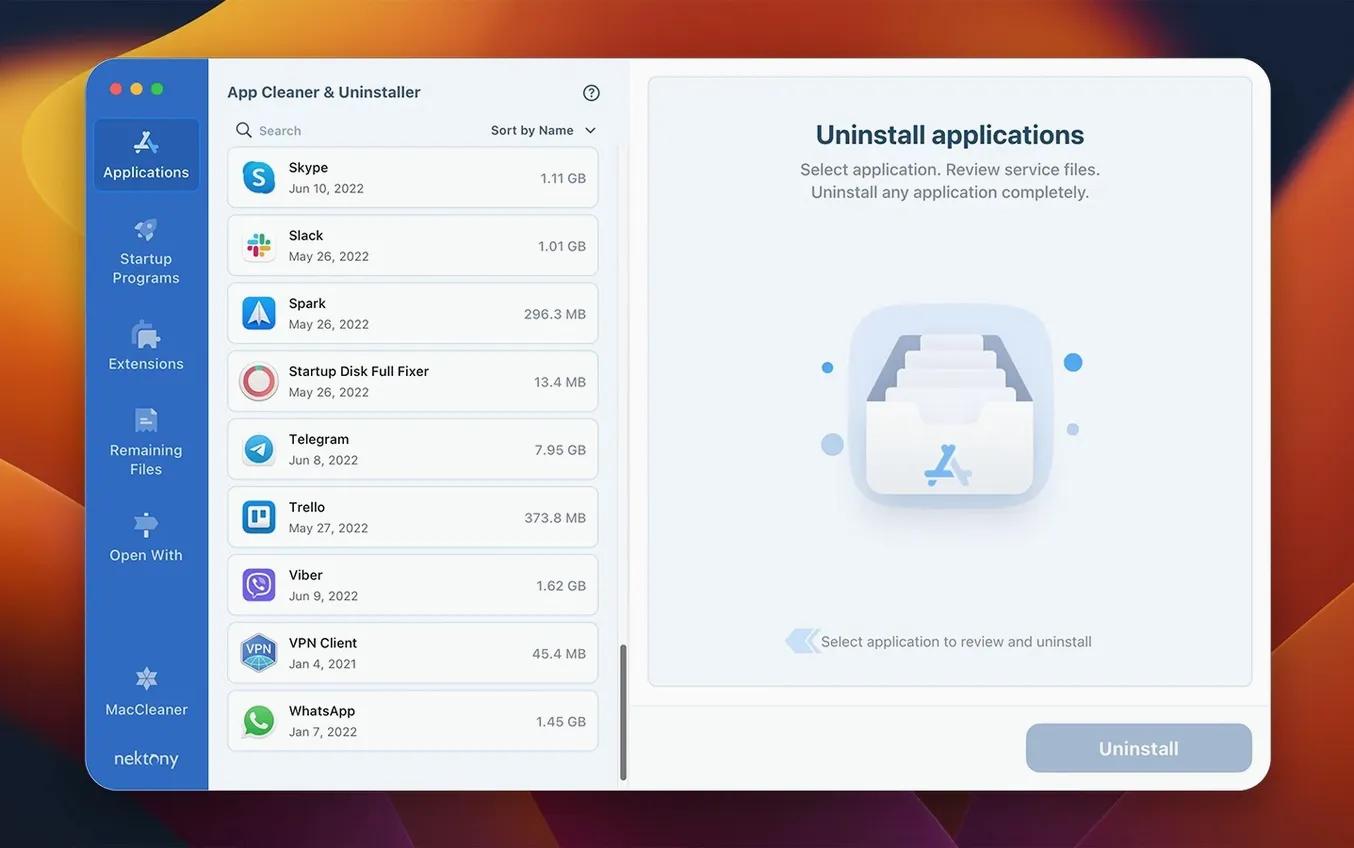
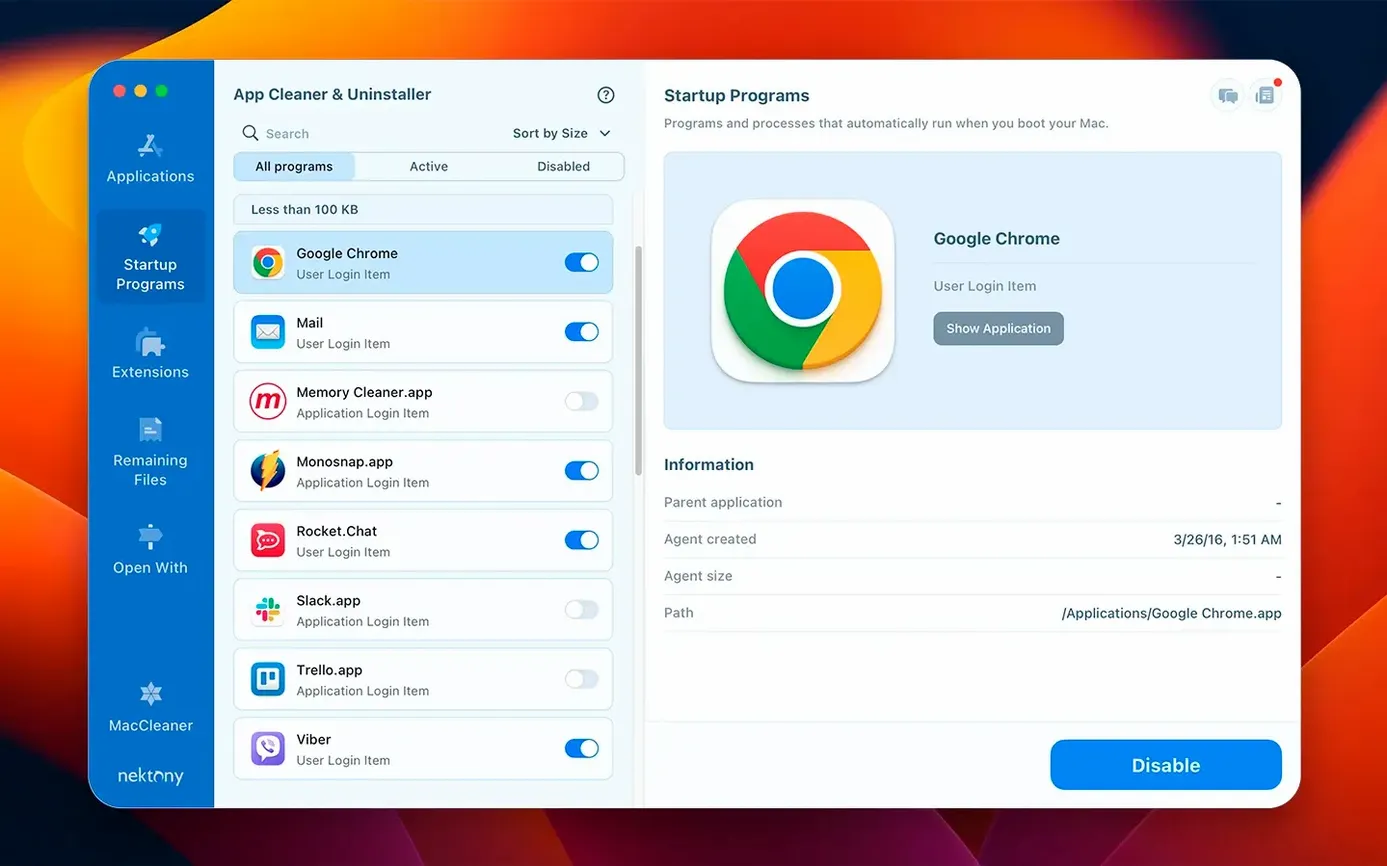
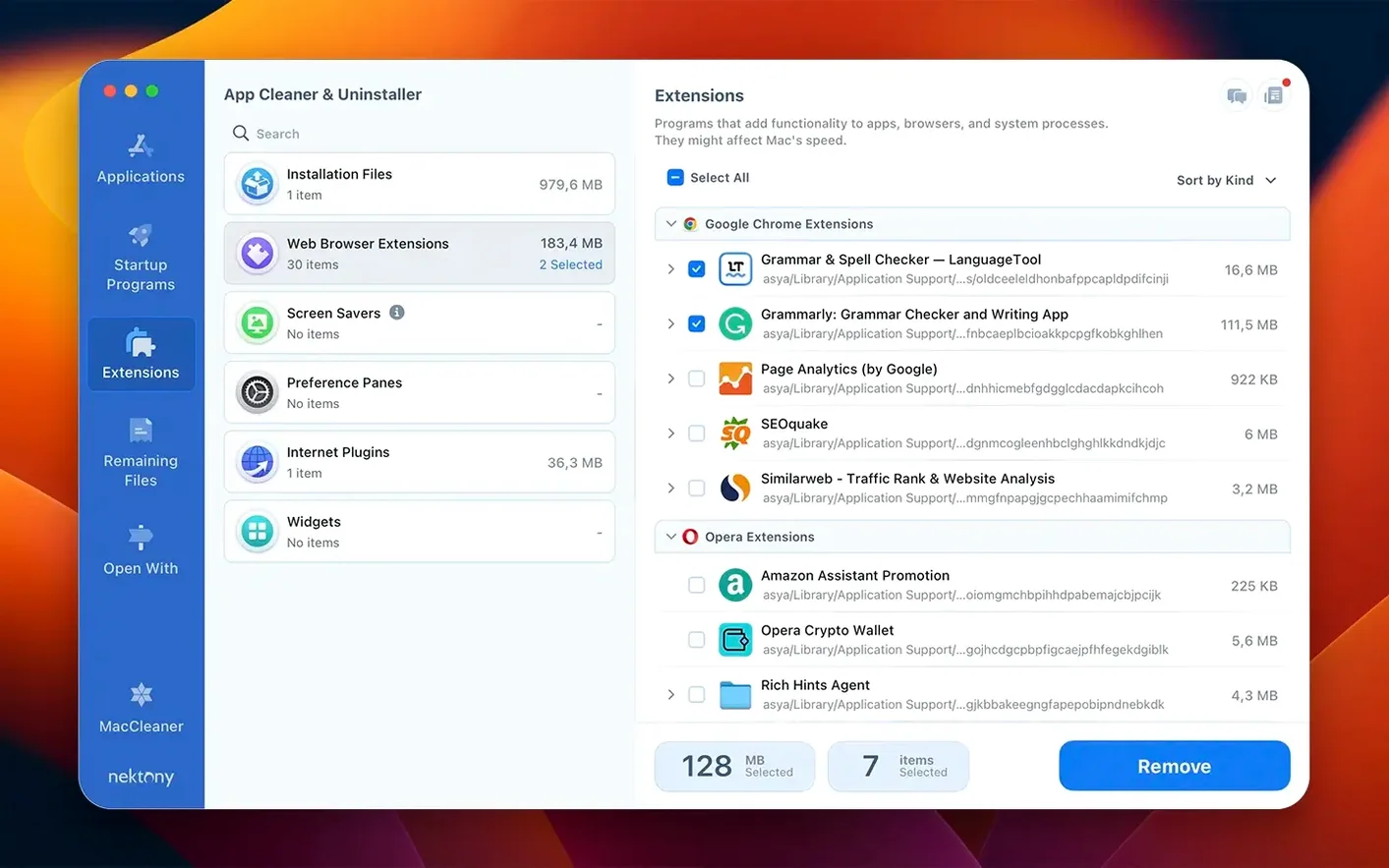
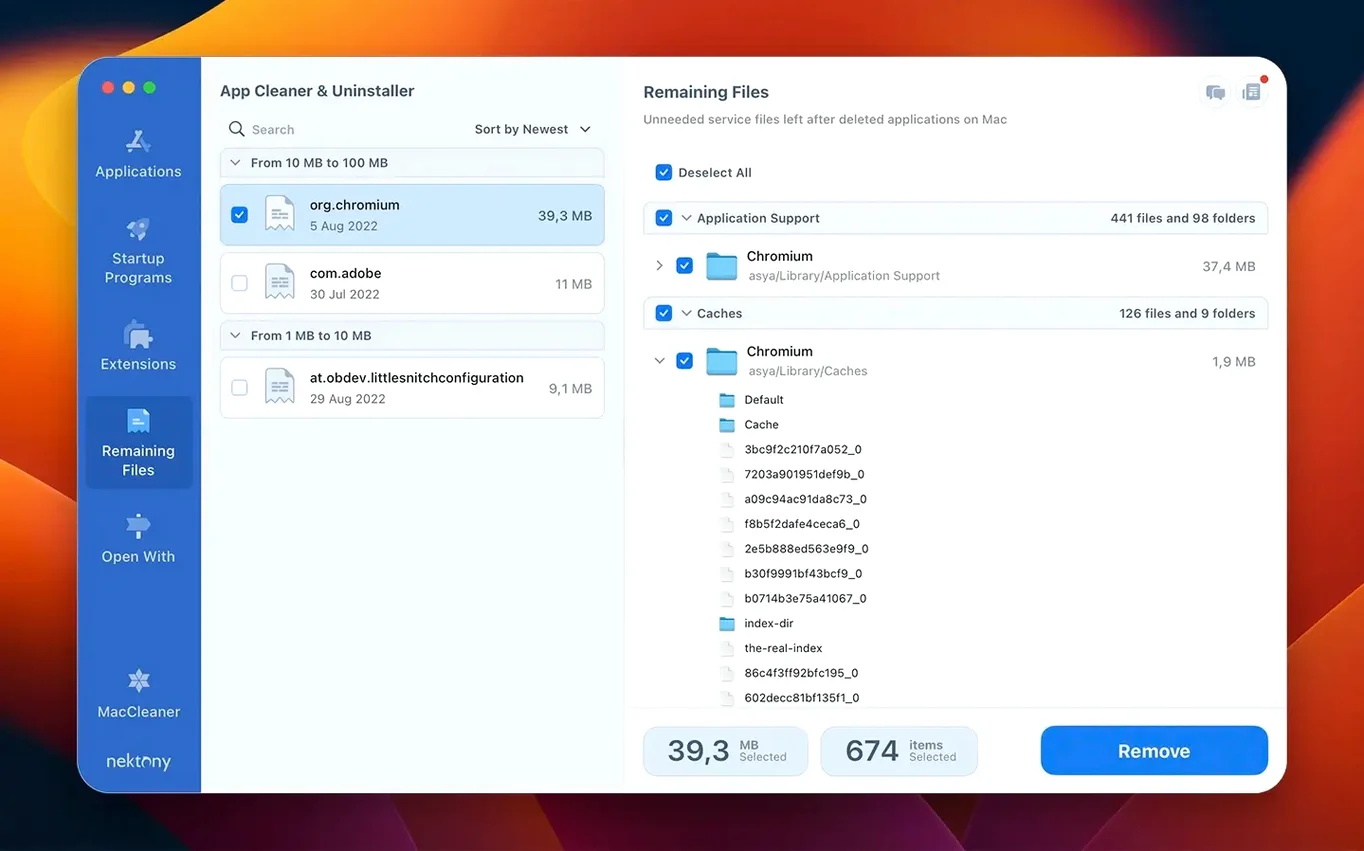
It suits people who drag apps to the Bin and suspect they left leftovers behind.
App removal — deletes the app and hunts down its service files across Library folders, not just the .app bundle.
Privacy Audit — lists permissions you have granted to each app so you can revoke what you did not realise was still active.
Security Check — flags extensions that are outdated or from developers you might not trust.
Extensions manager — lets you disable or delete Safari extensions, widgets, and plugins without digging through System Settings.
Leftovers scan — finds orphaned files from apps you already binned manually, so you can clear them out after the fact.
App Cleaner & Uninstaller vs similar Mac apps
App Cleaner & Uninstaller vs BuhoCleaner
Both claim complete app removal. The difference is in what else they manage.
- BuhoCleaner adds a memory cleaner and disk space analyser. App Cleaner & Uninstaller skips those and doubles down on extension control.
- App Cleaner & Uninstaller has a dedicated extensions manager for Safari extensions, widgets and plugins. BuhoCleaner does not.
- BuhoCleaner's privacy scan covers browser data. App Cleaner & Uninstaller's Privacy Audit covers macOS permissions system-wide.
- If you need a lightweight uninstaller with no extras, BuhoCleaner fits. If extensions and startup items clutter your Mac, App Cleaner & Uninstaller gives you more levers.
App Cleaner & Uninstaller vs CleanMyMac X
CleanMyMac X is a broad maintenance suite. App Cleaner & Uninstaller sticks to uninstalling and managing what apps leave behind.
- CleanMyMac X offers malware scanning, optimisation scripts and a file shredder. App Cleaner & Uninstaller does none of that.
- App Cleaner & Uninstaller's leftovers scan targets only app remnants. CleanMyMac X scans for junk across the entire drive.
- For people who want one tool for everything, CleanMyMac X covers more ground. For an uninstaller that does not overreach, App Cleaner & Uninstaller stays focused.
App Cleaner & Uninstaller vs AppCleaner
AppCleaner is a free, single-purpose drag-and-drop uninstaller. No extras.
- AppCleaner finds related files when you drop an app into its window. App Cleaner & Uninstaller does that plus batch removal, leftover hunting and extension management.
- AppCleaner has no startup manager, no privacy audit and no security check.
- If you only need simple uninstalls, AppCleaner does the job. If you want visibility into what apps are doing in the background, App Cleaner & Uninstaller goes deeper.
Why an app stays visible after you remove it
An app still shows in the list after removal. Quit and reopen App Cleaner & Uninstaller. The list caches on launch. If it persists, the leftover scan usually catches whatever the standard removal missed.
The leftovers scan finds hundreds of files you do not recognise. Check the file path column before deleting. Some orphaned files belong to apps you reinstalled later. Removing those can break the current install. Delete only items with paths pointing to apps you know are gone.
An extension refuses to delete. Some Safari extensions are installed as part of a parent app. Remove the parent app first, then return to the extensions manager. The entry should clear.
Startup item changes do not stick. Full Disk Access permission is required. Go to System Settings > Privacy & Security > Full Disk Access and enable App Cleaner & Uninstaller if it is not already toggled on.
The app crashes when scanning on an older Mac. Version 10.0 needs macOS 12 or later. On machines just meeting that requirement, a large scan can spike memory. Close other apps before running a full leftovers sweep.
Workflow: cleaning up after a creative suite
Scenario: you used Adobe Creative Cloud, moved the apps to the Bin months ago, and now want every last Adobe file gone before installing competing apps.
- Open App Cleaner & Uninstaller and go to the Leftovers tab.
- Let the scan finish. It finds plists, caches and support files still sitting in ~/Library and /Library.
- Sort results by app name. Select every entry linked to Adobe apps you removed.
- Use the Privacy Audit tab next. Check if any Adobe permissions still sit in Accessibility or Full Disk Access. Revoke everything listed under Adobe.
- Move to Extensions. Look for Adobe panels or plug-ins in Safari and the Finder. Disable or delete what remains.
- Open the Startup Programs section. Disable any Adobe background helpers that survived. They sometimes appear as launch agents with cryptic names — check the path column for /Adobe/ folders.
- Restart the Mac. Run the leftovers scan once more to confirm zero Adobe remnants found.
This sequence catches files a manual Bin toss misses: launch daemons, kernel extensions and sandboxed containers. The second leftovers scan is the insurance round. If it returns clean, the suite is truly gone.
- A network access tab added for tracking per-app connections.
- Menu bar app redesigned, now includes network traffic control.
- Updates database expanded to cover Safari extensions and Homebrew command-line tools.
- New incompatible applications filter added.
- macOS 12 or later
- Apple Silicon or Intel Mac
Questions the team asks
Yes. It scans for associated service files in system Library folders and removes them alongside the main application.
It can delete or disable extension files, and the current version has an expanded database that includes Safari extensions and Homebrew tools.





Comments 0
Sign in or create an account to add a comment.
No comments yet. They go up after moderation.