

AppZapper — Mac download
Ticked
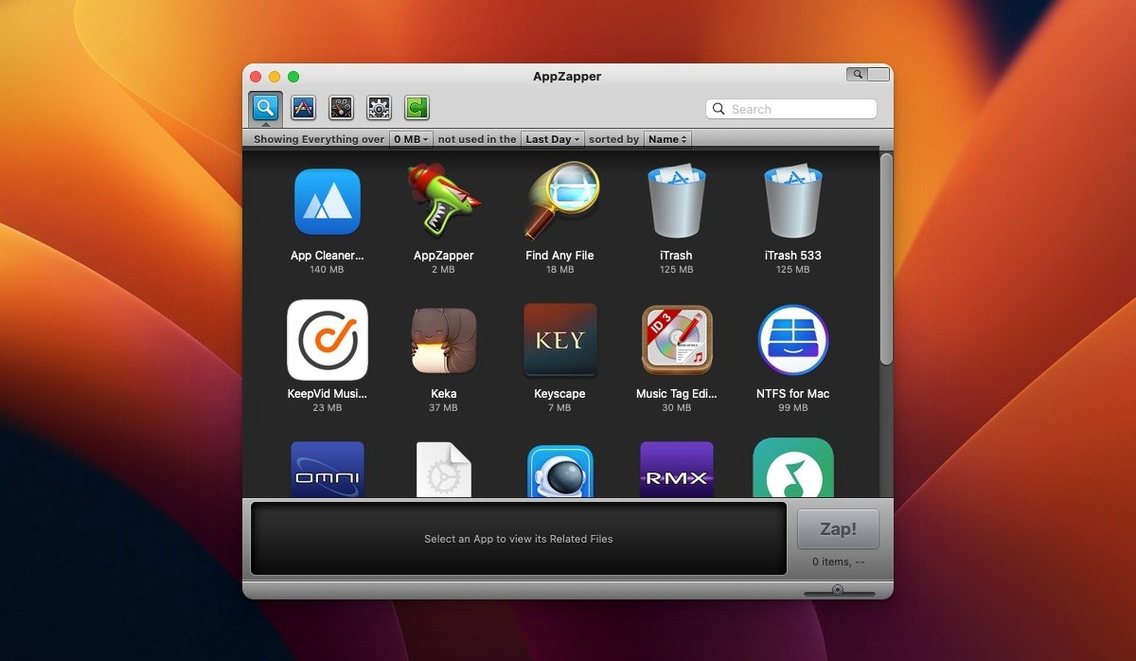
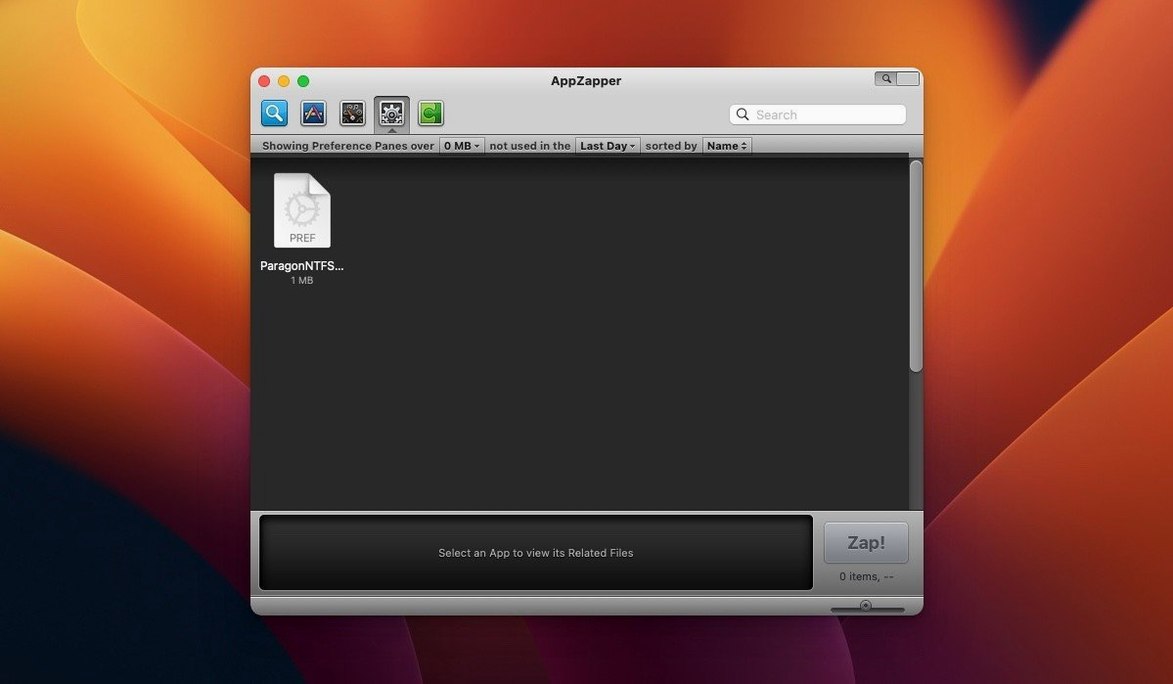
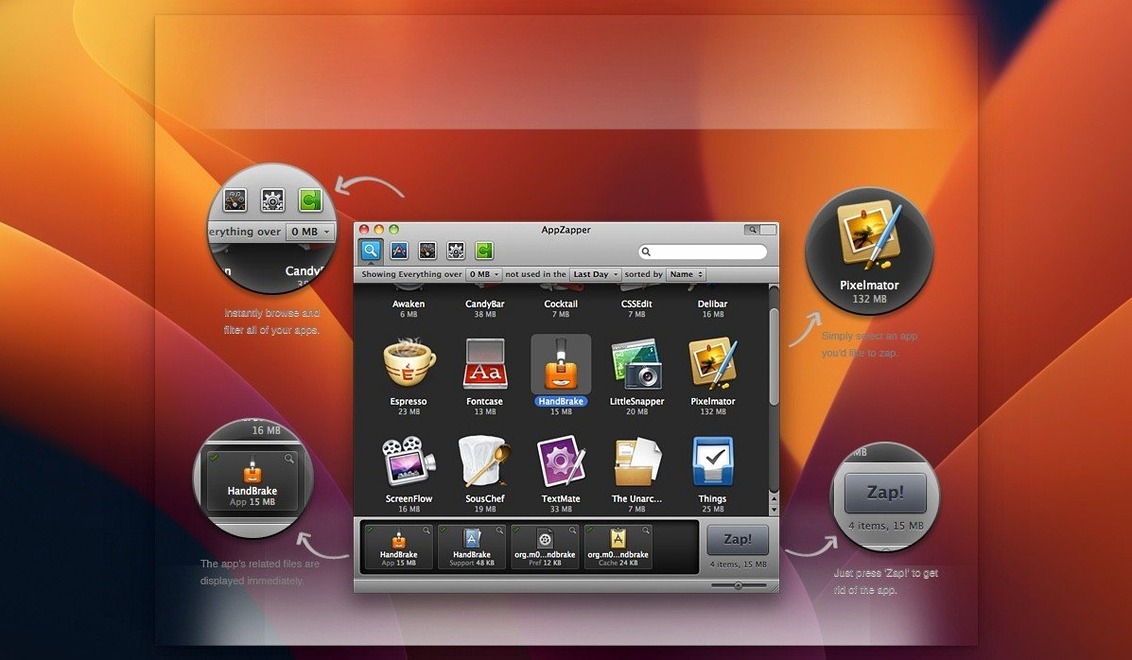
Project managers and support techs who set up dozens of Macs reach for an uninstaller that does more than drag a .app bundle to the Bin. AppZapper is that tool: it finds the preference files, caches and support folders that a standard deletion leaves behind.
| Quick fact | Detail |
|---|---|
| Current version | 2.0.3 fix |
| Developer | Austin Sarner and Brian Ball |
| macOS | OS X 10.9 and later |
| Architecture | Intel 64-bit |
Your Mac needs OS X 10.9 or newer and an Intel 64-bit processor. Once that box is ticked, AppZapper lists every file tied to an app before you confirm deletion. The grid-style browser—added in the second version with a button in the upper-right corner—shows large icons in rows and columns so you can scan installed apps quickly. If you are not on an admin account, the authentication prompt from version 1.8.0 appears when needed. And when you want to move an app and its settings to another machine, use the export feature introduced in version 1.7.0.
First days with AppZapper
A few habits make the early days smoother.
- Start with the grid view. Click the button in the upper-right corner. Large icons arranged by rows and columns help you spot forgotten apps from years ago. The ZapGenie filter—added in version 1.5.0—sorts by date last used. Anything untouched for 12 months deserves a hard look.
- Review before you zap. AppZapper lists every related file it finds. Uncheck items you want to keep. A Safari extension's preference file might look like clutter but could hold bookmarks you still need.
- Export, then delete. If you are unsure about an app, use the export feature from version 1.7.0 first. Package the app and its files, store the bundle somewhere safe, then zap the original. You can always restore from the exported copy.
- Let Sparkle handle updates. Version 1.6.0 added in-app update checks. Keep it on. You will know when a fix lands without hunting for an appzapper full mac download every time.
20 minutes to strip three collaboration tools
You have just finished a project and want to strip three collaboration tools off your work Mac. Here is how 20 minutes looks with AppZapper.
- Open the grid. You launch AppZapper and switch to the icon browser. The grid fills your screen with every app on the machine.
- Filter by last used. You click the ZapGenie filter and sort by date. The tools you stopped using six weeks ago drop to the top. You spot two that never got a proper removal.
- Zap the first one. You drag it into the main window. AppZapper lists 14 related files—preferences, a cache folder in
~/Library, a LaunchAgent plist. You uncheck the LaunchAgent because another app still references it. Click Zap. The files hit the Bin. - Handle the second app. You are not on an admin account, so the authentication prompt from version 1.8.0 appears. You enter the password and the deletion proceeds. Three support folders vanish that a manual uninstall would have missed.
- Export the third. You might need this tool again next quarter. Instead of zapping, you use the export command. AppZapper bundles the .app and its associated files into one package. You move it to an archive drive and remove the installed copy.
- Check the Bin. You open the Bin and see the files from the first two zaps sitting there. If you made a mistake—deleted the wrong preference file—you can restore it right now. No recovery tools needed.
The session ends with three apps gone, one exported for later, and a Bin full of files you can review at your own pace. No leftover plists, no orphaned caches. The checklist is complete.
- Added a grid-style app browser with large icons. Click the button in the upper-right corner to switch views.
- OS X 10.9 or later
- Intel 64-bit processor
Questions the team asks
It locates and removes preference files, caches, support folders and other related items that the app has placed around your system.









Comments 0
Sign in or create an account to add a comment.
No comments yet. They go up after moderation.