

Microsoft Excel — Mac download
Ticked


If you have used Numbers, you already know the shape of a spreadsheet app. Excel takes that grid and connects it to the wider Microsoft 365 suite. The Mac version handles the same .xlsx files, charts, and pivot tables you would expect.
Does It Match the Windows Version?
- Does it match the Windows version? Mostly. Core formulas, power query, and VBA support are present. A few advanced add-ins remain Windows-only.
- What macOS do I need? macOS 13 (Ventura) or later. It runs on both Intel and Apple Silicon Macs.
- What am I actually installing? Excel 16.93 arrives as part of the Microsoft 365 suite or the Office 2024 package. You pick the apps you need from the installer.
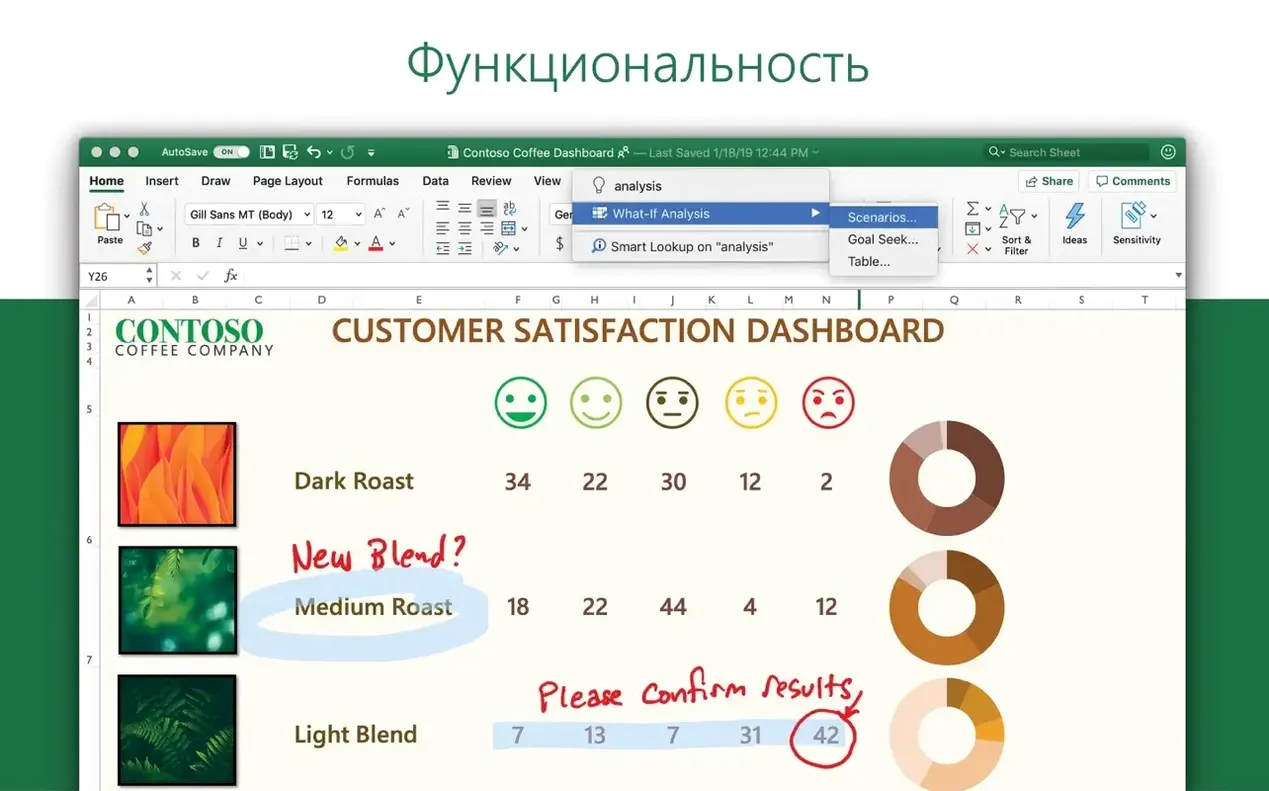
- Does it handle large data sets? Yes. The Ideas feature spots trends in your data, and the new charts give you more visual options without leaving the sheet.
The app opens, edits, and shares workbooks from other Office apps without conversion. Interface languages range from Russian to Japanese, so the ribbon adapts to your system locale.
Name Your Ranges Before You Regret It
- Not naming cells and ranges. Referring to
A1:B12in formulas works, but naming that rangeQ1_Salesmakes later sheets readable. Select a range, type a name in the Name Box left of the formula bar, press Return. Done. - Ignoring the formula builder. The sidebar formula builder breaks down nested functions step by step. Beginners paste long formulas they found online and wonder why they break. The builder shows you which argument fails.
- Merging cells for layout. Merged cells ruin sorting, filtering, and copy-paste. Use Center Across Selection from Format Cells > Alignment instead. It looks identical and keeps the grid intact.
- Skipping tables. Typing data into a loose range means no automatic formatting, no column headers that stick on scroll, and no easy references. Select your data, press Cmd+T. Now you have a table with named columns you can use in formulas.
- Over-colouring manually. A few people colour every other row by hand. Conditional formatting does it in two clicks, and it updates when rows move.
Siobhan’s Month-End Power Query Workflow
Siobhan closes books for three small businesses. On the 28th, she opens a workbook that pulls trial-balance exports from each client folder. She uses Power Query to combine CSV files without opening them individually — the connection refreshes when new exports land.
She runs the Ideas pane on consolidated data and spots an unusual spike in travel expenses for one client. A two-minute pivot table breaks it down by department and date. She flags it in a comment, tags the client's FD with an @mention, and saves the workbook to a shared OneDrive location. Her MacBook Air stays silent the whole time; the ARM-native build handles 80,000 rows without a fan spin.
Siobhan's checklist for this task sits in OneNote, but the actual work lives in Excel. She never pastes values where a query would do the job.
Audit Trails and XLOOKUP for Accountants
Accountants and auditors live in workbooks. The Mac version supports the same audit trail features, worksheet protection, and data validation rules they rely on. XLOOKUP and dynamic arrays cut formula maintenance time noticeably.
Small business operators who track inventory, invoices, and cash flow in one file. They do not need a separate accounting package for three months of data. A well-structured workbook with a few pivot tables replaces several apps.
Researchers and PhD candidates handling structured experiment data. Power Query imports messy lab exports, and the chart engine produces publication-ready figures without a separate stats tool. The Ideas feature gives a quick first pass at correlations before deeper analysis.
Project managers who already track tasks in a list. Conditional formatting turns a deadline column into a visual heatmap. A Gantt chart is a stacked bar chart with invisible first series — no plugin needed.
Cmd+Shift+V Pastes Values Instantly
- Cmd+Shift+V pastes values only, no formatting. It avoids the mess of Paste Special dialogs when you just need the numbers.
- Ctrl+[ jumps to the precedent cells of a formula. Ctrl+] jumps back. Both work on Mac keyboards if you remap the Ctrl key behaviour once in Excel Preferences under Edit.
- F2 to edit a cell in place replaces double-clicking. On a Mac, you may need to hold Fn+F2 or remap the key depending on your system settings.
- Option+Down Arrow opens a filtered dropdown on the selected header. No mouse, no ribbon.
- The Name Box left of the formula bar is not just for named ranges. Type a cell address like
Z200and press Return to jump there instantly. - Page Break Preview (under the View tab) shows exactly what prints on each page. Drag the blue lines to adjust breaks. Saves the frustration of five test prints.
- Cmd+Shift+L toggles AutoFilter on the current data range. It is the quickest way to add or remove filter arrows.
- New charts added for plotting data.
- Ideas tool included for spotting trends and patterns.
- macOS 13 or later
- Intel or Apple Silicon Mac









Comments 0
Sign in or create an account to add a comment.
No comments yet. They go up after moderation.