

Nitro PDF Pro — Mac download
Ticked
1. Open and assess a PDF
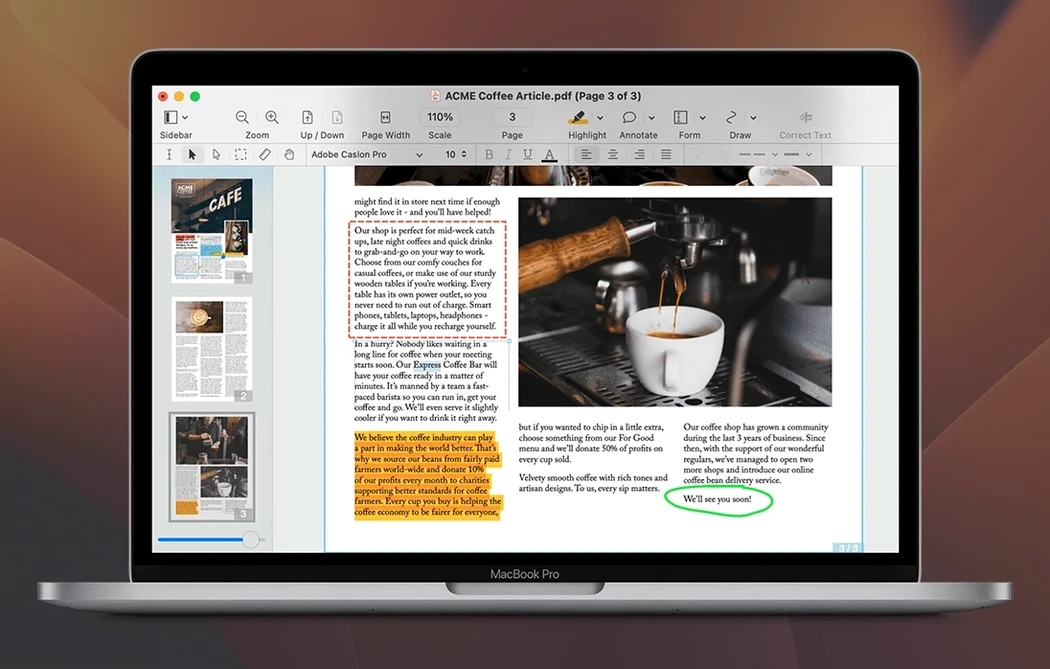
Launch Nitro PDF Pro and drag in a file. The app renders the original layout with editable text blocks you can click into immediately. Headers, footers and line numbers stay intact.
2. Edit text and images
Select any text block to fix a typo or rewrite a paragraph. Move, resize, copy or delete images without leaving the original PDF. Highlighting, underlining and strikethrough markup sit on a single toolbar.
3. Run OCR on a scan
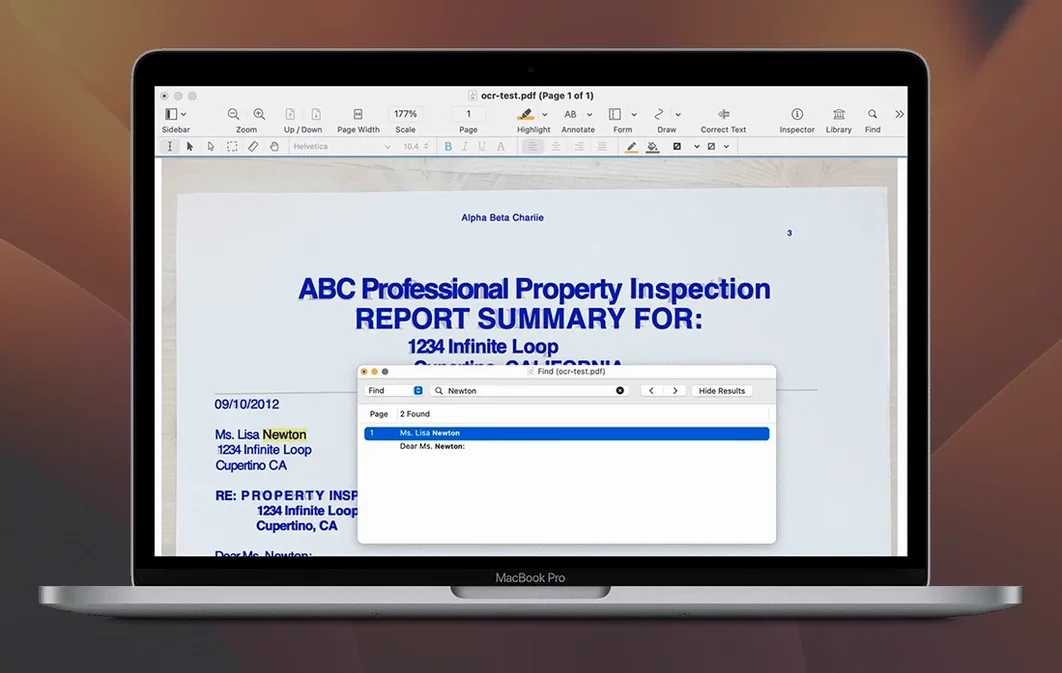
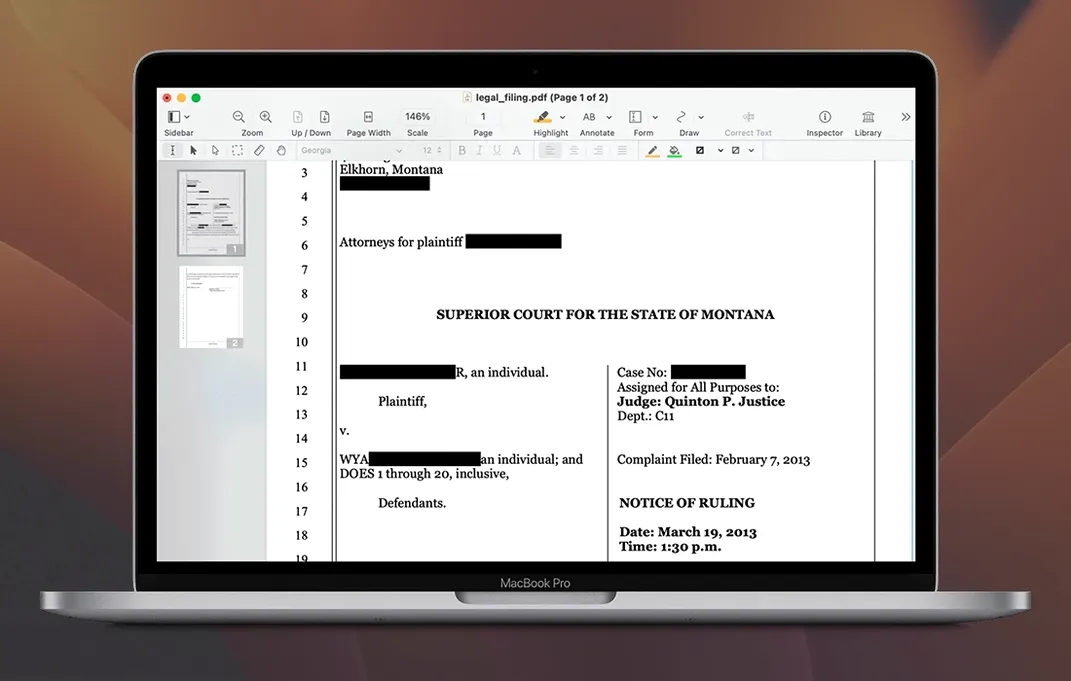
Open a scanned document and the built-in OCR converts it to searchable text. You can then redact sensitive information by selecting and blacking out names or figures permanently.
4. Annotate and sign
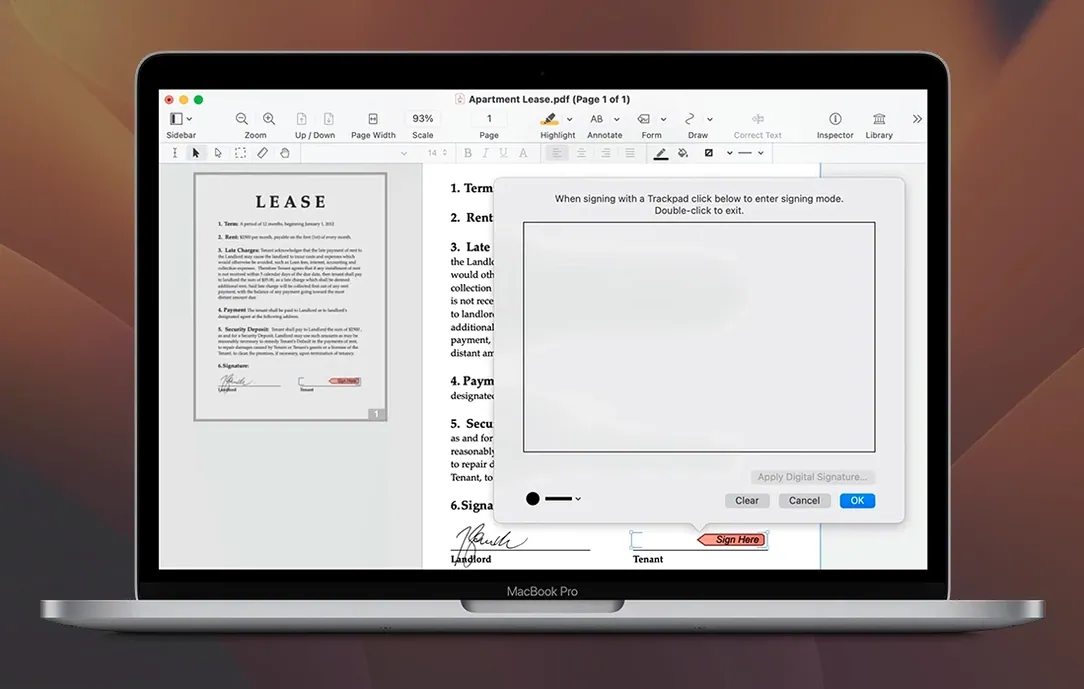
Add comments, bookmarks and watermarks. Record an audio annotation right on the page and play it back later. Place a saved signature on a contract, or attach a file directly into the PDF.
5. Bring in web content
Enter a URL and the app converts the website into a multi-page PDF with hyperlinks preserved. Useful for archiving documentation next to the rest of your project records.
Because it handles text edits, image tweaks and markups inside the original file, Nitro PDF Pro sits between a lightweight reader and a full desktop-publishing tool on your Mac.
French scans stay frozen until you switch the OCR language
- Skipping the OCR language check. The default recognition runs in English. A scanned French or German document stays an image until you pick the right language under OCR settings before running recognition.
- Editing text without locking the font. Clicking into a block and typing with a missing system font can shift spacing. Check the text properties panel first; swapping to an installed font right away saves rework.
- Redacting with the highlighter tool. Highlighting leaves text selectable underneath. Use the proper Redact tool—it burns the content out permanently.
- Merging files by dragging blindly. Drag order sets page sequence. People often drop the appendix first, then wonder why it opens before the report. Stack them in the thumbnail sidebar in reading order before combining.
Greek text vanishes from boxes on Sonoma
Form fields refusing input
A fillable form downloaded from a government portal sometimes locks fields because the original creator set permissions. Open the Forms panel, choose Enable Form Filling, and save a fresh copy. If that fails, run OCR on the flattened page and rebuild the fields manually—tedious but reliable.
Export to Word scrambles columns
Multi-column PDFs trip the export engine when text boxes overlap. Before exporting, select the text with the column tool, copy as rich text, and paste directly into Word. The formatting holds. For batch needs, split the PDF into single-column sections first.
Audio annotations won't play
This usually means the media codec isn't recognised by macOS. Convert the recording to AAC inside the app before saving. Also check that the playback device is active in System Settings—Nitro PDF Pro routes audio through the default system output.
App stalls on a large scan
Feeding a 200-page scanned PDF through OCR in one go can freeze things on an older Mac. Break the file into 30-page chunks, process each, then merge the results. Memory usage drops significantly.
Some users look for nitro torrenty or a nitro torrent when the install feels slow. The disk image here is straightforward—mount, run the Terminal command, drag to Applications—and you are in.
- macOS 10.14 Mojave or later
- Intel and Apple Silicon Macs
- 1 GB RAM
- Up to 2 GB disk space
- Display resolution at least 1280×800








Comments 0
Sign in or create an account to add a comment.
No comments yet. They go up after moderation.