

PDFelement Pro — Mac download
Download (807 MB) Earlier builds
Ticked
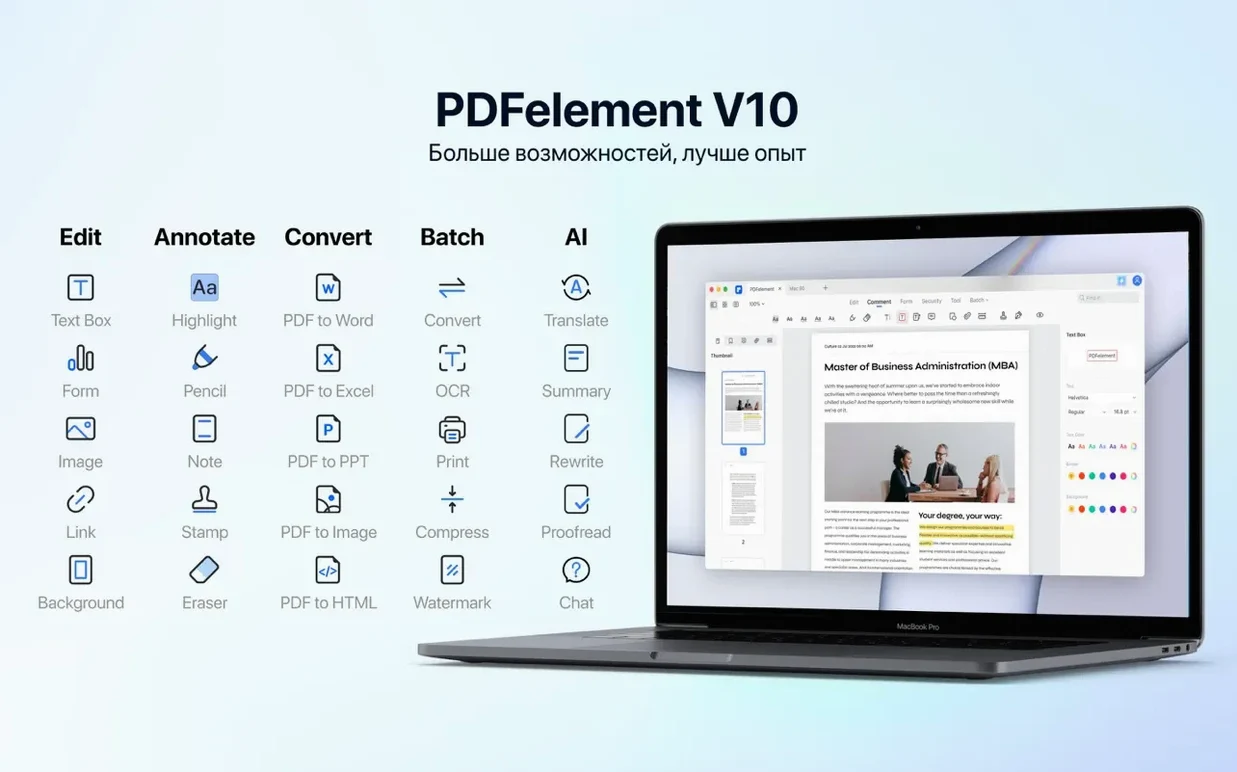
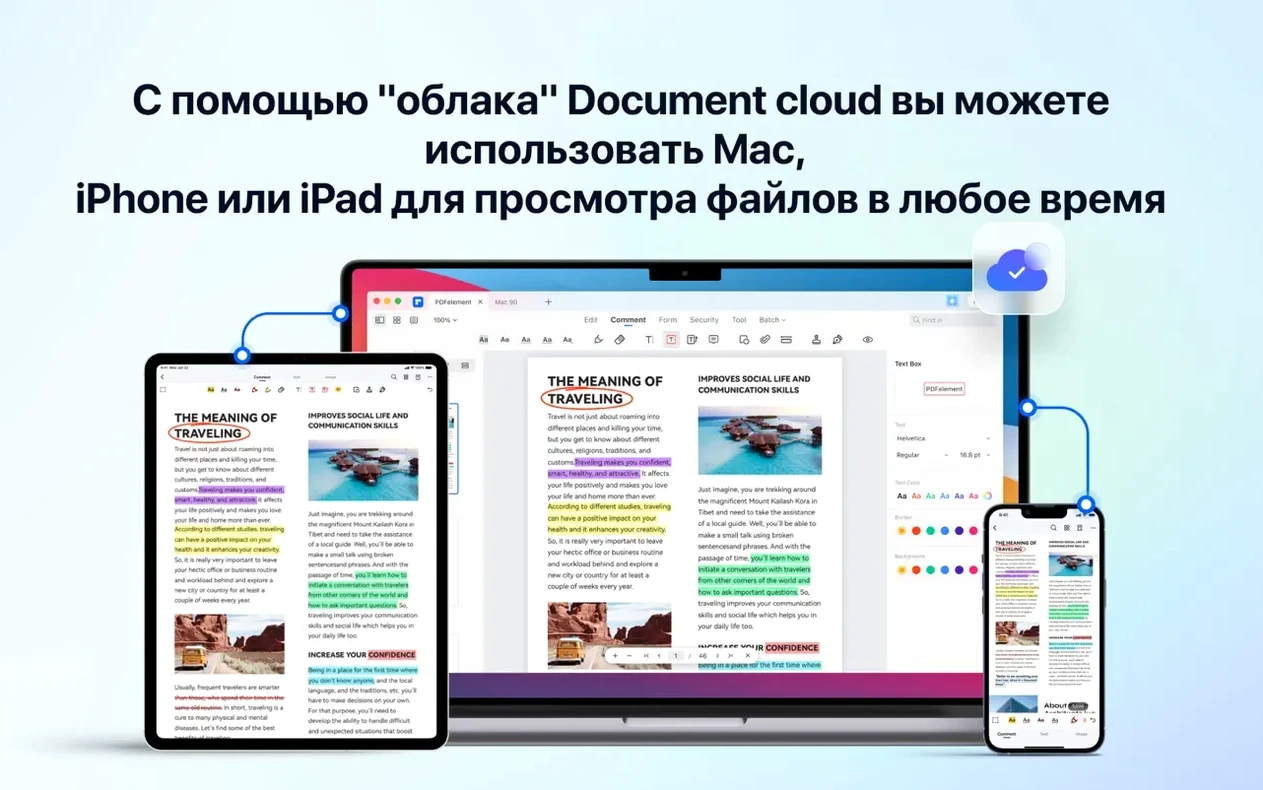
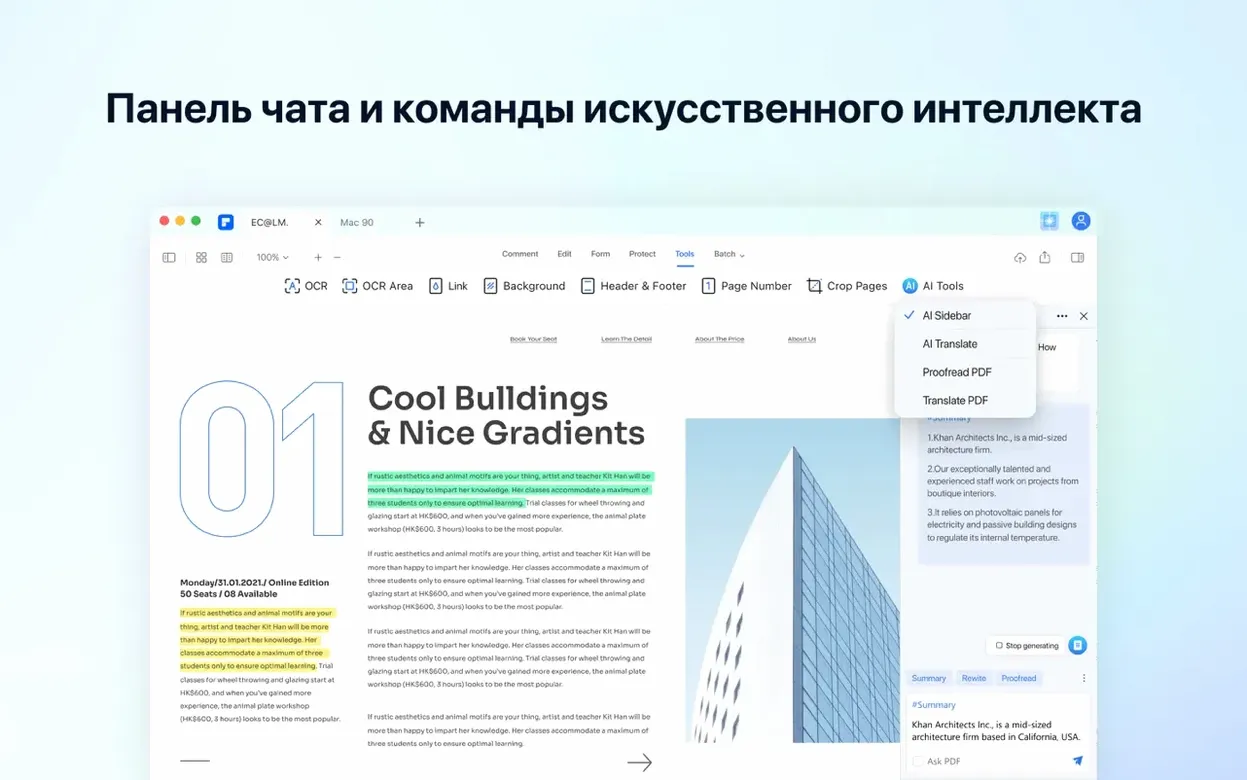
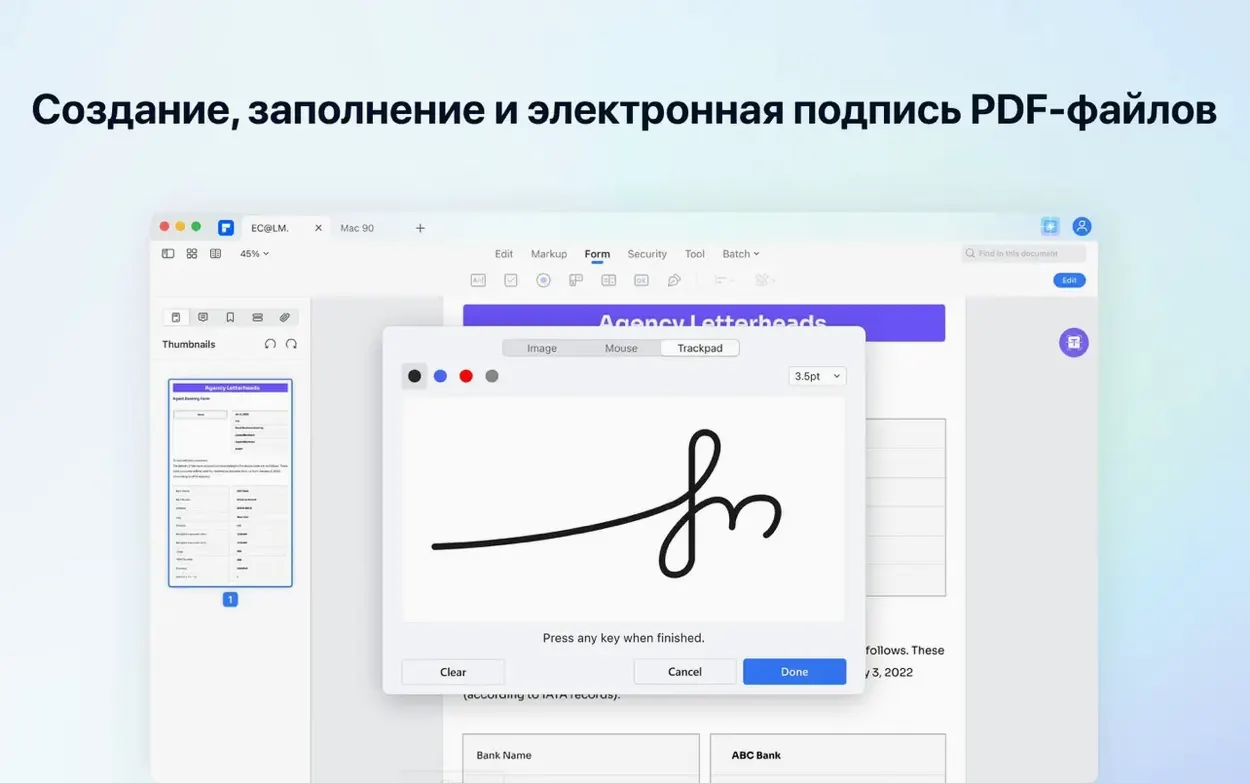
Team leads and admins who process a lot of forms, contracts or scan-based reports reach for PDFelement Pro on Mac. It bundles OCR, redaction and AI reading tools into one app, so you spend less time retyping or switching between utilities.
AI that reads, shortens and explains the document
Instead of skimming a long contract, you ask the built-in AI to summarise it, translate a passage or pull out the key clause. The assistant covers text shortening, explanation and direct PDF questions. For anyone handling multi-language paperwork, the 11 interface languages help keep the UI in familiar territory.
Forms you can fill and forms you can build
Interactive fields — buttons, checkboxes, radio buttons and drop-down lists — let you create fillable forms from scratch, not just fill someone else's. Combine that with batch conversion, PDF/A archival output and OCR on scanned pages, and you get a single toolchain for intake, editing, signing and long-term storage. Redaction tools strip sensitive text and images before the file leaves your Mac.
Settings you change once, then leave alone
Open Preferences (Cmd+,) before your first real project. A few defaults slow down daily work.
- OCR language — The app defaults to English. If you handle scans in German, French or Arabic, go to OCR > Recognition language and add the ones you actually use. Fewer active languages means faster OCR runs.
- Page display — Under General, switch default zoom to "Fit width" if you work on a laptop screen. Single-page continuous scrolling keeps long contracts readable without constant swiping.
- Auto-save — PDFelement does not auto-save edits by default. Tick Enable auto-recovery and set the interval to 5 minutes. You will thank yourself the first time the Mac crashes mid-redaction.
- PDF/A output type — If archiving is part of your workflow, set the default to PDF/A-2b under Convert > Output settings once. Otherwise it picks PDF/A-1b, which is older and stricter about transparency.
First three days: small habits that pay off
You do not need to learn the whole app. Pick up these moves early and they become muscle memory.
- Drag a batch, not one file. Select five or ten PDFs in Finder, drop them onto the PDFelement Pro dock icon. The batch panel opens. Choose your action — convert to Word, apply Bates numbering, compress — and walk away. Day one habit, time saved by day three.
- Use the AI panel for meeting prep. Open the agenda PDF, click the AI icon in the right toolbar, type "Summarise decisions from this document." The assistant scans headings and bullet points, not just raw text. Good for pulling action items out of board packs.
- Redact visually, then confirm. Draw a redaction rectangle over the text or image, but do not hit "Apply" yet. The marked area turns grey. Scan the whole document in thumbnail view first — a stray account number on page seven is easy to miss. Apply once you have checked all pages.
- Save your form field setup as a template. After placing checkboxes and signature blocks, go to File > Save as template. Next quarter's form takes two minutes, not twenty.
Snags you hit in week one — and what actually fixes them
Some friction points come up often. None are dealbreakers, but knowing them ahead saves frustration.
OCR runs but the text is gibberish
This happens when the scan resolution is below 200 dpi or when the wrong recognition language is active. Check the source file — if it is a fax printout or a photo of a document, the engine struggles. Re-scan at 300 dpi greyscale if you control the input. If not, try "English" plus the likely second language together; the dual-language mode sometimes compensates for poor originals.
Batch conversion hangs on one file
A single corrupt or password-protected PDF blocks the whole queue. PDFelement does not skip it automatically. Open the batch list, identify the stuck file by the progress bar, remove it, and run the rest. Process the problem file alone later.
Form fields shift after saving
This crops up when you create fillable forms and open them in Preview or a browser-based viewer. The fix is to flatten the field positions before distribution. In Form > Flatten, uncheck "Flatten all fields" and flatten only the layout-critical ones — text labels, fixed checkboxes. Leave the input fields live.
AI panel says "No text to analyse"
You dropped in a fully scanned document that has not been OCR'd yet. Run OCR > Recognize Text first, wait for the completion toast, then open the AI panel. It only reads recognised text, not image-only pages.
Redaction is not permanent
If you redact and then "Save As" instead of "Save," the original file stays untouched. That is by design — good for keeping an unredacted master. But if you then email the "saved as" copy, double-check that the redaction marks are actually applied in the new file. Grey preview marks are not the same as burnt-in redactions.
- OCR engine included in build 12.1.28 — no separate download needed
- macOS 11 or later
- Intel 64-bit processor (native Apple Silicon support from version 9 onward)









Comments 0
Sign in or create an account to add a comment.
No comments yet. They go up after moderation.