

OmniReader Pro — Mac download
Download (33 MB) Earlier builds
Ticked
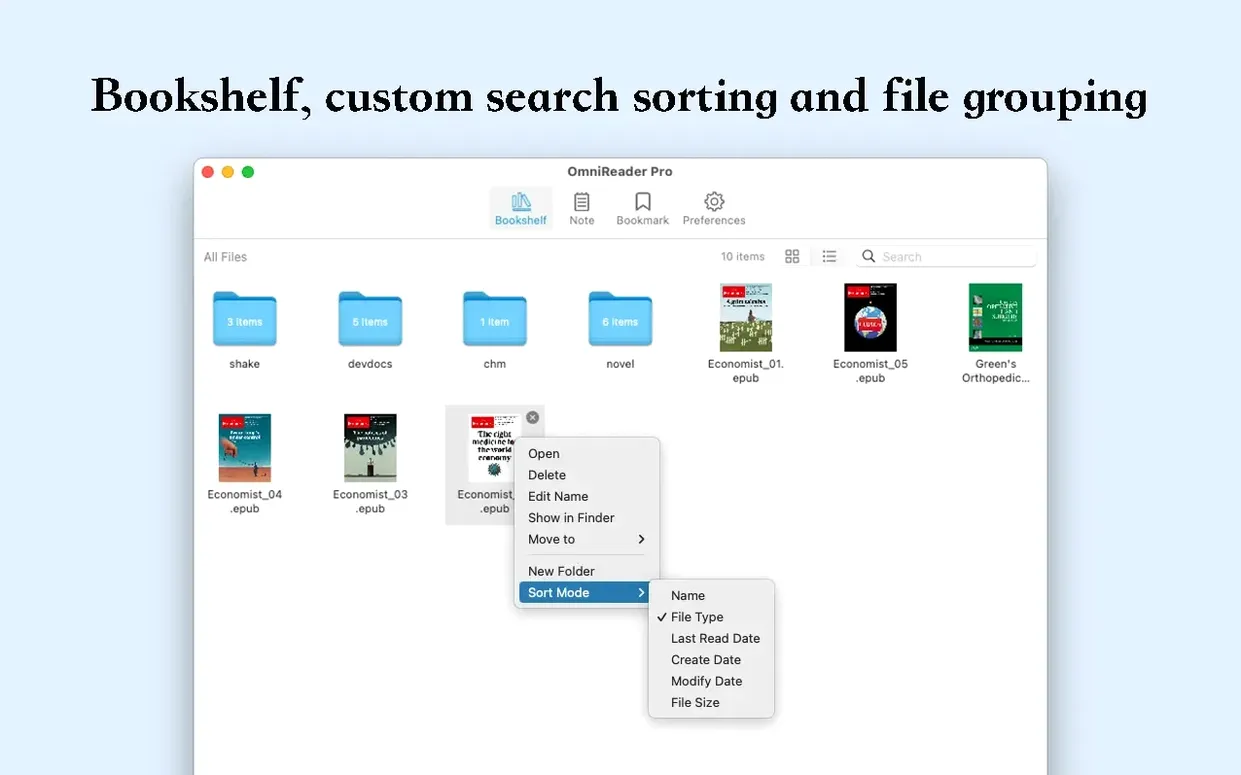
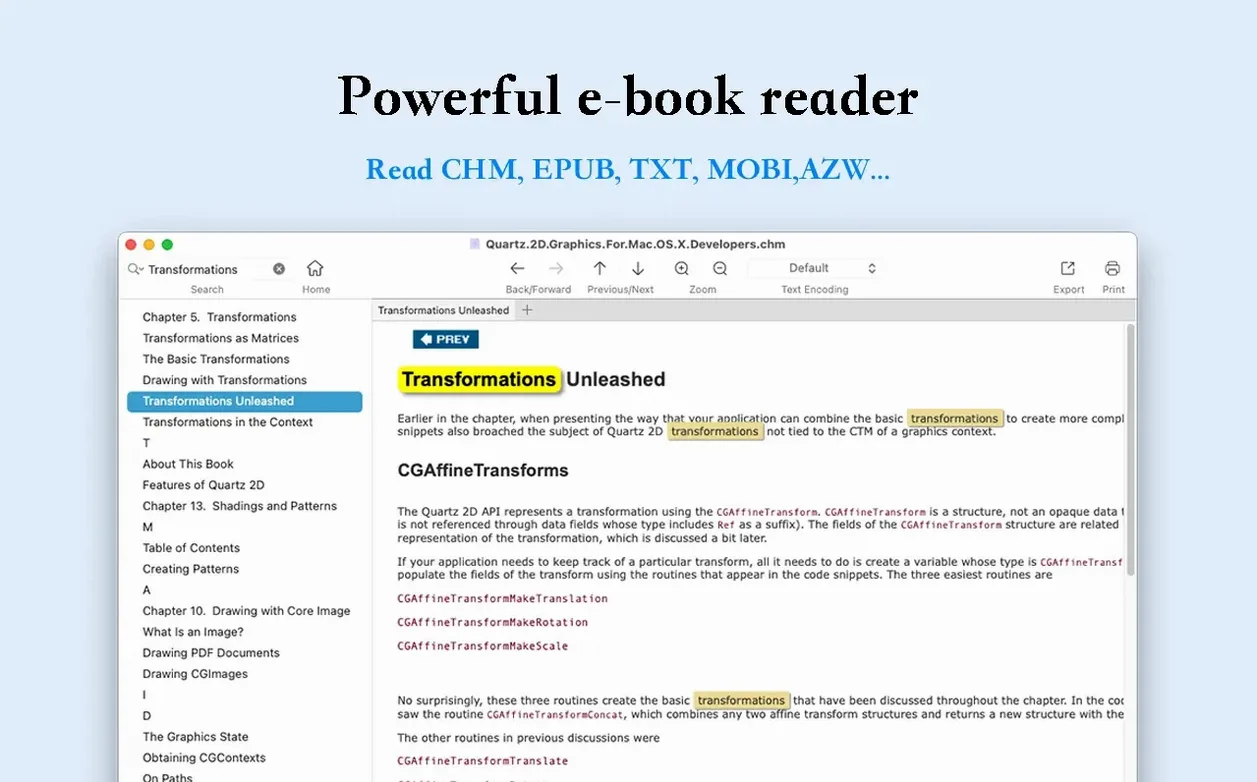
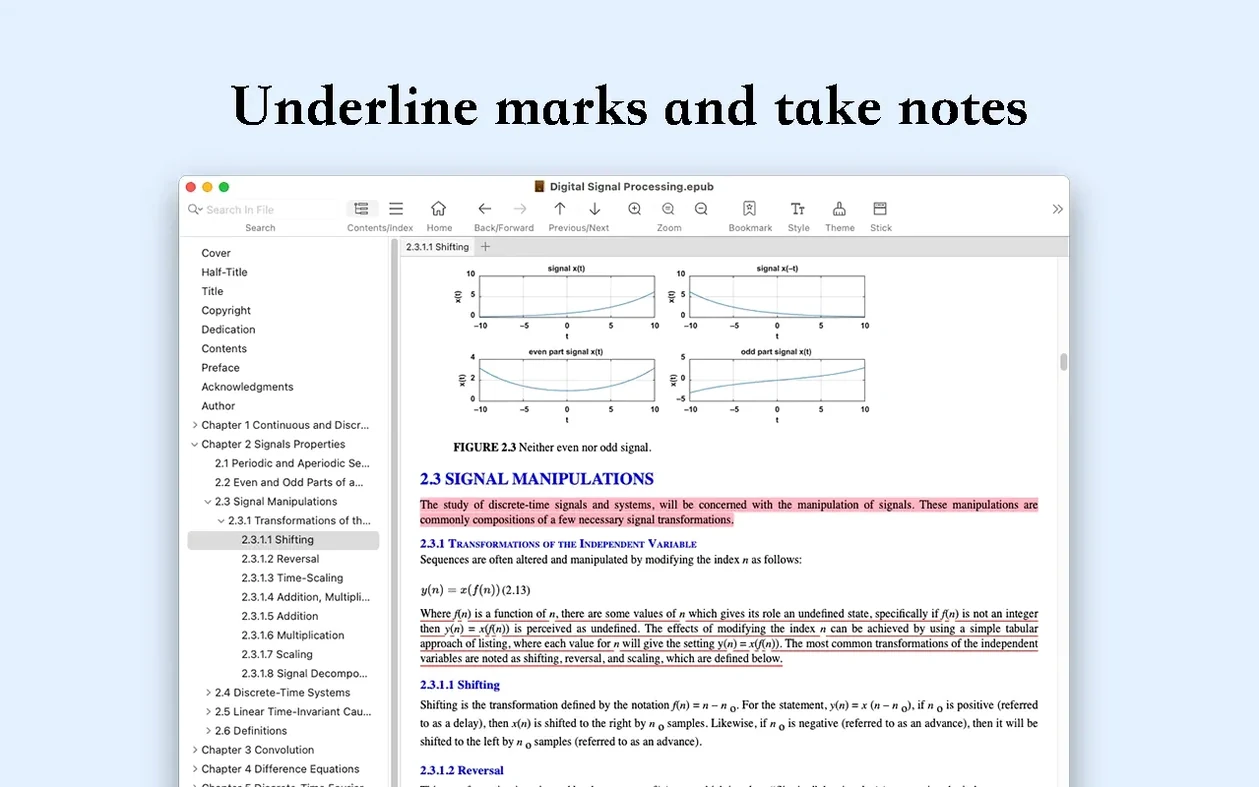
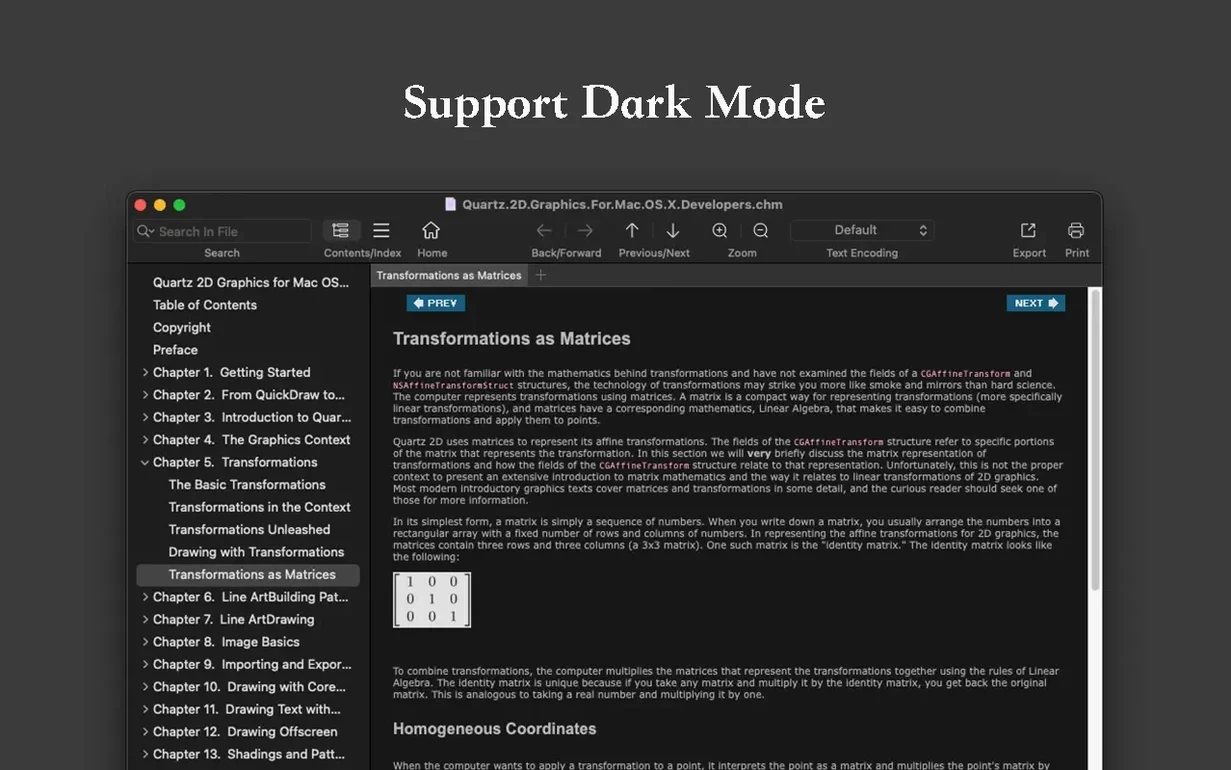
OmniReader Pro runs on any Mac from macOS 10.13 High Sierra onwards, on both Intel and Apple Silicon machines.
Garbled text from a mismatched encoding sorts itself out automatically. You pick the right handler when it does not, and the file becomes readable again.
Page search finds a word in the current chapter. Full-text search scans the entire book and lists every match. Both save you from skimming long documents by eye.
When you need to move content out, export to EPUB or PDF covers the whole file. A separate command pulls every image into a folder at once.
Workflow: turning a messy CHM project doc into a clean PDF
I get handed CHM help files a lot. Here is the path I follow in OmniReader Pro.
- Open the CHM file. If the sidebar is collapsed, hit View > Show Sidebar to see the chapter tree.
- Check the encoding. If Chinese or Cyrillic characters show as nonsense, open File > Encoding and cycle through the options until the text snaps into shape.
- Run a full-text search for a term I know appears in three or four chapters. This confirms the file is complete and the index works.
- Step through the reading history with the back/forward buttons to verify the navigation chain holds.
- Pull all images with File > Extract All Images and dump them into a folder. I check a handful to make sure diagrams exported at usable resolution.
- Export the whole thing as PDF. Image sizing is automatic, so diagrams fit the page without overflowing.
- Print page one as a spot check before sending the PDF on.
The whole flow takes under two minutes for a 200-page help file. The only variable is how long you spend hunting the right encoding.
Set a fallback encoding so CHM files open correctly the first time
- Default encoding. Go to Preferences and set a fallback encoding that matches the bulk of your library. If you read mostly Russian CHM files, pick Windows-1251. You can still override per file, but this cuts the number of trips to the File menu.
- Sidebar behaviour. I keep the sidebar collapsed by default for EPUB novels and open for reference docs. The toggle is sticky per session, so make a habit of setting it once when you launch.
- Image auto-sizing. It is on by default, and you want it that way. Turn it off only if you are exporting raw scans where exact pixel dimensions matter.
- Search scope. Remember that page search and full-text search are separate commands. If results feel sparse, you are probably in the wrong one. I map full-text search to a keyboard shortcut I will actually remember.
Fix a book that opens as gibberish by overriding the encoding guess
Book opens as a wall of gibberish. This is almost always encoding. OmniReader Pro guesses, but it does not always get it right. Go to File > Encoding and try the obvious candidates for your language. If nothing works, check whether the file itself is corrupted by opening it in a plain text editor and scanning the raw markup.
Images look stretched or squashed. Toggle the auto-size setting off and on again, then re-export. Some older CHM files pack images with odd DPI metadata that confuses the auto-sizer on first pass.
Search returns nothing when you know the word is there. Switch from page search to full-text search. Page search only looks at the currently loaded chapter. I have watched people spend ten minutes searching a 400-page manual one chapter at a time before realising the distinction.
Exported PDF has blank pages mid-chapter. This crops up with CHM files that use nested frames for layout. Try exporting to EPUB first, then convert that EPUB to PDF with a dedicated converter. OmniReader Pro handles straightforward layouts well, but deeply nested frame sets can trip the PDF renderer.
Kindle files will not open. OmniReader Pro handles DRM-free Kindle formats. If a file came straight from a Kindle device or the Kindle app, it may carry DRM that the app cannot process. That is a file-level restriction, not a bug in the reader.
- macOS 10.13 or later
- Apple Silicon and Intel 64-bit
Questions the team asks
Yes. It supports manual and automatic file encoding handling so you can correct the text display when it appears garbled.
Use the dedicated image extraction feature to save every picture from the document to a separate file in one step.







Comments 0
Sign in or create an account to add a comment.
No comments yet. They go up after moderation.