

PDF Expert — Mac download
Download (128 MB) Earlier builds
Ticked
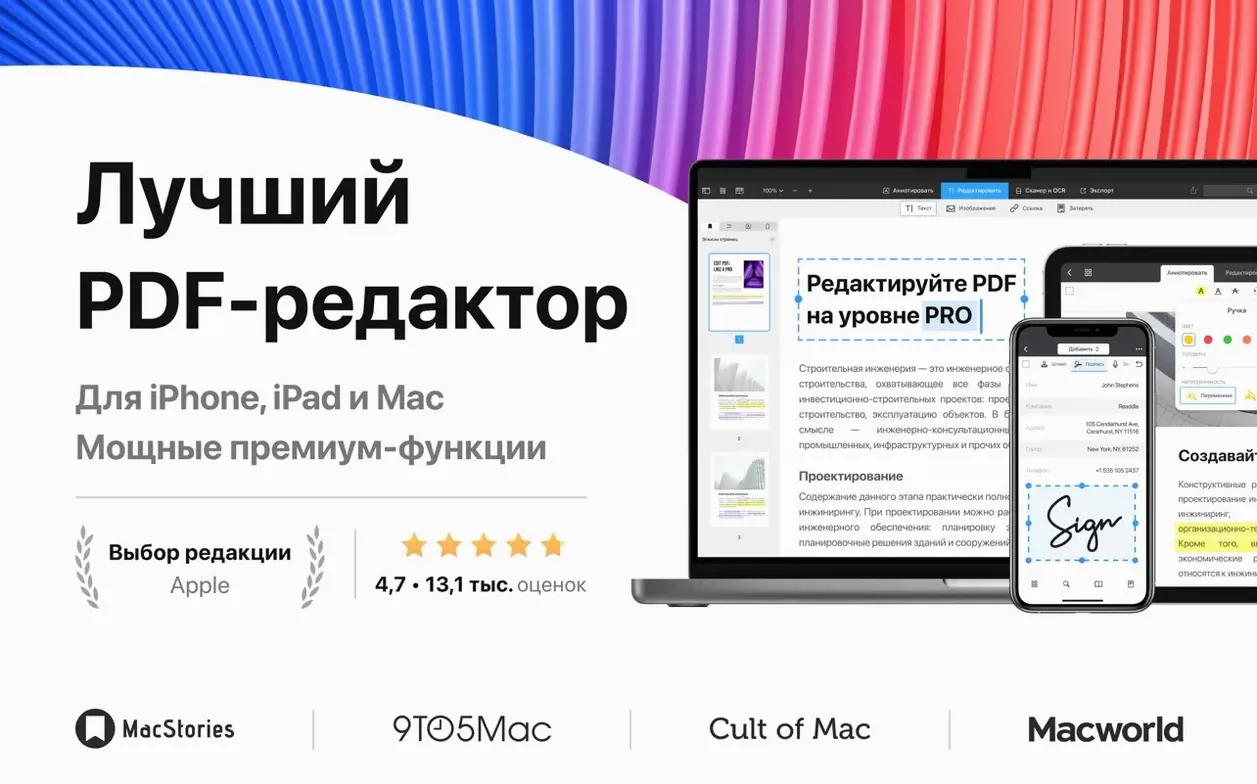
Add links to other pages inside a document and it stays a single file, not a folder of loose sheets. That alone shifts it from a viewer to something you can build project packs with. You drop in a meeting agenda, link out to a shared calendar, attach the Q3 budget PDF, and hand over one item.
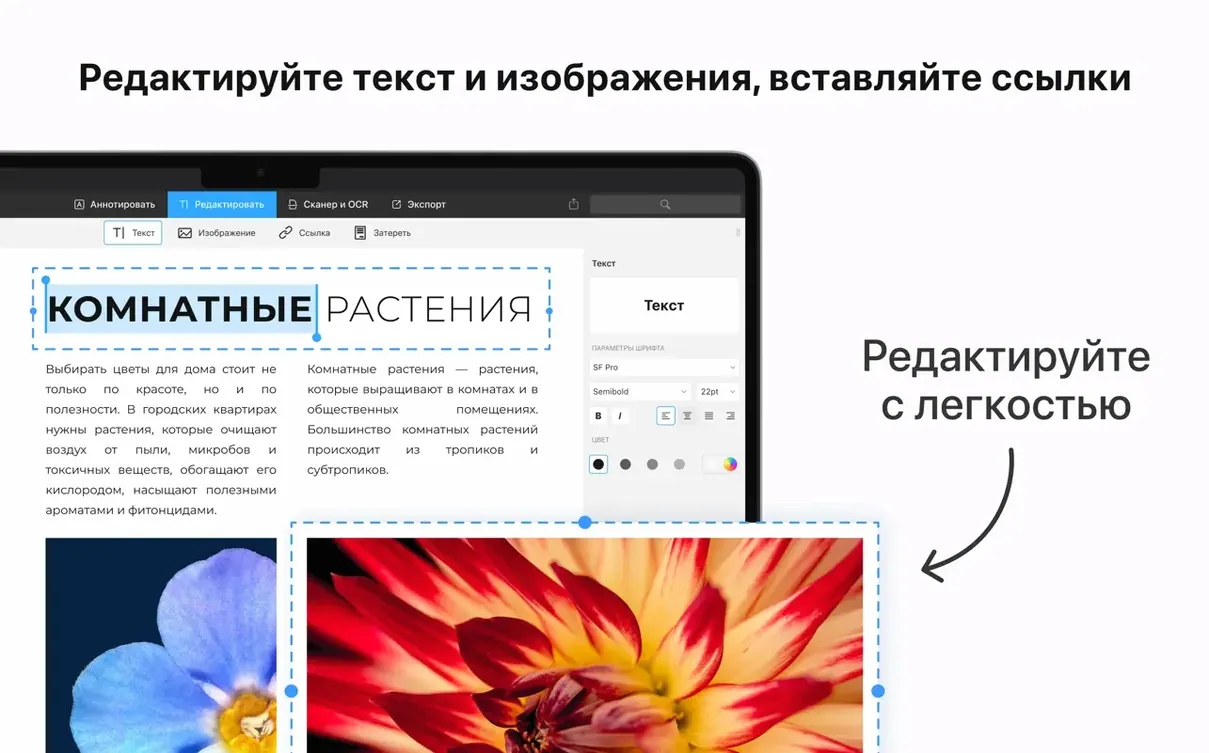
It sits neatly next to the macOS file system. Merge several invoices into one PDF before forwarding to accounts. Set a password on a contract draft without opening a browser or a print dialog. Edit an image inside a page — resize a screenshot or swap a logo — rather than rebuilding the whole document in another app.
Signing forms is direct. Save a signature once, tap it onto a field, and send the file back. No printing, no scanning, no extra steps. The app runs on Apple Silicon and Intel Macs, from macOS 12 onward.
Use it alongside your existing office tools. It handles the PDF layer that word processors and spreadsheets don't, without pulling you into a subscription-shaped cloud setup.
Five mistakes to avoid from day one
- Editing text without checking the font first. PDF Expert matches the original font when it can. If the font isn't on your Mac, the substitute can shift line breaks. Before typing, click into the text block and glance at the font name in the sidebar.
- Signing a form before saving a blank copy. Once you flatten a signature onto a page, it's baked in. Save an unsigned master first. You'll need it again.
- Dragging pages between documents without holding the right modifier. By default, dragging copies the page. Hold
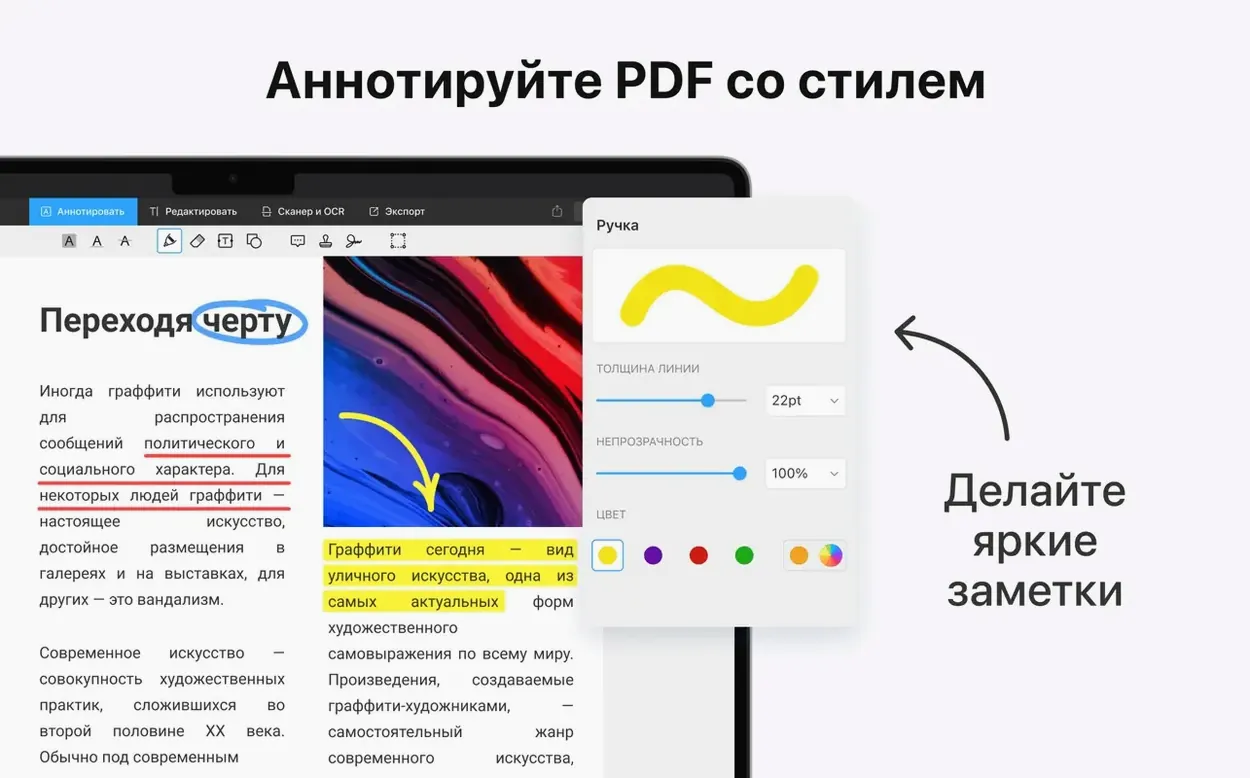
Optionto move it instead. Beginners often duplicate pages by accident and end up with messy merged files. - Using the wrong annotation tool for the job. The highlighter looks like a marker but behaves differently from the underline tool when you export to another reader. Underlines survive text extraction better. Highlights can vanish if the PDF was scanned.
- Ignoring the table of contents panel. If you add headings manually via the Edit tab, the TOC stays empty. Use the Outline panel to promote text blocks into clickable entries. Do it once per document and navigation becomes instant.
A real-world morning for a contract manager
Claire manages supplier agreements for a logistics firm. Her Monday starts with three PDFs in her inbox: a draft from legal, a signed page from a vendor, and a scanned amendment with a coffee stain on the corner.
She opens the legal draft first. The section on delivery timelines needs a date change. She clicks into the paragraph, types the new date, and the surrounding text reflows without breaking. She adds two internal links — one to the penalty clause on page seven, one to the rate card appendix — so the operations team can jump straight to the numbers.
The signed vendor page arrives as a single sheet. Claire merges it into the main contract, dragging it between pages four and five. She then crops the stained corner from the scanned amendment using the image edit tool, resizes the page to A4, and saves.
Before forwarding the final file to her director, she sets a password. Thirty seconds of work. One file goes out, not four.
Heavy PDFs open in under two seconds without beachballing
On an M1 MacBook Air with 8 GB of RAM, opening a 200-page equipment manual takes under two seconds. Scrolling through heavy architectural drawings with embedded vector layers stays smooth — no grey placeholder boxes, no beachballing.
Memory use sits around 180 MB with a single document open. That climbs toward 400 MB when you have six or seven tabs of scanned PDFs loaded. Not lightweight, but well within what a modern Mac handles without swapping.
What doesn't lag: text editing in native PDFs. What can feel slower: editing text in a fully scanned, OCR-converted document where every character is a placed image. The app still does it, but expect a beat of processing between clicks.
Stability has been uneventful across a week of daily use. No crashes when merging 40-page bundles. No corruption when saving password-protected files. The one quirk: quitting the app while a large file is still syncing to iCloud can leave a temporary lock file. Reopening clears it.
First three days: a practical checklist
- Set your default signature. Sign on paper, hold it to the camera, and tweak the contrast slider until the background vanishes. Save it once. It'll appear in the annotation bar from then on.
- Customise the toolbar. Right-click the top bar and remove every tool you won't use this week. Fewer icons, faster decisions.
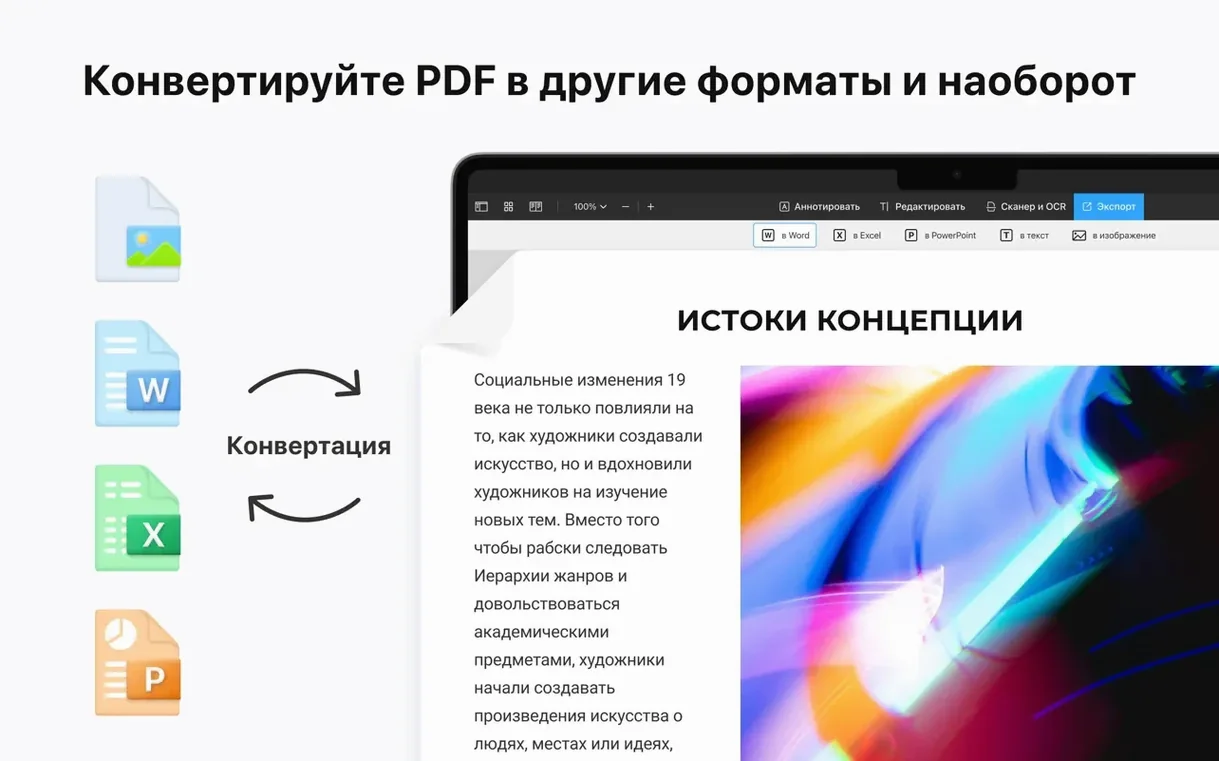
- Test the conversion path you'll need most. Drop a Pages file onto the app icon. Check the output. If the fonts or margins shift, you'll know before a deadline, not during one.
- Create one password-protected file and share it with a colleague. Confirm they can open it on their end — Windows, Android, whatever. A password that works only on your Mac isn't a password, it's a lock with no keyhole.
- Tag a few reference PDFs with the table of contents tool. Pick three documents you search through often. Adding five headings each takes ten minutes and saves you scrolling for weeks.
- macOS 12 or later
- Apple Silicon or Intel 64-bit Mac








Comments 0
Sign in or create an account to add a comment.
No comments yet. They go up after moderation.