
AI Transcription — Mac download
Download (5.1 GB) Earlier builds
Ticked
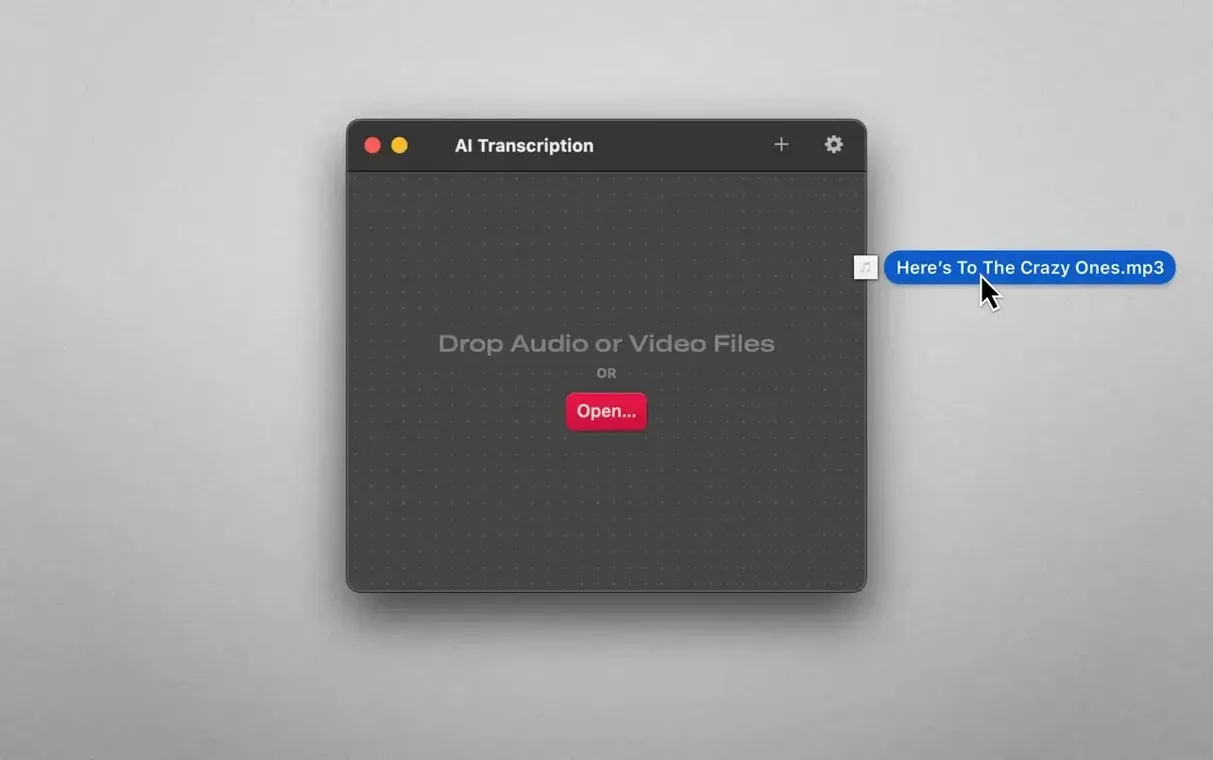
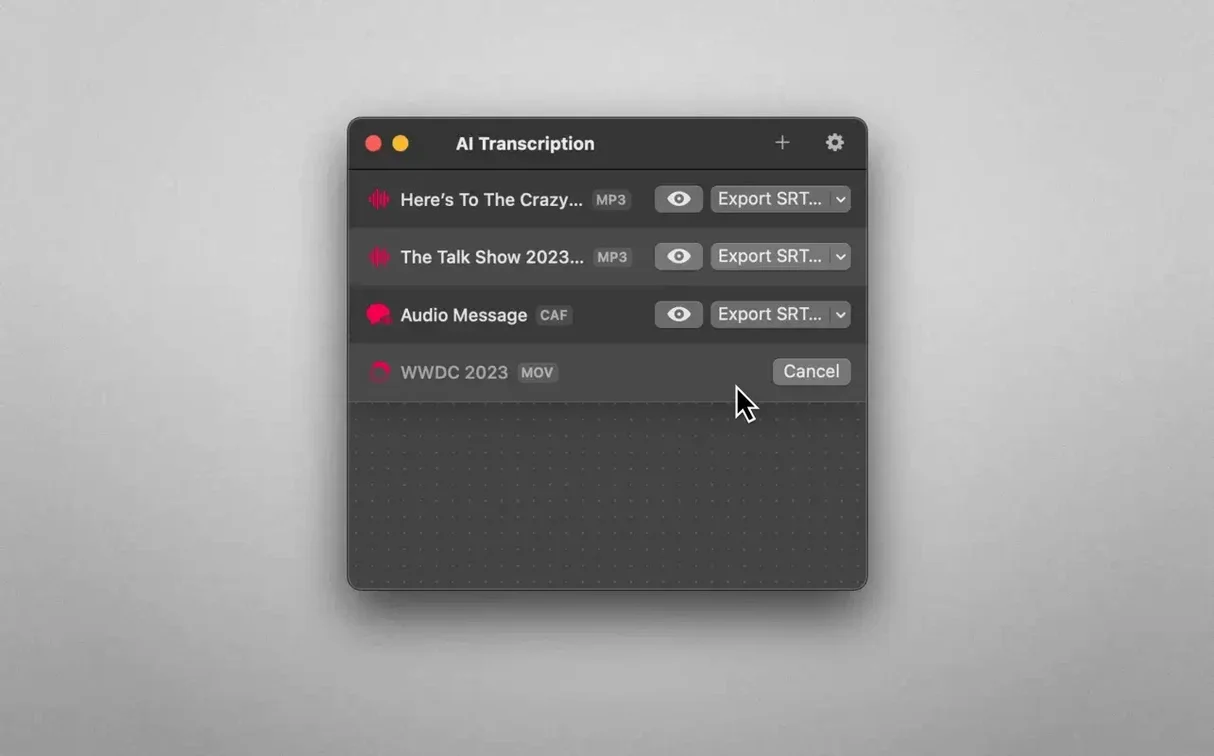
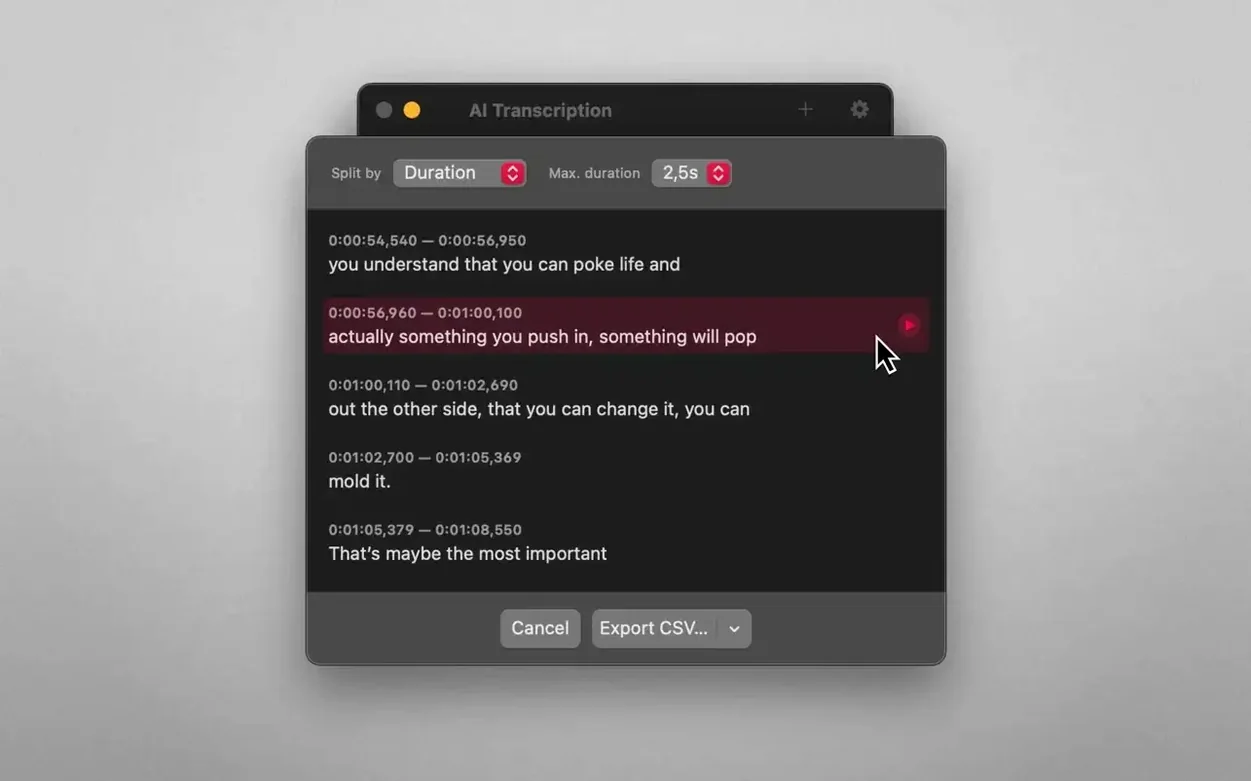
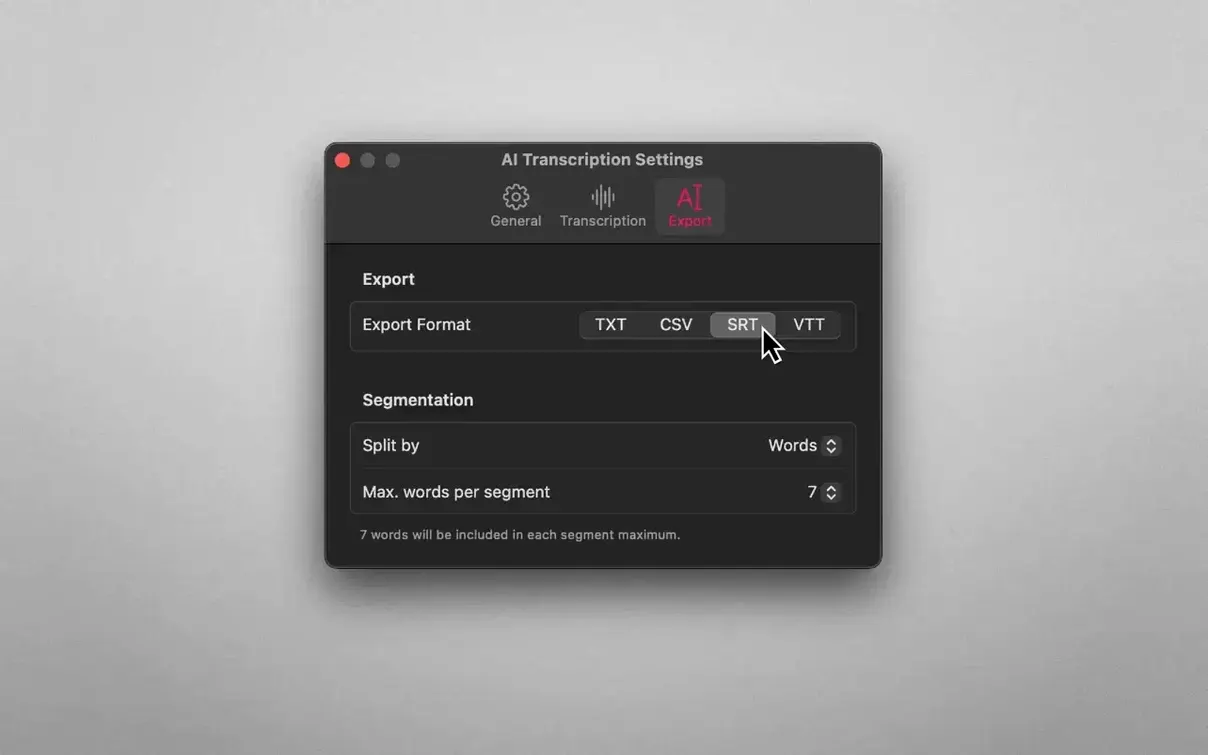
You drop a 45-minute interview video onto the window, leave it to process locally, then return to a timestamped SRT file ready for subtitles.
Engine — OpenAI Whisper and Apple Speech Recognition. Two models working offline, no uploads.
Drag-and-drop — Audio or video files go straight onto the interface. Nothing else to configure.
Export formats — Plain text for notes, CSV for analysis, SRT and WEBVTT for subtitling. Pick the one the job needs.
Segmentation — Split transcripts by word, sentence, or duration. Control how the output is structured before you export.
Local processing — Everything runs on your Mac. No cloud, no queue, no privacy concern.
Apple Silicon transcribes in real time, Intel crawls
Speed depends almost entirely on your Mac's chip. Apple Silicon Macs chew through a one-hour WAV in roughly the same time the recording lasts — sometimes faster. Intel Macs take longer, often two to three times the file duration. The Whisper model handles heavy accents better. Apple's engine is faster but less forgiving with background noise.
Stability is straightforward. No crashes in normal use with MP3, WAV, M4A, or MP4 files. RAM usage stays moderate — around 300 MB during active transcription on Apple Silicon, closer to 500 MB on Intel. The app won't spin up fans on an M1 MacBook Air. If you feed it a corrupt file it simply stops and shows an error. No hangs, no beachballs.
Battery drain is noticeable on longer jobs. A two-hour video costs 15–20% on a 14-inch M1 Pro. Worth plugging in for big batch work.
First few days
A few habits make the first week smoother.
- Test both engines early. Drop the same 30-second clip twice — once with Whisper, once with Apple. Compare accuracy. The winner varies by recording quality and accent, and knowing which to reach for saves rework.
- Name files before you transcribe. The app keeps the original filename in exports. Renaming a batch of "Recording-2024-11-03.m4a" files beforehand means you won't hunt through Finder later.
- Start with short segments. For SRT exports, split by sentence first. Duration-based splits can cut mid-sentence, which makes subtitle editing tedious.
- Keep the source files local. Transcribing directly from an external drive works, but it's slower. Copy to the desktop first, then drag in.
- Check the CPU in Activity Monitor once. If you transcribe while running other heavy apps, you'll see it spike. Schedule long jobs for idle time.
Switch segmentation to "sentence" for readable chunks
Out of the box the defaults are neutral. A couple of tweaks make the output more usable for real projects.
- Segmentation to "sentence." The default split is by duration. Sentence mode gives you chunks that read naturally in plain text and subtitle exports. Change it once and leave it.
- Export format default. No universal setting here — the app remembers your last choice per session. If you mostly produce subtitles, pick SRT on your first export and it'll stick for the rest of that session.
- Whisper as the default engine. Apple Speech Recognition loads first. For most users, Whisper's accuracy is worth the slightly longer wait. Switch it manually in the dropdown until the app remembers the preference across sessions — behaviour varies between versions, so recheck after updates.
- Interface language. The app respects your system language but can be overridden. If you transcribe in a language different from your macOS setting — Spanish audio on an English system, for example — set the app language to match the source audio, not your interface preference. The engine selection influences results more, but matching the UI language avoids confusion in menus.
- macOS 14.6 or later
- Apple Silicon or Intel 64-bit
Questions the team asks
It uses OpenAI Whisper combined with Apple Speech Recognition, both running offline on your Mac.
Transcripts can be exported as plain text, CSV, SRT and WEBVTT files.





Comments 0
Sign in or create an account to add a comment.
No comments yet. They go up after moderation.