

Topaz Photo AI — Mac download
Ticked
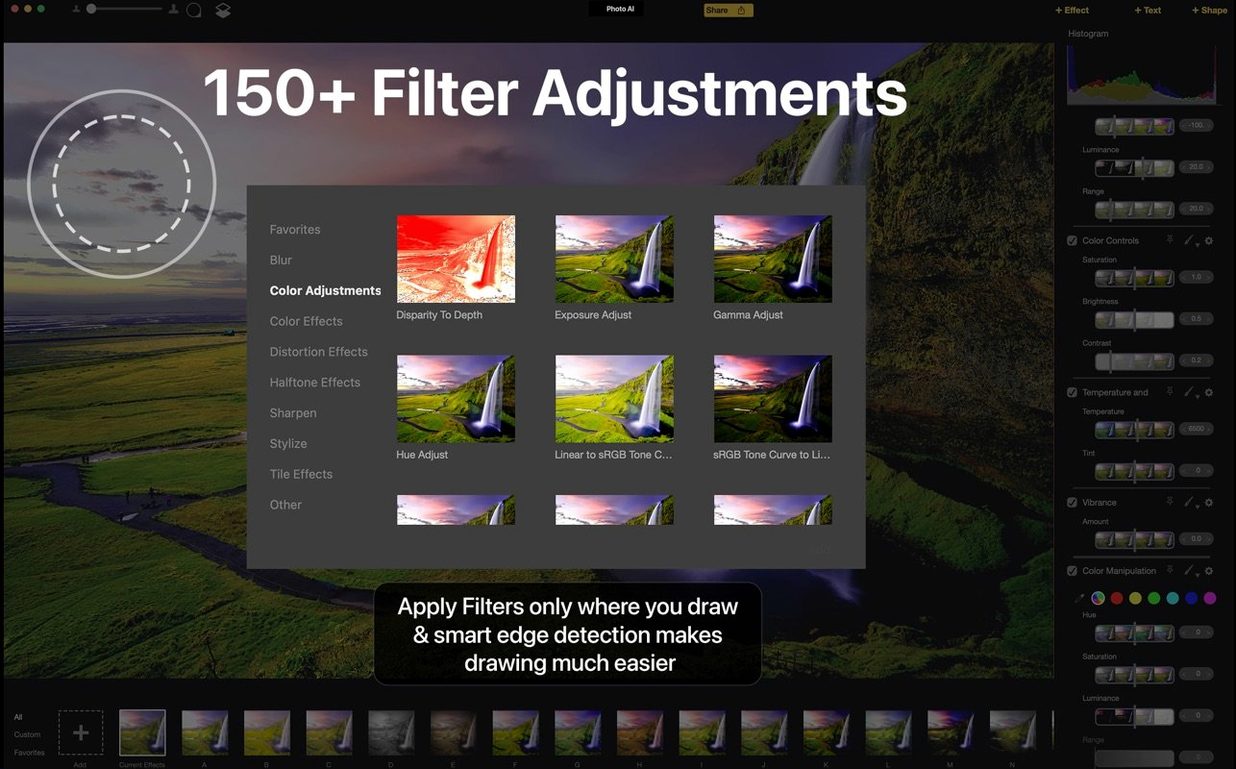
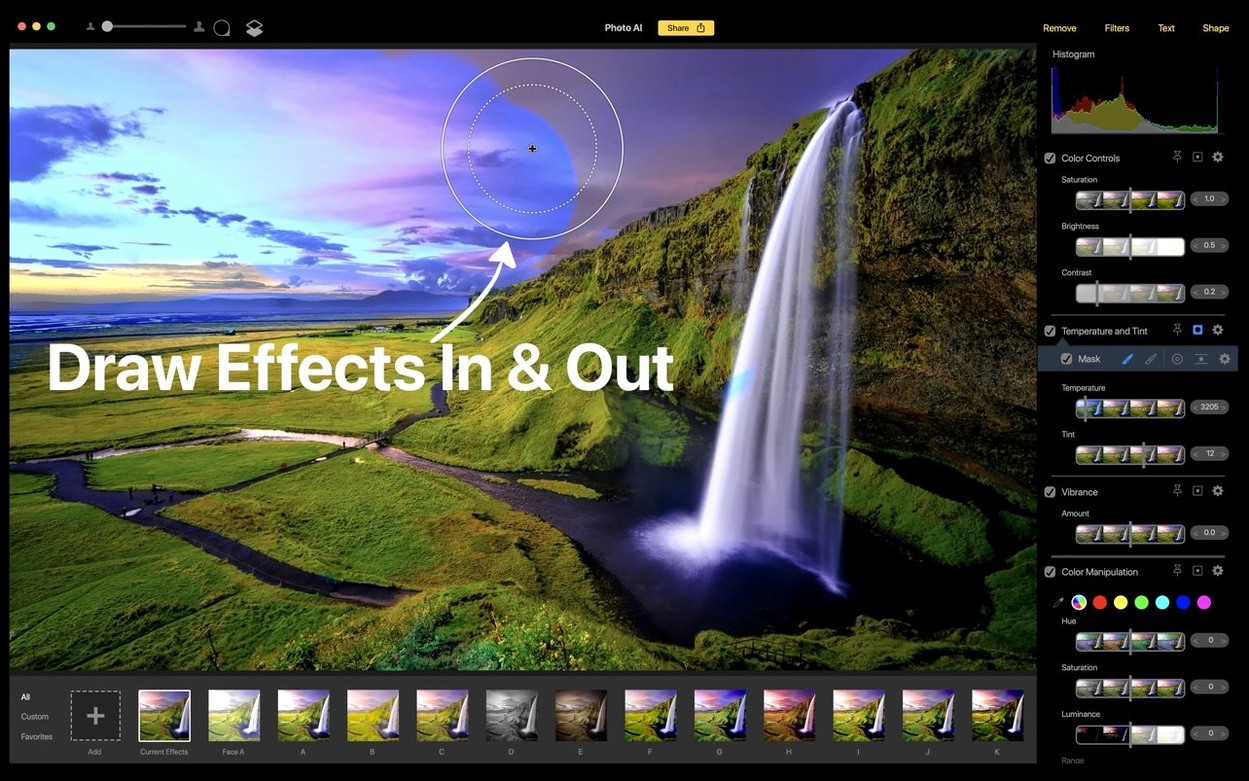
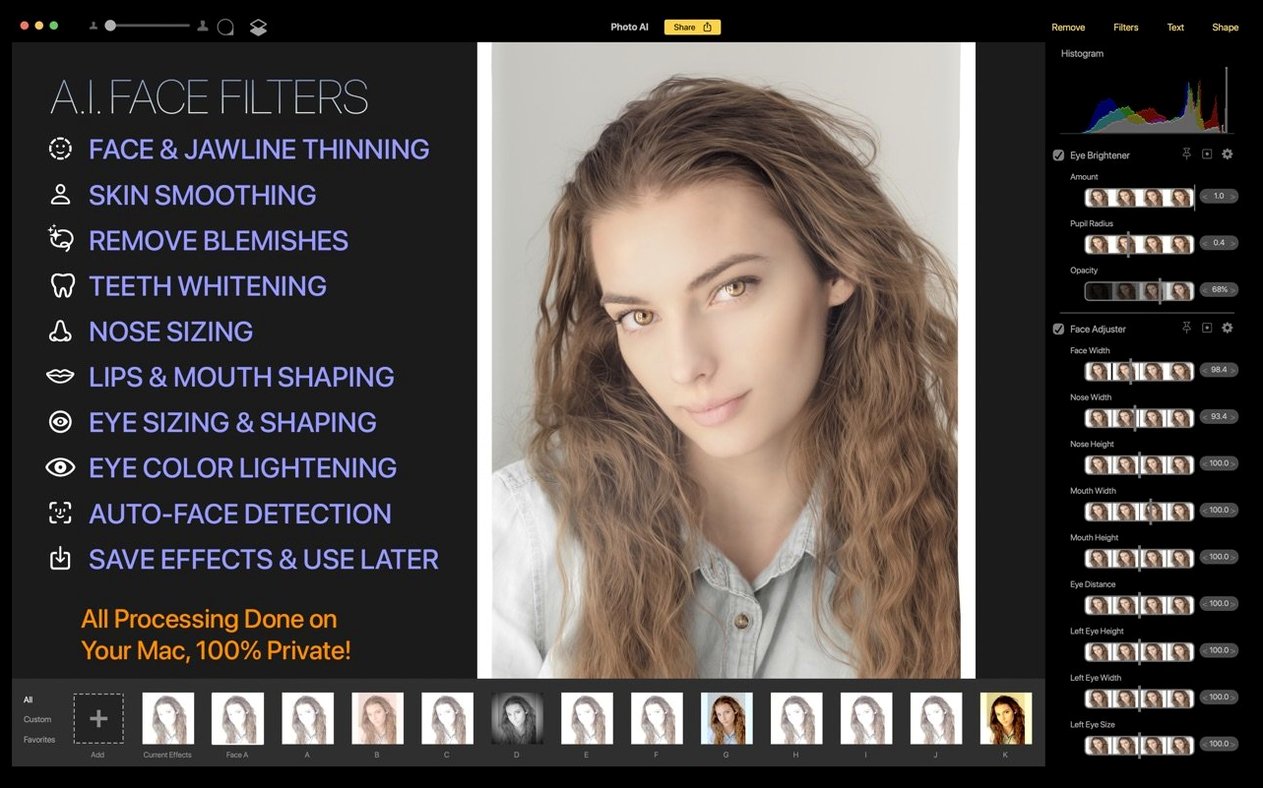
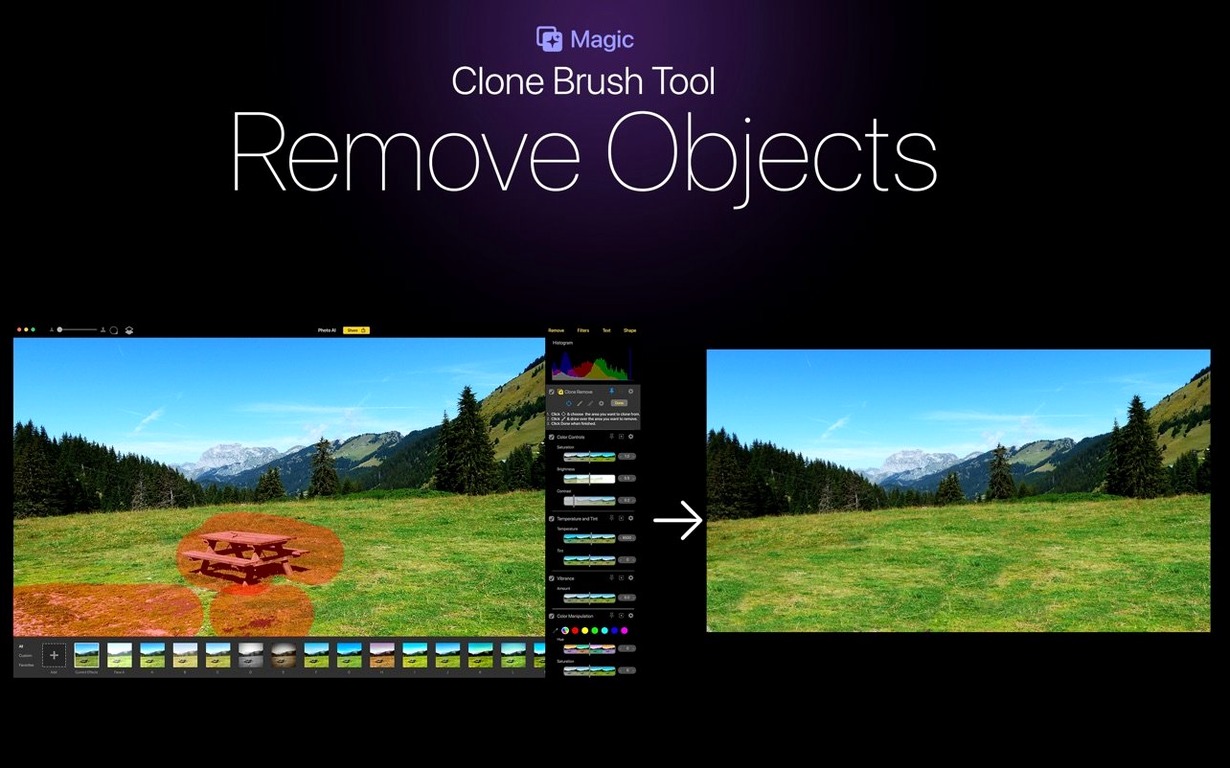
Every image has a limit. For this one, it was the 3.2 MB file size and a distracting sign in the bottom-left corner. Topaz Photo AI handles both without touching a server.
The task
Open a raw file. Remove the object. Crop. The tool works non-destructively and in real time on Intel Macs running macOS 11 or later. I select the content-aware removal brush, paint over the sign, and release. The algorithm replaces the area with a plausible fill in under two seconds. No upload, no waiting.
The finish
Switch to the crop overlay. Set a 4:5 ratio. The live preview updates immediately because all processing stays local. Export one clean JPEG. The whole sequence—open, heal, crop, export—takes under a minute. The legacy app might be discontinued, but the real-time engine on Intel hardware still delivers a straightforward, local workflow.
Switch from preview speed to final quality
Out of the box, the app uses defaults that work for quick previews but not for final output. Three settings are worth adjusting before you process anything serious.
- Processing resolution — The default is often set to a lower resolution to speed up previews. Switch it to Full Resolution before exporting. The difference in fine detail, especially on hair and fabric, is noticeable.
- Face recovery strength — The face filter ships at 50% intensity. On portraits shot in good light, drop it to 30–35%. Pushing it higher on already-sharp faces introduces a plastic look. For noisy low-light shots, nudge it to 65% and let the model work harder.
- Sharpening model — The default model favours speed. Switch to the Lens Blur model if your source has optical softness rather than motion blur. The deconvolution-based approach restores lost edges without haloing.
These three changes take under 30 seconds and affect every batch you run afterwards.
Where imperfect source files meet tight deadlines
Wedding and event photographers
You deliver 400–800 images per job. A handful have soft focus from a moving subject or a guest blinking at the wrong moment. Batch-apply face recovery to the flagged set instead of discarding usable frames. The local processing means no client images leave your Mac.
Product photographers with tight crop requirements
Marketplace listings demand square or 4:5 crops on clean backgrounds. The content-aware removal handles dust, reflections and packaging creases without switching to a separate retouching tool. One app, one pass.
Archivists scanning old prints
Scanned family photos from the 1980s come with grain, faded colour and paper texture. The AI-based enhancement models were trained on exactly these degradation patterns. A single pass lifts detail you did not know was in the negative.
Why noise and face recovery clash in one pass
- Stacking too many filters on first pass — It is tempting to enable face recovery, sharpening, noise reduction and object removal simultaneously. The processing pipeline compounds artefacts when too many models run at once. Tackle noise first, export, then sharpen. Two clean passes beat one messy one.
- Ignoring the masking brush — Applying enhancement globally sharpens background blur and bokeh, which should stay soft. Paint a mask over the subject only. The non-destructive editing saves you when you inevitably mask too aggressively.
- Skipping the comparison view — The before/after toggle is there for a reason. Use it. On a busy retina display, a subtle over-sharpen is hard to detect until you see the original side by side.
- Assuming every image needs AI — A correctly exposed, well-focused raw file from a modern lens may need nothing beyond a crop. Running the face filter on a sharp portrait wastes processing time and adds nothing.
A product photographer's morning
Marco shoots handmade ceramic mugs for an online shop. His setup is a lightbox, a Sony a6400 tethered to an Intel MacBook Air, and a stack of 30 products to photograph before noon.
Frame one: a matte-glazed mug against a white sweep. The shot is sharp at f/8, but a stray fibre from the backdrop and a fingerprint on the rim ruin it. Marco mounts the raw file in Topaz Photo AI. He paints over the fibre with the removal brush—gone in one stroke. The fingerprint needs a tighter mask. Two seconds, clean rim.
He copies the crop ratio from the first image and pastes it onto the next 29. The app applies the identical 1:1 square crop to each frame as he loads them. Three mugs needed a slight face filter tweak because the glaze pattern confused the autofocus; the rest pass straight to export. No internet connection required, no cloud queue, no subscription login during the session.
By 11:45 the batch is on his NAS, ready for the shop upload. The MacBook Air stayed cool and silent the whole morning because the Intel-native build handles the workload without thermal throttling. Marco closes the lid and heads to the post office.
- macOS 11 or later
- Intel 64-bit processor
Questions the team asks
No. All processing happens locally on your Mac. No upload is required.








Comments 0
Sign in or create an account to add a comment.
No comments yet. They go up after moderation.