

VideoProc Converter AI — Mac download
Download (254 MB) Earlier builds
Ticked
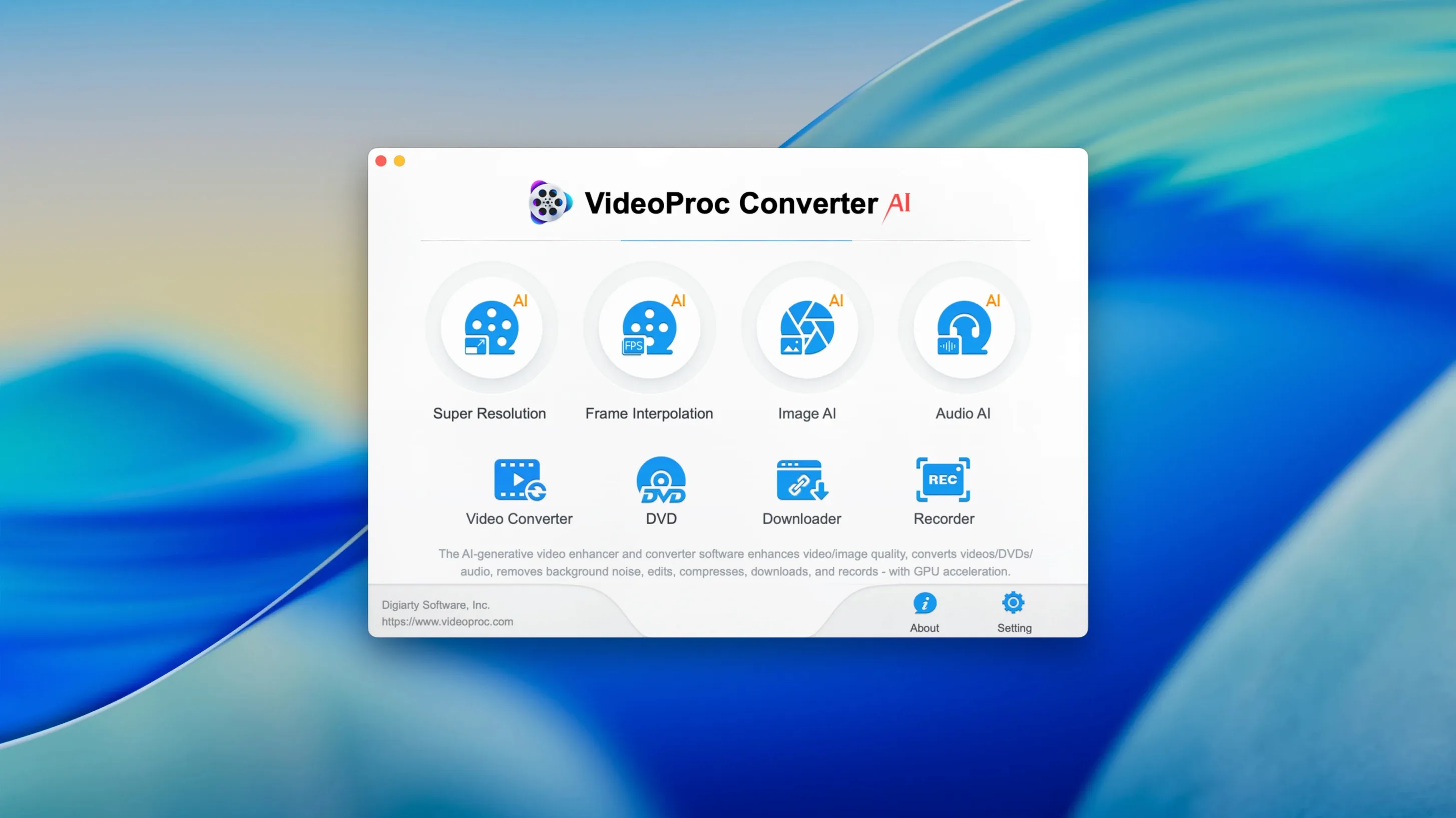
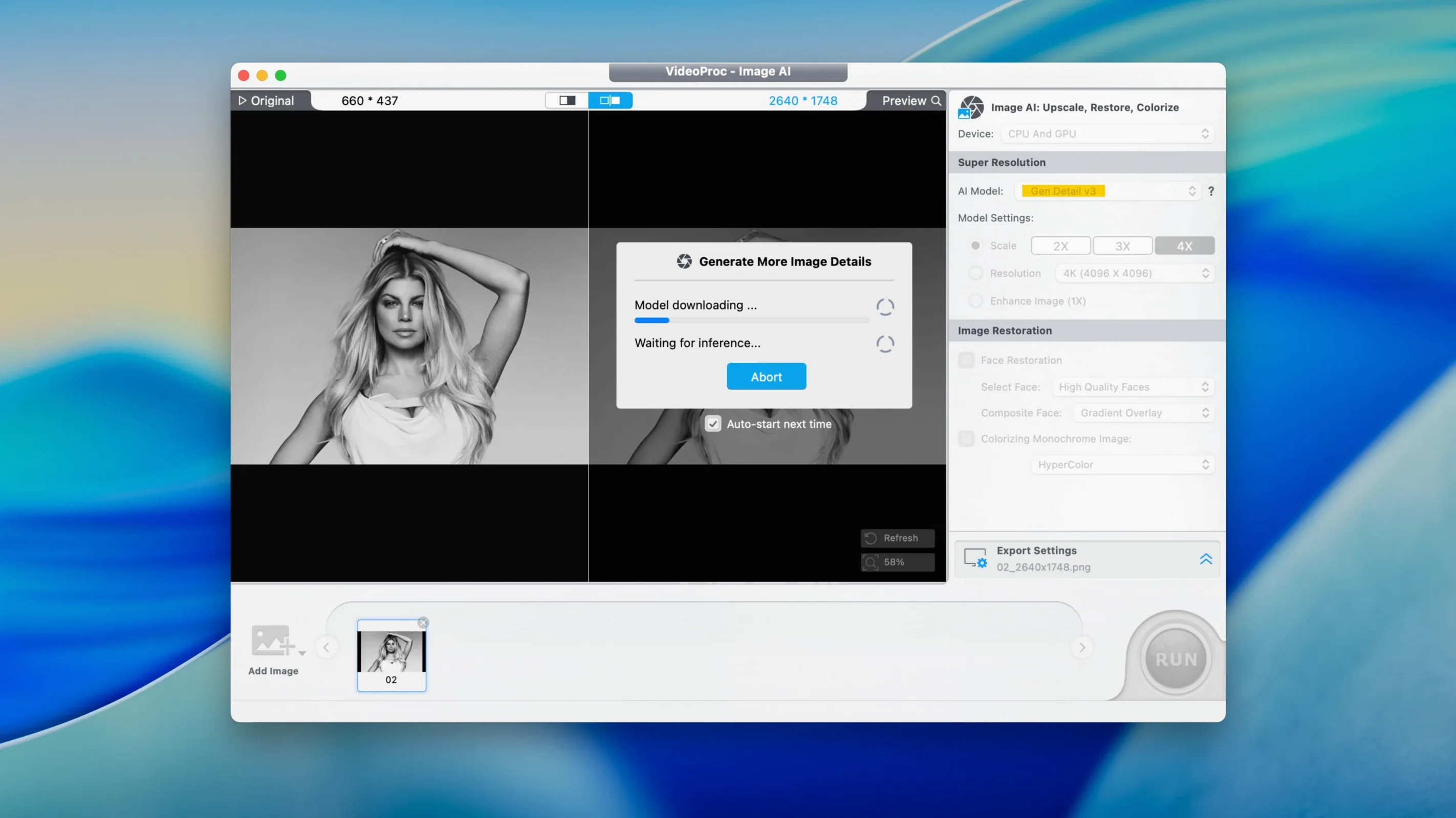
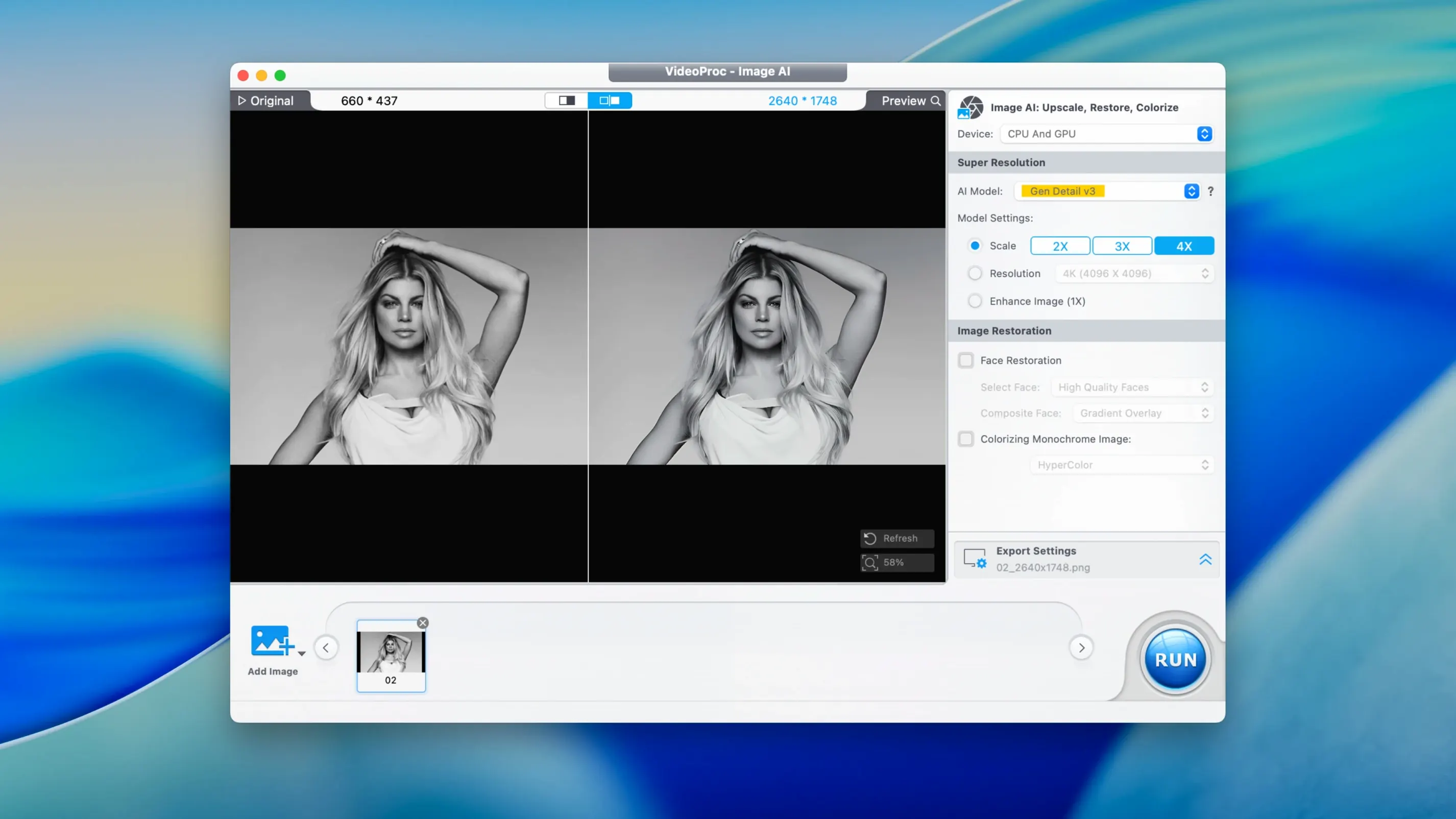
You have a shaky clip from a family holiday, shot on an old DV camera. It needs stabilising, the colours are washed out, and you need a version that plays on an iPad. One launch, no extra tools.
The stabilisation runs first. You set the preset to iPhone and adjust brightness and contrast with the sliders. Audio extracts alongside as an AAC file, ready to share separately. The queue processes in the background while you trim the dead air at the start of another clip.
Merge the trimmed sections. The app reads the hardware on your Mac—Metal, Intel, or M-series—and pushes the encoding through hardware acceleration. A full hour of video finishes in minutes, not a lunch break.
The downloader grabs a reference clip from online media for a side-by-side comparison. Screen recording captures the settings window if you are documenting a workflow. One checklist app knocking off four tasks without switching between utilities.
Test a 30-second clip before batch converting
- Run a short test clip first. Pick a 30-second file, convert it to MP4, and check the output before queueing a full batch.
- Confirm hardware acceleration is active. Open a conversion, watch the progress bar, and compare the speed to software-only encoding if you have a baseline.
- Save your most-used presets. Device profiles for iPhone, iPad, and Apple TV are built in, but your own tweaks to bitrate and resolution save clicks later.
- Check the downloader with a clip you already know. Paste the URL once, let it fetch, and note where the file lands.
- Test screen recording before you need it. Record ten seconds with voice commentary, then play it back to confirm the microphone level.
Hardware acceleration not kicking in during conversion
Output plays with no audio
Check the audio track checkbox in the conversion panel. If it is unchecked, the app produces a silent file. Re-run with the track enabled.
AI upscaling takes too long
Upscaling to 4K or 8K is heavy work. Close other apps that use GPU resources, and process one clip at a time instead of queueing several AI tasks together.
Downloader stalls on a URL
Some sites change their delivery method often. If a link does not resolve, copy the URL again from the address bar, not from a shared post, and retry.
Colour adjustments do not appear in the final file
Apply adjustments before adding the file to the queue. Changes made after queueing do not always carry over to the encode.
Large file fills the disk
Compression presets for Instagram, YouTube, and TikTok reduce size, but check the output folder before starting. A long 4K source can still produce a large intermediate file.
One working session, step by step
You open VideoProc Converter AI at 9:40 with three tasks on the list. First, a 20-minute screen recording from a client call needs trimming. You drag it in, set in and out points, and cut the first two minutes of idle screen.
Second, the trimmed file needs to go to a colleague on an iPhone. You pick the device preset, keep HEVC, and add it to the queue. The app picks up hardware acceleration and starts encoding.
While that runs, you open the downloader and paste a Vimeo link for a reference video. The file downloads to the default folder without touching the queue.
Third task: a short clip from an old DV tape needs stabilisation and denoising. You load it, enable both, and set output to 1080p MP4. The queue now holds two conversions; the first finishes while the second starts.
By 10:15, all three files sit in their folders. The screen recording is trimmed and converted, the Vimeo clip is downloaded, and the DV footage is watchable. No separate tools, no switching apps.
- macOS 10.15 or later
- Intel 64-bit or Apple Silicon








Comments 0
Sign in or create an account to add a comment.
No comments yet. They go up after moderation.