

Bartender — Mac download
Download (31 MB) Earlier builds
Ticked
If you already use Spotlight or Alfred to launch apps and find files, think of Bartender as the same idea applied to your menu bar. It keeps the icons you rarely click out of sight until you summon them.
Set up a hidden section
Drag a few low-priority icons behind the Bartender divider. They vanish until you click the bar or set a keyboard shortcut.
Create a trigger for battery status
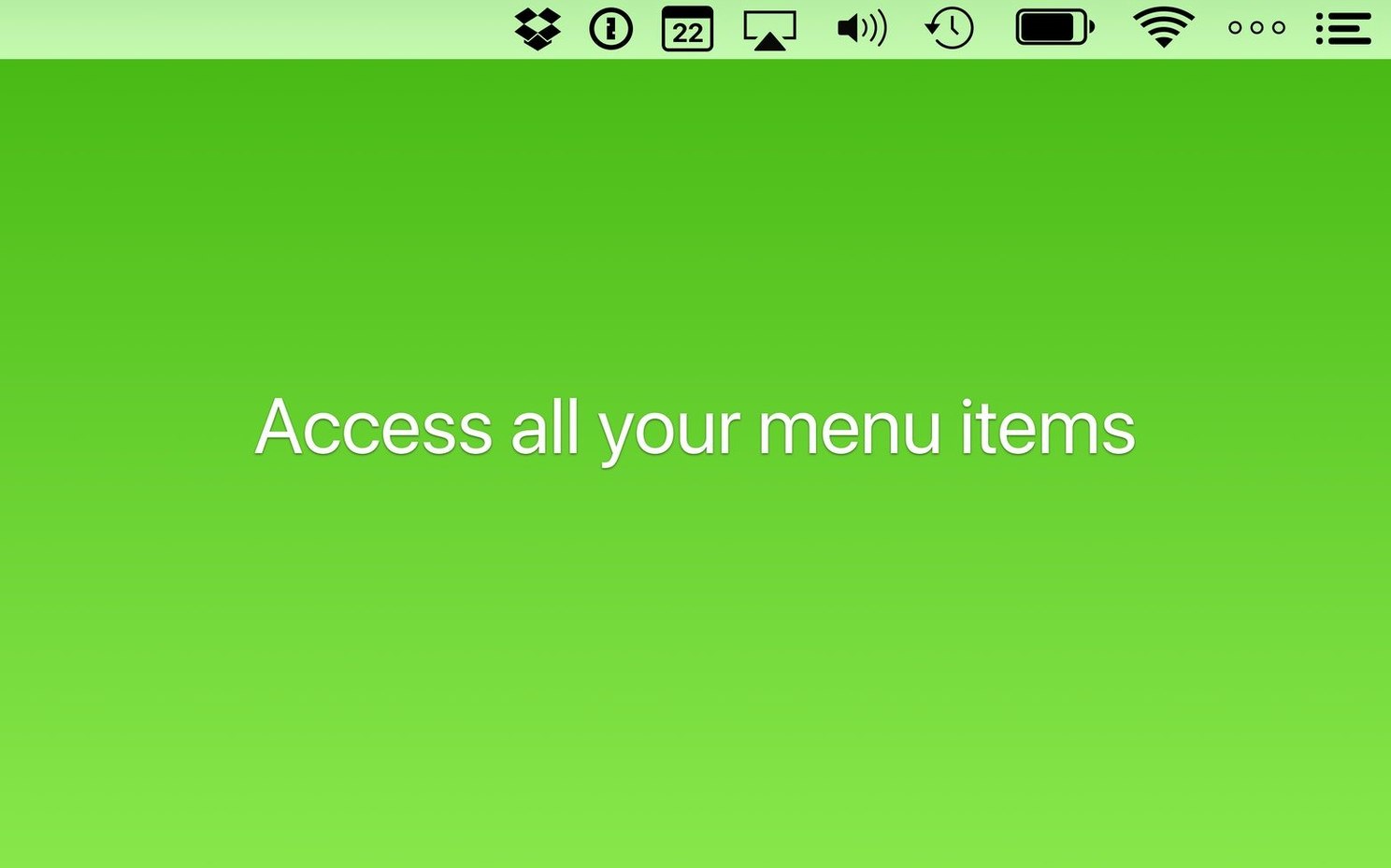
Set the battery icon to appear only when your Mac runs on battery power. The rest of the time it stays hidden.
Reveal items during updates
Three quick preference tweaks for a cleaner bar
Open preferences and make three quick stops.
- General → Hide Bartender icon. The app can vanish from the menu bar itself. Summon it with a shortcut and the bar stays clean.
- Hotkeys → Toggle Bartender Bar. The default is
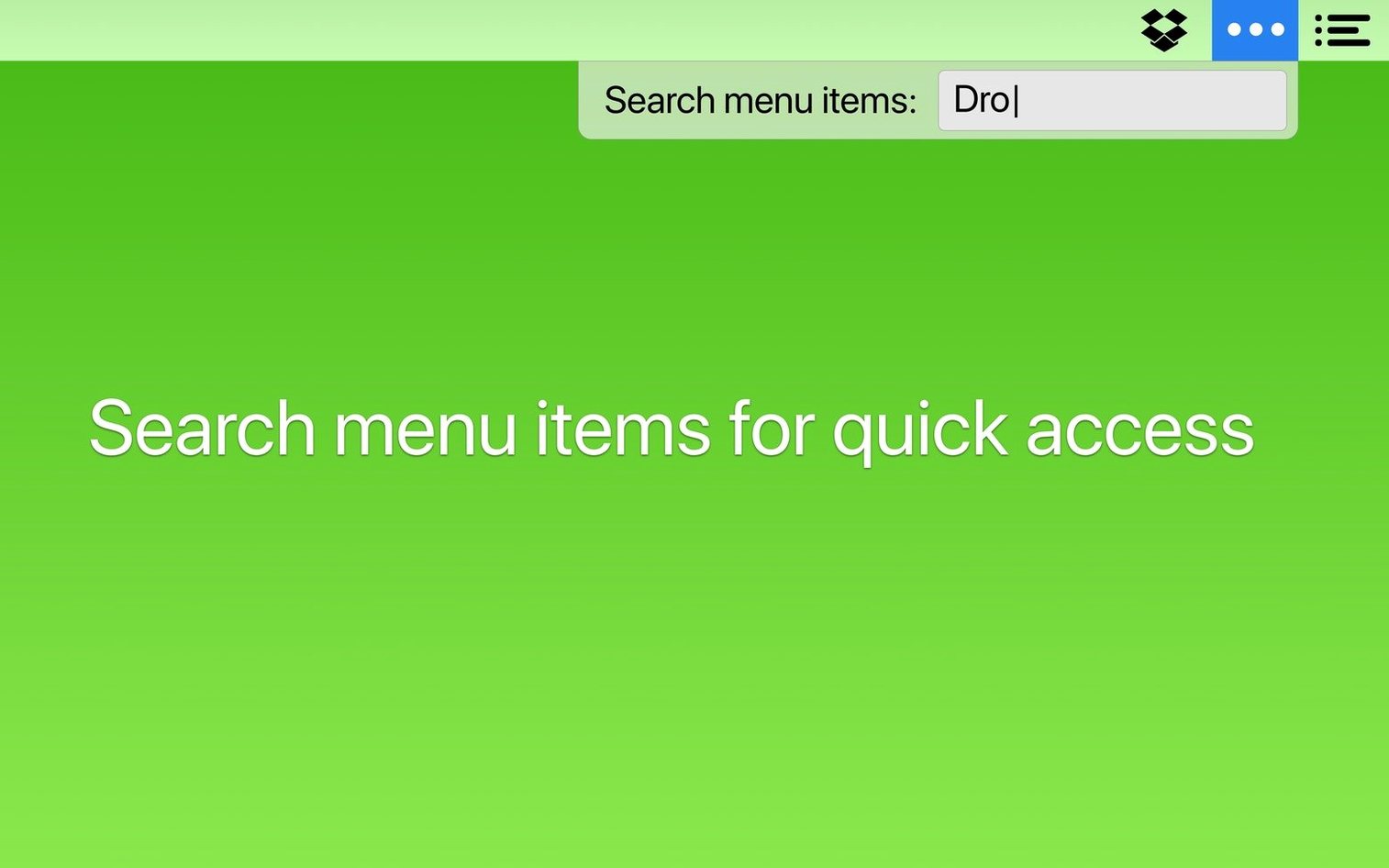
⌃⌥B. Change it early, before muscle memory settles on something you will retrain later. - Menu bar items → Search. A text field sits at the top of the item list. Start typing to find one icon among forty — faster than scanning tiny pixels.
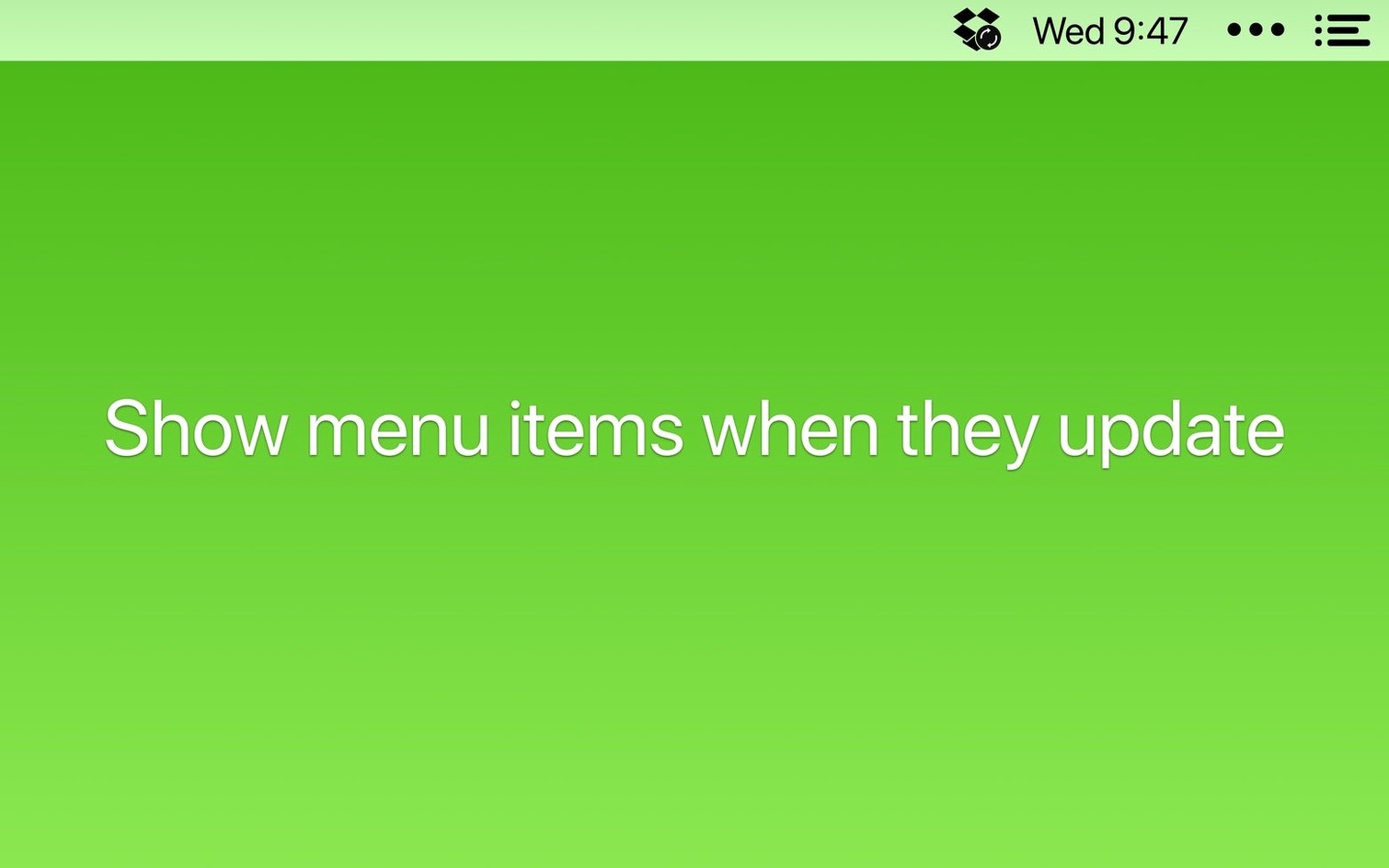
Also check the Updates section. Tick Show when updating for tools like Dropbox or Time Machine. The icons appear during activity, then hide again.
Hiding the clock and battery creates a ghost town
- Hiding everything. A zero-icon menu bar looks tidy but kills glanceable info. Keep the clock, battery, and Wi‑Fi visible.
- Forgetting the Bartender Bar exists. New users drag items behind the divider and panic when they cannot find them. Click the empty space near the clock or hit your hotkey.
- Ignoring keyboard navigation. Once the Bartender Bar opens, arrow keys move between icons and
Enteractivates them. No mouse needed. - Ordering items by accident. Dragging an icon while the bar is unlocked shifts its position across macOS. Lock the arrangement when you finish sorting.
- Stacking spacers without testing restarts. Version 7.0.4 fixed a bug where spacers shifted after reboot, but a messy spacer layout still confuses the divider. Use one or two, not a row of five.
Scenario: a developer with too many tools
Lena runs Docker, Figma, two clipboard managers, and a VPN on a 14‑inch MacBook Pro. By 10 a.m. her menu bar spills into the notch.
She sets up three groups in Bartender.
Always visible: clock, Wi‑Fi, battery, and 1Password. These answer the four questions she asks all day — what time is it, am I connected, is the laptop dying, and where is that login.
Shown during activity: Docker and the VPN. Both peek out when syncing or connecting, then retreat.
Hidden in the Bartender Bar: everything else. She maps the bar to ⌃⌥⌘B and navigates with arrow keys.
When she plugs into an external display after lunch, the extra screen real estate shows a few more icons. Bartender preserves the layout she defined, spacers stay put, and nothing jumps around after the restart that 7.0.4 patched. The menu bar on the built‑in display returns to its compact state when she unplugs.
Pick any sync or backup app and tell Bartender to show its icon when a task is running. You spot progress without permanent clutter.
- macOS 27 or later
- Intel and Apple Silicon Macs







Comments 0
Sign in or create an account to add a comment.
No comments yet. They go up after moderation.