

BetterTouchTool — Mac download
Download (61 MB) Earlier builds
Ticked
You open BetterTouchTool after a fresh macOS setup because the default trackpad gestures feel limited. A minute later you are assigning a three-finger swipe to a script you use daily.
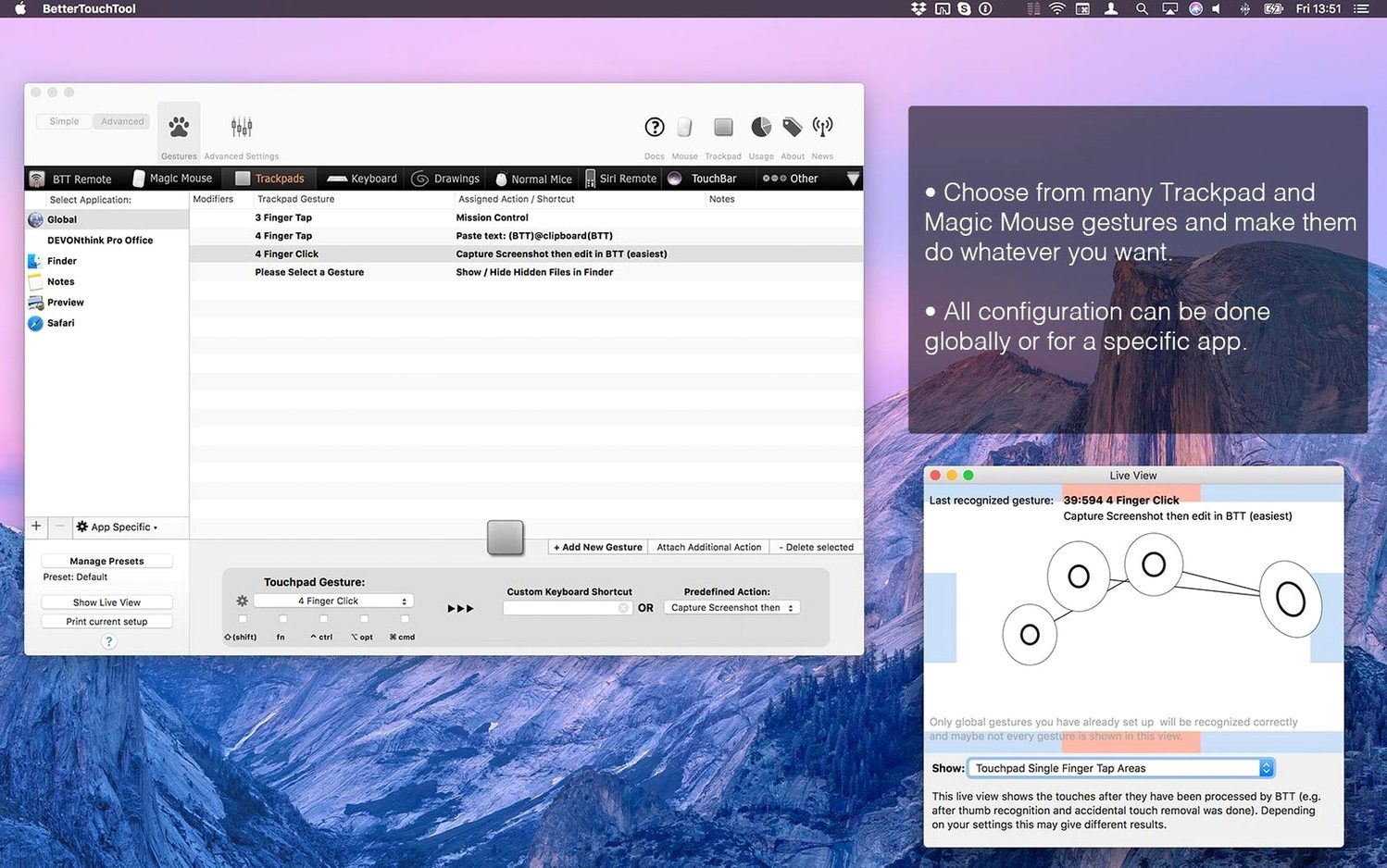
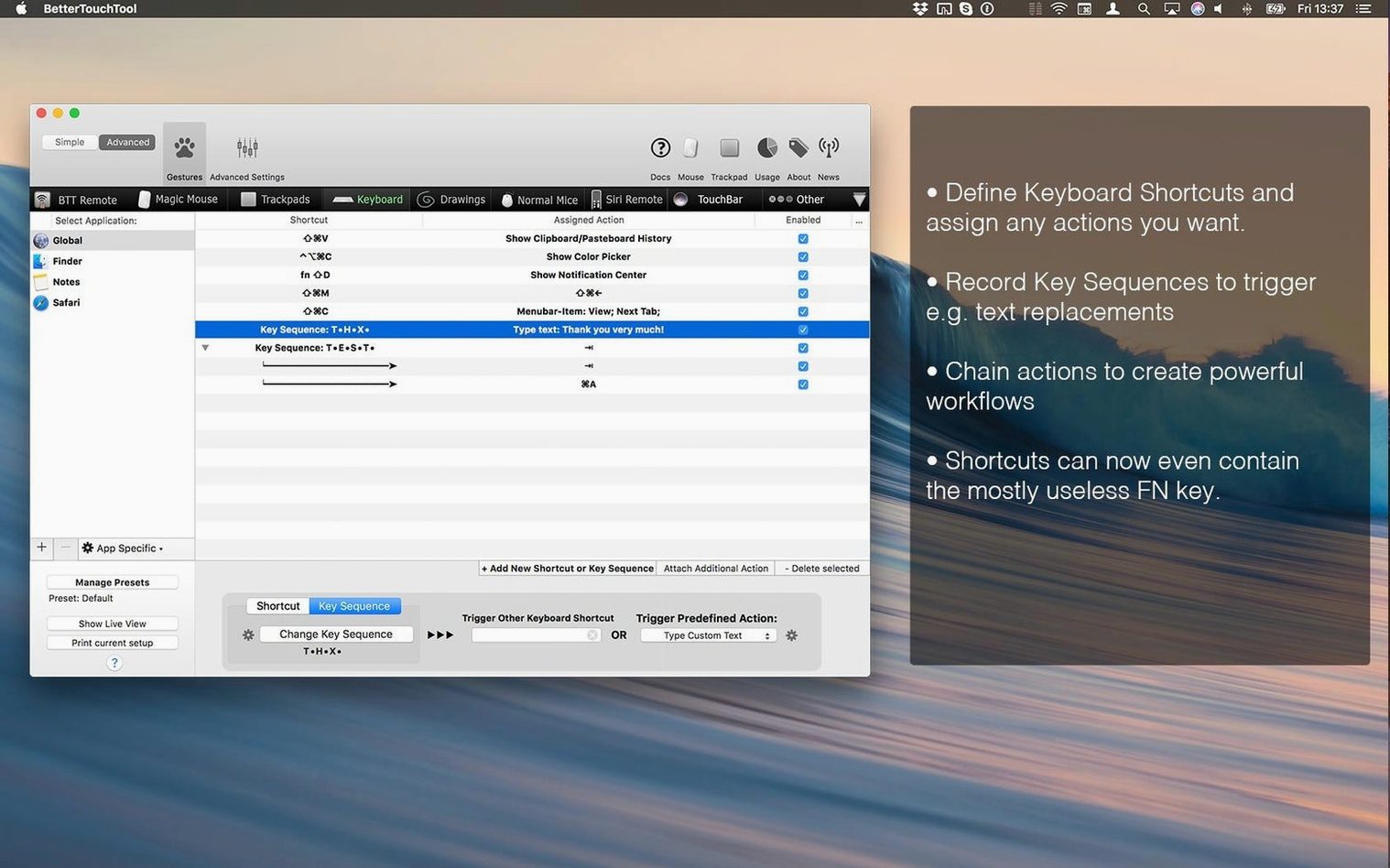
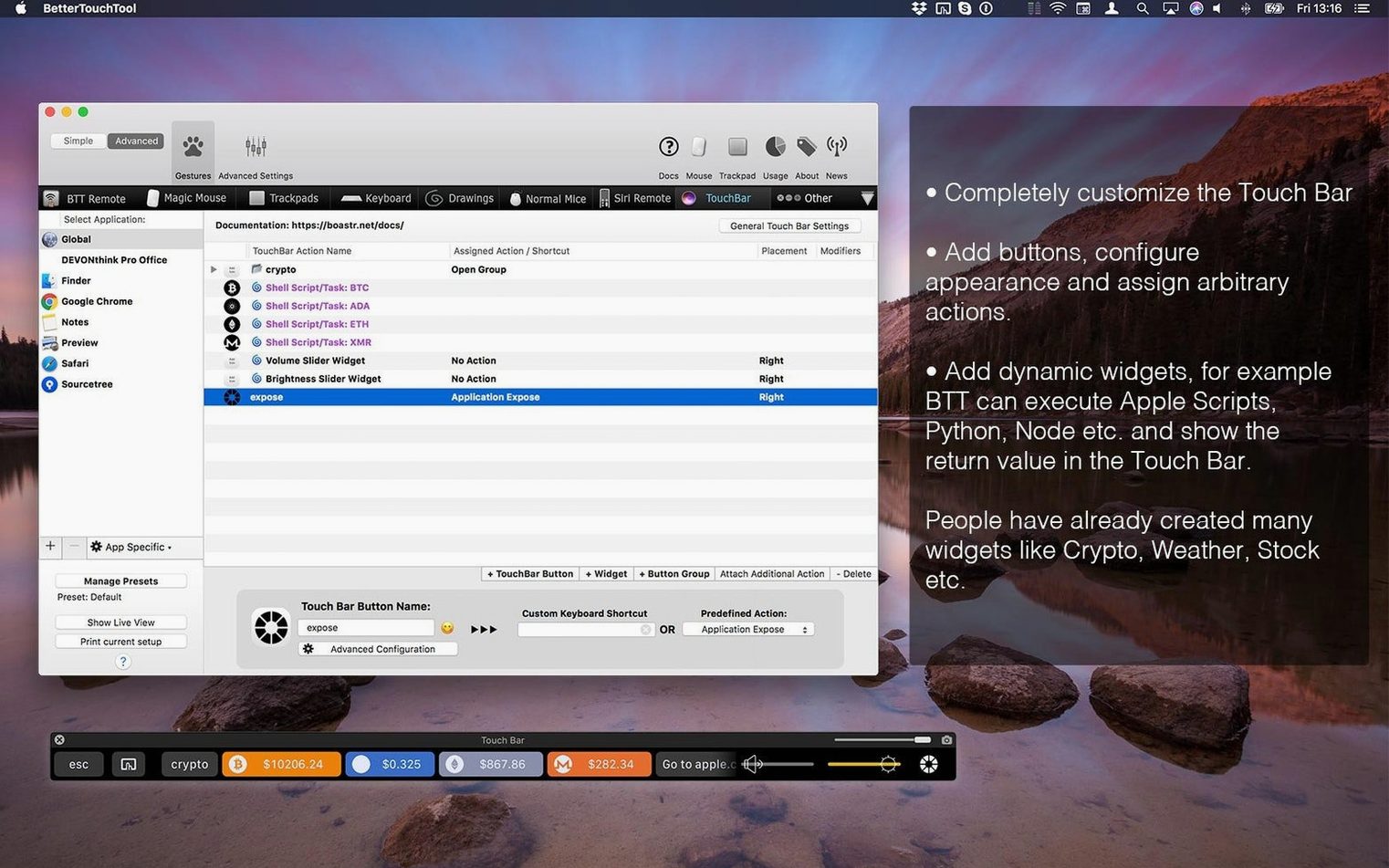
The app is Andreas Hegenberg's main tool for automating the system and customising input devices. It covers keyboard shortcuts, trackpad and Magic Mouse gestures, normal mouse buttons, the Siri Remote, and the Apple Remote. Touch Bar users can build custom widgets, with support for AppleScript, custom URL schemes, and HTTP requests.
It runs on macOS 10.15 or later, on Apple Silicon and Intel Macs. The interface is in English.
Before installing, most people ask two things: does my Mac run it, and what can I actually customise. Both answers are short. Yes, if the OS is 10.15 or newer. And the customisation list covers nearly every input device macOS supports.
Per-app multi-key combos fill the gaps macOS leaves
Power users who live by keyboard shortcuts. If you already remap keys with built-in macOS settings and want more, BetterTouchTool fills the gaps. You can assign multi-key combos that no system preference panel offers, and scope them per app so Safari shortcuts do not clash with Xcode ones.
Trackpad and Magic Mouse users who find Apple's gesture options too rigid. The app lets you draw custom shapes—circles, zigzags, letterforms—and bind them to actions. A lowercase "t" on the trackpad can open Terminal. A two-finger tip-tap right can mute the mic. These are not things macOS lets you do out of the box.
Touch Bar MacBook owners who feel the strip is wasted space. With BetterTouchTool you replace Apple's default Touch Bar buttons with widgets you design: a clipboard history strip, a CPU monitor, app-specific tool palettes. The Touch Bar stops being a gimmick and starts earning its keep.
People who manage repetitive workflows across several apps. If you run the same sequence of clicks and keystrokes in Photoshop, Logic, or a browser-based CMS, you can pack it into one gesture or shortcut and trigger it from any input device.
Build per-app presets for your top three apps first
- Enable per-app presets immediately. The global settings tempt you to set everything at once. Resist. Pick your three most-used apps, create a preset for each, and bind a few shortcuts that only make sense there. You will avoid conflicts and learn the app's targeting logic faster.
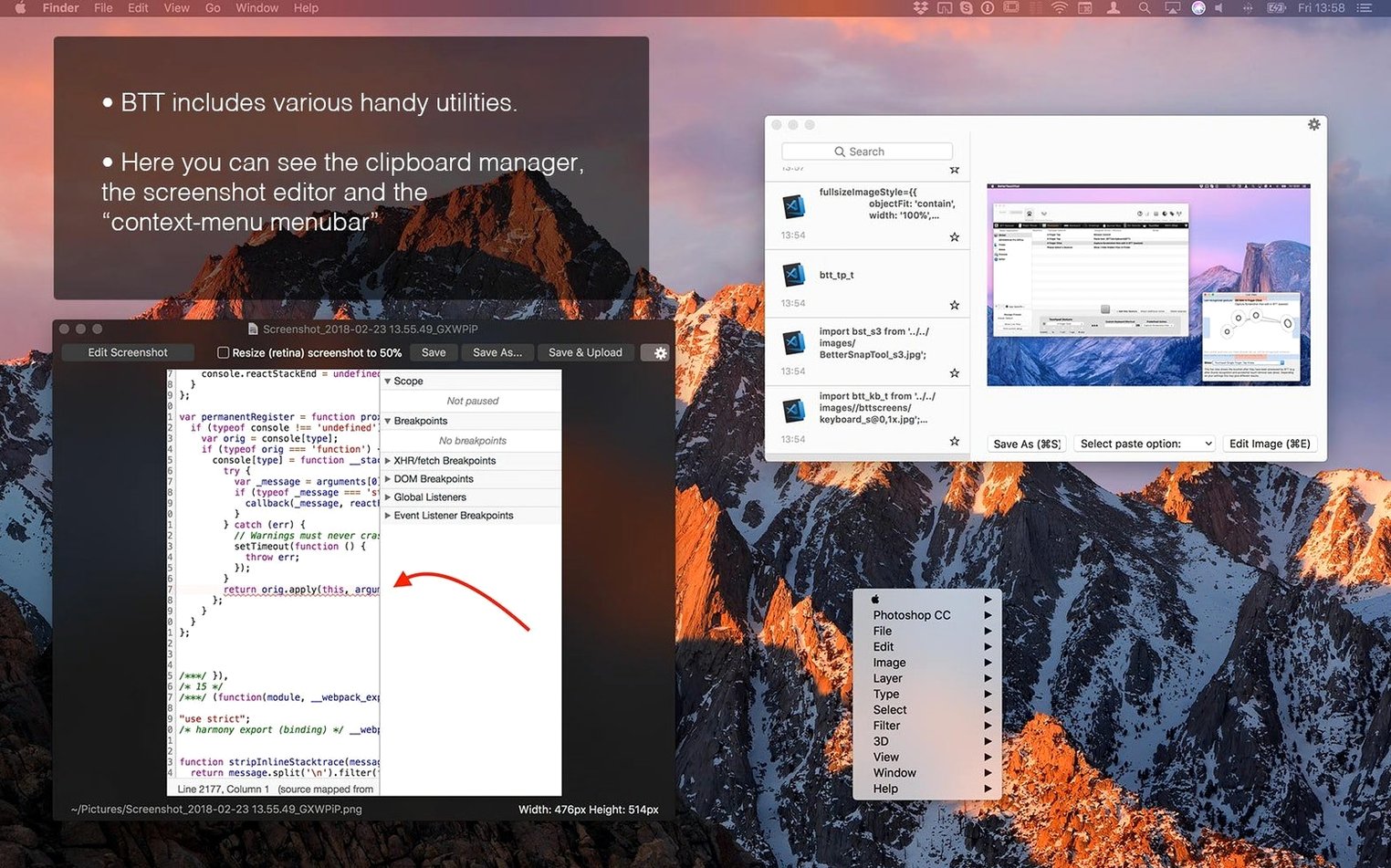
- Turn on the clipboard manager. It is off by default. Once enabled, it keeps a running list of copied items with a configurable history size. Assign a quick gesture or key combo to open it—two-finger force click works well—and you will never paste the wrong snippet again.
- Adjust gesture sensitivity early. The default trigger thresholds for drawing gestures are conservative. Drop into the trackpad or mouse settings and lower the recognition delay slightly. It makes custom shape gestures feel snappier without increasing false triggers for most users.
- Set up the screenshot tool trigger. The built-in screenshot utility adds on-the-fly annotation, which beats the macOS default for quick mark-ups. Bind it to something you will remember—like a four-finger tap or a keyboard shortcut you never use elsewhere—and it becomes a one-step flow.
Karabiner remaps keys at the driver level but skips gestures and the Touch Bar
BetterTouchTool versus Karabiner-Elements. Karabiner-Elements focuses almost entirely on keyboard remapping, and it does that with surgical precision—you can rewrite a single key's behaviour at the driver level. But it does not touch gestures, Touch Bar widgets, or the clipboard. If you only need complex key remaps, Karabiner is lighter. If you want one tool for keyboard, trackpad, mouse, and Touch Bar, BetterTouchTool covers more ground. Many users searching for bettertouchtool for mac end up running both: Karabiner for key swaps, BetterTouchTool for everything else.
BetterTouchTool versus Keyboard Maestro. Keyboard Maestro is a macro powerhouse. It excels at long automation chains—launching apps, clicking UI elements, waiting, typing, sending HTTP requests. BetterTouchTool's strength is input customisation first, with automation as a bonus. Its gesture engine and Touch Bar builder outclass Keyboard Maestro's input handling, but Keyboard Maestro's macro editor is deeper. If your primary need is triggering actions from gestures or the Touch Bar, BetterTouchTool wins. If you are building multi-step macros that run regardless of input device, Keyboard Maestro may suit you better. Some setups pair them: Keyboard Maestro runs the macro, BetterTouchTool triggers it.
BetterTouchTool versus Swish. Swish adds window-management gestures to the trackpad and Magic Mouse—pinch to snap windows, swipe to tile. It does one category of gestures exceptionally well and stays out of the way. BetterTouchTool can replicate every Swish gesture and then some, but it requires manual setup. Swish works instantly with almost no configuration. If window snapping is all you want, Swish is simpler. If you plan to customise gestures across dozens of apps anyway, BetterTouchTool absorbs Swish's function and costs you nothing extra in complexity.
- Version 6.726 is the current release.
- macOS 10.15 or later
- Apple Silicon or Intel Mac
- Interface: English








Comments 0
Sign in or create an account to add a comment.
No comments yet. They go up after moderation.