

Bloom — Mac download
Download (19 MB) Earlier builds
Ticked
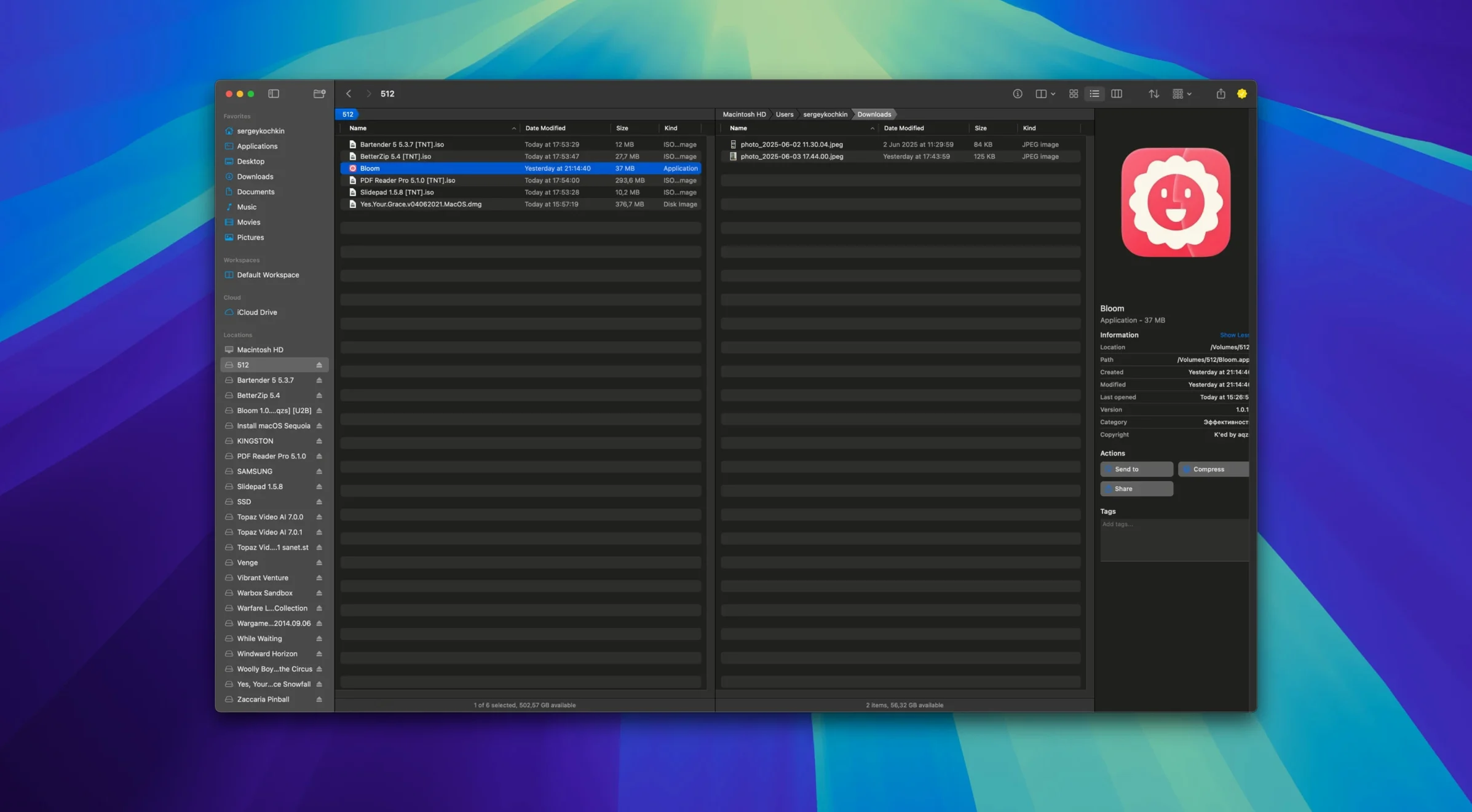
Designers who organise large asset libraries. Developers who jump between project folders. Anyone who has outgrown Finder’s single-window limits. Bloom is a file manager for people who treat their Mac’s filesystem as a workspace, not just a storage dump.
Features that do a specific job
- Task scheduler for file ops. Queue copies, moves, and renames so heavy transfers run when you’re not waiting.
- Portal mode. Shrinks the window to a compact panel with no sidebar and no preview — useful when you only need quick access.
- Workspace customisation. Arrange dual-pane views, save layouts, and switch between them for different projects.
- Folder search. Press ⌘F to search directly inside the current folder, not the whole disk.
- Quick preview. Preview text, images, or PDFs under 10 MB without opening another app.
- Terminal launcher. Open a shell session straight from your current folder location.
Not a Finder replacement but a multi-pane sidekick
Bloom runs on Apple Silicon and Intel Macs with macOS 14 or later. It does not replace Finder at the system level — it sits alongside it for the times you need multiple panes, saved layouts, or a task queue. The interface is English only, and you can insert images from the internet directly into your workspace.
Stop dragging column dividers every time
- Enable automatic column resizing. Found in Preferences > General. Stops you dragging column dividers every time a filename runs long.
- Set a default workspace. Pick your most-used dual-pane layout — say, Projects left, Downloads right — and save it. Bloom loads it on launch.
- Turn on the undo log. Preferences > Advanced. Keeps a record of each file operation so a mistaken move doesn't become a rescue mission.
- Adjust Portal pinning. In Portal mode, tick "Pin above other windows" if you want a floating reference panel. Dock it to the screen edge if you prefer it out of the way.
- Add custom search locations. Under Search preferences, list the folders you check most. Bloom’s ⌘F then searches those without re-indexing your whole drive.
Unpack assets into left and right panes at once
You open Bloom after downloading a batch of assets — some zipped, some loose images. The app loads your saved workspace: left pane shows the Downloads folder, right pane shows your project directory.
- Quick-scan the archive. You select a .zip in the left pane. Bloom shows its contents in the preview panel — no extraction needed. You spot the folder you want and drag it across to the right pane.
- Rename in bulk. The dragged folder contains files with inconsistent names. You select them, open the advanced rename tool, and write a regex that strips date prefixes and adds a project code. Five seconds, twenty files renamed.
- Search inside a folder. One asset is buried in a subfolder. You press ⌘F, type two keywords, and Bloom narrows the results to that folder only. ⌘R refreshes if new files arrive.
- Queue a conversion. You need the PNGs as optimised JPEGs. You set up the image conversion, add it to the task scheduler, and carry on working while Bloom processes in the background.
- Jump to a system location. You need to drop a file into a system folder. ⌘⇧⏎ opens the location picker — you type the path and Bloom takes you there instantly.
- Switch to Portal mode. With the main work done, you shrink Bloom to a compact panel pinned to the screen edge. It sits there while you move files between apps, always one click away.
Everything you did is recorded in the undo log. One mistaken drag and you can step backwards without hunting through folders.
- macOS 14 or later
- Apple Silicon or Intel 64-bit
Questions the team asks
Yes. Press ⌘F while inside a folder to search only that location, rather than the whole Mac.









Comments 0
Sign in or create an account to add a comment.
No comments yet. They go up after moderation.