

Bezel • Phone Mirror — Mac download
Download (111 MB) Earlier builds
Ticked
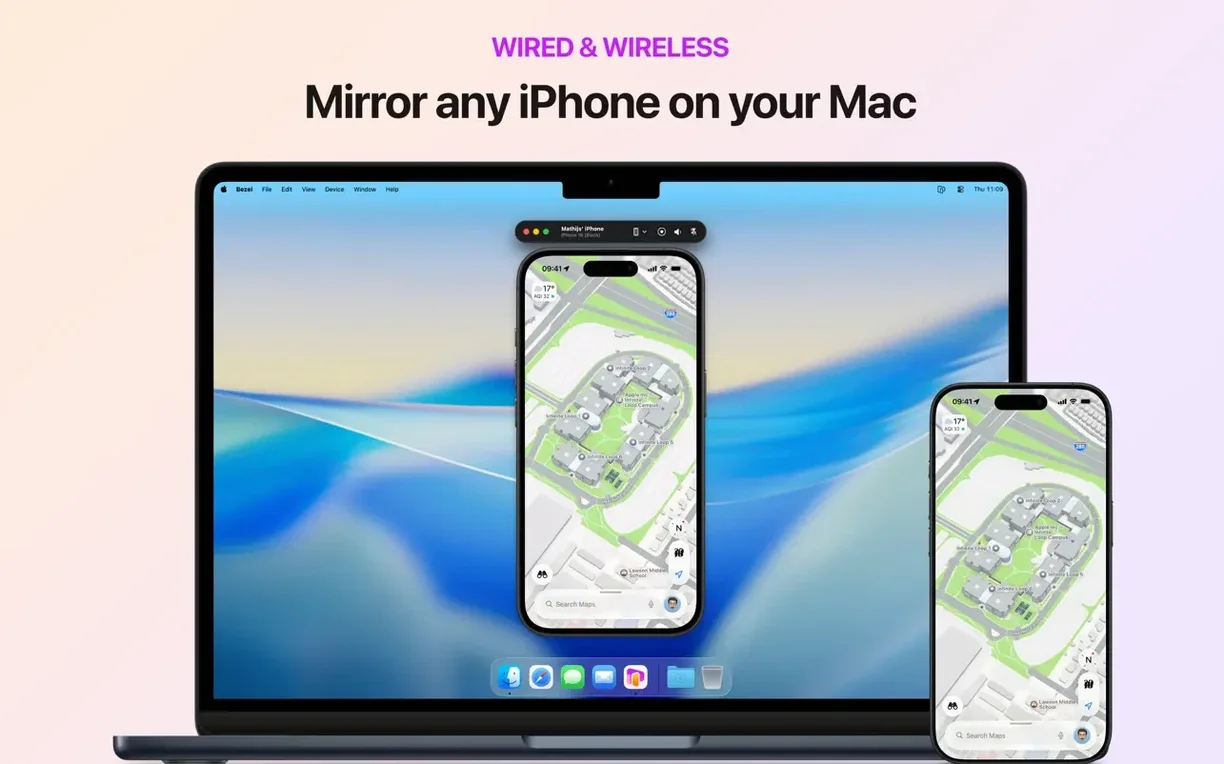
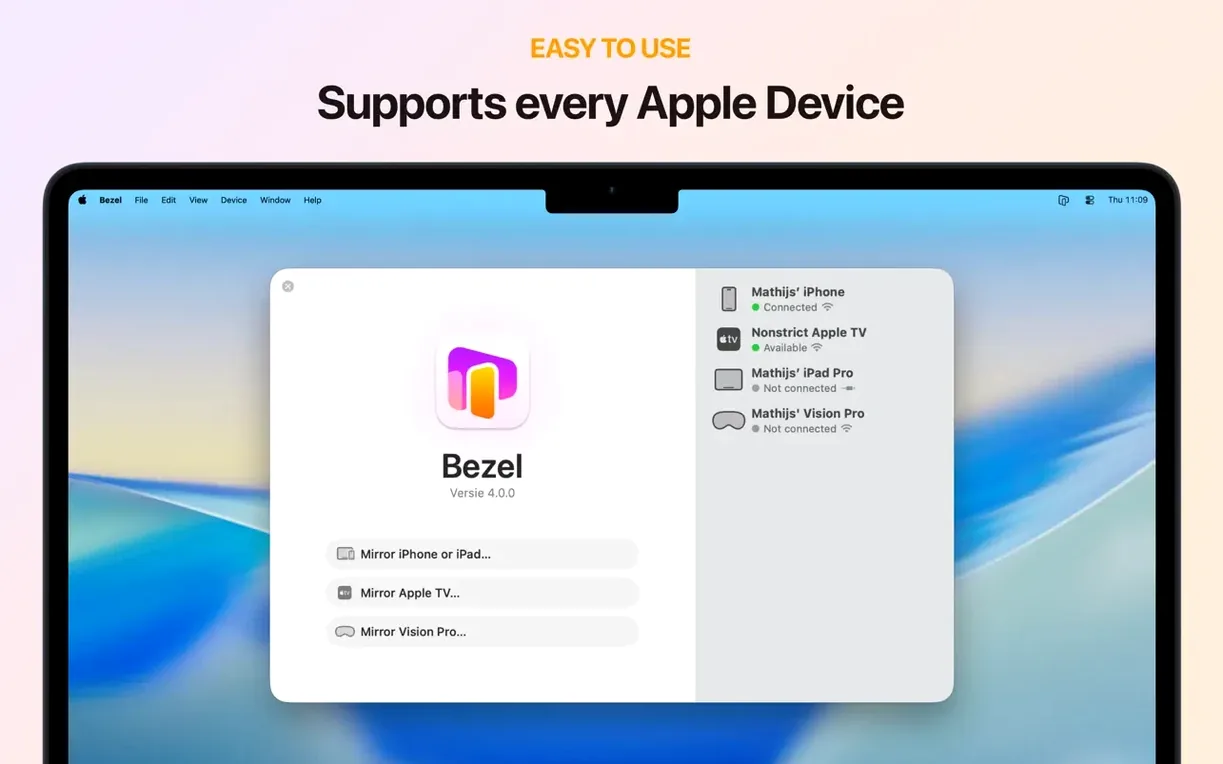
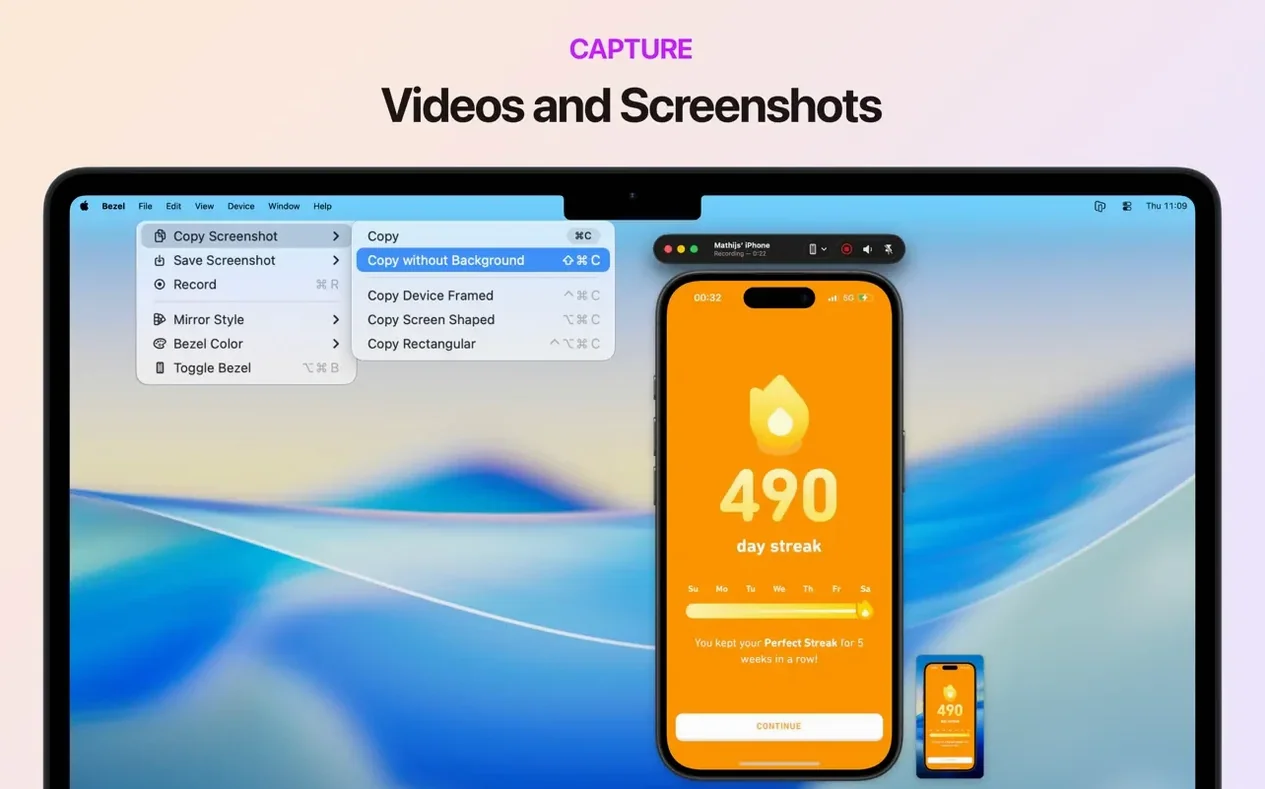
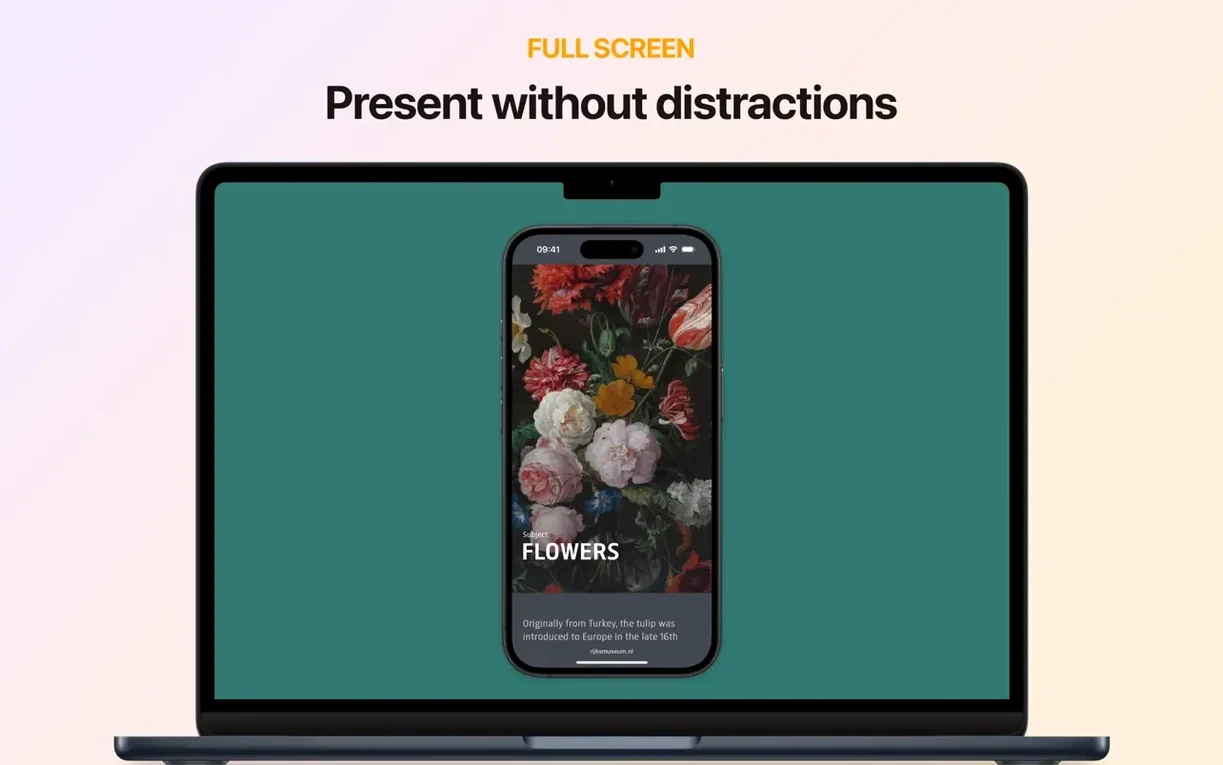
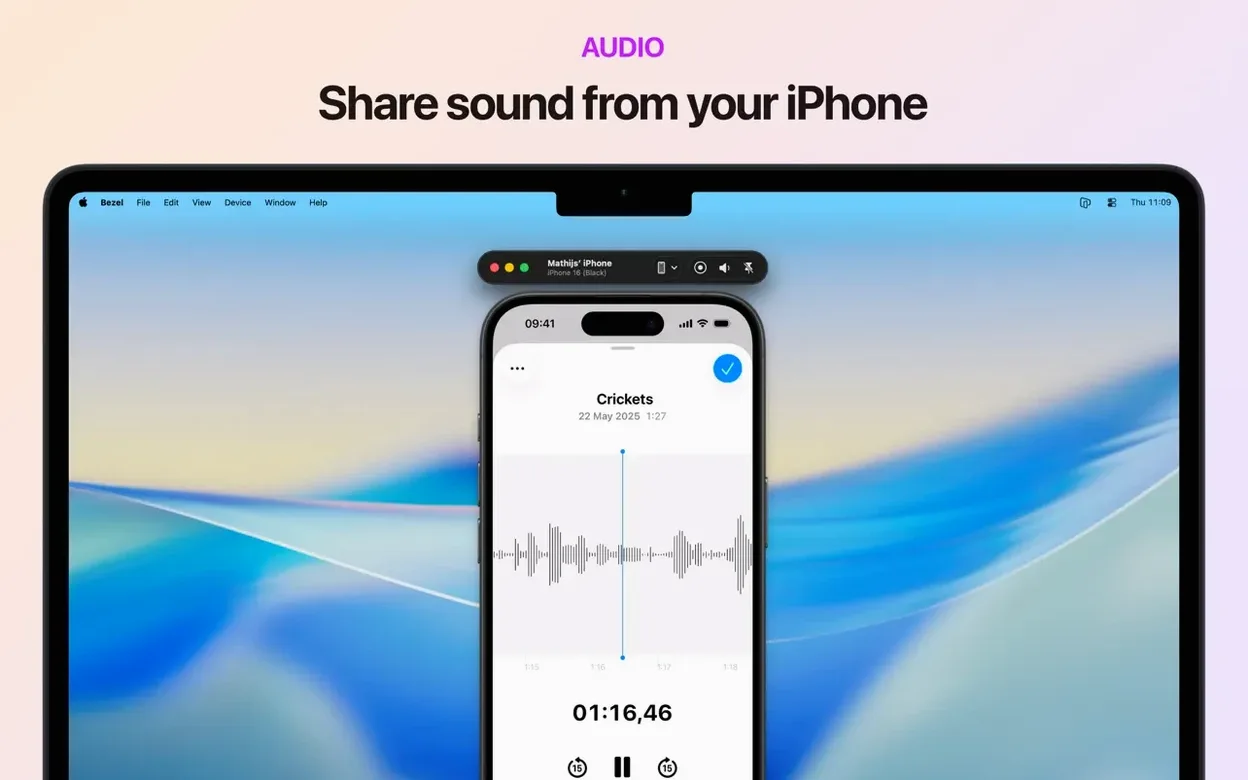
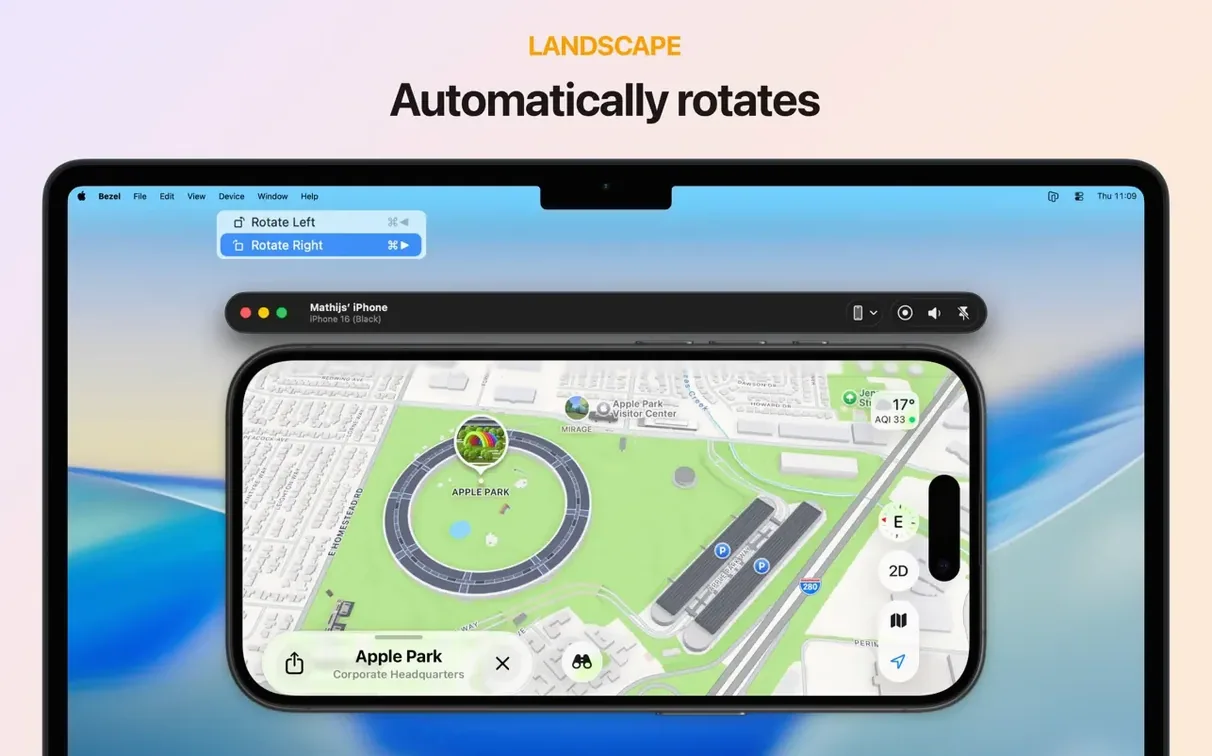
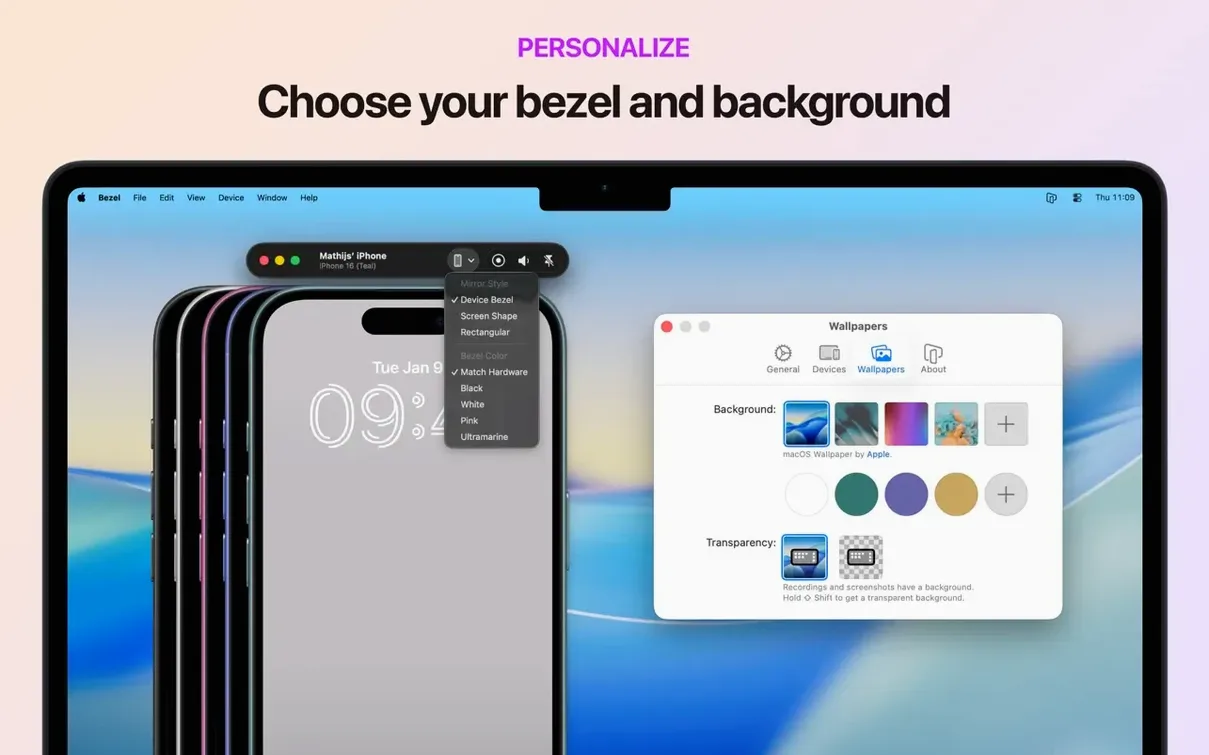
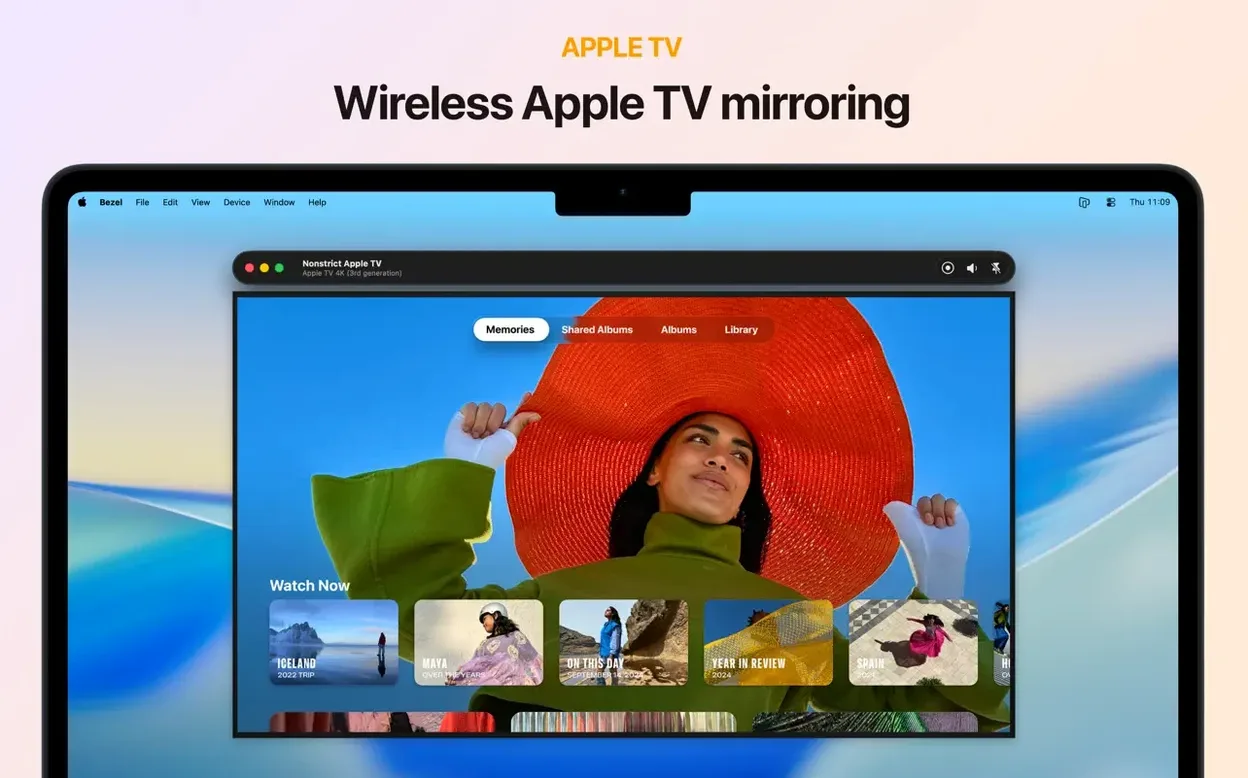
Bezel is a Mac utility for mirroring and recording the screen of your Apple devices.
Tools for the power user
- Wireless mirroring — select a nearby device and start a session with no cable.
- Device-aware rotation — the mirror view matches portrait or landscape automatically.
- Adjustable display size — scale the mirror window to fit your desktop layout.
- Audio and video capture — hit the record button on the toolbar to grab both streams at once.
- Multi-device support — works with iPhone, iPad, iPod touch, Apple TV and Vision Pro.
Live demos and quick reviews on a bigger screen
A product demo, a quick bug capture or a design review — anything that needs a live device view on a bigger screen benefits from Bezel. The app uses a native macOS design, so it stays out of the way until you need to screenshot, record or present.
Bluetooth, Wi-Fi, and cable fixes for missing devices
- Device not showing in the menu — check Bluetooth and Wi-Fi are on for both Mac and device. For a wired connection, try a different USB cable; some charge-only cables won't carry data.
- Wireless mirroring stutters — move the device closer to the router or switch to a 5 GHz network. Interference from other Bluetooth peripherals can also cause drops.
- Recording has no audio — confirm the device's mute switch is off and volume is up. The record button captures both streams, but only if the device is outputting sound at the time.
- Apple TV not discovered — enable AirPlay on the Apple TV (Settings > AirPlay and HomeKit). Both devices must be on the same network subnet.
- Mirror pauses on lock — this is intentional. Unlock the device to resume; the app detects sleep and lock states automatically.
- Window too small to read — drag the corner of the mirror window or use the scale slider. The display size adjusts independently of the device resolution.
Workflow: recording a bug report for QA
- Connect the test iPhone to the Mac via USB for a stable feed.
- Open Bezel — the device appears in the source list within seconds.
- Resize the mirror window so the UI elements you need to capture are clearly visible.
- Press
Cmd-Rto start recording. The toolbar confirms capture is active. - Walk through the bug steps on the iPhone. Rotate the device if needed; Bezel follows the orientation.
- Trigger the bug, then stop recording with
Cmd-Ragain. - Drag the recording from the floating preview into a ticket or Slack thread.
The whole process stays on one Mac. No fiddling with QuickTime, no separate audio patch — one record button grabs video and device audio together.
Wireless mirroring and screenshot tools QuickTime lacks
Bezel vs. QuickTime Player
QuickTime can record an iPhone screen via cable, but it treats the device as a camera input. No wireless option, no Apple TV or Vision Pro support, and no toolbar for quick screenshots. QuickTime works for one-off captures; Bezel is built for repeated use across multiple device types.
Bezel vs. Reflector 4
Reflector focuses on AirPlay receiver duties — mirroring an iPhone to a Mac or Windows machine, often for classroom display. It includes screen recording, but the interface is heavier and less macOS-native. Bezel sticks closer to the Mac's own design language and adds cable mirroring, which Reflector doesn't emphasise.
Bezel vs. AirServer
AirServer is a general-purpose receiver for AirPlay, Google Cast and Miracast. It covers more protocols, which makes sense for mixed-device environments. For someone who only mirrors Apple hardware, Bezel's single-protocol focus means fewer settings to hunt through and a cleaner device list.
- macOS 14 or later
- Apple Silicon or Intel 64-bit Mac
Questions the team asks
Yes. Pick a nearby Apple TV from the device menu to start mirroring its screen wirelessly.
Yes. The record button on the toolbar captures both audio and video from the connected device.








Comments 0
Sign in or create an account to add a comment.
No comments yet. They go up after moderation.