
DaisyDisk — Mac download
Download (9 MB) Earlier builds
Ticked
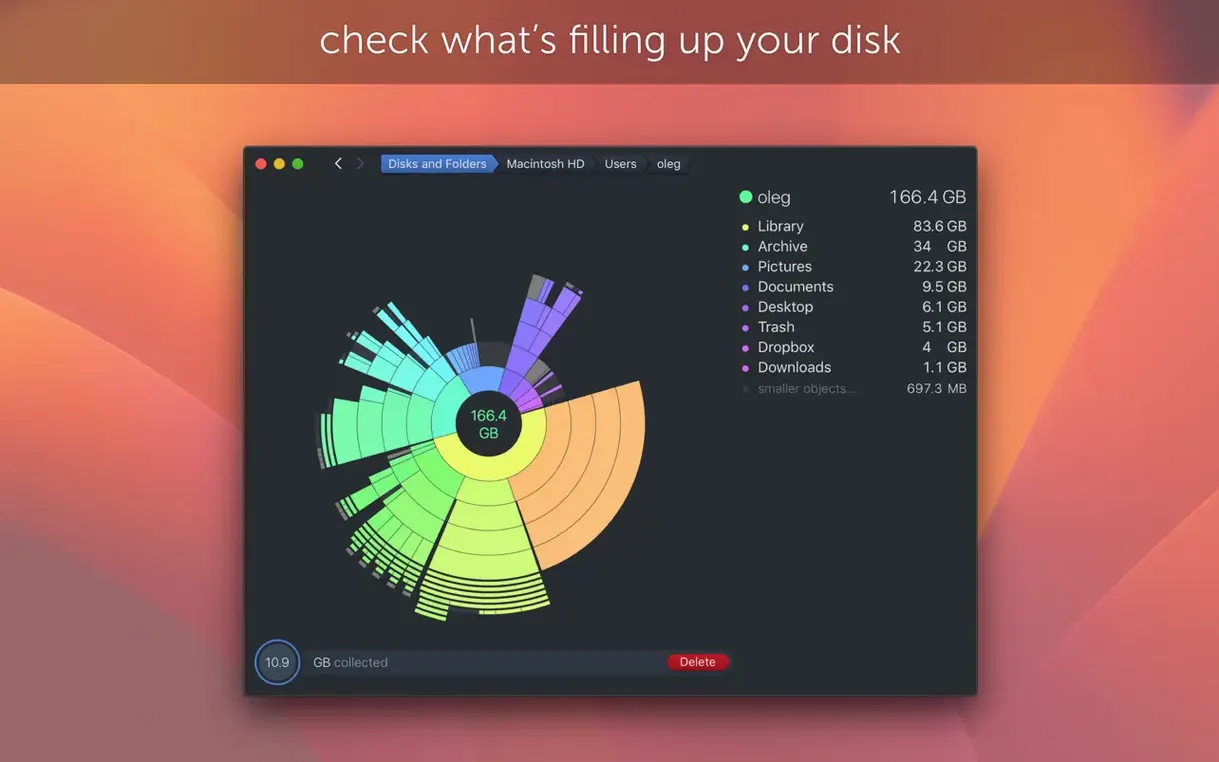
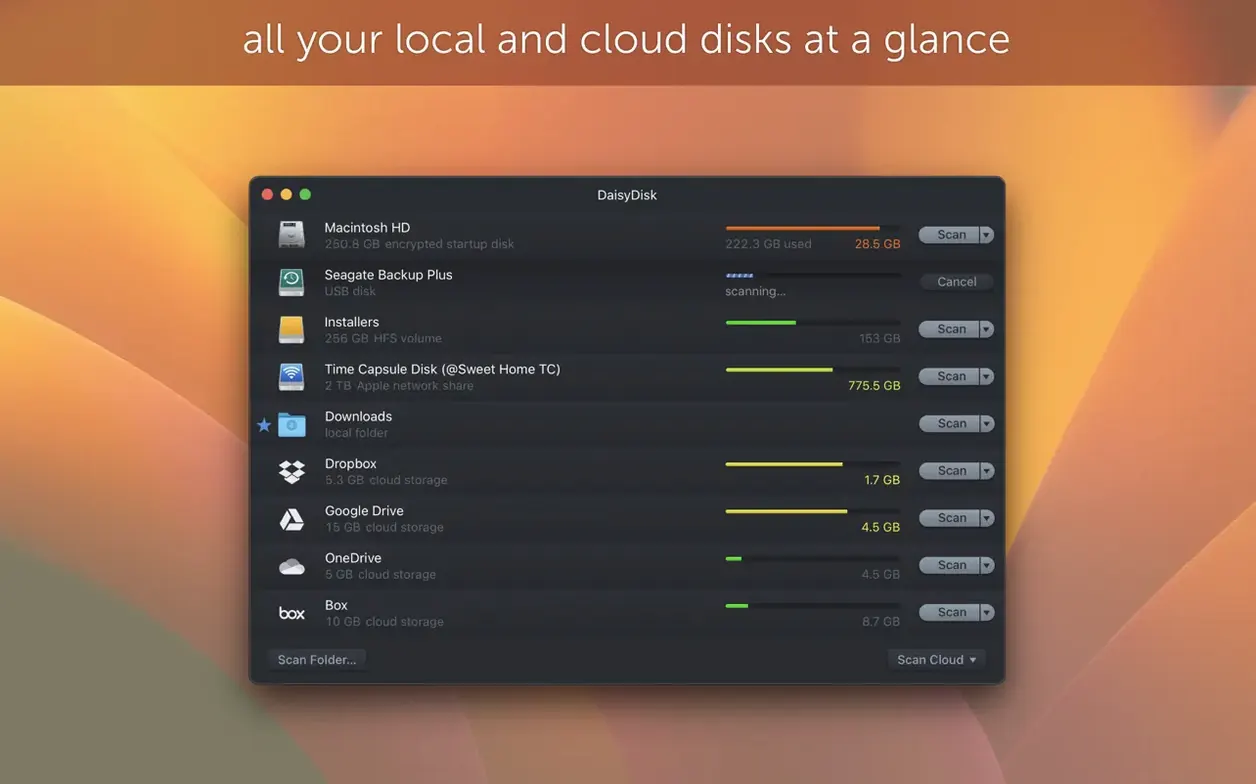
A slow Mac often has one culprit: a drive that's nearly full. Finder gives you folder sizes, but hunting down the real space hogs takes forever. DaisyDisk scans any mounted disk and presents the results as an interactive sunburst map. One glance shows you which folders are bloated, and clicking deeper reveals the exact files responsible.
Version 4.34 sharpens the accuracy. It now understands APFS clones — duplicate files that, thanks to Apple's file system, share storage space. Previous disk tools counted each clone separately, inflating the numbers. DaisyDisk 4.34 counts only the first occurrence in its used-space calculation. The map now reflects reality, not a double-counted mess.
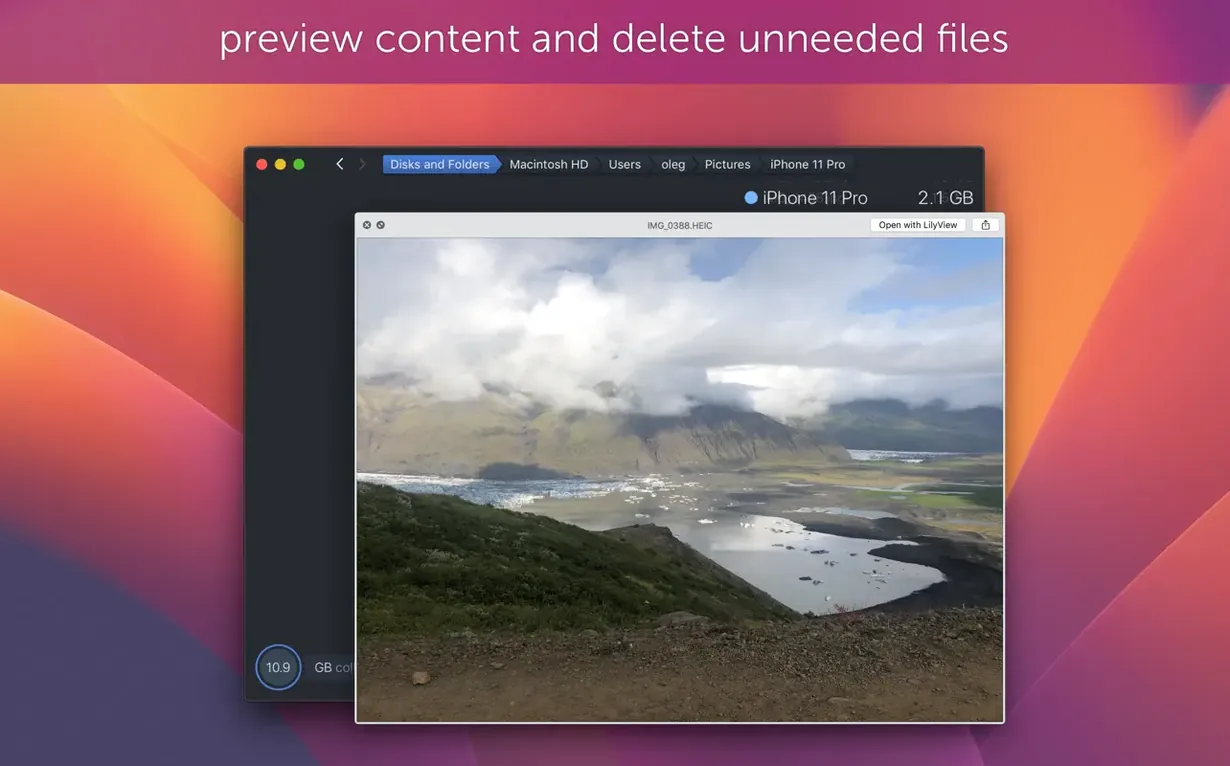
The 4.34.2 update shipped on 10 July 2026 as a quick bug fix. The core workflow stays the same: scan, inspect with Quick Look, and drag files to the Trash straight from the map. No digging through nested folders, no guessing.
Clearing a bloated Xcode cache — start to finish
Developer tools leave enormous leftovers. Here is a real workflow for reclaiming space from Xcode after a few months of iOS work.
- Open DaisyDisk and pick the disk. Click your main drive, then hit Scan. Wait about 20 seconds for the sunburst to settle.
- Zoom into the Library folder. On the map, it is usually one of the largest segments. Click it. The view fans out to show subfolders.
- Trace the path: ~/Library/Developer/Xcode. Each click expands the segment. At this point, you will see DerivedData, iOS DeviceSupport, and old simulator files eating tens of gigabytes.
- Sort by size. Hover over the segments. The tooltip gives exact byte counts. Note the largest — often DerivedData.
- Quick Look suspicious folders. Right-click a segment, choose Quick Look. You can peek inside old build artefacts without leaving the app. Confirm you don't need build folders from projects you deleted months ago.
- Drag to trash. Select the DerivedData segment. Drag it to the Trash icon in the lower‑left corner of the DaisyDisk window. The folder moves to the system Trash.
- Re‑scan for confirmation. Hit the rescan button. The map redraws instantly. The sunburst shrinks by the exact amount you deleted.
No terminal commands, no accidentally removing the wrong file. The whole cleanup takes under two minutes.
APFS clones no longer inflate your scan
Version 4.34 introduced APFS clone awareness. Before this, a 2 GB project duplicated three times in different folders looked like 8 GB on the map. Now you see the real storage cost. This matters most if you use apps that clone heavily — Final Cut Pro libraries, Parallels snapshots, or Time Machine local snapshots. The map finally matches what df -h reports in Terminal.
Version 4.33.2 quietly fixed two annoyances. Hidden space estimation got more accurate, so the grey "hidden space" wedge is less guesswork and more data. Scanning FAT32 and exFAT thumb drives no longer reports phantom gigabytes. macOS Tahoe support also arrived in that release, meaning the scan engine ran cleanly on Apple's latest frameworks before Tahoe shipped.
Version 4.34.1 patched a scan failure that hit machines still running Ventura or Monterey. If a scan hung on an older OS, that update was the fix. The 4.34.2 release on 10 July 2026 was a single bug fix, nothing user‑facing beyond stability.
Flip the map to used space first
DaisyDisk works well out of the box, but three preferences make it fit a cleanup routine better.
- Switch to "used space" display. In Preferences > General, change the default from "total size" to "used space". The map shrinks to show only what your files actually occupy on disk, not the APFS container size. Less noise on the screen.
- Enable parallel scans. Under the Scan tab, tick "Scan disks in parallel". If you often plug in two or three external drives at once — a backup SSD, a media drive, a camera card — all three populate simultaneously instead of queuing.
- Show disk stats on the desktop. In Preferences > General, enable "Show disk info in menu bar". A tiny panel sits in your menu bar with free and used space for every mounted disk, updating in real time. No need to open the full app just to check if a drive is filling up.
One less-obvious tip: switch the interface language if English is not your first. DaisyDisk ships in eleven languages, including French, Polish, Japanese, and both Simplified and Traditional Chinese. The sunburst labels and tooltips follow the system language automatically once set.
It runs on any Mac from macOS 10.13 High Sierra onwards, with native support for both Apple Silicon and 64-bit Intel machines.
- Fixes a bug reported in the previous release.
- Adds support for APFS clones — the scan now identifies them correctly.
- Used-space totals count only the first occurrence of each APFS clone.
- macOS 10.13 or later
- Apple Silicon or 64-bit Intel processor
Questions the team asks
Yes, version 4.34 accounts for APFS clones and counts only the first occurrence in space calculations, giving you a realistic view of used storage.
You can drag any file or folder from DaisyDisk's visual map straight to the Trash to reclaim space immediately.






Comments 0
Sign in or create an account to add a comment.
No comments yet. They go up after moderation.