

Cursor Pro — Mac download
Ticked
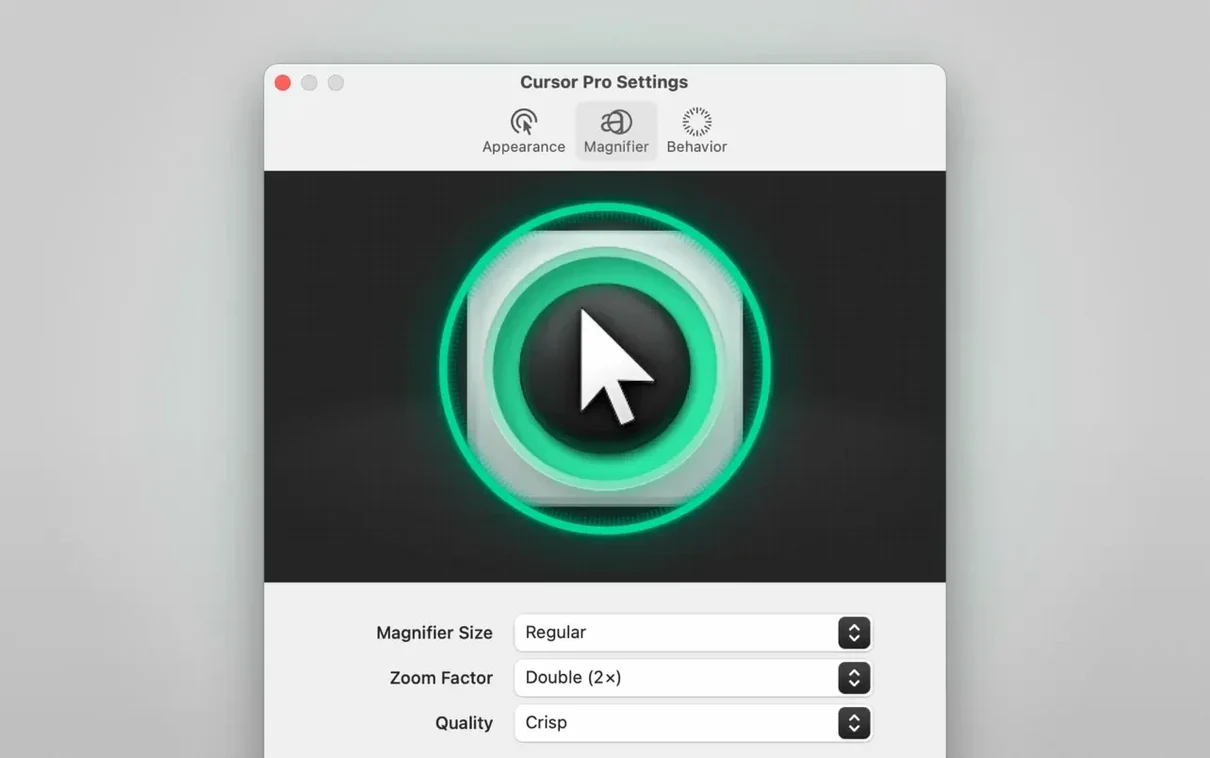
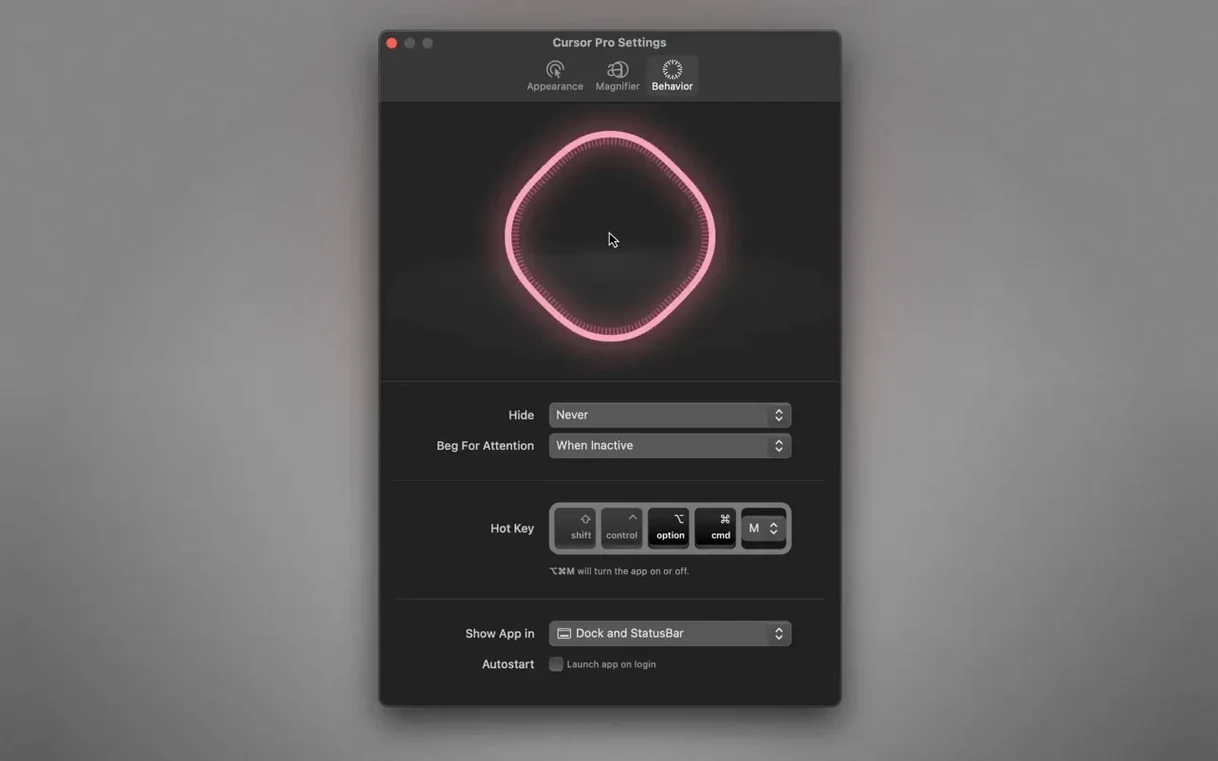
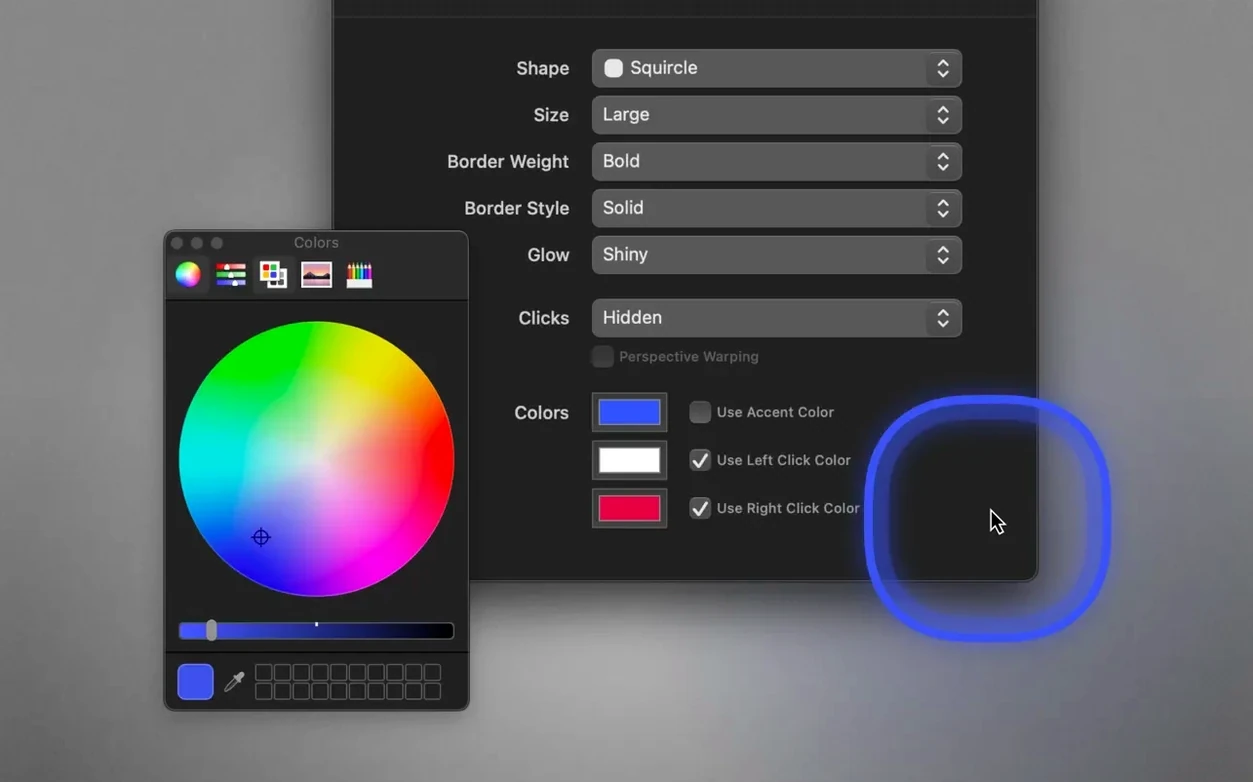
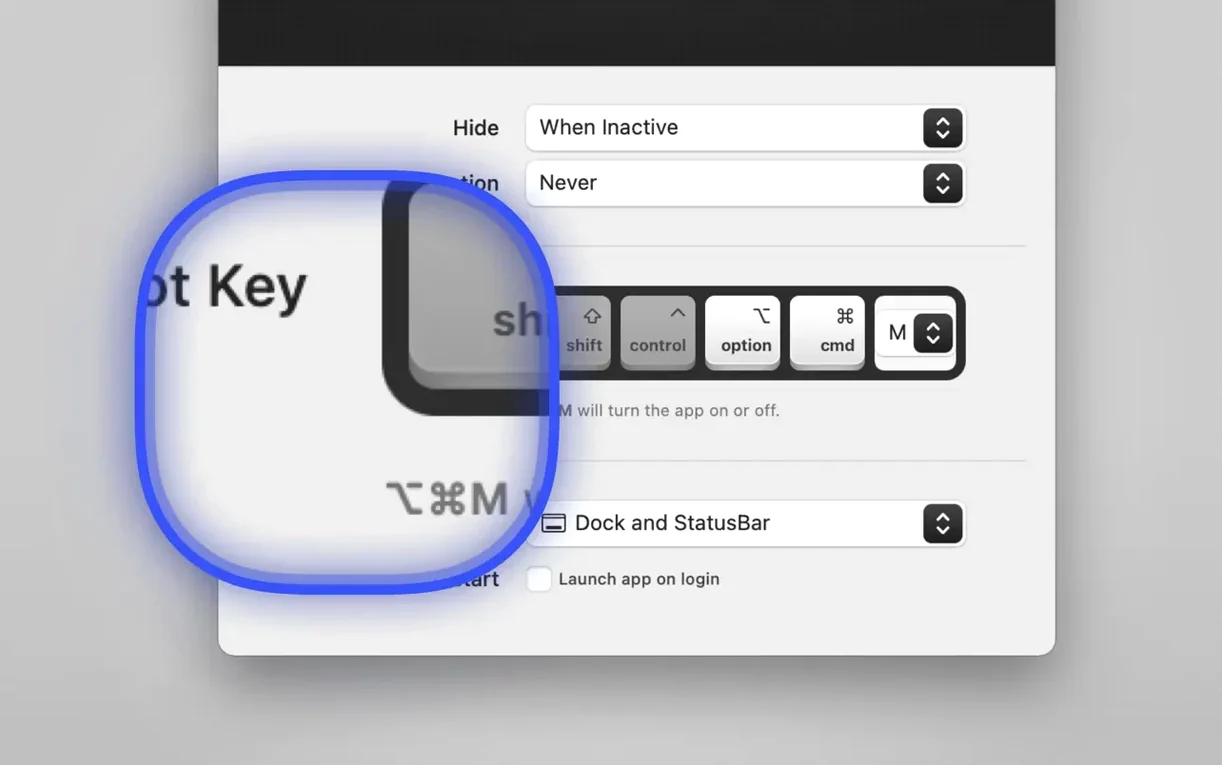
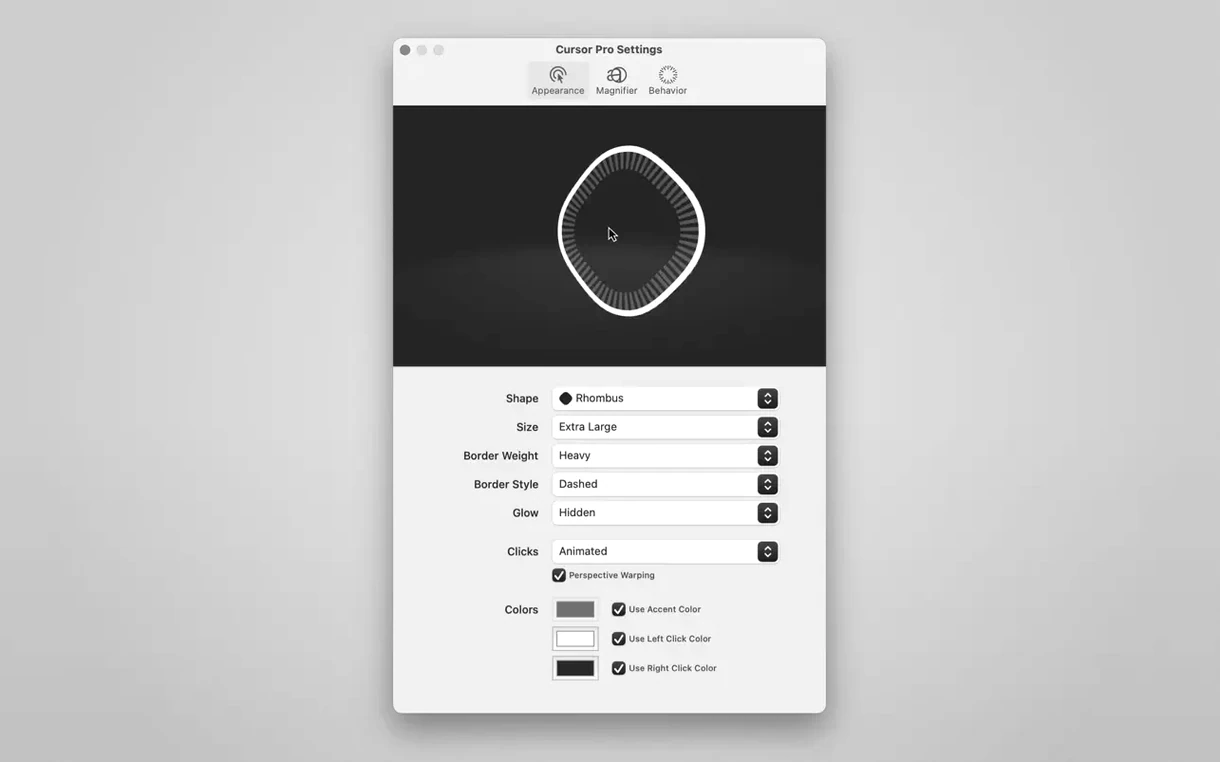
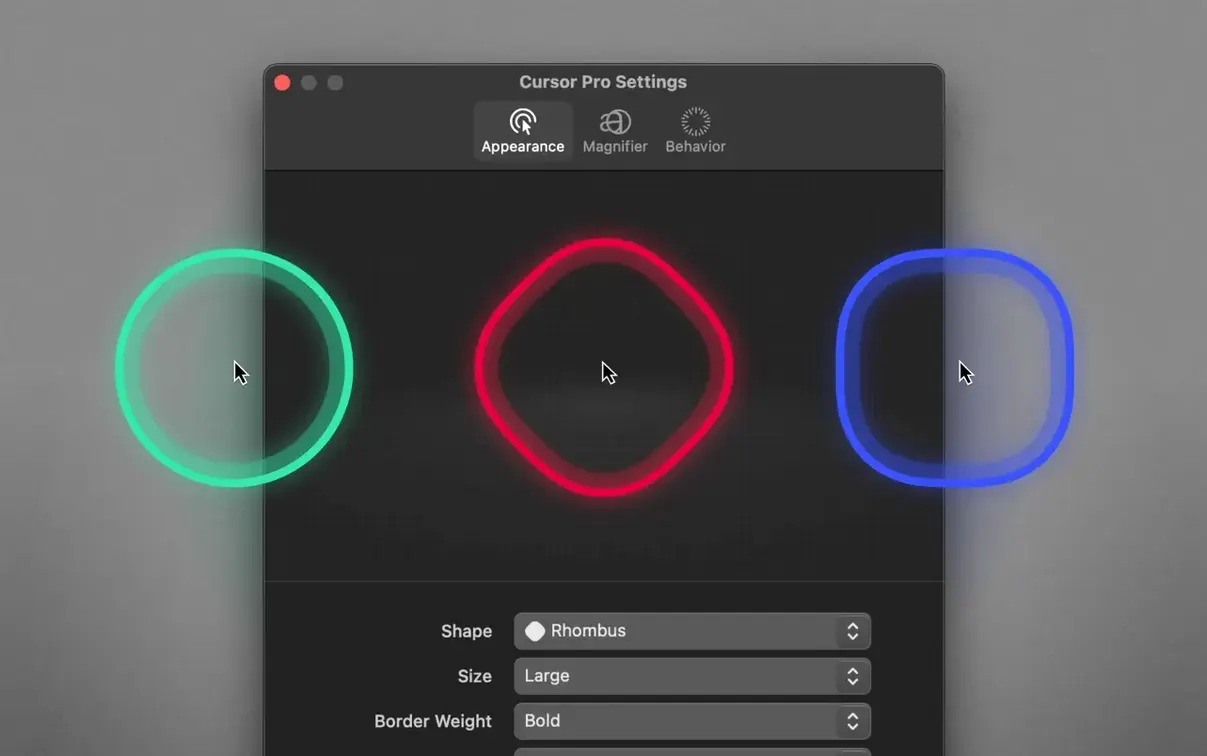
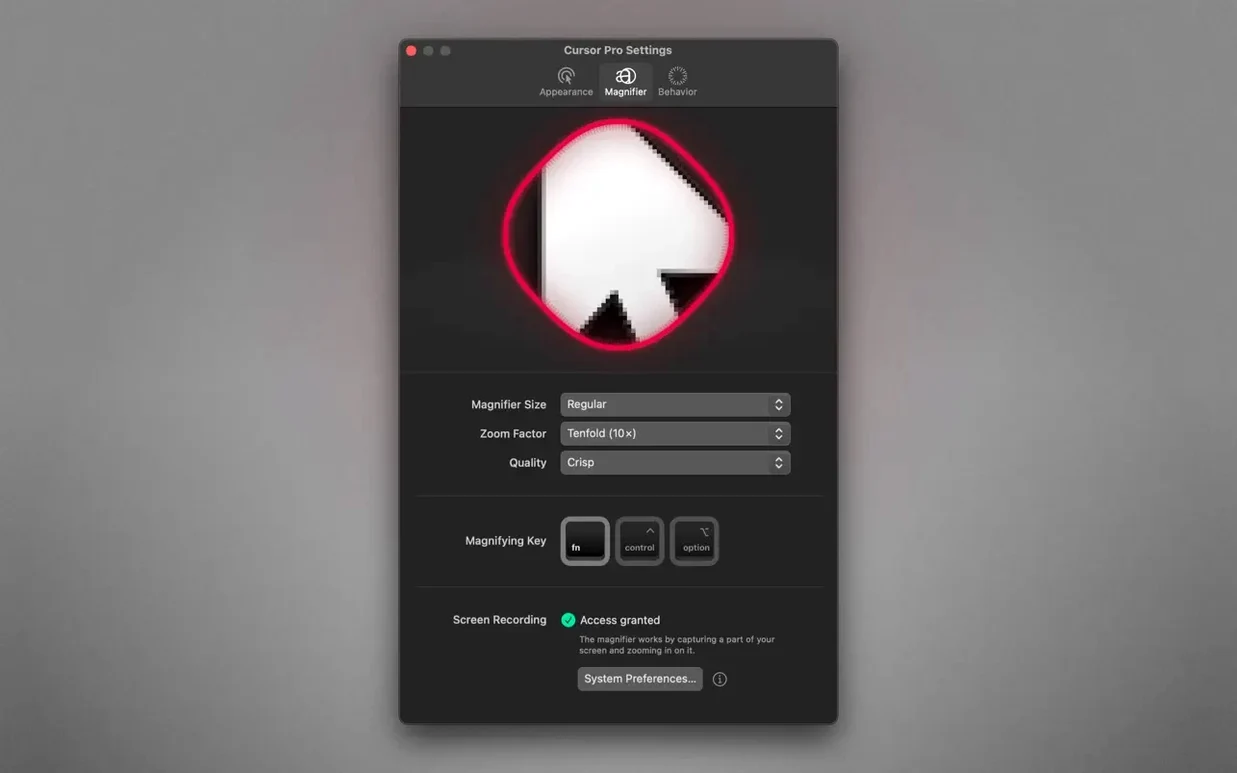
Cursor Pro runs on any Mac with macOS 11 or newer, on both Intel and Apple Silicon machines. It sits in the menu bar and gives you two simple tools that the built-in pointer options don't: a configurable highlight and a screen magnifier. Think of it as a companion to the screen-sharing apps you already use in calls and recordings.
| Quick facts | |
|---|---|
| Current version | 2.4 |
| Developer | App ahead GmbH |
| macOS | 11 and later |
| Architecture | Intel and Apple Silicon |
| Languages | 8, incl. English, German, Japanese |
The highlight draws a coloured shape around the pointer. You pick the colour, the shape, and whether it pulses. A global hotkey toggles it on and off. The magnifier zooms a portion of the screen — you set the zoom factor. Both stay visible when you share your full screen in apps like Zoom or Teams. An auto-hide option keeps things tidy when you don't need it.
Keyboard shortcuts no longer clash during screen shares
- Keyboard shortcut handling got tighter — fewer clashes when you toggle the highlight during a screen share.
- The magnifier zoom slider now snaps to whole numbers. Easier to set 2× or 3× without fiddling.
- Auto-hide behaviour improved. If you switch apps, the highlight disappears faster and returns without a flicker.
- Menu bar icon got a retina refresh. Crisp on all displays, including the notch-era MacBooks.
Magnifier won't show in window-only sharing mode
Some screen-sharing apps capture the window, not the full screen. The highlight and magnifier won't show then — Cursor Pro needs full-screen sharing mode. Switch that in Zoom or Teams before you start.
If the magnifier feels jittery on an external 4K display, drop the zoom factor by one step. High scaling pushes the render loop harder on older Intel GPUs.
People occasionally search for a cursor torrent expecting a cracked version, then find the app behaves oddly — missing menu bar icon, unresponsive hotkey. That's not a bug in Cursor Pro itself. A clean install from the disk image sorts it.
Two alternatives if you only need a click highlight
Mouseposé
Mouseposé dims the whole screen and puts a spotlight on the pointer. Good for staged demos. Cursor Pro keeps the screen fully visible, which suits live teaching and fast-paced screen shares better. Mouseposé lacks a magnifier.
CursorSense
CursorSense adjusts pointer acceleration and sensitivity — it's a driver-level tweaker, not a visual aid. No highlight, no magnifier. Pair it with Cursor Pro if you want both pointer feel and visibility.
OmniDazzle
OmniDazzle offers pointer trails, spotlight effects, and a loupe. More playful, but development stalled years ago. Cursor Pro runs natively on Apple Silicon and gets regular updates. The magnifier is simpler to configure.
- macOS 11 or later
- Apple Silicon & Intel 64-bit
Questions the team asks
Yes, the highlight and magnifier both appear when you share your entire screen in apps like Zoom or Microsoft Teams.
You can set the pointer highlight to any colour you like, and pick from several shapes.
It runs from the macOS menu bar, with a global hotkey to toggle the highlight.







Comments 0
Sign in or create an account to add a comment.
No comments yet. They go up after moderation.