

Compressor — Mac download
Download (122 MB) Earlier builds
Ticked
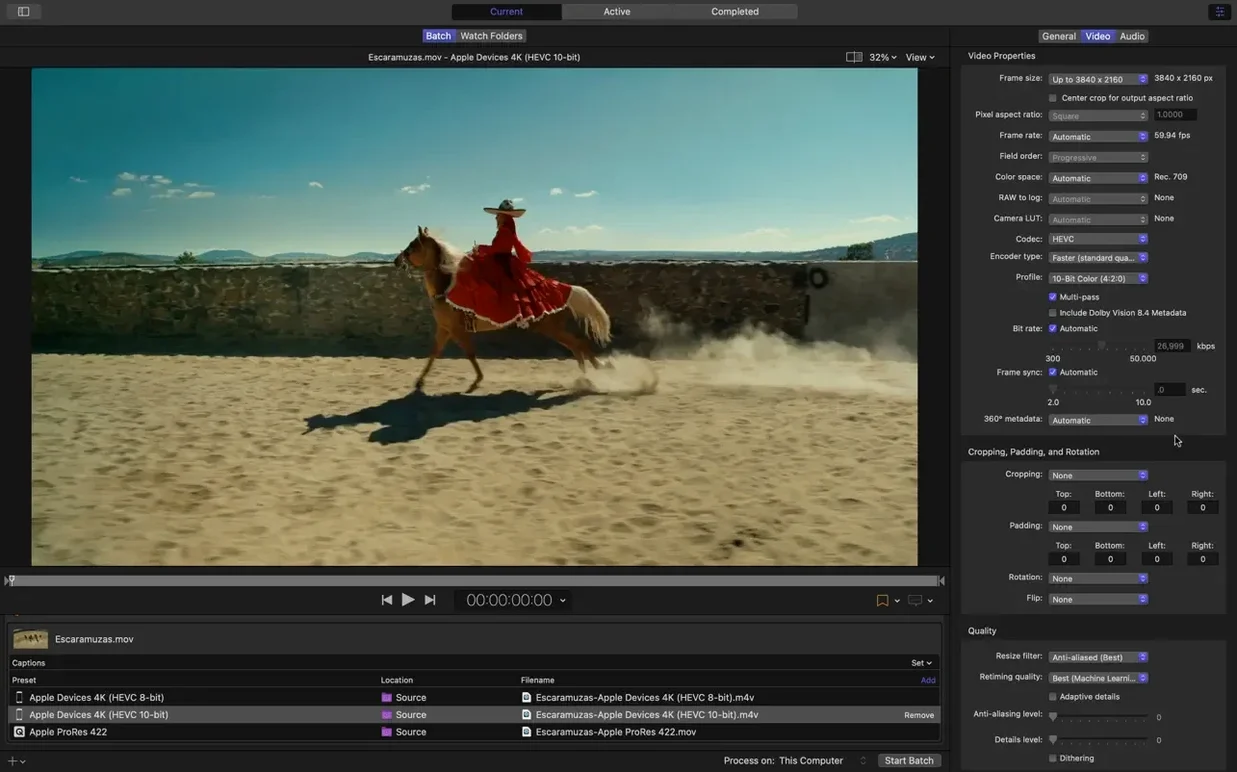
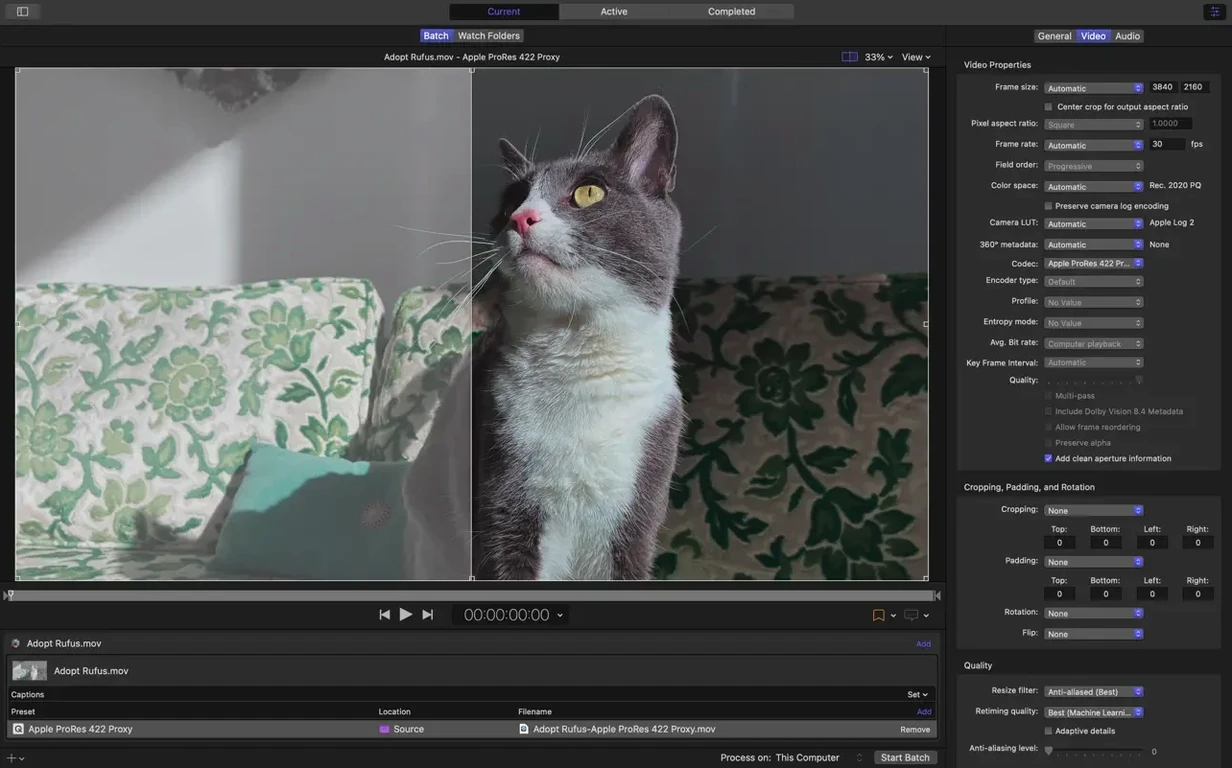
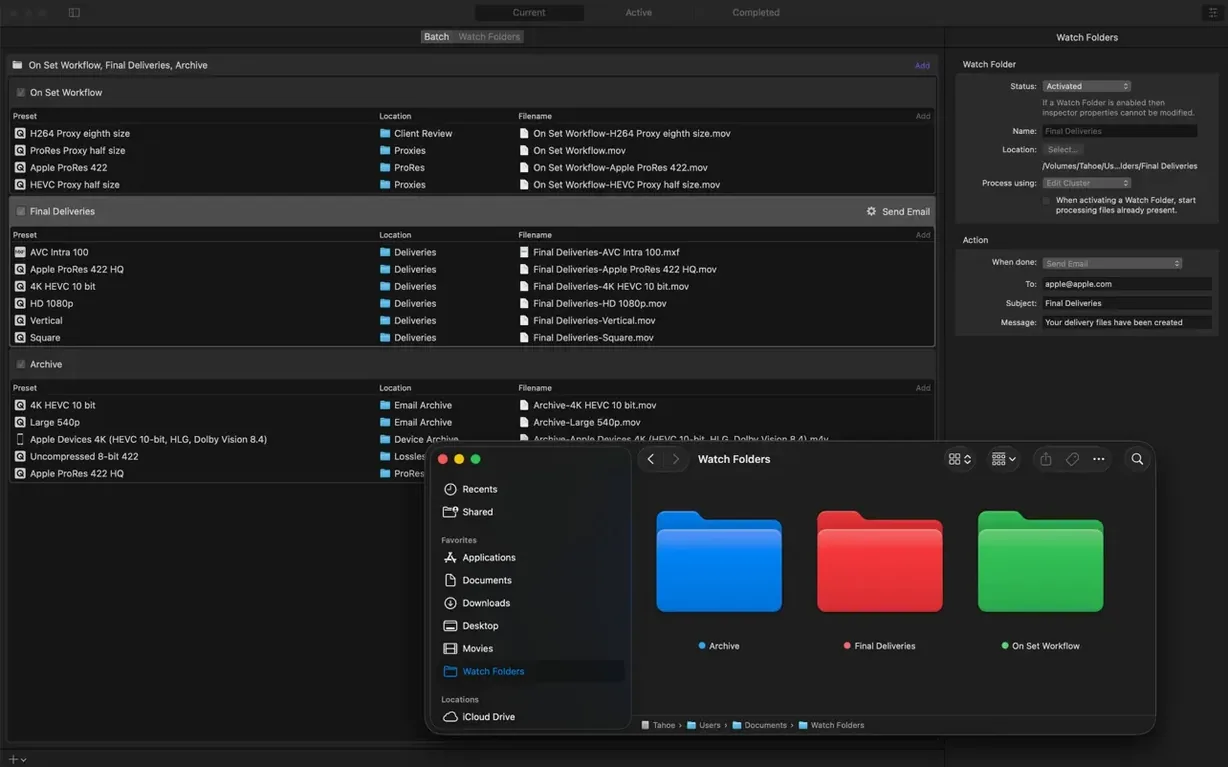
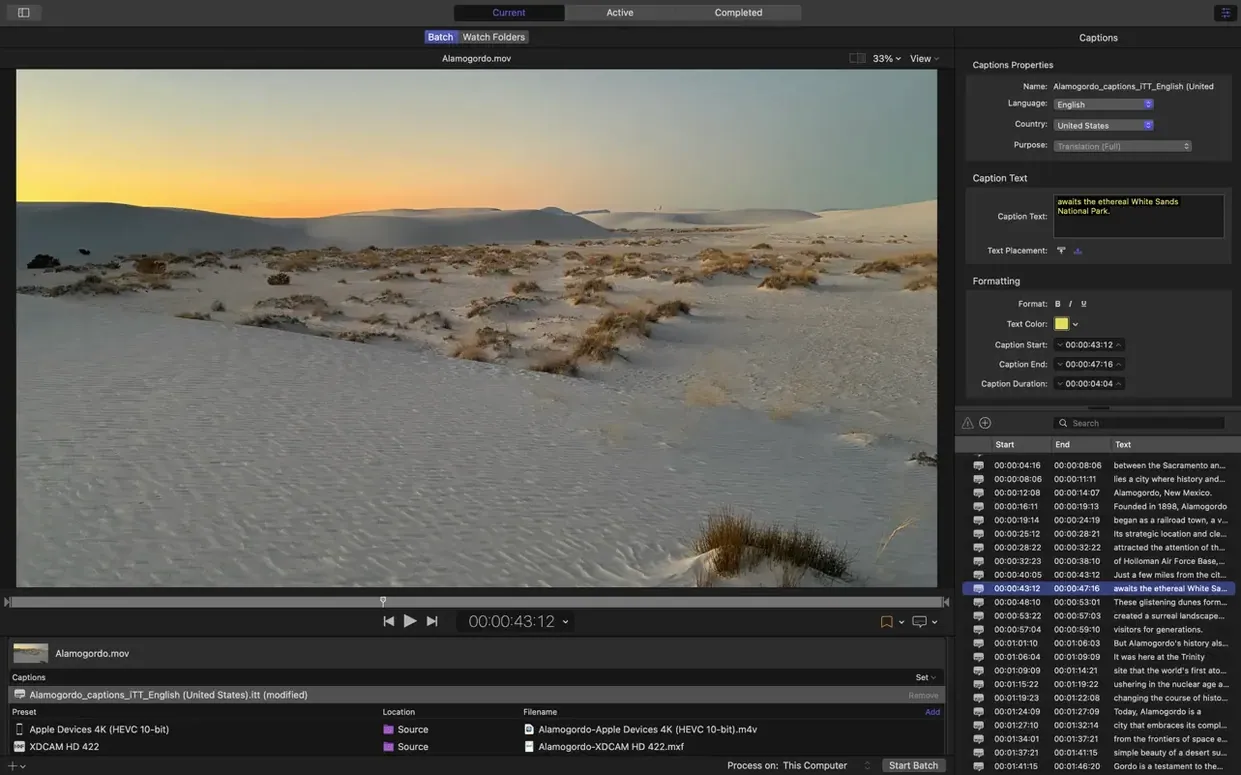
Compressor ships with over 30 built-in output presets. Before you queue your first file, setting up a few core items stops it from becoming a guessing game later.
- Pick your codec and its hardware encoder. For H.264 and HEVC, switch on the dedicated hardware encoder in the Inspector. It shunts processing to the media engine on Apple silicon, which keeps the rest of the system snappy during long batches.
- Build a custom setting from scratch. Start in the Settings panel with a blank format. Adjust frame size, bit rate and audio tracks yourself rather than bending a preset. It forces you to learn where the real limits sit.
- Add a post-encode action. Set a job to copy the finished file to a watched folder or email it automatically. It saves the manual tidying you always forget.
- Use the immersive metadata viewer. Before encoding 180° or stereoscopic content, preview the projection metadata to catch mislabelled sources early.
- Send a test clip from Final Cut Pro. Mark a short range, choose Send to Compressor, and apply your new setting. It confirms the round-trip works before you commit a long timeline.
Where Compressor fits among HandBrake, EditReady and ffMPEG's angles
Compressor sits next to a few well-known transcoding tools on Mac. Each one takes a different angle.
Apple Compressor vs HandBrake
HandBrake is open-source and built for quick, high-quality encodes straight from the desktop. It handles a wide range of codecs and gives fine control over x264 and x265 parameters. But it lacks tight Final Cut Pro integration. You export a master file, then open it in HandBrake — two steps instead of one. Compressor keeps the round-trip inside Apple's ecosystem. For solo editors who need a fast one-off transcode, HandBrake works well. For post teams sharing Final Cut Pro libraries, Compressor's project linking saves time.
Apple Compressor vs ffWorks
ffWorks wraps the ffmpeg engine in a clean Mac interface. It supports almost every format ffmpeg does, which is a longer list than Compressor's. The trade-off is workflow depth. ffWorks does not offer distributed encoding across Macs, nor does it let you attach post-encode actions like running a script or copying a file to a server. Compressor's inspector and metadata viewer also give clearer feedback on HDR and immersive attributes before you commit a batch.
Apple Compressor vs Adobe Media Encoder
Adobe Media Encoder pairs with Premiere Pro and After Effects the way Compressor pairs with Final Cut Pro and Motion. Both apps support watch folders, presets and background rendering. The difference lies in the rendering engine. Compressor uses the same engine as Final Cut Pro, so colour and effects translate without surprises. Media Encoder uses Adobe's own renderer, which can show slight gamma or scaling shifts with certain third-party effects. Post houses that standardise on Apple's pro stack tend to stay with Compressor for that consistency.
Inspecting 180° and 360° spatial metadata before encoding
Version 5.3 added a handful of targeted improvements rather than a major interface rethink. The changes affect specific workflows:
- Immersive metadata viewer. You can now inspect spatial metadata before encoding, which catches orientation errors in 180° or 360° sources early. It removes the old trial-and-error cycle of encoding, checking in a headset, then re-encoding.
- 180° Apple Projected Media Profile output. This adds a direct output path for 180° stereoscopic projects, cutting out the extra step of building a custom setting from generic VR presets.
- Anaglyph preview for stereoscopic video. You can preview left/right alignment on a standard display using red-cyan glasses. It is a quick sanity check before a full VR encode.
- 5.1 AAC in Apple Device presets. The Apple Device export settings now include a 5.1 audio channel option, so surround mixes no longer need a separate audio pass.
- HEVC data rate limits on Apple silicon. The encoder respects specified data rate ceilings more accurately, which helps when you are targeting a strict streaming cap.
- Immersive sources without WAV files. You can now transcode immersive footage that lacks separate WAV audio tracks, which used to block the job entirely.
None of these rewrite the app, but together they remove friction points that forced workarounds in earlier versions.
Sending a 3D HDR title sequence with 5.1 surround from Motion
Imagine a motion graphics artist finishing a 90-second title sequence in Motion. The project contains 3D text, HDR colour grading and a 5.1 surround mix. She sends it to Compressor using the File > Send to Compressor command.
In Compressor, she applies a custom HEVC setting that targets a streaming platform's spec: 3840×2160, 10-bit, Rec. 2020 HLG, data rate capped at 44 Mbps. She opens the inspector, confirms the 5.1 AAC channel layout matches her Motion project, then turns on the hardware encoder to keep the Mac responsive. Before queuing, she adds a post-encode action that copies the finished .mov to a watched folder on the studio's NAS. One click later, the job runs in the background while she opens the next project.
Once those five things feel natural, the interface stops looking like a settings panel and starts working like a checklist of its own.
- Immersive metadata viewer now available before encoding
- 180° Apple Projected Media Profile output added
- Anaglyph preview option for stereoscopic video
- 5.1 AAC option in Apple Device export settings
- HEVC data rate limits supported on Apple silicon
- Immersive sources without WAV files now transcode to Apple Immersive outputs
- macOS 15.6 or later
- 8 GB memory
- 1.2 GB available disk space
Questions the team asks
Yes, it supports distributed encoding across shared Macs on your network, splitting batches into smaller segments for faster throughput.
It includes custom settings for HDR, HEVC, 360° video, MXF, and the Apple Immersive format used with Apple Vision Pro.









Comments 0
Sign in or create an account to add a comment.
No comments yet. They go up after moderation.