
CloudMounter — Mac download
Download (68 MB) Earlier builds
Ticked
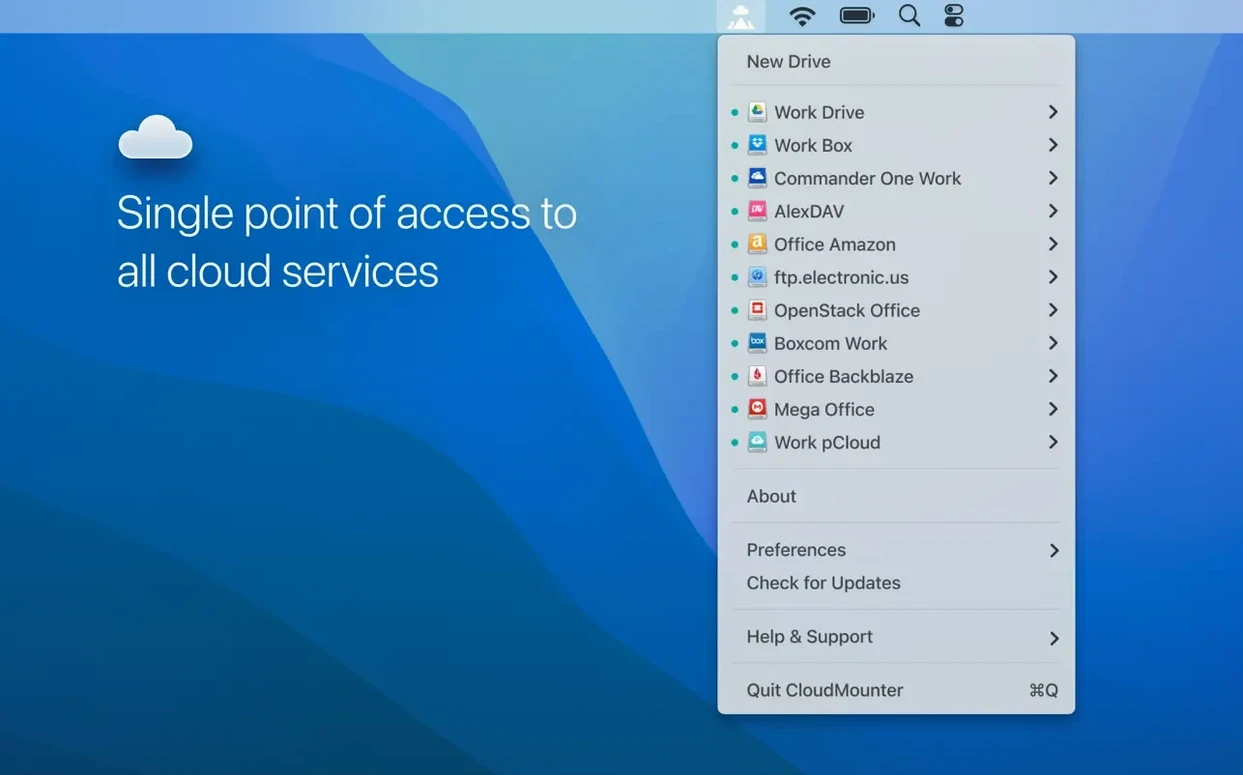
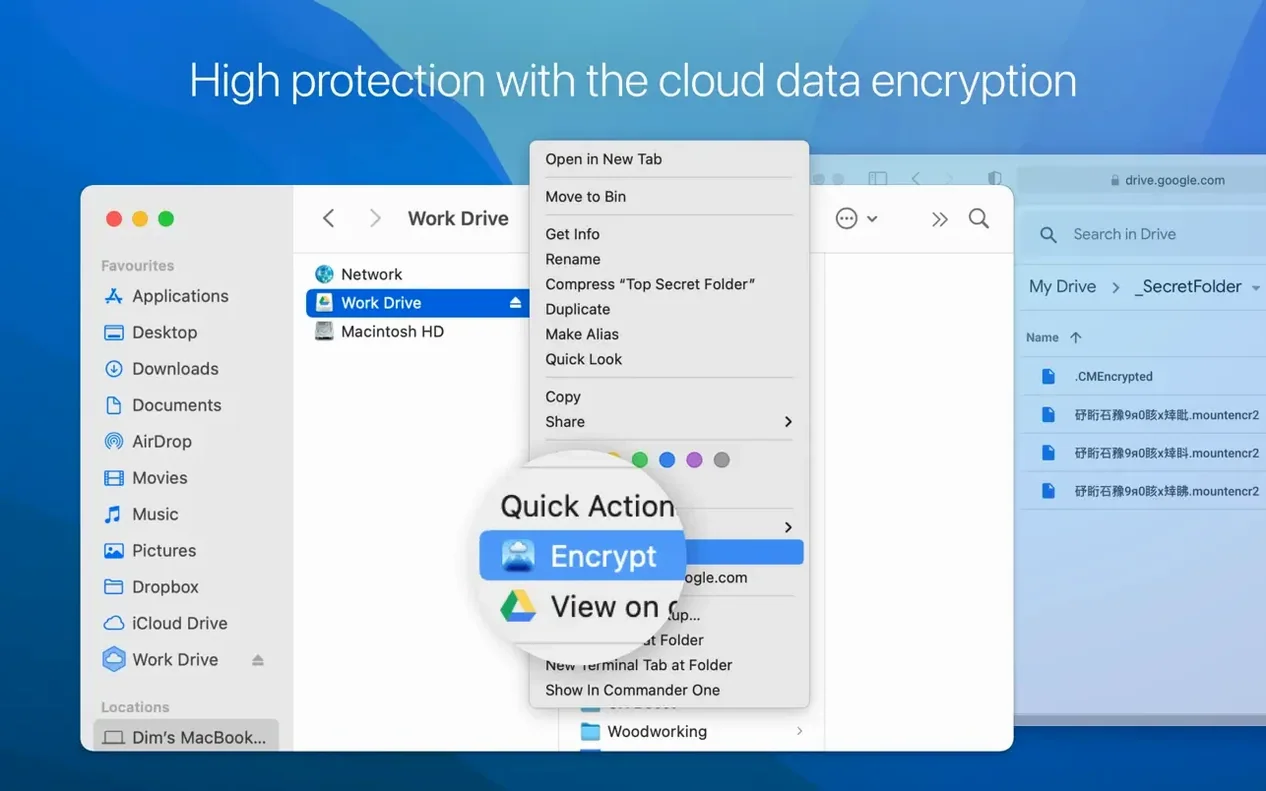
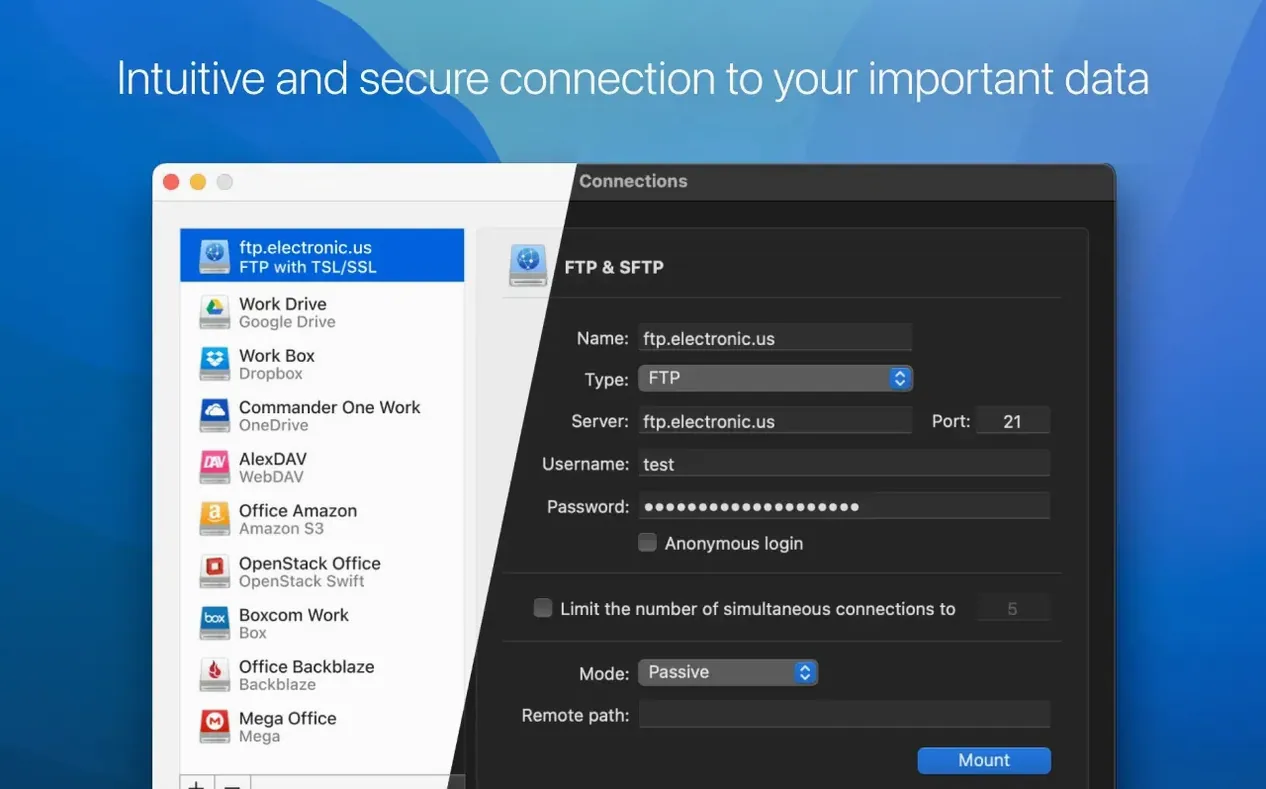
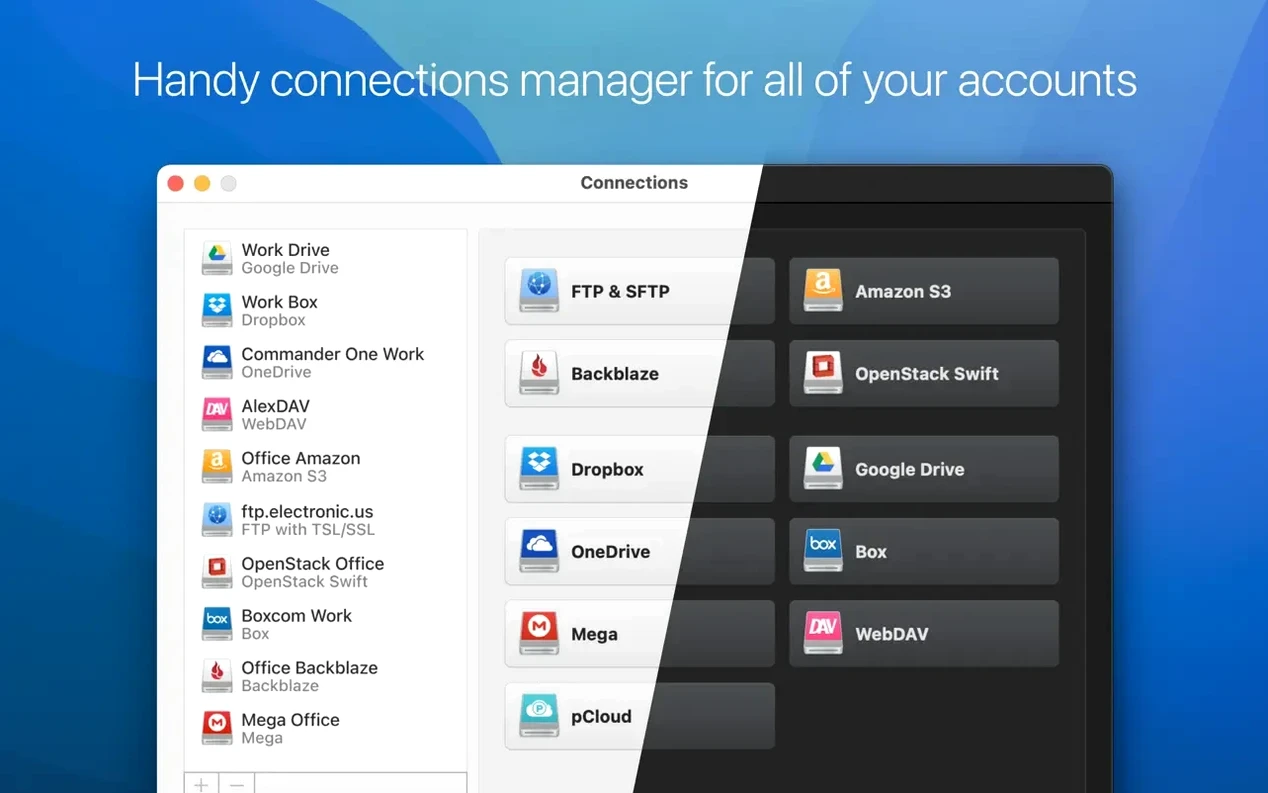
Think of it as a Finder extension that treats cloud accounts like USB sticks.
Cloud storage manager — an app that connects Google Drive, Dropbox, OneDrive and similar services to your Mac.
Local drive mounting — cloud storage appears in Finder as if it were an external hard disk. You drag files, open, and save without a browser.
Remote server connections — supports SFTP, FTP and WebDAV alongside cloud services.
Rosetta 2 required on Apple Silicon
- macOS: 10.14 or later
- Architecture: 64-bit Intel only
The current version carries a 18 June 2026 build date. It does not list Apple Silicon as a native option, so M-series Macs run it through Rosetta 2 or not at all.
Mount fails after a macOS update
A few things trip people up early on. Most have quick remedies.
- Drive doesn't mount after login — check that the CloudMounter helper is allowed to run in the background. macOS sometimes blocks it after an update. Go to System Settings > General > Login Items and re-enable it.
- Finder shows a connection error — for SFTP and WebDAV, verify the port number in the connection settings. Many servers use non-standard ports and the default won't work.
- Files appear but won't open — this often means the cache location has run out of space. The app caches recently used files on your local disk. Point it to a volume with more room in Preferences > Cache.
- Google Drive asks for permission repeatedly — revoke CloudMounter's access in your Google account security settings, then reconnect. The token sometimes expires silently.
- Slow folder listing on large directories — version 4.18 improved this, but directories with thousands of items still lag. Limit what you mount: connect only the folders you actively need rather than the entire drive root.
- Two-factor authentication loops — some services time out during the setup handshake. Generate an app-specific password in your cloud provider's security panel and use that instead of your main password.
A photographer's workflow
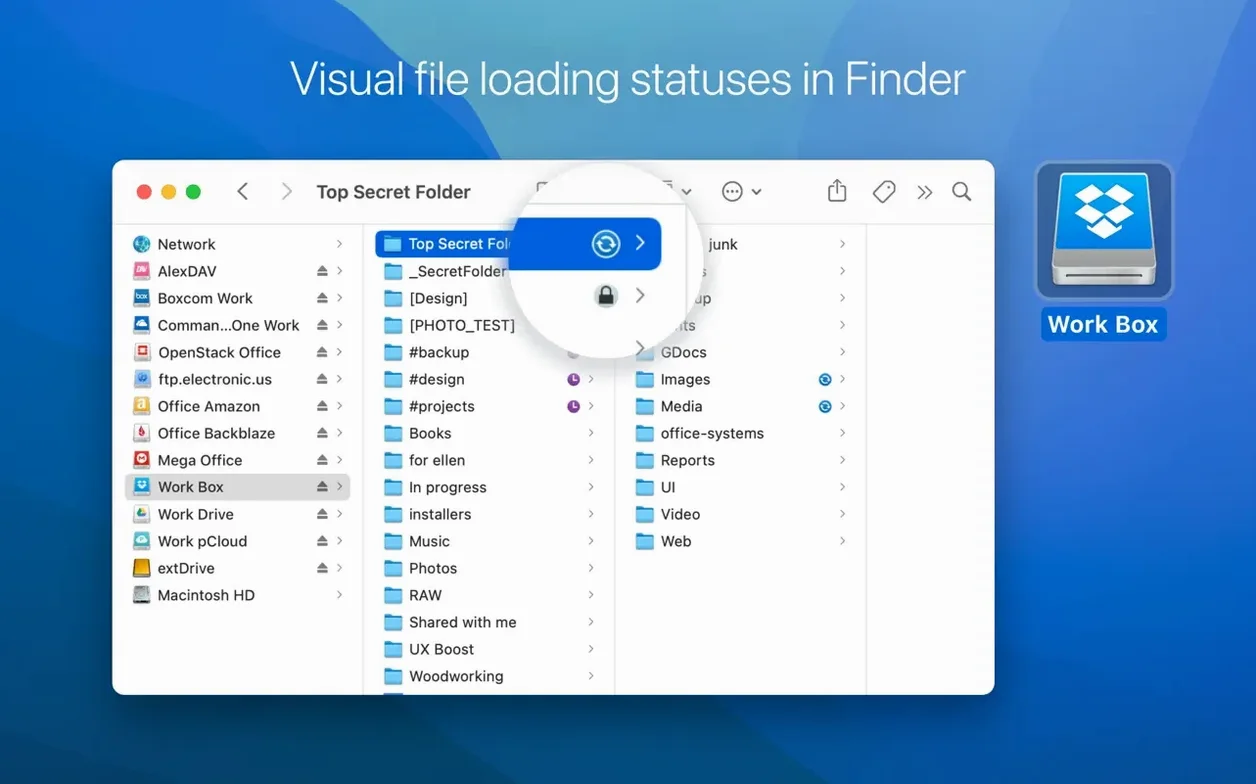
A working photographer keeps client work on Backblaze B2 and personal archives on Dropbox. Both accounts mount side-by-side in Finder. A shoot comes back as 38 GB of raw files. She drags the folder from an SD card into the B2 volume. CloudMounter uploads in the background — no browser tab open, no sync client eating local storage. While the upload runs, she pulls a Dropbox invoice template into Preview, edits it, and saves directly back. The local Mac never stores a copy of the raw files. By the time she finishes the invoice, the upload is done. Status icons in Finder show which files are still transferring and which have landed.
No background sync engine running
On an Intel Mac, CloudMounter sits at roughly 120–180 MB of RAM with three connections active. CPU use spikes during uploads and large file listings, then drops to near zero. It does not run a background sync engine, so idle draw is low compared to dedicated sync clients.
Stability holds up over long sessions. Leaving an SFTP connection mounted overnight usually survives sleep-wake cycles without disconnecting. Occasional hiccups come from server-side timeouts rather than the app itself. If you hunt around for a cloudmounter macos setup that doesn't thrash the disk, this one fits — it reads and writes on demand rather than mirroring everything locally.
Transfer speed depends entirely on the remote service. The app adds negligible overhead. A gigabit fibre line to a nearby S3 region saturates at around 80–90 MB/s. Older FTP servers with high latency crawl regardless. Version 4.18 brought faster folder listing, and it shows most clearly on MEGA connections where directory trees now populate a beat quicker than before.
- Large file uploads improved.
- MEGA connections work more reliably.
- SFTP download cancellation fixed.
- File downloading fixed after cache volume changes.
- Storage usage info displays correctly for online connections.
- macOS 10.14 or later
- 64-bit Intel processor
Questions the team asks
The official requirements list 64-bit Intel only. There is no native Apple Silicon build, so it may rely on Rosetta 2.
It mounts popular cloud storage services, plus SFTP, FTP and WebDAV connections, as local drives in Finder.
It requires macOS 10.14 or later on a 64-bit Intel Mac.







Comments 0
Sign in or create an account to add a comment.
No comments yet. They go up after moderation.