

Disk Drill — Mac download
Download (46 MB) Earlier builds
Ticked
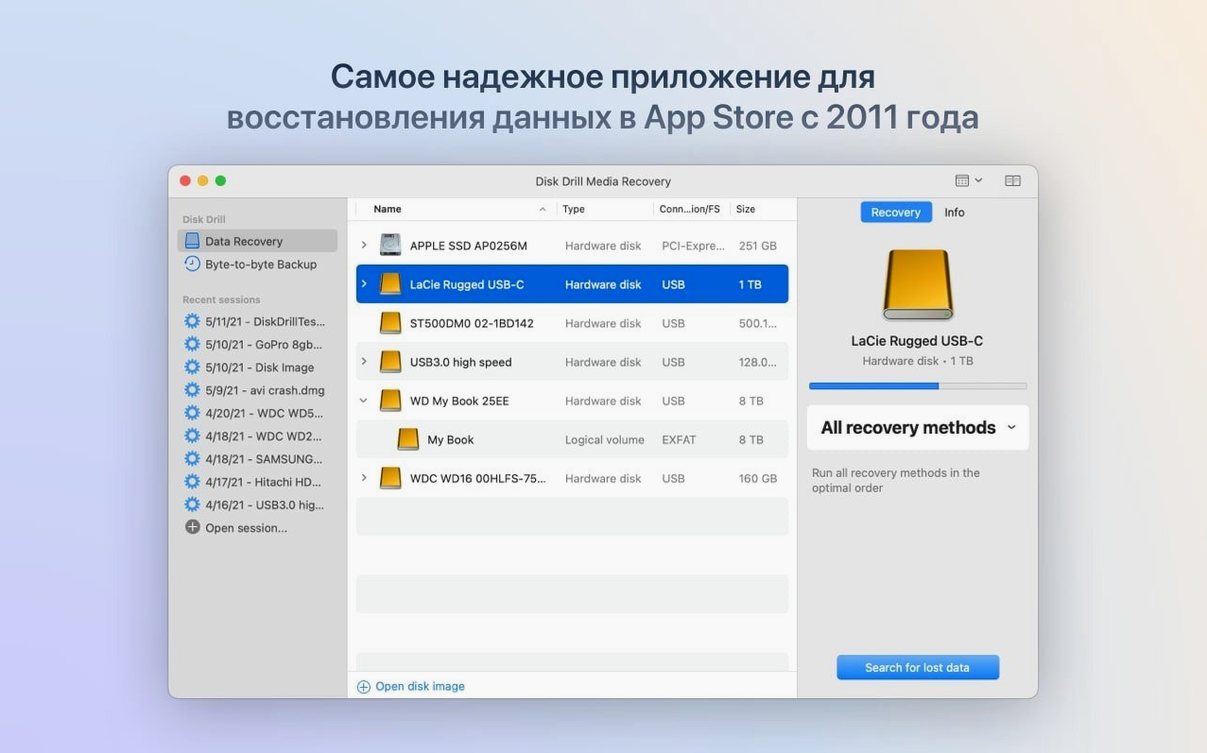
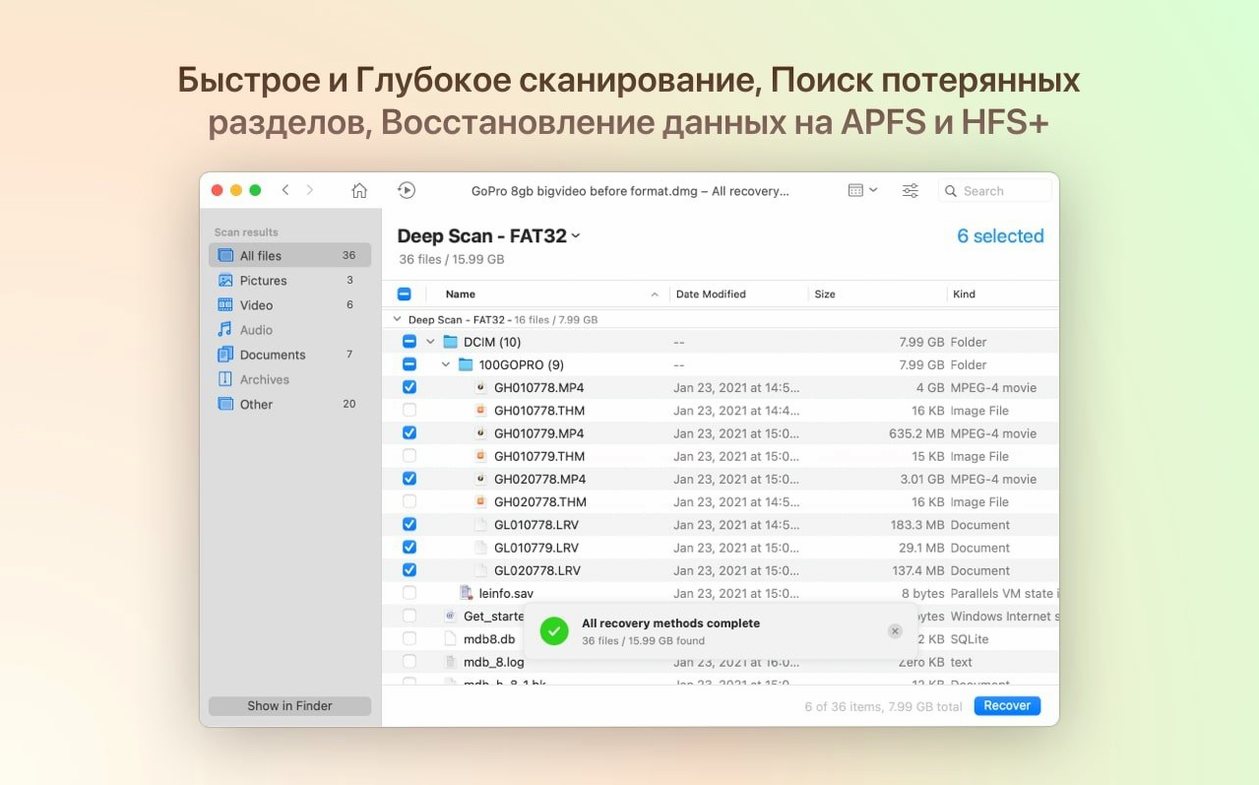
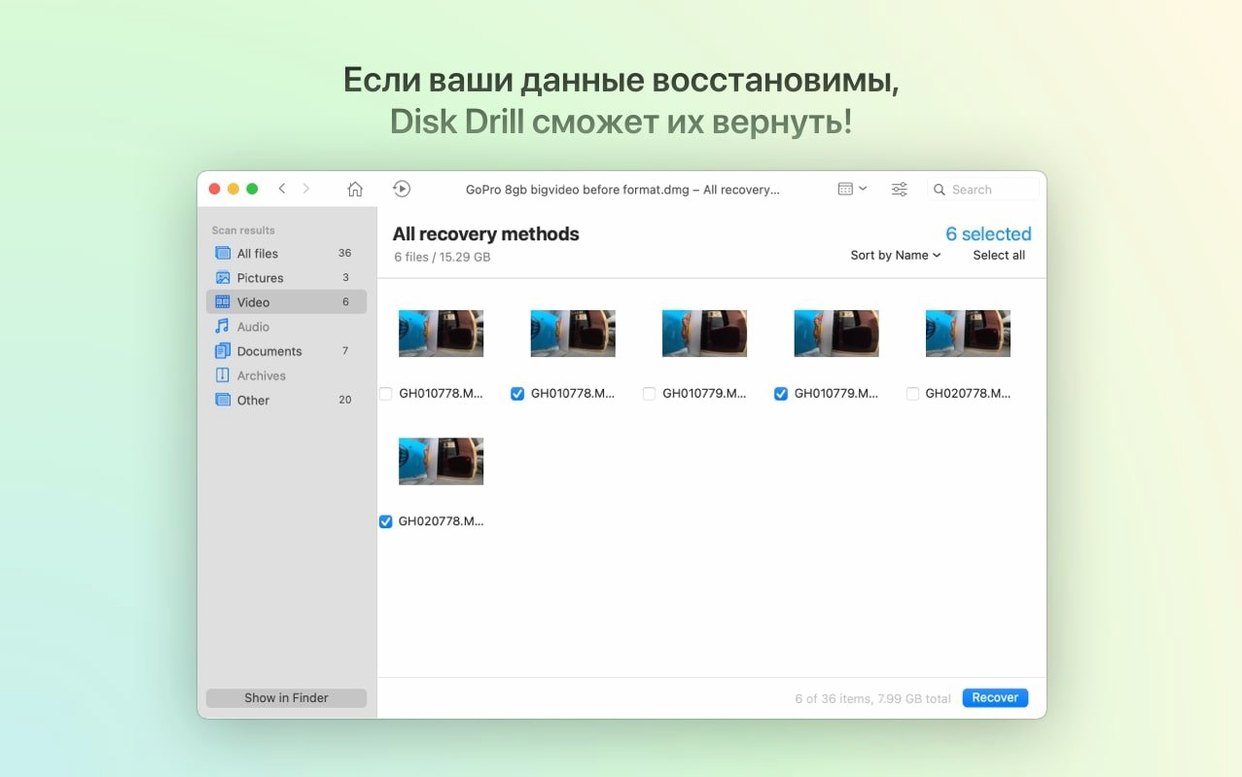
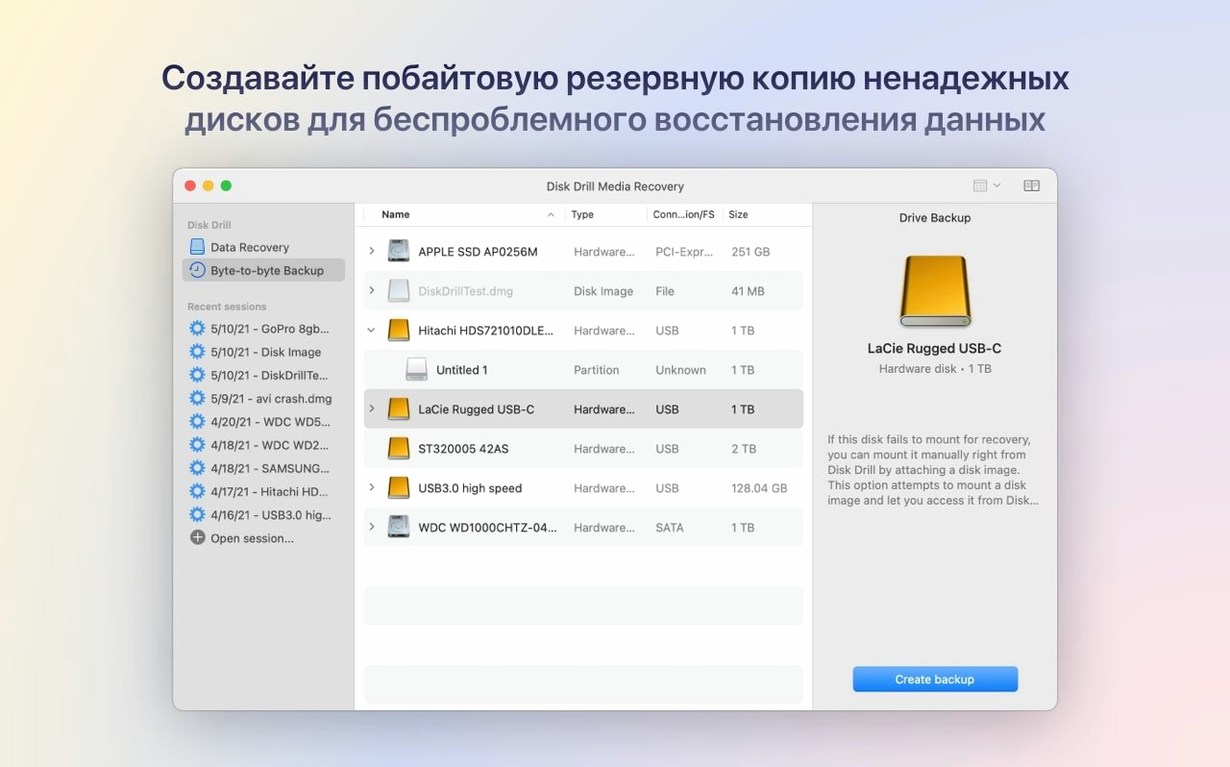
Version 6.3.2326 adds .m4a support in the ACR module and fixes a failure to detect .dng files. That means one less gap when scanning a mixed SD card from a camera shoot.
Good for
- Recovering deleted files from internal drives, USB sticks, memory cards and Android devices
- Restoring data from formatted or unreadable storage
- Rebuilding lost partitions on APFS and NTFS volumes
- Quick scans that find recently deleted items in seconds
Keep in mind
- Requires macOS 10.15.7 or later
- Deep scans on large drives take time
- Recovery to the same drive risks overwriting data — always restore to a different disk
A typical session: insert a formatted SD card, pick the drive from the list, run a Quick Scan. Filter results by file type — .dng, .rwl, .m4a all show up in the preview grid. Tick what you need, hit Recover, point it at an external folder. Done.
Turn off S.M.A.R.T. alerts for every external drive
Out of the box, Disk Drill works. A few tweaks make it faster and less noisy.
- Turn off S.M.A.R.T. monitoring notifications. The disk health watchdog is useful, but it pops up warnings for every external drive you plug in. Go to Preferences > S.M.A.R.T. Monitoring and uncheck "Show notifications for external drives." Leave it on for your internal SSD.
- Set a default recovery destination. Preferences > Recovery lets you pick a folder where recovered files land. Point it at a dedicated external drive or a "Recovered" folder on a secondary volume. Saves you from the destination prompt every single time.
- Raise the preview quality for photos. Preferences > Preview sets thumbnail resolution. The default is fine for documents, but if you recover photos often, bump it to High. Previews take a second longer to load; worth it when you are picking keepers from a few hundred .dng files.
- Disable the menu bar icon if you are not monitoring disks. It sits there eating a sliver of attention. Preferences > General, uncheck "Show in menu bar." The app runs fine without it.
BitLocker partitions now appear instead of blank blocks
The BitLocker partition detection is the headline item. If you plug in a Windows-formatted external drive that uses BitLocker, Disk Drill now sees the partition instead of showing a blank or unallocated block. That matters for anyone who shuffles drives between a work PC and a Mac.
Smaller changes that affect daily work:
- .p8 and .pfx file support. These are certificate and key files. If you deleted an exported signing certificate, Disk Drill finds it now. Niche, but a lifesaver for developers who store credentials locally.
- .m4a in the ACR module. Voice memos and audio recordings show up in the audio filter. Before this version, they were lumped into "Other files" and harder to spot.
- .rwl recovery. These are raw image sidecar files from older cameras. If your photo workflow uses them, the ACR module now pulls them alongside the .dng or .cr2 files.
- Encrypted APFS handling improved. FileVault volumes and encrypted external APFS containers scan with fewer stalls. The progress bar actually moves steadily now instead of sitting at 30% for ten minutes.
- Byte-to-byte DMG scanning fixed. If you had a disk image backup that stopped working after an interrupted scan, this version handles it cleanly.
- iPhone photo grouping performance fixed. Before, importing a large iPhone photo library into the ACR module could hang on grouping. Now it sorts photos and videos into albums without the beachball.
First three days: a practical checklist
Install Disk Drill, then run through this. Each step shows you something useful before you actually need it.
- Run a Quick Scan on a USB stick you do not care about. Delete a file from it first. Watch how fast the scan completes and how the file shows up in the results grid. This gives you a feel for the interface under zero pressure.
- Create a byte-to-byte backup of a small external drive. Use the "Byte-to-byte backup" button in the Extra Tools pane. Pick a 16GB or 32GB drive. Let it finish. You now have a disk image you can scan repeatedly without touching the original drive — ideal practice for fragile media.
- Set up Recovery Vault on one volume. Pick an external drive or a non-system internal partition. Turn on Recovery Vault from the drive's dropdown menu. It stores metadata for deleted files, which makes future Quick Scans nearly instant for that volume. Let it run for a day, then delete something. Scan it. See the difference.
- Plug in an Android phone via USB. Enable USB debugging on the phone first. Disk Drill should recognise it as a storage device. Run a Quick Scan just to confirm the connection works. Better to sort out driver quirks now than when you urgently need a photo back.
- Check the Cleanup and Duplicate Finder tools. They are not recovery tools, but they are part of the same install. Run Duplicate Finder on your Documents folder once. It flags files you forgot you had — and it keeps Disk Drill familiar under your fingers.
No section text provided
Disk Drill does not see my external drive
If the drive appears in Finder but not in Disk Drill's drive list, check that it is mounted and writable. Some drives formatted as exFAT or NTFS mount read-only on macOS, which can confuse detection. Remount the drive using Disk Utility, then restart Disk Drill. If you're running a Disk Drill cracked Mac activation from an older version, verify the kernel extension permissions in System Settings > Privacy & Security so the extension loads properly for full drive enumeration.
Deep Scan takes forever and the progress bar freezes
It has not frozen. Deep Scan reads every sector, and on a 2TB drive that can run for hours. Encrypted APFS volumes slow it further — the 6.3.2326 improvements help, but encryption overhead is real. Leave it overnight. If you need files immediately, cancel the Deep Scan and try Quick Scan first. Quick Scan often finds recently deleted items in under a minute.
Recovered files will not open
File names and extensions are best guesses during deep scans. A recovered .jpg might actually be a fragmented TIFF. Try opening the file with a different application. If the preview in Disk Drill showed a clear image but the recovered file is broken, the file was partially overwritten before recovery. This is not a bug — it is why recovery to a different drive matters.
Disk Drill asks for Full Disk Access every time I launch it
You granted it in System Preferences but the setting did not stick. Open System Preferences > Security & Privacy > Full Disk Access, remove Disk Drill from the list entirely, then add it back. Restart the app. This clears a stale permission token that sometimes lingers after an update.
The ACR module does not group my iPhone photos properly
Version 6.3.2326 fixed the worst of the grouping lag, but if you still see albums jumbled, let the scan complete fully before touching any filter. Switching between file-type filters mid-scan resets the grouping cache. Wait until the scan status says "Idle," then apply your photo filter.
- Detects and recovers lost BitLocker partitions
- Adds support for .p8 and .pfx files
- Adds .m4a support in the ACR module
- Improves encrypted APFS partition handling
- Fixes byte-to-byte DMG scanning
- macOS 10.15.7 or later
- Apple Silicon or Intel Mac (64-bit)
Questions the team asks
Yes. Disk Drill can scan formatted devices and restore files from internal drives, external drives, USB flash drives and memory cards.
It scans internal hard drives, external drives, cameras, iPhones, iPads, iPods, Android devices, USB flash drives, Kindle devices and memory cards.
Yes. Disk Drill 6 supports both ARM and 64-bit Intel Macs running macOS 10.15.7 or later.
More in Mac Apps
The whole list




How to install

Comments 0
Sign in or create an account to add a comment.
No comments yet. They go up after moderation.