

Movavi Video Converter — Mac download
Download (79 MB) Earlier builds
Ticked
Your footage won't open, and the deadline is today. That's the problem a converter exists to solve.
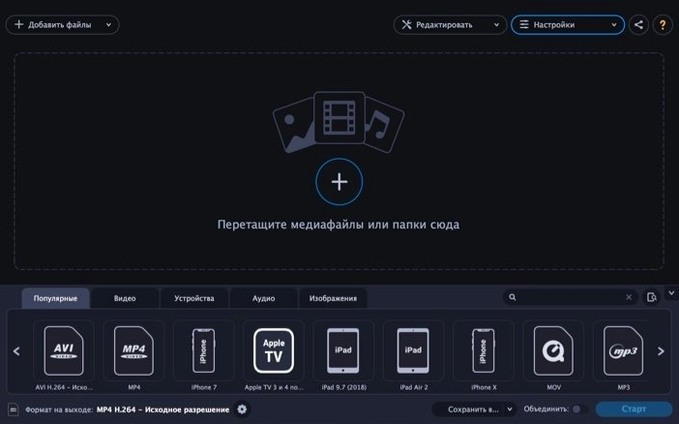
Format support — the list of input and output types the app can read and write. Movavi Video Converter reads AAC, FLAC, M4A, MP3, OGG, Opus, WAV, and WMA. It writes the same set plus video containers: AVI, MKV, MOV, MP4, MPG, WebM, and WMV.
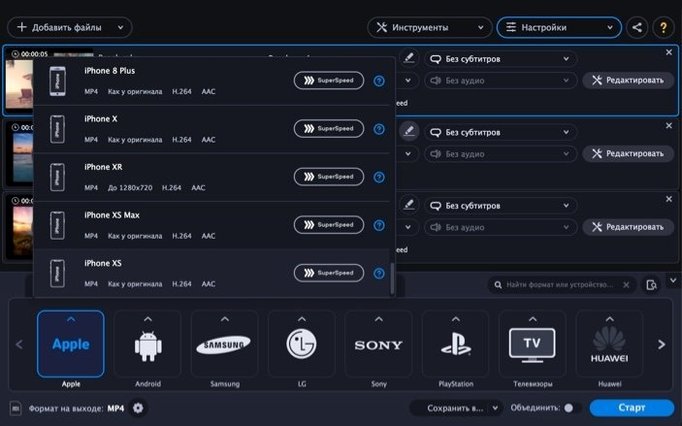
Device profiles — ready-made settings for a specific phone, tablet, or TV. Profiles for Apple, Samsung, Nokia, and Sony devices are included. Pick one, and the app sizes the output correctly.
Audio extraction — pulling the sound out of a video and saving it as a standalone file. A built-in feature handles this without extra tools.
Black bars still appear in the output
Three issues crop up repeatedly.
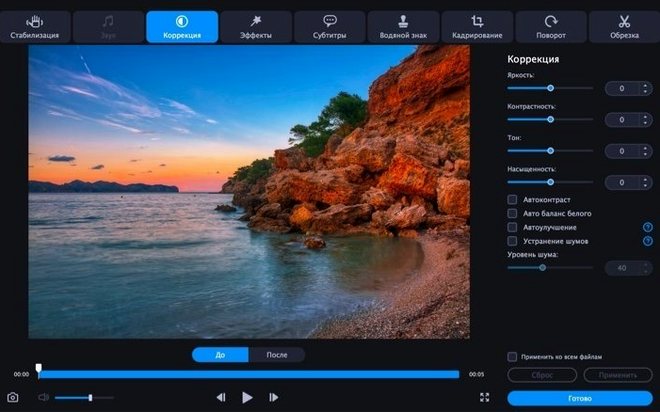
Output still has black bars. The source aspect ratio doesn't match the device preset. Manually set the crop in the edit panel rather than relying on automatic fit. A quick trim of 2–4 pixels often fixes the framing.
Conversion starts then stops immediately. A permissions hiccup on the output folder. Point the save location to a folder you definitely have write access to — ~/Desktop or ~/Documents works. If you use an external drive, check that it's mounted with read/write permissions.
SuperSpeed mode is greyed out. The feature only works when source and target share the same codec family. H.264 to H.264 will light it up; H.264 to HEVC won't. If speed matters more than file size, keep the codec identical.
Batch-processing clips for social media profiles
A few groups benefit more than others.
- Social media managers who batch-process clips for Instagram, TikTok, and YouTube Shorts. The device profiles cut out guesswork on resolution and aspect ratios. One folder of raw footage, one output folder of ready-to-post files.
- Musicians and podcasters who pull audio from video recordings. Extracting an MP3 or WAV from a live session video takes two clicks. No need to open a separate audio editor just to get the track out.
- Anyone with an older Intel Mac. The app runs on macOS 10.13 and needs only Intel 64-bit architecture. If you're still on a 2015 MacBook Pro or an aging iMac, a Movavi Video Converter Mac torrent install keeps a capable converter on a machine that newer software often drops.
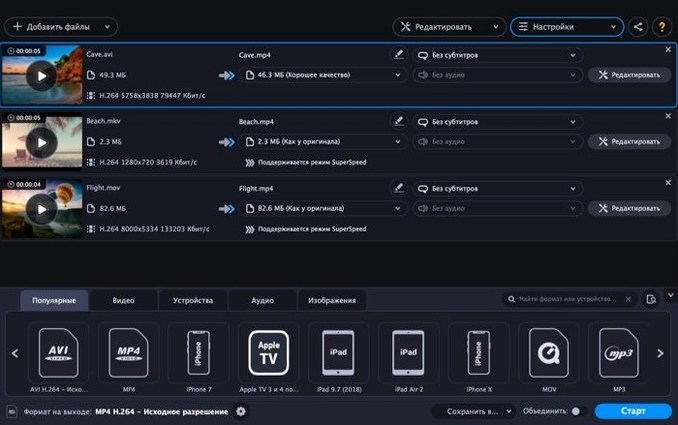
- Users juggling formats from different cameras. One shoot might produce MKV from a screen recorder, MOV from a DSLR, and AVI from an old camcorder. Dropping them all into the same queue and outputting MP4 saves a lot of manual work.
Set a default output folder before your first conversion
- Set your default output folder early. Go into preferences and pick a dedicated folder — something like
~/Converted. Avoids hunting for files later. - Test one file before queueing fifty. Run a single clip through with your chosen settings. Check the output plays correctly, audio syncs, and the file size makes sense. Then load the full batch.
- Keep the install disk image handy. Some Movavi Video Converter 22 Premium builds from torrent sources need re-activation after major macOS updates. Store the original .dmg on an external drive.
- Use the image-to-GIF feature for quick previews. When a client asks for a rough animation, convert a short video clip to GIF straight from the app. Faster than opening a dedicated motion graphics tool for a ten-second loop.
- Name your presets after projects, not devices. If you regularly convert for "Client X – Instagram", save that as a custom preset. The device profiles are a starting point, not the only option.
The 22 release keeps the same engine. No new features landed, but the format roster and device presets still cover the common requests.
- macOS 10.13 or later
- Intel 64-bit processor
Questions the team asks
The interface runs in English, German, Spanish, Italian, Traditional Chinese, Simplified Chinese, Korean, Dutch, Polish, Portuguese, Turkish, French, and Japanese.







Comments 0
Sign in or create an account to add a comment.
No comments yet. They go up after moderation.