

Mp3tag — Mac download
Download (13 MB) Earlier builds
Ticked
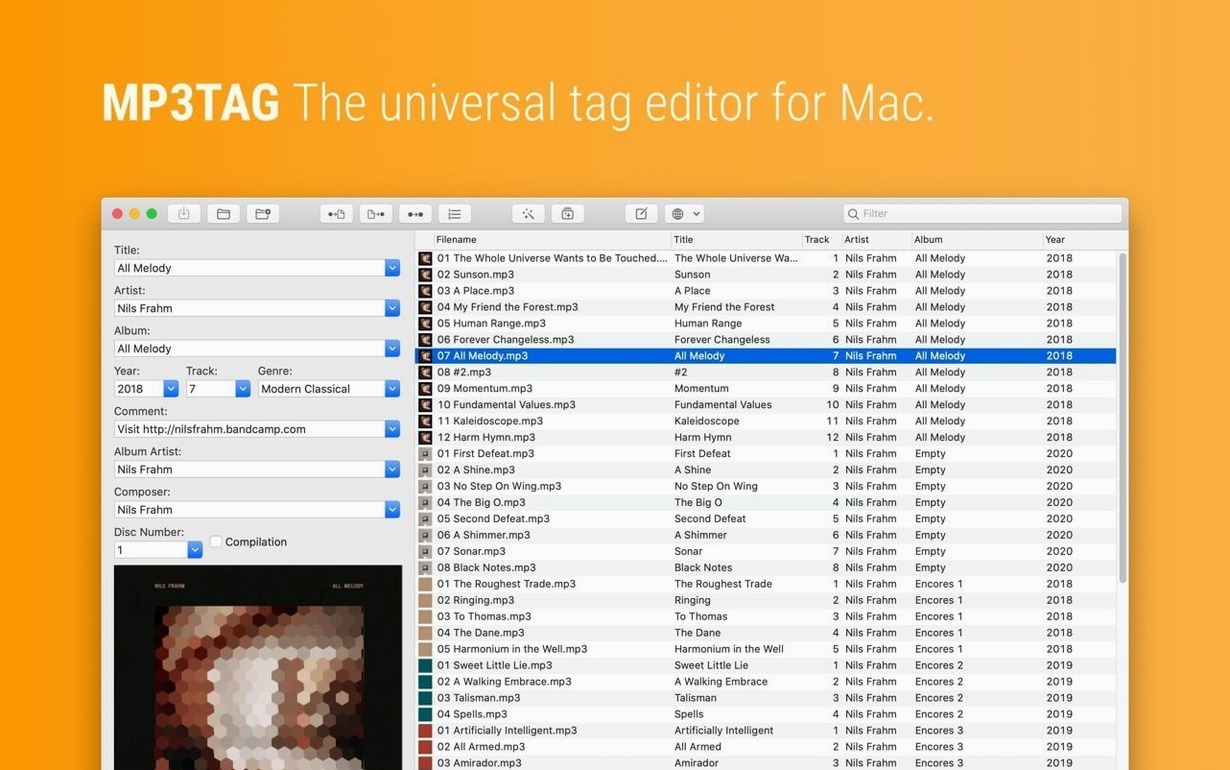
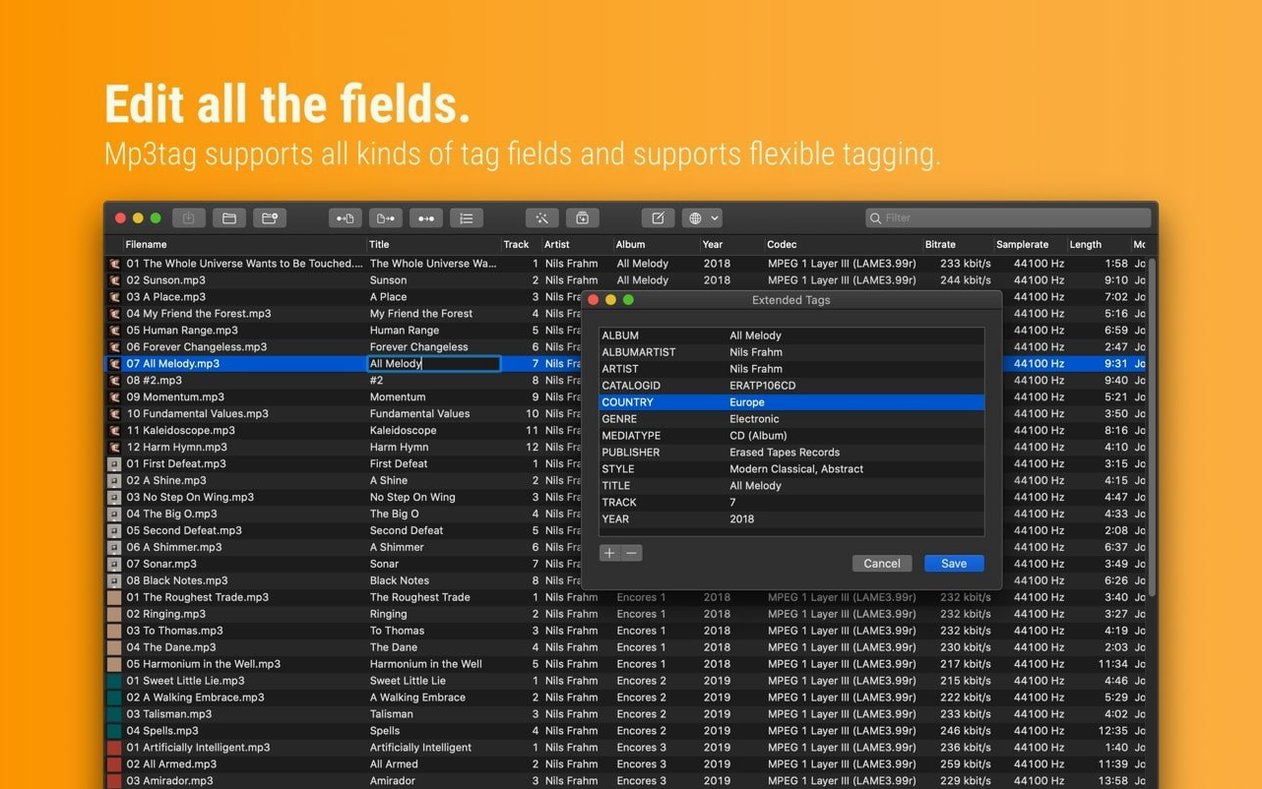
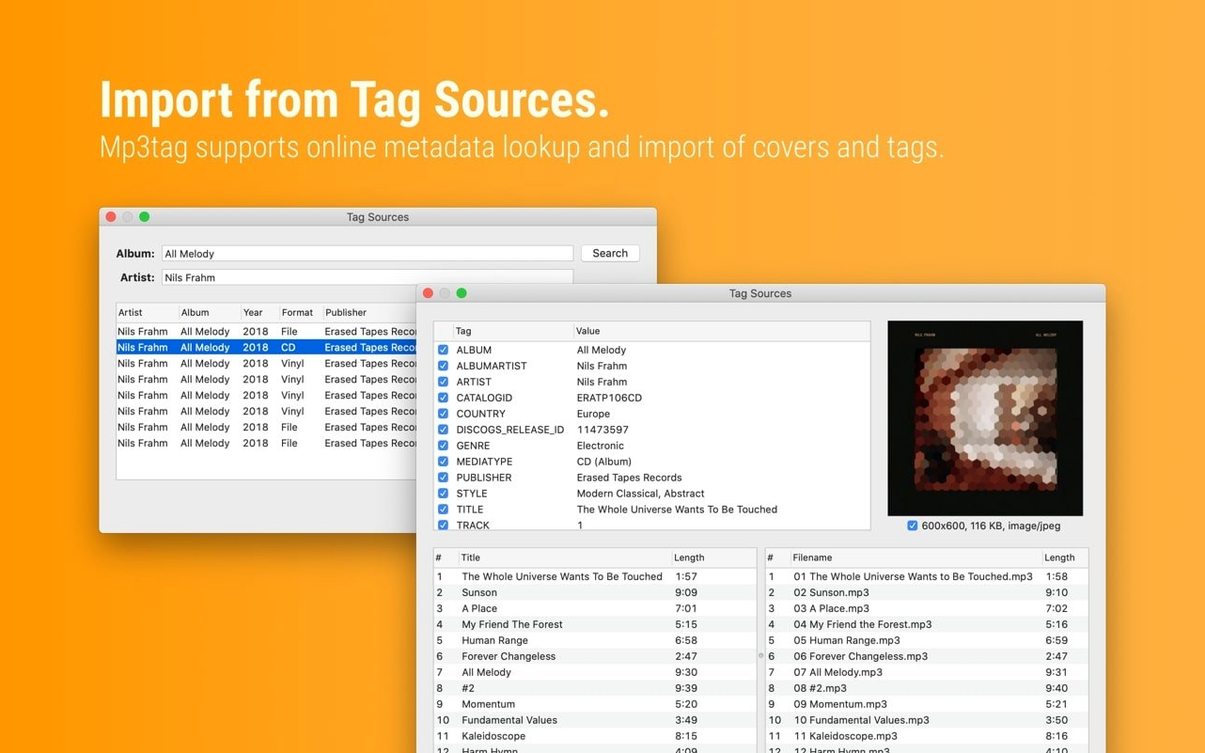
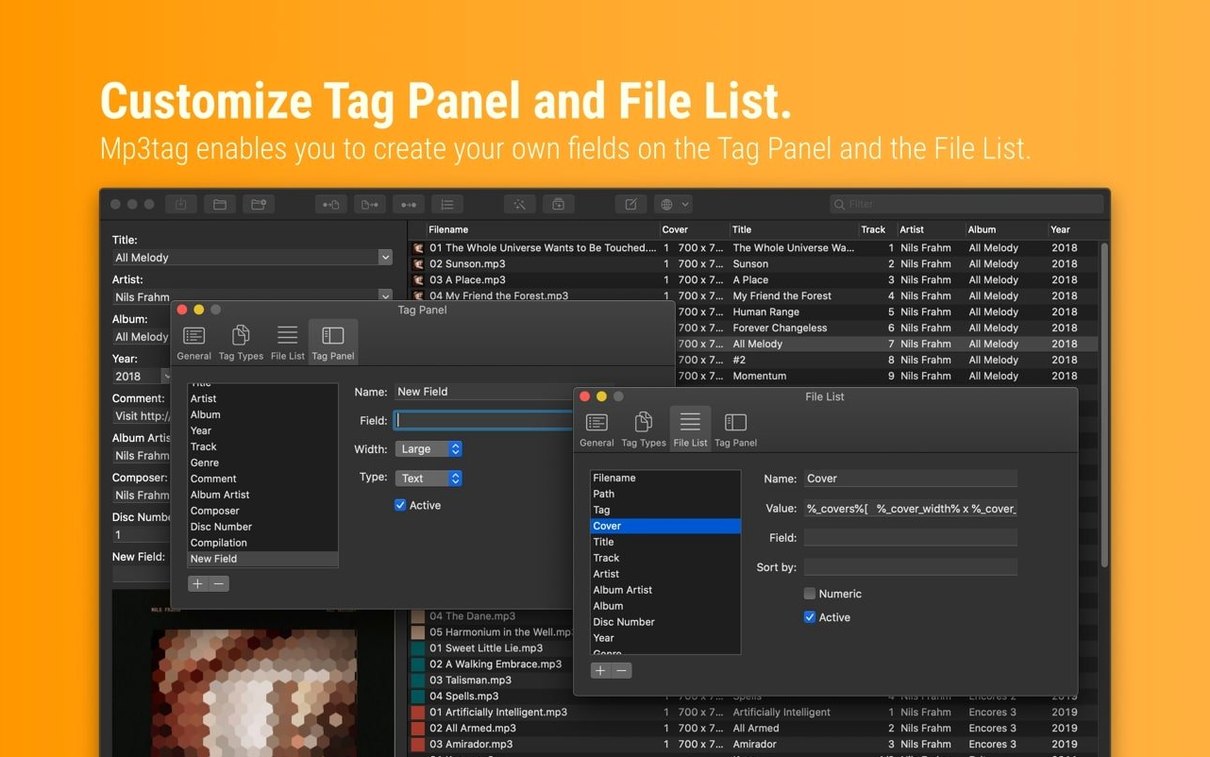
Messy music libraries start with bad metadata. Track 01, Unknown Artist, no album art. Fixing that file by file takes an afternoon you do not have.
Mp3tag for macOS takes the repetition out of the job. It is a universal tag editor that works across formats, pulling information from online sources and applying changes to batches of files in one go.
How to clean up a library with Mp3tag
- Load your files. Drag a folder of audio files into the main window. The table view shows every tag field that needs attention.
- Import tag information. Use a tag source to pull correct artist, album and track names. The information lands in the right columns, ready for review.
- Batch edit the problems. Select hundreds of files at once. Fix a genre, set an album artist, or capitalise every track title. Changes apply across the whole selection.
- Clean up filenames. Use the converter to rename files based on their tags, or replace characters and words in both tags and filenames in one pass.
- Save repetitive work as an action group. Group a rename rule, a character replacement and a tag source lookup. Run the whole sequence next time with a single click.
First days with Mp3tag
Install, launch, and ignore the urge to fix everything at once. A few habits early on save hours later.
- Start small. Pick one artist folder you know well. Check the Discogs or MusicBrainz match before you commit tags to two hundred files. A wrong match is fast to undo on ten tracks, annoying on a whole library.
- Set a consistent cover art size. Under the cover settings, cap embedded images at 600x600 pixels and JPEG at 85% quality. A library full of 3000x3000 PNGs bloats file sizes for no playback benefit.
- Build one action group on day one. Even a simple group — say, rename files to
tracknumber. titleand import from MusicBrainz — teaches you how actions chain together. You will refine it for weeks. - Check the Tag Panel before saving. The panel shows exactly what will change. Glance at it. Catching a misplaced featured artist tag before it writes to disk is faster than fixing it afterwards.
Look up tags only for selected tracks
- Tag sources work on a selection, not the whole library. Highlight the files you want to look up, then run the source. Mp3tag only queries for those tracks. It stops accidental overwrites on files you already tagged correctly.
- Right-click a cover image in the Tag Panel to export it. Useful when you need the artwork file for a DJ software library that reads folder.jpg rather than embedded art.
- Auto-numbering is a wizard, not just a counter. It pads track numbers with leading zeros, resets per album, and can start from any number. Select an album, open Auto-Numbering, set the pattern, and a thirty-track compilation numbers itself correctly in two seconds.
- The converter previews filenames before renaming. Paste a format string like
%artist% - %album%/%track% %title%into the converter and you see the result per file. Tweak until the preview looks right, then apply. - Hold Option when launching actions from the menu. Some actions skip the confirmation dialog. It is a tiny speed-up but adds up during a tagging session with hundreds of files.
Tag Panel edits survive converter runs
Version 1.14.1 landed in September 2026 with fixes that affect daily tagging work. The most noticeable: Tag Panel edits no longer get lost if you open Extended Tags or run a converter before saving. Previously, you could adjust a title in the panel, then switch to look up cover art, and return to find your title edit gone. That does not happen now.
Cover art changes made in the Tag Panel also survive other operations. The fix stops the panel from discarding new artwork when Extended Tags opens. For DJ users and podcasters who swap cover images often, this removes a frustrating undo loop.
Decimal BPM values now write correctly to MP4 files. If a tag source supplies 128.5 BPM, the value stays at 128.5 instead of truncating to 128. Small difference, but it matters when you sync tracks by tempo in DJ software.
On the stability side, a crash that appeared on macOS 27 when adding action groups is fixed. If you are building complex action chains for batch renaming and tag imports, the window stays open and responsive.
These are quiet fixes. They do not add features, but they remove the friction that made previous versions feel unpredictable during long editing sessions. Every edit you make in the panel now sticks until you press Save or deliberately discard it.
Every step works on a single file or ten thousand. The interface keeps you in control of what changes before you commit.
- Fixed a crash on macOS 27 when adding action groups in the Actions Groups window.
- Cover changes in the Tag Panel no longer get discarded if you open Extended Tags before saving.
- Unsaved Tag Panel changes now stick when you use Cover Search, Tag Sources, Converters, Auto-Numbering or Actions before saving.
- Decimal BPM values now stay decimal when writing MP4 tags, instead of being truncated to integers.
- macOS 10.14 or later
- Intel (64-bit) or Apple Silicon Mac
Questions the team asks
Yes. The developer states native Apple Silicon support, so it runs without Rosetta on M-series chips.
Yes. Mp3tag supports batch editing, so you can select multiple files and apply tag changes, converters or action groups to all of them simultaneously.
Version 1.14.1 requires macOS 10.14 or later, on both Intel and Apple Silicon Macs.









Comments 0
Sign in or create an account to add a comment.
No comments yet. They go up after moderation.