

Movist Pro — Mac download
Download (60 MB) Earlier builds
Ticked
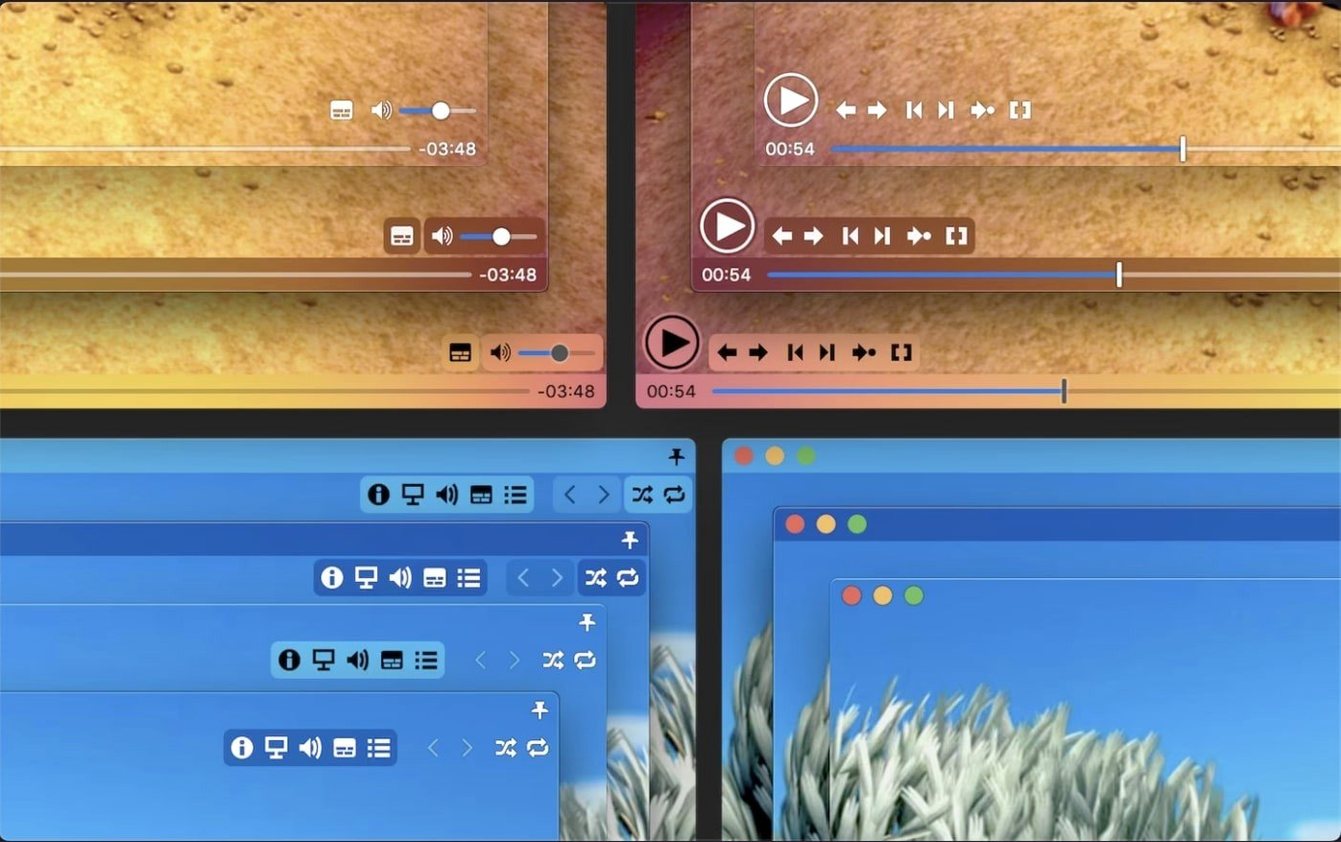
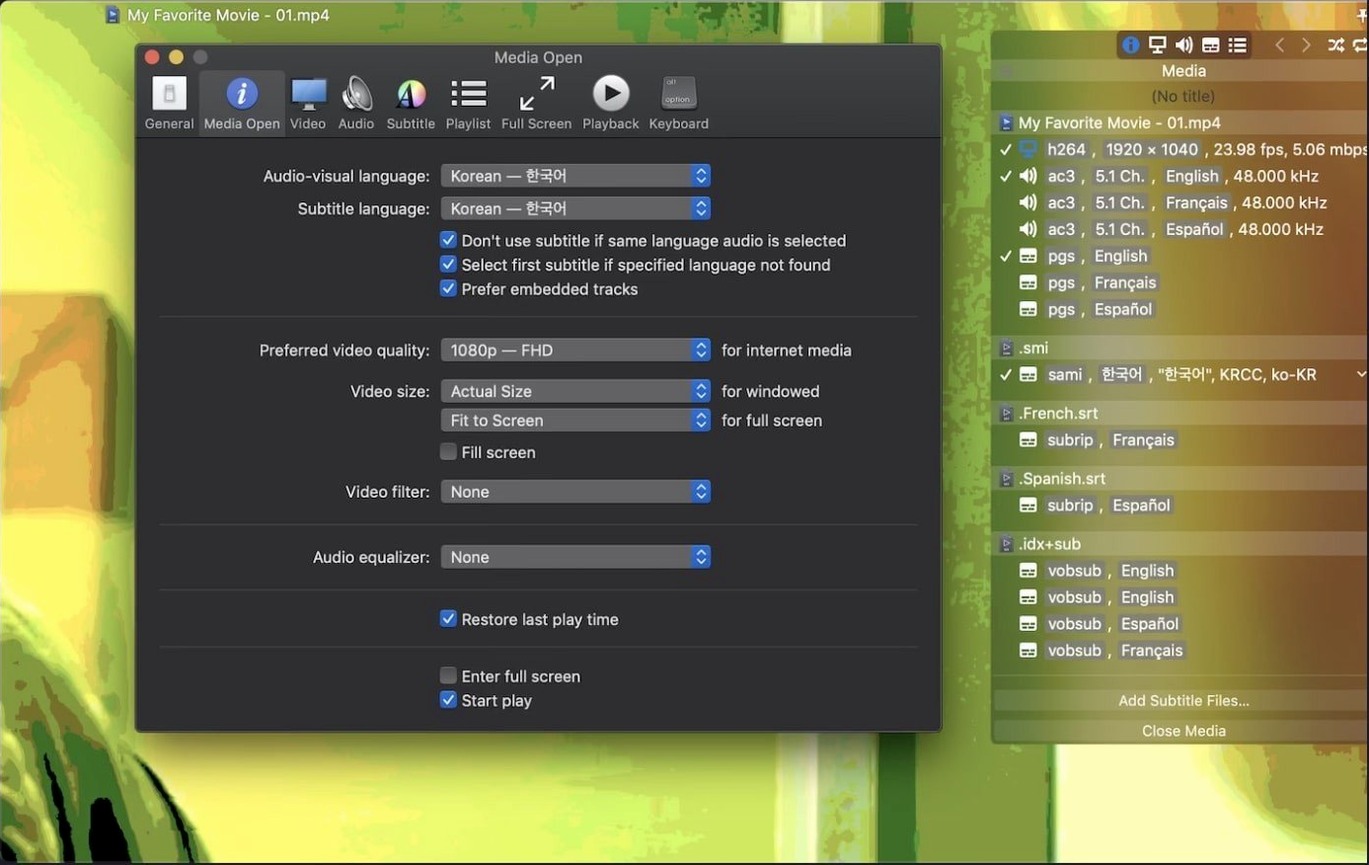
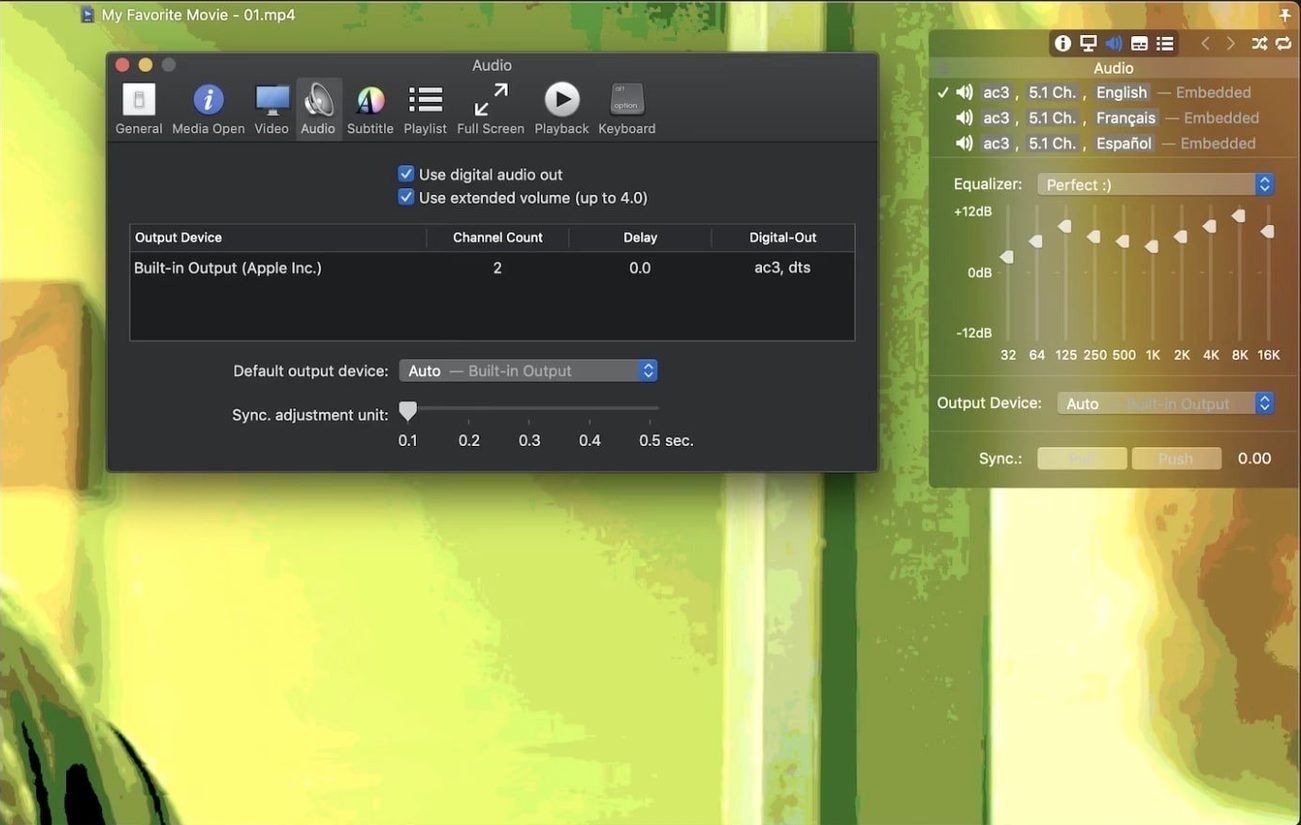
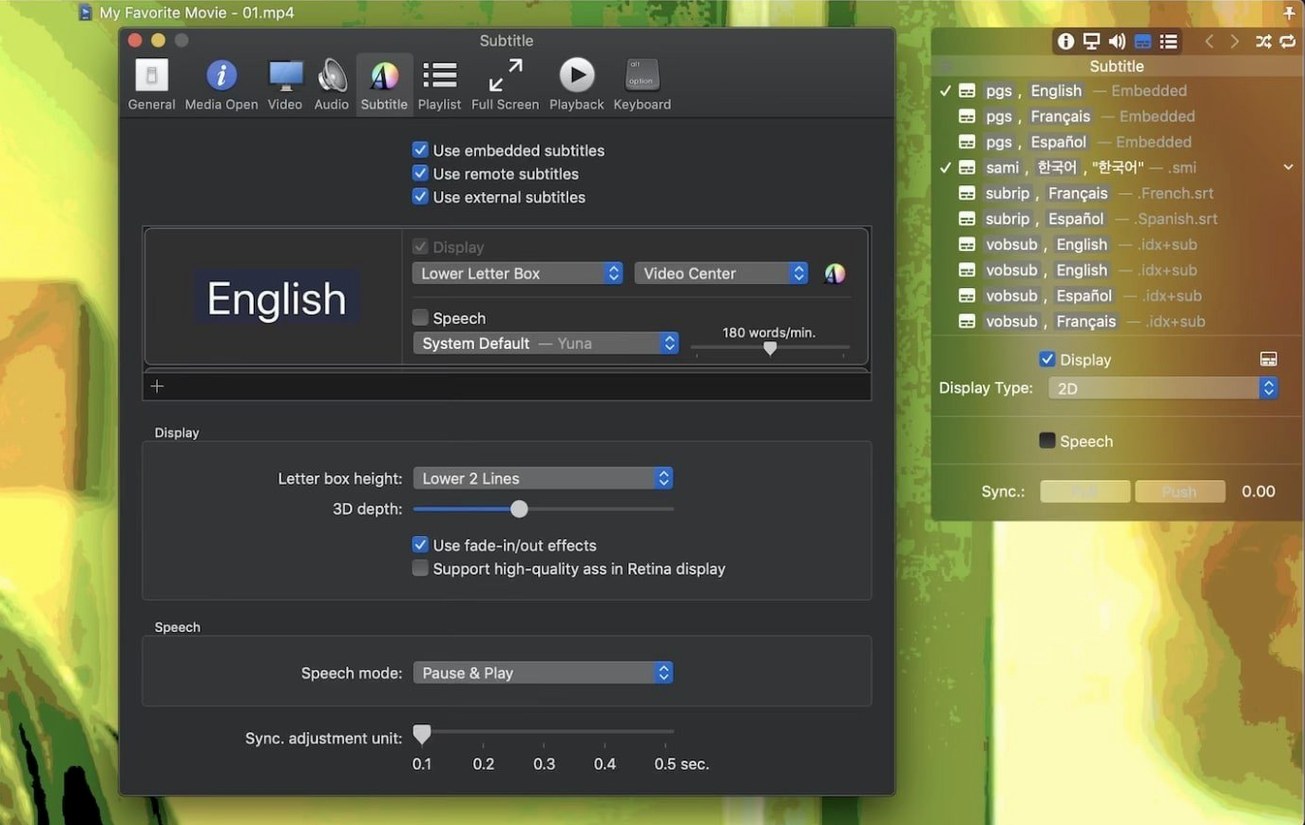
You open a TS transport stream file from a camera and it stutters, then stops. QuickTime won't touch it. You switch to Movist Pro, scrub through the timeline, adjust the out-of-sync subtitles by half a second, and carry on.
| Quick facts | |
|---|---|
| Version | 2.17.2 |
| Developer | Chul Joo |
| macOS | 10.13 or later |
| Architecture | Intel and Apple Silicon |
| Interface languages | English, Russian, Japanese, Korean, Simplified Chinese |
The core of Movist Pro remains a dual engine: QuickTime for system-native formats, FFmpeg for everything else. Hardware acceleration for H.264 and H.265/HEVC decoding keeps 4K playback smooth. Subtitle support goes well beyond basics — you can load compressed .zip and .rar packs, sync offset on the fly, display in Letter Box mode, and even render 3D subtitles. Playlist controls include shuffle and repeat. Audio passes through to S/PDIF output when you need it. Screenshot capture and playback speed adjustment round out the toolset. Version 2.17.2 is a maintenance release that fixes a playback failure with certain TS videos and a rare crash tied to disabled System Integrity Protection. The broad feature set stays unchanged.
Subtitle engine handles embedded and archive tracks
Not every Mac user needs a third-party player. Three groups benefit the most from Movist Pro.
Subtitle-heavy viewers. If you watch foreign-language content with multiple subtitle tracks, embedded files, or compressed archives, the subtitle engine here is hard to match. You can load subs from zip and rar files without unpacking, display several tracks simultaneously, and tweak font, size, shadow and position to your exact preference. The automatic text-encoding detection saves you from garbled characters on older .srt files.
People dealing with transport streams and broadcast files. TS files, MTS recordings from camcorders, and other containers QuickTime refuses to open — these are the reason many users come to Movist Pro. The FFmpeg backend handles them, and the 2.17.2 fix for certain TS videos that previously failed to play makes this release the one to use.
Anyone with an external audio setup. S/PDIF digital audio output means the app fits into a hi-fi or surround system without resampling or downmixing headaches. Hardware-accelerated decoding keeps fan noise low while you watch.
Stuttering file? Switch the playback engine first
A few things trip up new users. Avoid these and the experience is smoother.
- Not checking the playback engine. Movist Pro can use either QuickTime or FFmpeg per codec. If a file stutters, switch the engine in preferences — one often handles a problematic container better than the other.
- Leaving subtitle encoding on auto when it fails. Auto-detection works well, but for obscure text encodings you get mojibake. Manually select the encoding from the subtitle menu instead of assuming the file is corrupted.
- Setting playback speed from the menu every time. Keyboard shortcuts for speed adjustment exist and are faster. Learn them once, skip the clicks.
- Ignoring playlist autocompletion. If you have numbered episodes and matching subtitle files, the playlist can auto-pair them. Naming your files consistently makes this feature work without effort.
Fix washed-out HDR colors with tone mapping
Movist Pro ships with sensible defaults, but a few adjustments make a noticeable difference right away.
- HDR tone mapping. If you watch HDR content on an SDR display, enable tone mapping in the video settings. Colours look washed out otherwise.
- Subtitle Letter Box mode. Turn this on if you watch widescreen films on a 16:10 or squarer display. Subtitles appear in the black bar below the picture instead of overlaying the frame.
- Subtitle sync offset step. The default sync adjustment increment may be too coarse. Set it to 0.1 seconds for fine control over dialogue timing.
- Single-window versus multi-document mode. Decide early. Single-window keeps everything in one place; multi-document lets you open separate windows — useful for comparing edits or reference footage.
- Sandboxed mode. If you prefer the app to have limited file-system access, enable sandboxing in the advanced preferences. It restricts what Movist Pro can read beyond the files you explicitly open.
- macOS 11 or later
- Apple Silicon or Intel 64-bit Mac









Comments 0
Sign in or create an account to add a comment.
No comments yet. They go up after moderation.