

Mountain Duck — Mac download
Download (187 MB) Earlier builds
Ticked
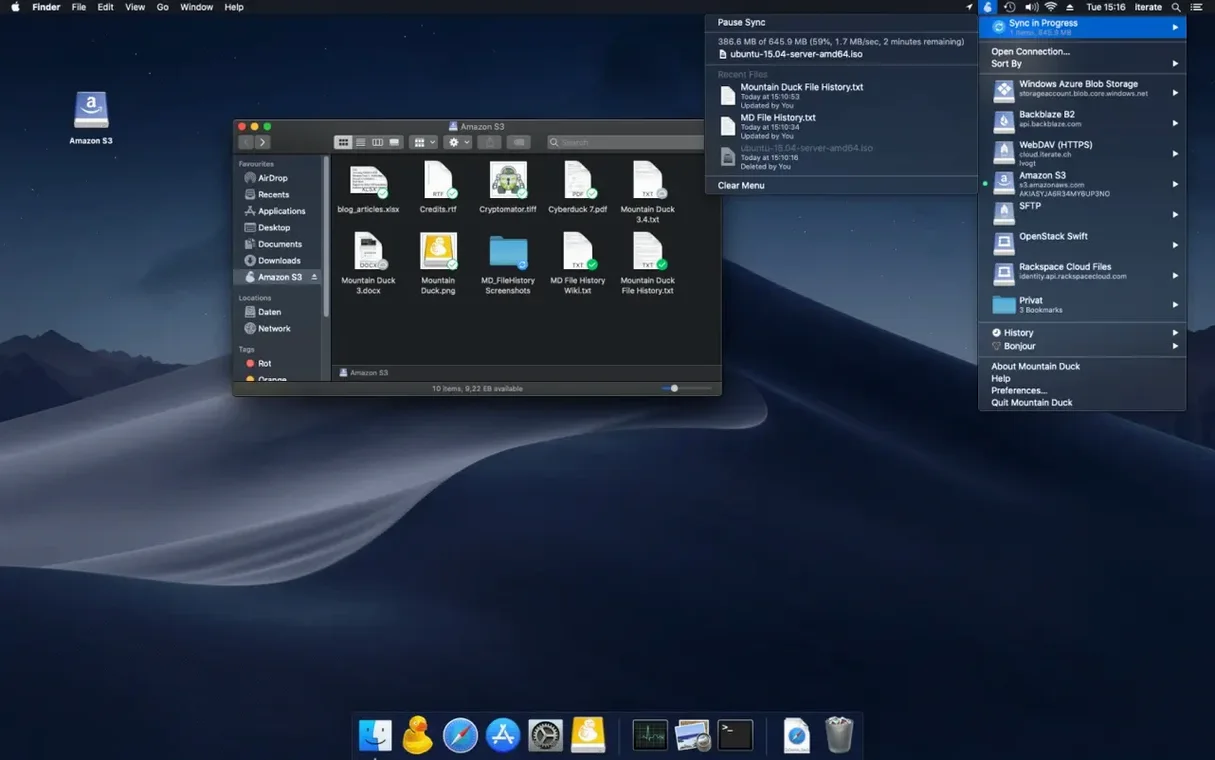
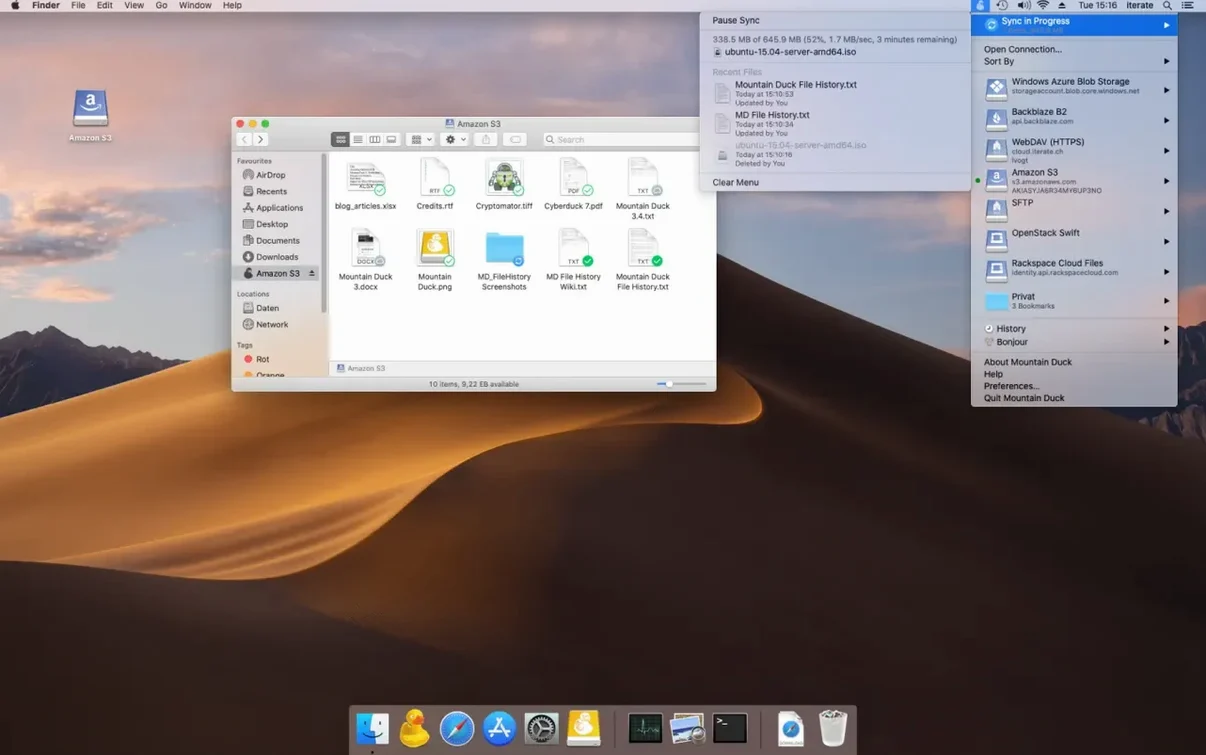
If you already use Cyberduck for quick file transfers, Mountain Duck takes that same connection logic and makes it persistent in Finder. It mounts your cloud storage accounts as standard volumes, so any Mac application can open remote files directly without a separate transfer step.
Version 5 and Integrated Connect Mode
Version 5 shifts how the connection works. Integrated Connect Mode keeps the volume visible in Finder’s sidebar and manages uploads in the background whenever a connection is available. Files stored on the local disk stay available offline. The app caches other files only when needed, which keeps the local footprint small. Bookmarks are shared with Cyberduck if it’s installed, so your server list stays in sync across both tools. SMB connections are now supported alongside the existing cloud services.
Mounts on demand instead of syncing everything
Mountain Duck sits between a sync client and a full file manager. It doesn’t sync everything ahead of time — it mounts on demand. If you use Cryptomator, encryption at rest works with compatible vaults. The interface appears in over thirty languages, including English, German, French, Spanish, Japanese, and Simplified Chinese. It runs on Apple Silicon and Intel Macs with macOS 13 or later, and the same concept works on Windows with File Explorer.
Dragging files onto the volume expecting instant local copies
- Treating the mounted volume like a sync folder. Dragging everything onto it and expecting instant local copies. Mountain Duck caches files on demand — only the files you open land on your disk unless you mark them for offline storage.
- Forgetting to pin critical files. Boarding a flight, opening the laptop, and discovering the spreadsheet you need never made it to the local cache. Right-click a file or folder and choose to keep it offline before you lose the connection.
- Skipping the bookmark setup. New users often type server details into a one-off connection and lose them on restart. Saving a proper bookmark from the menu bar icon avoids re-entering credentials every morning.
- Ignoring the menu bar icon’s status. A greyed-out icon or a paused indicator means uploads are queued. Closing the lid before the queue clears leaves remote files out of date.
- Using it as a backup target. Mountain Duck is a mount, not a versioned backup. Drag-and-drop overwrites silently. For versioning, rely on the storage provider’s own revision history or a dedicated backup tool.
Spotlight can index the volume if it stays connected
Finder treats a Mountain Duck volume like any external drive. That means Spotlight can index it if the volume stays connected. Terminal sees it under /Volumes, so shell scripts and rsync work without extra configuration. Automator and Shortcuts can reference paths on the mounted drive, useful for scheduled file processing.
The app shares its bookmark library with Cyberduck. Set up an S3 bucket in Cyberduck, and it appears in Mountain Duck’s connection list without duplicating credentials. If you use Cryptomator, a vault stored on a Mountain Duck SMB or WebDAV mount stays encrypted at rest while presenting decrypted files to any Mac app.
Apps that auto-save to a fixed path — text editors, design tools, audio workstations — can point directly at a Mountain Duck volume. The background upload handles version uploads once the file closes, without a separate export step. Just keep an eye on connection stability; some apps react badly to a volume that disappears mid-save.
Create and test one bookmark before moving to production work
- Create and test one bookmark. Start with SFTP or a cloud service you use daily. Confirm the volume mounts, open a small file, and check the menu bar icon for upload progress before moving to production work.
- Adjust cache settings. Decide how much local disk you’re willing to give the cache. A lower limit keeps your SSD breathing room; a higher limit makes previously opened files open faster on the second visit.
- Mark your always-needed folders offline. Active project directories, reference documents, anything you need without internet. Right-click, select the offline option, and wait for the sync indicator to finish.
- Test offline behaviour. Disconnect Wi-Fi, open a pinned file, edit it, save it, reconnect. Confirm the changes upload correctly. This builds confidence before you rely on it on the road.
- Check for Cyberduck bookmark sync. If Cyberduck is installed, open it and verify bookmarks appear in both apps. Clean up duplicates early — both tools read from the same list.
- macOS 13 or later
- Apple Silicon or Intel 64-bit Mac
Questions the team asks
Yes. Files stored on the local disk remain available without a connection, and uploads resume in the background once connectivity returns.
Yes. Bookmarks are shared between both apps, so your saved server connections appear in Mountain Duck and Cyberduck automatically.









Comments 0
Sign in or create an account to add a comment.
No comments yet. They go up after moderation.