

Boom 3D — Mac download
Ticked
Balance video calls against background music
Boom 3D suits someone who has outgrown the basic volume keys. If you need to balance a video call against background music, or push quiet movie dialogue without blowing out the next action scene, this is your tool.
Set Slack quiet and Spotify loud
- Per-app volume control — set Slack quiet and Spotify loud
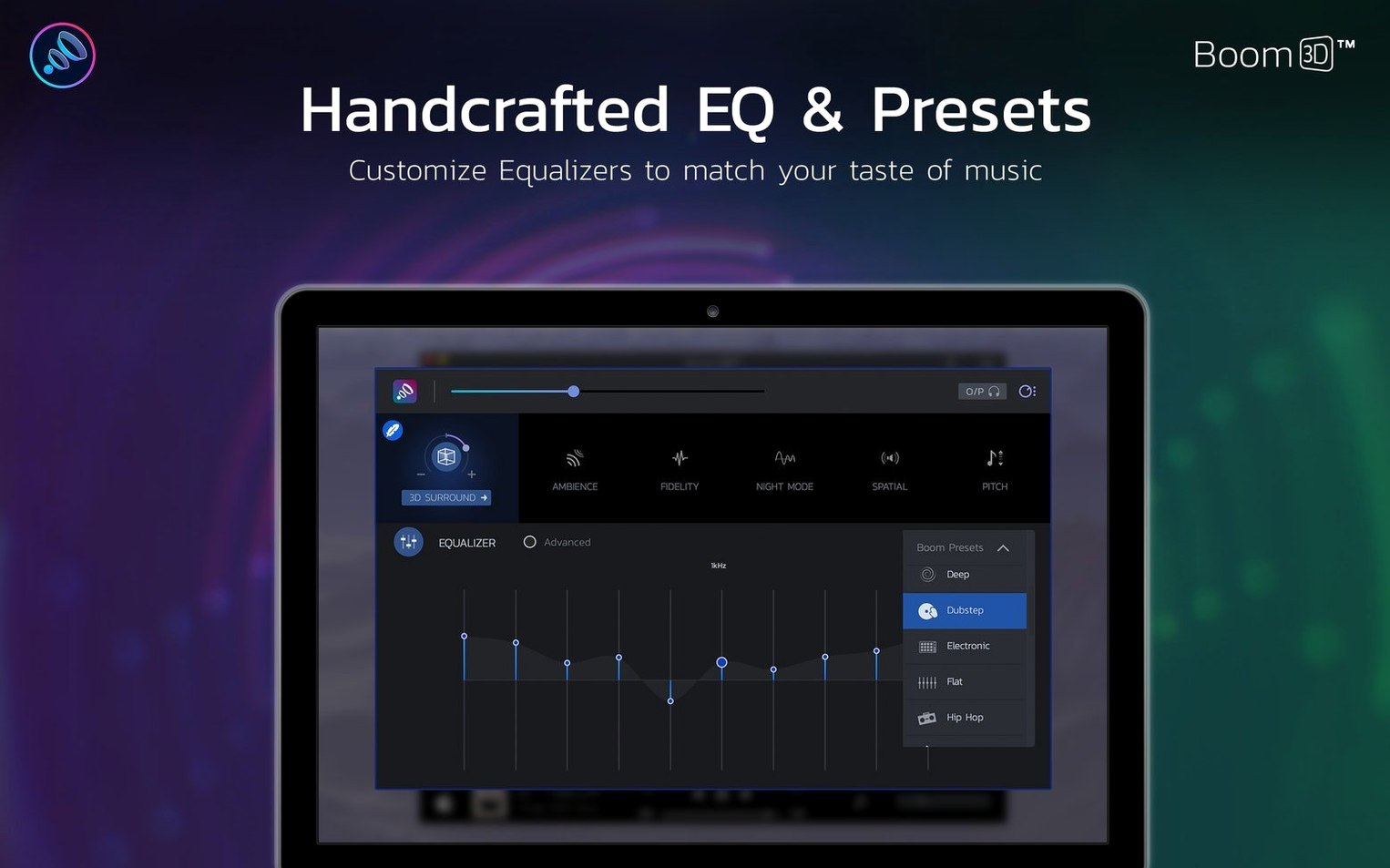
- Applying a 31-band equaliser across the whole system
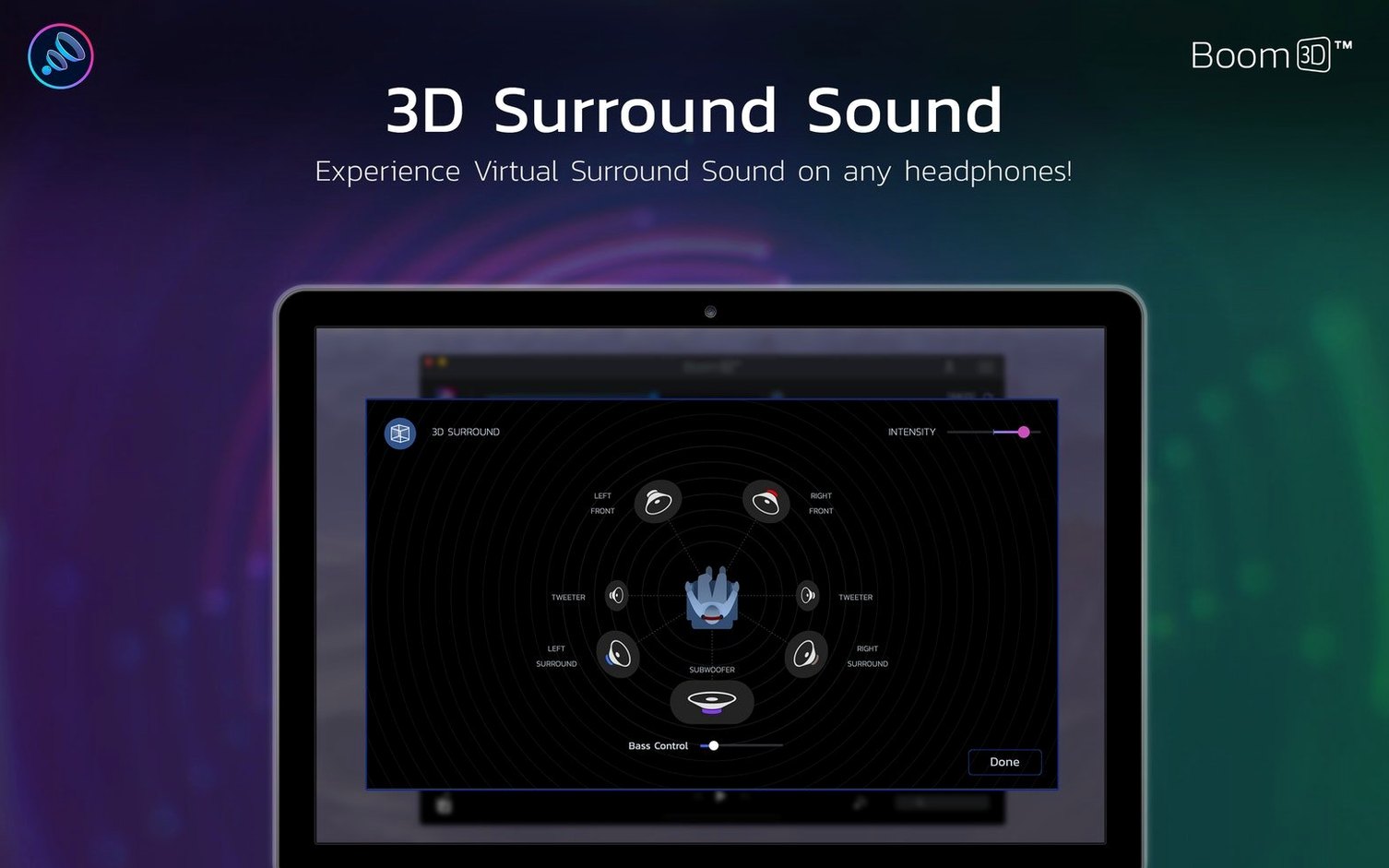
- Adding virtual surround sound to stereo headphones
- Boosting output past the Mac's built-in limit
Affects all audio at the system level
- Works at the system level, so it affects all audio
- Requires macOS 10.14 or later
- Runs natively on both Intel and Apple Silicon Macs
- Interface available in 12 languages including English, German, Japanese, and Russian
Faster audio driver recovery after sleep
Version 2.2.6 tidied up a few friction points that regular users noticed. The changes are small but practical.
- Better audio routing on Apple Silicon. Earlier builds occasionally dropped the virtual driver after sleep. 2.2.6 restores the connection faster — no need to quit and relaunch.
- Refined 3D intensity slider. The surround effect steps are now finer at the low end. You can add just a hint of space without pushing vocals into a cave.
- Reduced CPU hit on M-series chips. Processing overhead dropped slightly when Boom 3D runs idle. Fans stay quiet during long listening sessions.
- Menu bar widget stability. The mini controller used to vanish on some multi-monitor setups. That's fixed.
Double-click the menu bar icon to toggle boost
A few gestures and shortcuts hide in plain sight.
- Double-click the Boom icon in the menu bar to switch the booster on or off instantly. Faster than opening the full window.
- Drag the main volume ring instead of clicking the plus and minus buttons. The ring responds to circular mouse movement — a small detail that speeds up fine-tuning.
- Right-click any app in the per-app volume list to reset its slider to neutral. Useful when you have handed a dozen apps different levels and lost track.
- Command-comma opens preferences from anywhere in the app. The keyboard shortcut is standard, but easy to overlook.
- Hover over a preset name to see a tooltip with the EQ curve description. Helps you pick between "Bass Boost" and "Deep Bass" without trial and error.
Decide whether it opens at startup
Out of the box, Boom 3D runs at moderate defaults. A few tweaks make it fit your setup better.
- Set launch behaviour. In Preferences, uncheck "Launch Boom 3D at system startup" if you prefer to open it only when needed. The app is lightweight, but not everyone wants it always on.
- Choose your output device explicitly. Boom 3D creates a virtual audio device. Confirm it is selected both in the app and in System Settings > Sound. Mismatches cause silent playback.
- Lower the 3D surround intensity. The default setting is strong. Pull the slider to 20–30% for a natural stereo-widening effect that does not fatigue your ears.
- Build one personal EQ preset. The factory presets are decent starting points, but spending five minutes with the 31-band equaliser to match your headphones pays off. Save it and assign it as the default.
- Pin volume sliders for your core apps. In the App Volume panel, adjust the two or three apps you use daily and leave the rest at zero. The list stays cleaner and you avoid unintended amplification.
- macOS 10.14 or later
- Intel 64-bit or Apple Silicon Mac
Questions the team asks
Yes. The per-app volume control lets you set different levels for each application, independent of the master system volume.






Comments 0
Sign in or create an account to add a comment.
No comments yet. They go up after moderation.