

Dorico Pro — Mac download
Download (661 MB) Earlier builds
Ticked
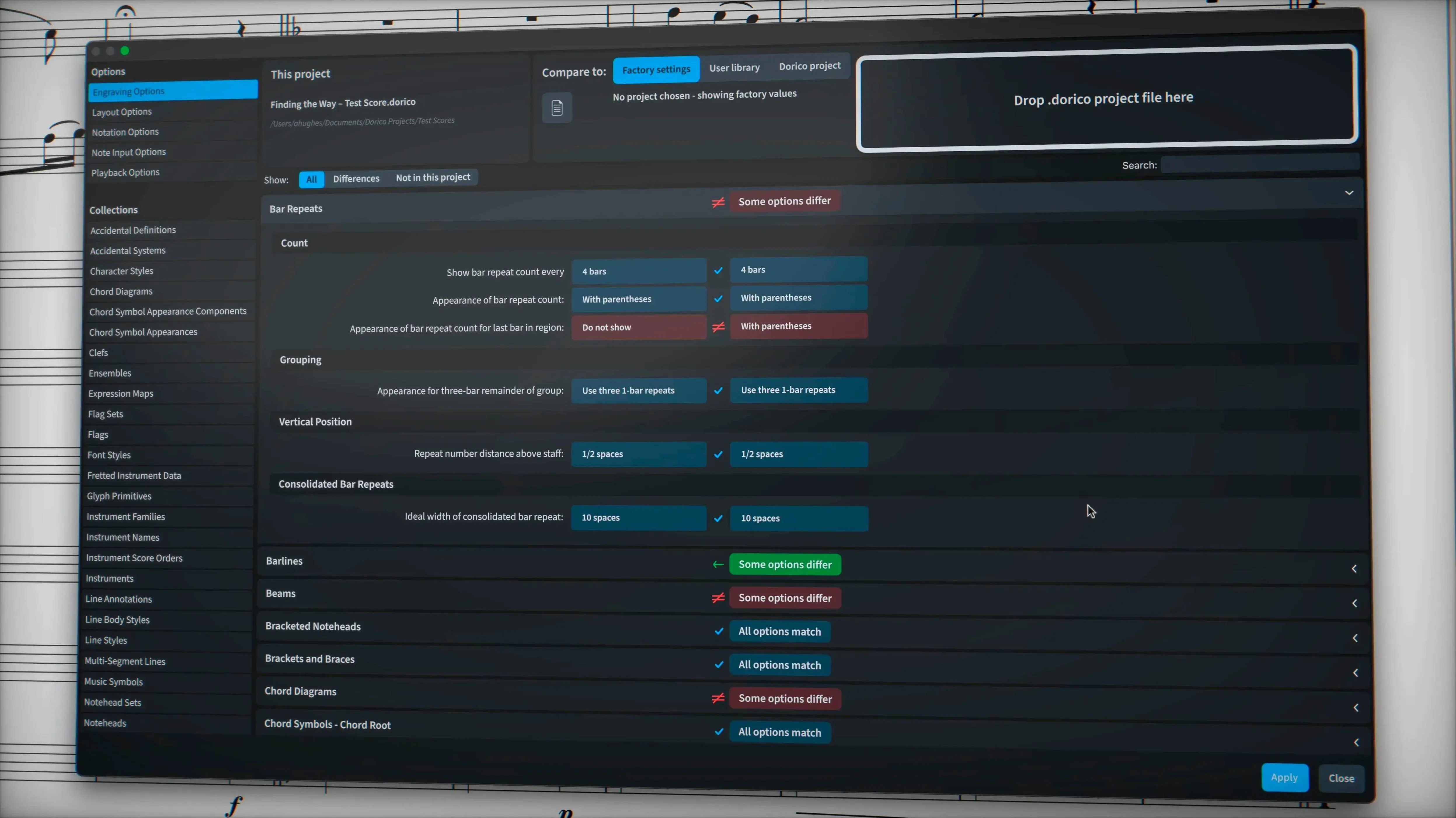
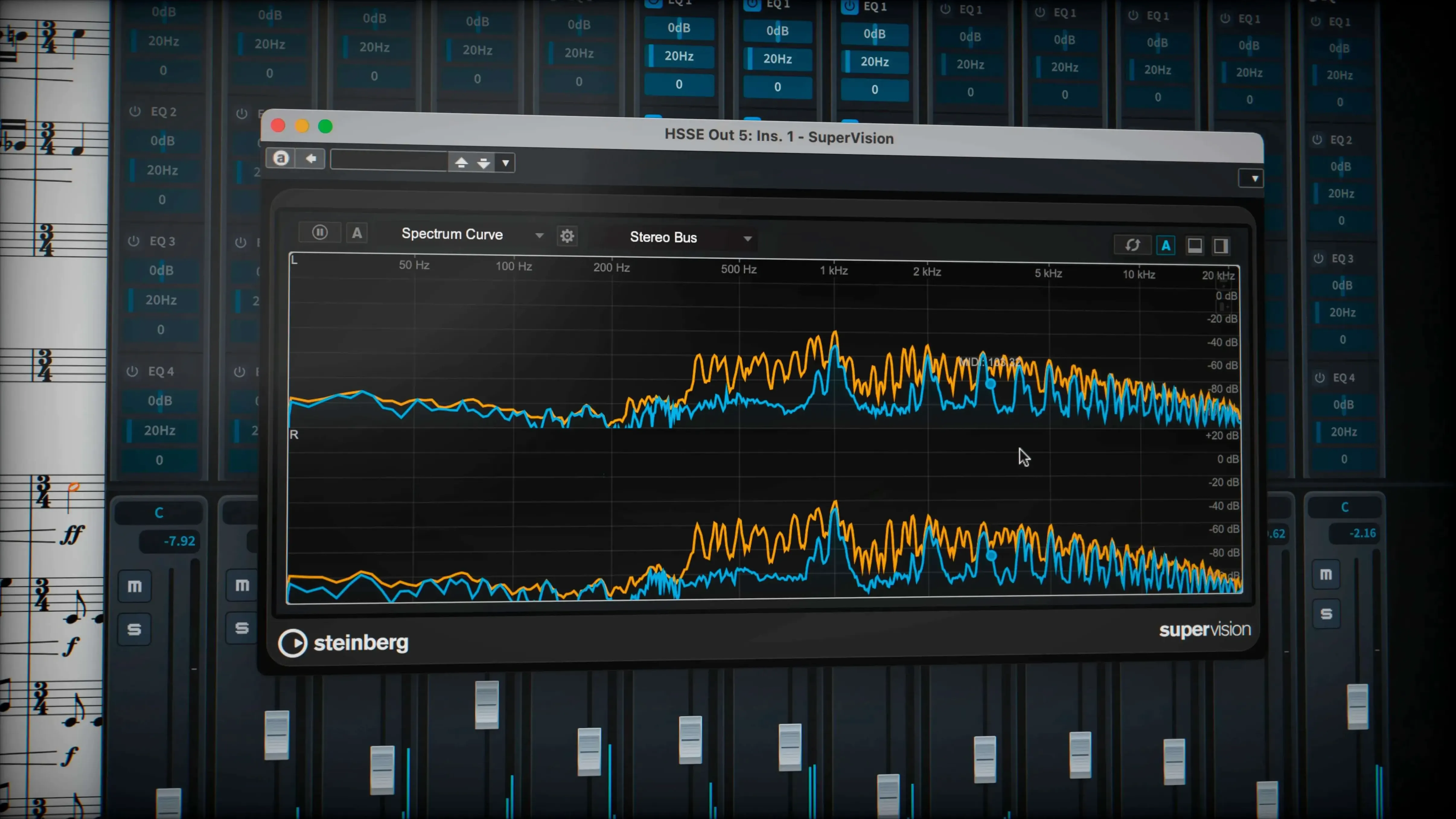
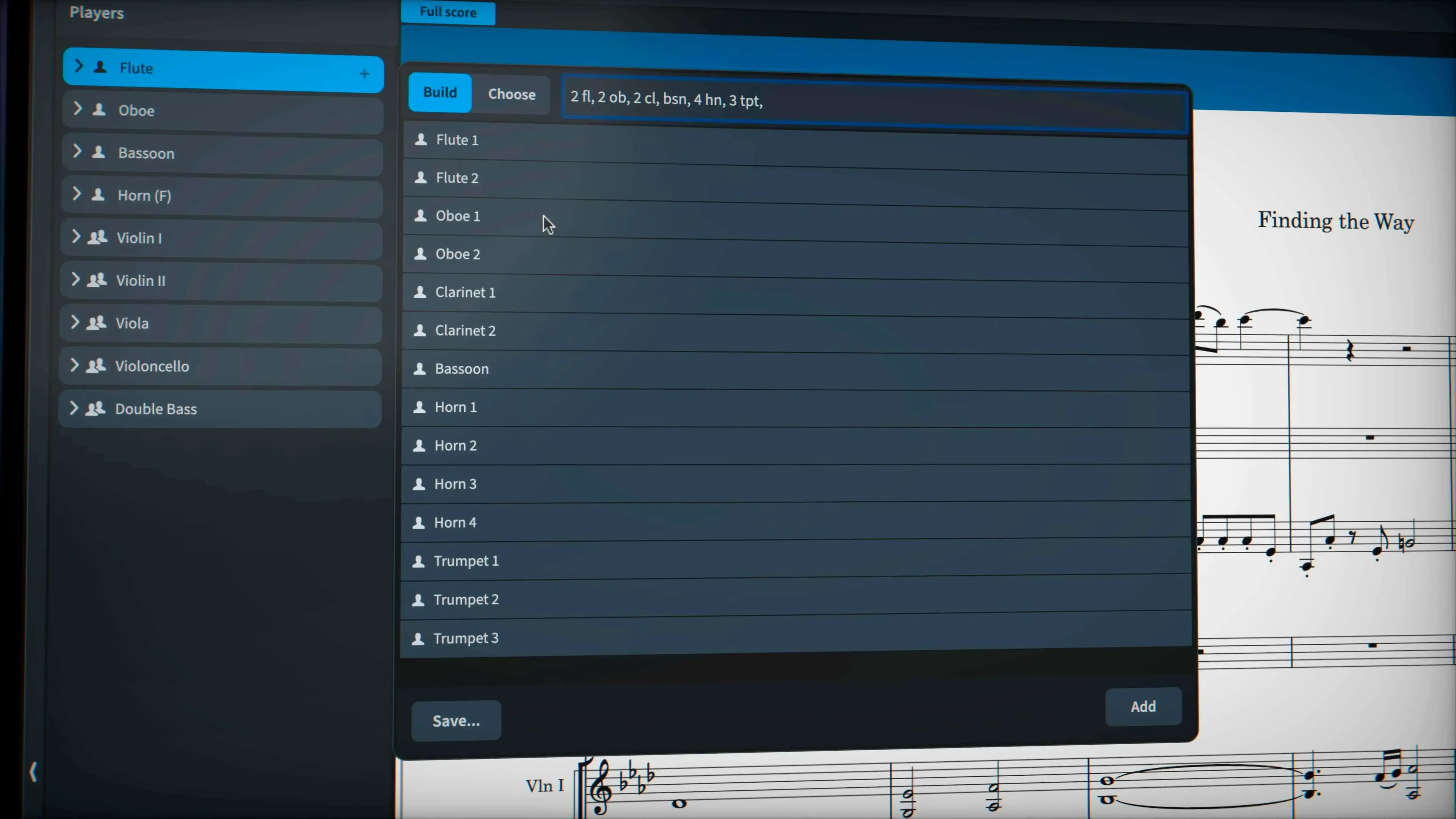
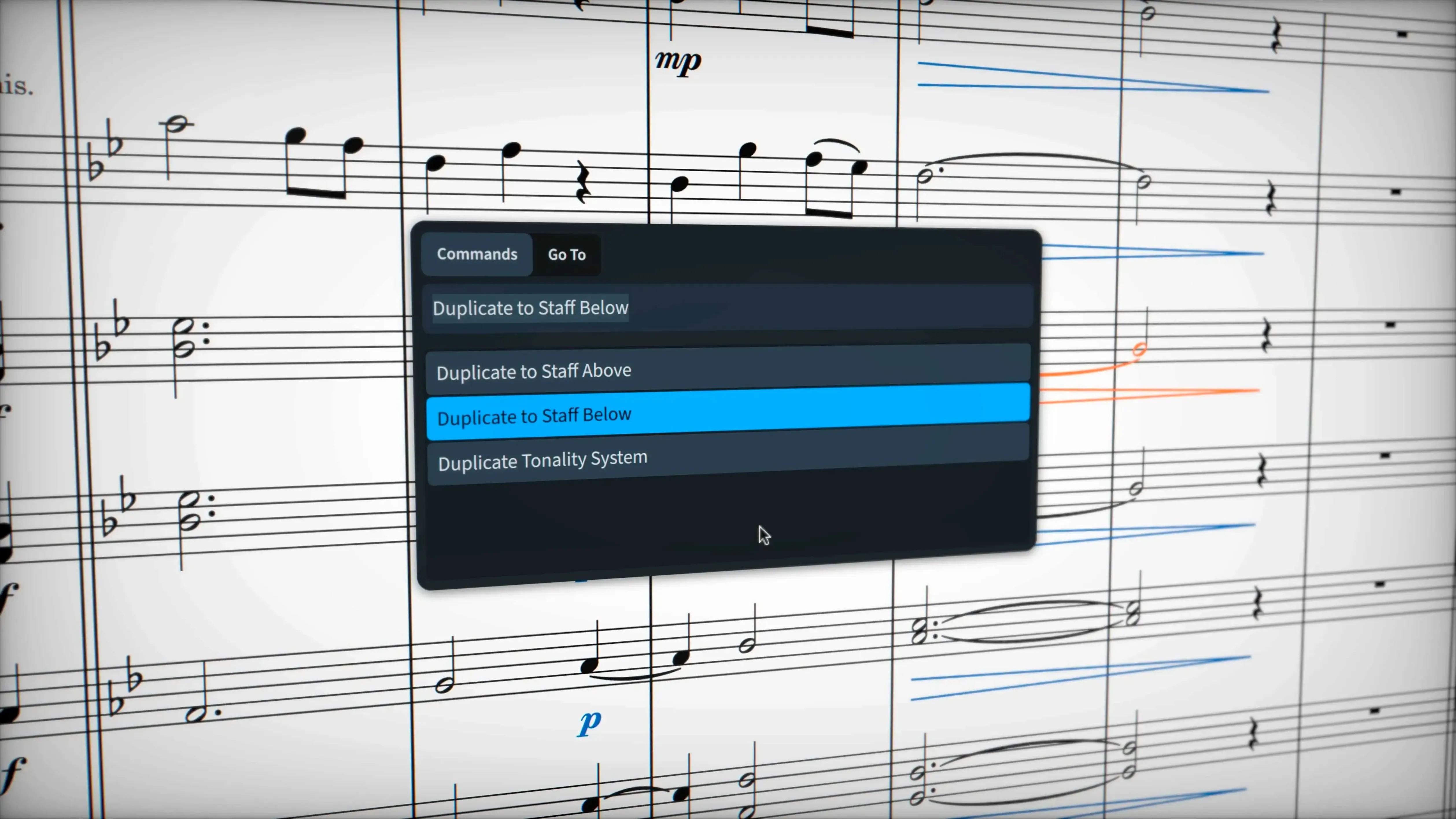
Dorico Pro solves the problem of notation software that fights you when a score gets complex — hidden tuplet brackets that disappear on export, glissando lines that all look identical, and engraving defaults you cannot override per element.
Hidden note handling — notes hidden in the score no longer cause erratic spacing or collide with visible material. The engraver treats them as silent placeholders.
Line style property — a single glissando line can break away from the project default. Set a wiggly trill glyph or a custom line style per instance, not per flow.
Tuplet export fidelity — brackets and numbers suppressed by engraving options survive the round trip through MusicXML. What you hide stays hidden in the file you send to a collaborator.
Piano-roll editor — a sequencer-style MIDI view sits behind the notation. Adjust timing, velocity and pitch in lanes without leaving the score environment.
VST 3 rack — almost 1,500 factory sounds are just the start. Load third‑party virtual instruments and effects processors directly into the playback engine.
Dorico Pro vs similar Mac notation apps
Dorico Pro vs Sibelius
Sibelius leans heavily on plug‑ins for advanced layout tasks. Dorico Pro builds most of that logic into the engraver itself. Collision avoidance, for example, runs automatically — no manual tweak of every dynamic marking. Sibelius users often miss the independent voice playback that Dorico routes straight to Cantai from the Track Inspector. For film composers who need fast MIDI editing without leaving the score, the built‑in piano‑roll editor removes a round trip to a DAW.
Dorico Pro vs MuseScore
MuseScore covers the basics well and the price attracts students. Dorico Pro pulls ahead when a project demands fine control: per‑instance glissando line styles, microtonal accidentals that do not break bar lines, and tuplets that cross beat boundaries without workarounds. The VST 3 rack in Dorico gives you almost 1,500 factory sounds and space for third‑party libraries; MuseScore's sound set is smaller and less flexible for professional mock‑ups.
Dorico Pro vs Finale (legacy reference)
Finale's power came at the cost of constant manual override. Dorico Pro automates the same results — stem‑free notation, complex percussion layouts, chord symbols with bass notes — while keeping the score editable. Engravers who moved from Finale often point to the line style property as the feature they wish they had years ago.
Scenario: an arranger preparing a chamber score
A wind quintet arranger receives a piano sketch on Tuesday, rehearsal on Friday. The score needs transposed parts, ossia staves for the horn, and a glissando in the flute that the composer sketched as a wavy line — not the straight one the template defaults to.
The arranger imports the piano MIDI into Dorico Pro, assigns instruments, and lets the automatic layout handle page turns. Hidden cue notes in the clarinet part stay invisible without nudging bar numbers off the page. The flute glissando gets a wiggly trill glyph via the line style property, matching the composer's pencil mark exactly. Independent voice playback through Cantai lets the arranger check balance before printing parts. Export to PDF, print, and the folder lands on the stand by Thursday evening.
Workflow: engraving a choral score for publication
- Set up the project — create a new flow for each movement. Choose SATB + piano reduction from the ensemble templates. Confirm page size and staff size in Layout Options.
- Input notes — use step‑time entry for the vocal lines, then record the piano part via MIDI. Clean up rhythms in the piano‑roll editor; quantise only what the engraver needs to read.
- Add lyrics and dynamics — paste lyrics from the text editor. Dynamics snap to staves with collision avoidance active. Hidden notes in the piano reduction keep the MIDI playback full while the printed score shows a simplified part.
- Handle tricky tuplets — a 5:3 tuplet crosses the bar line in the alto part. Input it directly; no hidden triplets or fake bar lines needed. Confirm the tuplet bracket is suppressed in Engraving Options and verify it exports correctly via MusicXML.
- Set glissando styles — the tenor line has two glissandi. The first uses the project line style. The second overrides it with a trill wiggle glyph via the line style property in the Properties panel.
- Playback check — route the piano to a felt piano VST 3 instrument. Enable independent voice playback for the vocal staves routed to Cantai. Listen through each movement, note a harsh soprano entrance, and back off the velocity in the piano‑roll editor.
- Export and archive — export full score and parts to PDF. Export MusicXML for the publisher's archive. The sustain pedal lines in the piano part carry through to the XML file cleanly, a fix delivered in the 6.2.30 update.
- macOS 12 or later
- Apple Silicon or Intel processor
Questions the team asks
You can move projects in and out through MusicXML, standard MIDI files and PDF.
Yes. Set a line style property on an individual glissando to use a wiggly trill glyph or any style saved in the project, independent of the default.
It supports full preparation for engraving, publishing and professional copying, from layout fine‑tuning to part extraction.








Comments 0
Sign in or create an account to add a comment.
No comments yet. They go up after moderation.