

iReal Pro — Mac download
Download (145 MB) Earlier builds
Ticked
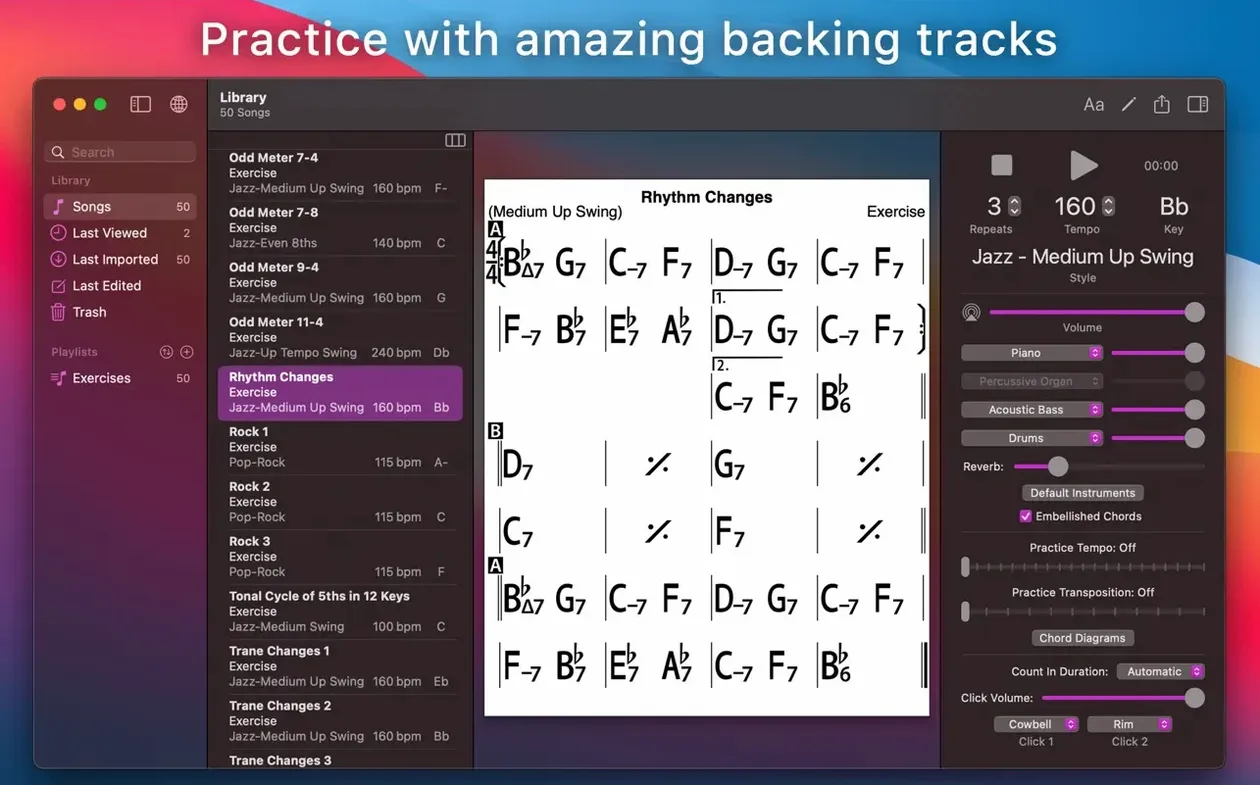
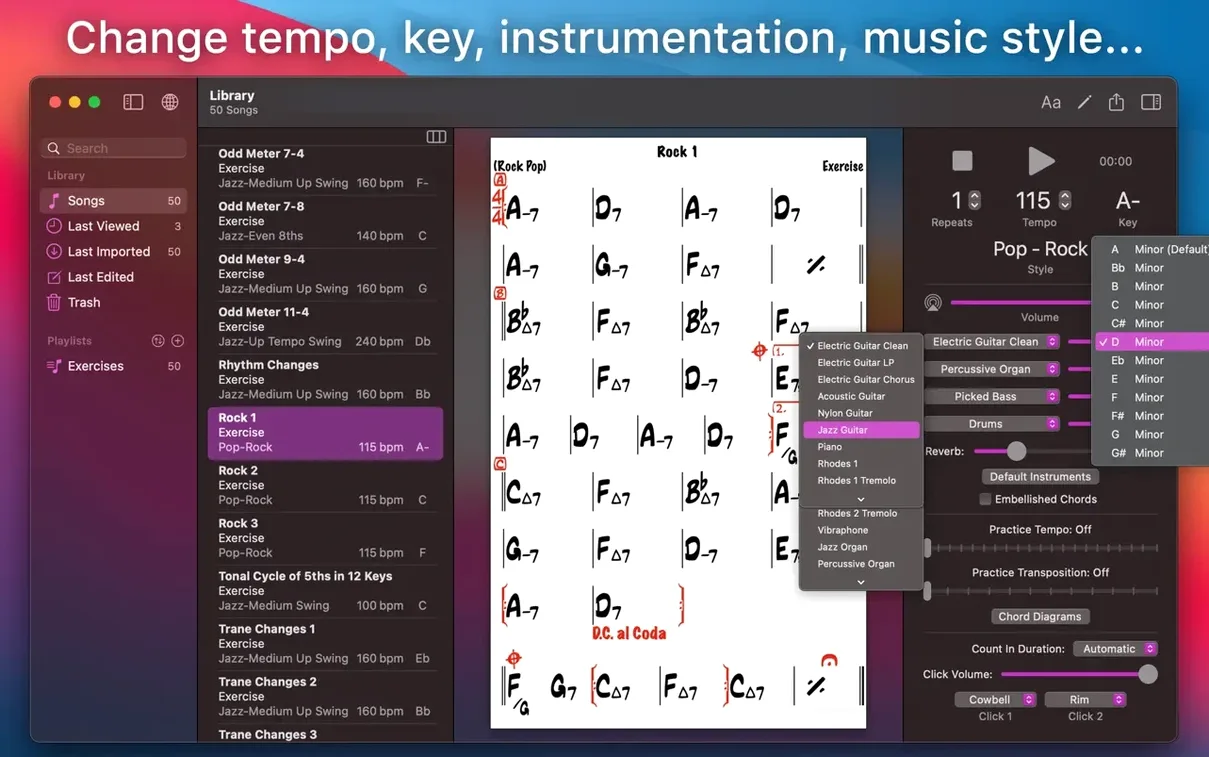
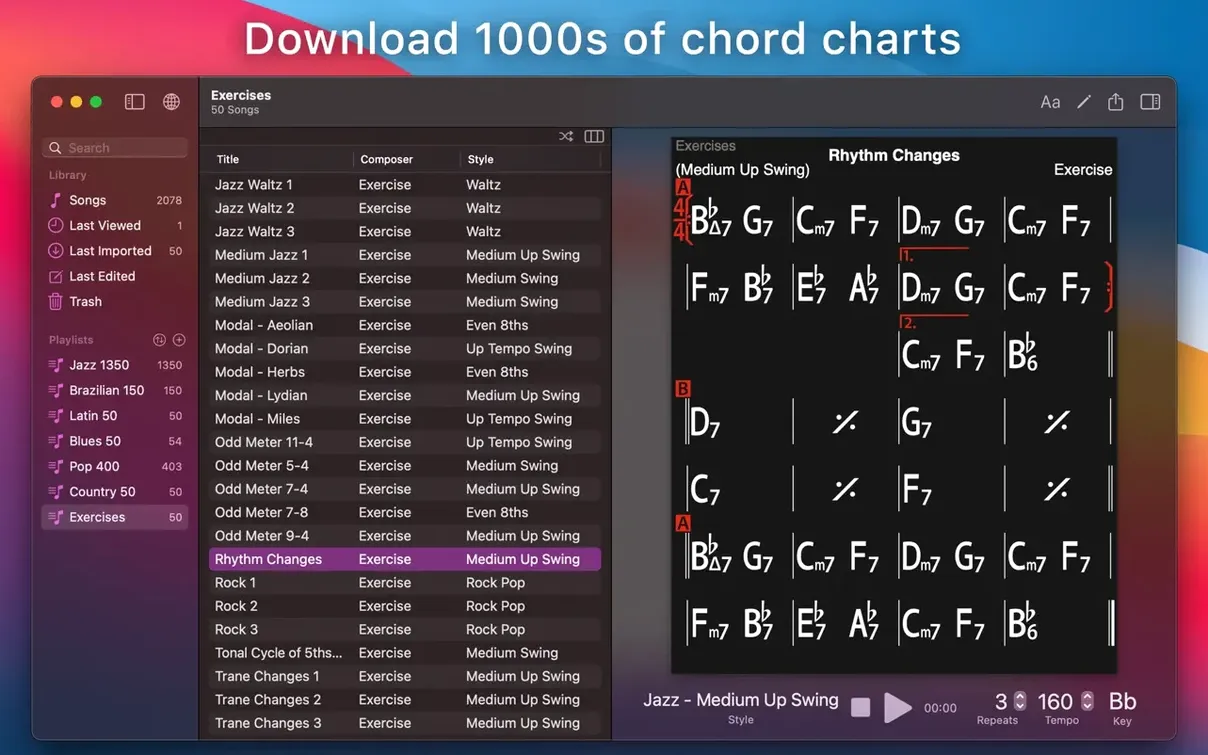
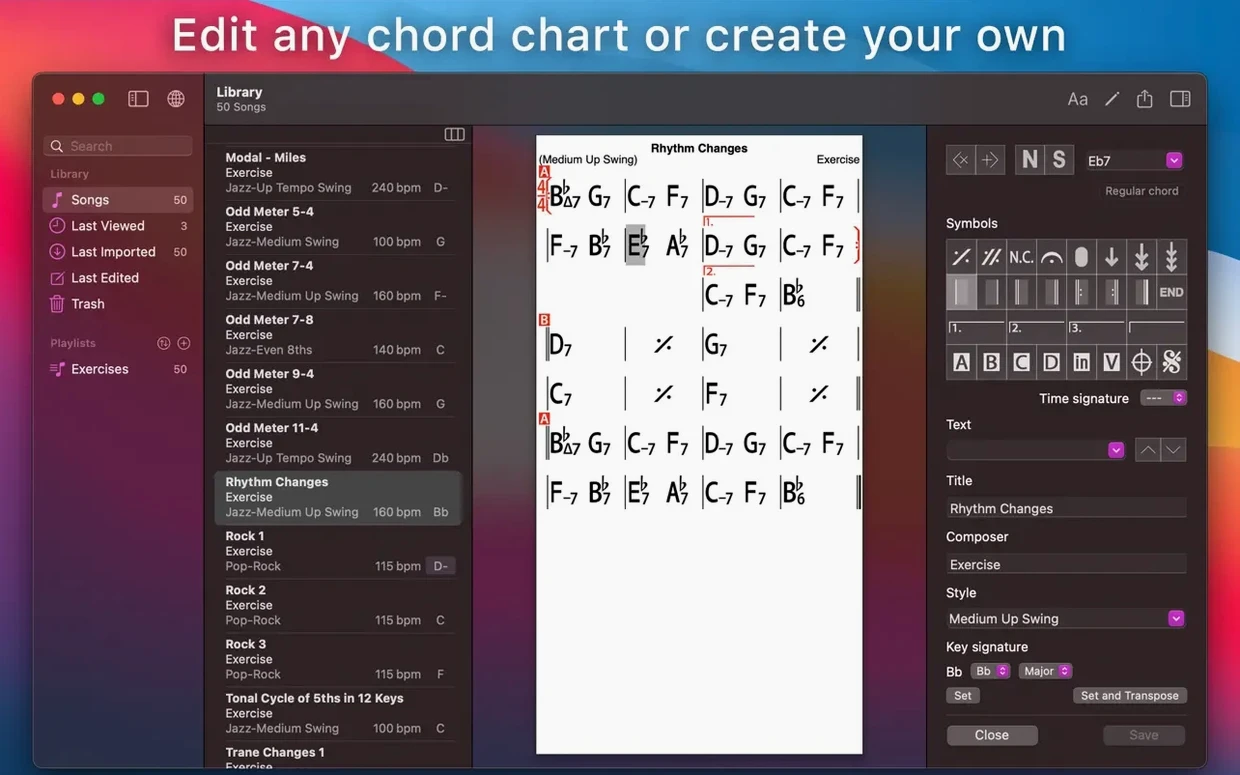
You tap the last chord of a tricky bridge, and the band drops into a half-time funk feel while you work through the scale suggestions over each change.
Transposition & notation — shift any chart to a new key instantly, or switch to number notation for analysis.
Scale suggestions — display compatible scales for each chord in a song while the accompaniment plays.
50 chord progression exercises — built-in drills cover common changes, ready to loop in any style.
51 accompaniment styles — piano or guitar, bass, and drums simulate a band for practice.
Export formats — render audio as WAV, AAC, or MIDI.
Playlists & sharing — create multiple editable playlists and import songs from the user library.
Pull the piano back in the mixer
Out of the box, iReal Pro defaults to a loud piano mix and a swing feel. A few tweaks straight away save time later.
- Mixer balance — open the mixer (speaker icon during playback) and pull the piano back 4–6 dB. The default buries the bass. While you are there, set drum level to taste and save it as a template.
- Default style — the app starts every new song in Jazz – Medium Swing. If you mostly play bossa or pop, change the style once, then tick Save as default in the style picker.
- Count-in — head to Settings > Playback and set the count-in to two bars. One bar is not enough to settle into tempo on a first read-through.
- Chord display size — in Settings > Font, bump the chord symbols up one size. On a Mac screen, the default is smaller than it needs to be for quick glances while playing.
- Transposing instrument offset — if you play tenor sax, trumpet, or clarinet, go to Settings > Transposing Instrument and pick your horn. Charts then display in your key without altering the backing band.
- Loop range — tap the loop button, drag the handles to cover the eight bars you are woodshedding, and tick Loop. The band stays in that section until you stop it. Much better than hitting play sixty times.
Type your own chart instead of just playing along
New users often treat iReal Pro as a playback-only device and miss half the toolset.
- Hunting for songs before building their own — the user library is huge, but the real learning happens when you type in a chart yourself. The editor forces you to hear the form.
- Leaving repeats unchecked — a chart with a DC al Coda that skips the coda is broken. After importing or downloading a song, run it once at half tempo and watch the playback head. Fix repeats in the editor before you rely on the chart at a jam.
- Ignoring the mixer altogether — a muffled bass line is usually the mixer, not the style. Check the mixer before you blame the Latin – Bossa Nova style for sounding thin.
- Transposing the whole playlist instead of one chart — the global transpose in the toolbar shifts everything. If you only need one song in F for a singer, transpose the chart, not the session.
- Forgetting iCloud sync — charts edited on an iPad do not appear on the Mac unless sync is on. Enable it in Settings > iCloud on both devices and leave the Mac open for a minute to catch up.
Drag rhythm-section audio or MIDI into GarageBand and Logic
iReal Pro slots into a Mac-based practice or teaching setup in a few useful ways.
- GarageBand and Logic Pro — export a rhythm section as audio (WAV or AAC) or MIDI and drag it into a DAW project. Use it as a scratch bed for solos, then mute the iReal drums and replace them with a kit later.
- ForScore and PDF readers — export a chart as PDF and drop it into a setlist app. The chart stays clean, and you keep the backing track on a separate device or window.
- Voice Memos and QuickTime — iReal Pro records your playing or singing over the accompaniment. If you want a simple stereo mixdown of a practice take, route the Mac’s system audio into QuickTime Player and record both the band and your mic input together.
- MusicXML export — send a chart to MuseScore, Dorico, or Sibelius. Chords and form arrive intact. You then add a melody line and make a proper lead sheet without retyping changes.
- macOS Dark Mode — iReal Pro follows the system appearance setting. On a dark stage or late-night practice session, the dark chart background is easier on the eyes.
- Split View and Stage Manager — keep iReal Pro on one half of the screen and a PDF method book or YouTube lesson on the other. Play along without window juggling.
Some musicians grab iReal Pro Mac to bridge practice sessions and notation tools — the MusicXML export makes that handoff clean.
Fix crackles by raising the audio buffer size
A few things trip people up. Most are quick to fix.
- Audio crackles or dropouts — open Settings > Audio and increase the buffer size to 512 or 1024 samples. The default tight buffer works on Apple Silicon Macs but older Intel machines sometimes choke on it.
- Charts not syncing — after enabling iCloud sync, quit and reopen the app on both devices. If a playlist still will not appear, duplicate it on the source device and rename it — that nudges iCloud to push a fresh copy.
- Style pack missing after install — if you added the Blues styles pack and the 12 blues styles do not show, restart the app and then check the style list under Blues. The pack loads on relaunch, not on first open.
- MIDI export plays wrong notes — the backing band records its parts as MIDI but a DAW may map the drum track to the wrong kit. In your DAW, assign the MIDI drum channel to a General MIDI drum map. That matches iReal Pro’s output.
- Gatekeeper blocking first launch — if you downloaded iReal Pro Mac outside the App Store, macOS may refuse to open it. Right-click the app, choose Open, and confirm in the dialogue. That clears the quarantine flag without disabling SIP.
- Playback skips sections — check the chart for a misplaced coda sign or a repeat barline facing the wrong direction. Open the editor, tap each repeat symbol, and confirm the target bar number. One stray mark breaks the whole form.
- macOS 12.4 or later
- Apple Silicon and Intel









Comments 0
Sign in or create an account to add a comment.
No comments yet. They go up after moderation.