

Loopback — Mac download
Download (33 MB) Earlier builds
Ticked
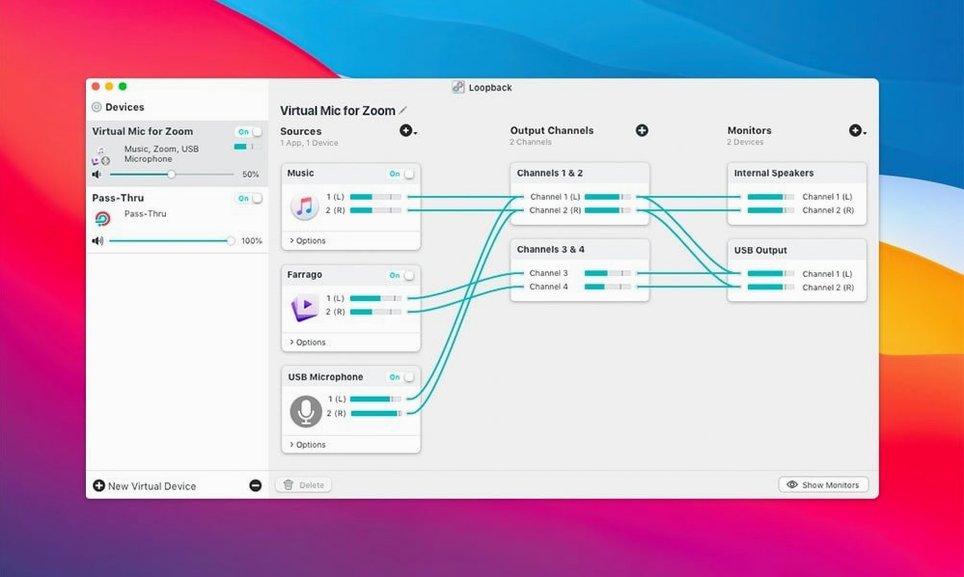
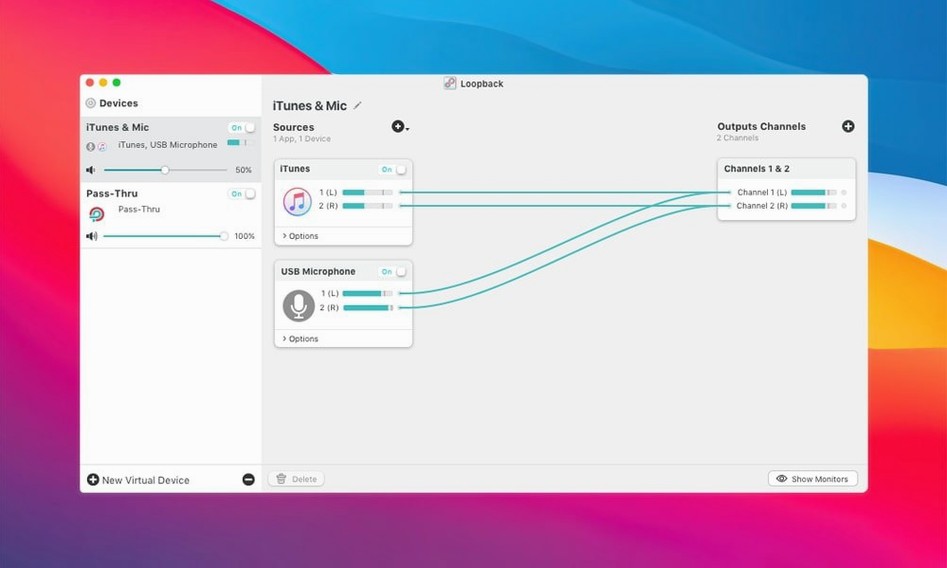
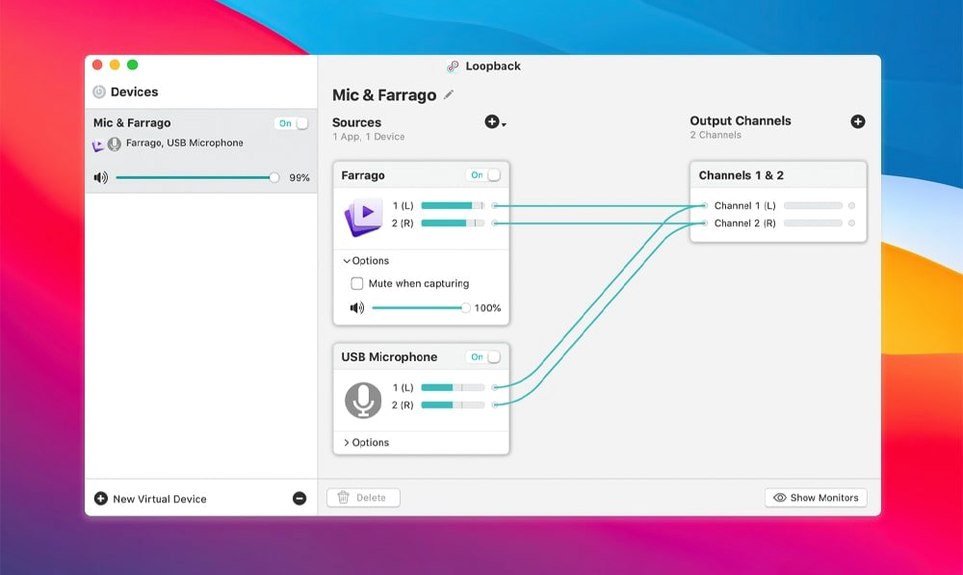
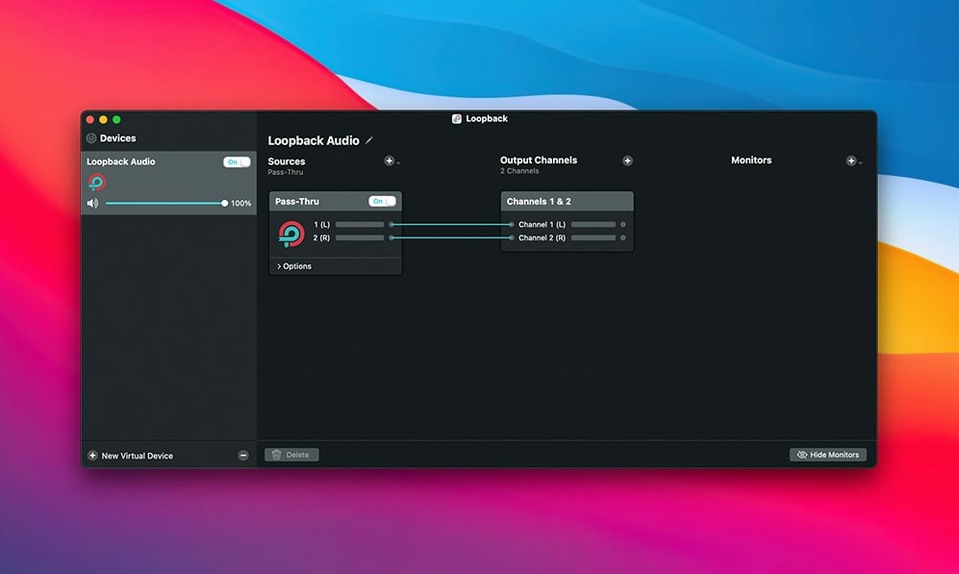
If you already use Audio Hijack, think of Loopback as its wiring counterpart. Where Audio Hijack captures audio, Loopback creates the virtual cables that make connections possible in the first place. It combines audio from application sources and input devices, then routes that combined signal to any other app on your Mac.
Version 2.5.0 requires macOS 11 or newer and runs natively on both Intel and Apple Silicon Macs. Support for macOS 27 was added in this release, and the ARK audio plugin was updated to version 13.5. The app no longer warns on launch when running on the latest OS.
Common setups include combining a microphone with app audio for voice chats, or pairing Loopback with Elgato Game Capture hardware to record mic and game audio together. You can also create a virtual device that captures microphone and application audio in screen recordings — useful when QuickTime alone is not enough.
Tick 'Launch at login' so devices survive restarts
Open Loopback's preferences before you build your first virtual device. Three settings save time later.
- Launch at login. Enable this under the General tab if Loopback is part of your daily recording or streaming setup. Virtual devices persist across restarts, and you want them ready before you open your recording app.
- Hide the dock icon. Once your devices are configured, you rarely need the main window. Check Show Loopback in the menu bar only to keep the dock clean. Access everything from the menu bar icon instead.
- Default volume levels. New virtual devices start with all source volumes at 100%. Drop your microphone source to around 70% as a starting point. You can adjust per source later, but a lower default prevents clipping on that first test recording.
Your USB interface still powers mics and phantom power
Most people have the same concerns before they download. Here are the answers in plain terms.
Does this replace my audio interface? No. Loopback creates virtual devices in software. Your physical interface still handles mic preamps, phantom power and physical connections. Loopback sits between apps — it does not replace hardware.
Will it add latency? A small amount, yes. The ARK plugin processes audio in near real-time, but you might notice a slight delay in live monitoring situations. For recording and streaming, the delay is negligible. For live music performance with software monitoring, test it with your specific chain first.
Can I use it without Audio Hijack? Absolutely. Loopback works with any app that sees audio devices — QuickTime, OBS, Zoom, Discord, Logic Pro. Audio Hijack adds capture and processing, but Loopback handles routing on its own. Many people search for a loopback free download to try the routing alone, and that is a perfectly valid way to start.
Does it survive macOS updates? Usually. Rogue Amoeba updates Loopback quickly after major macOS releases. Version 2.5.0 added support for macOS 27 and removed the launch warning. If you update macOS on day one, expect a short wait for the next Loopback update. The app is well-maintained.
First days with Loopback
A few practical habits make the first week smoother. You will avoid the most common setup mistakes.
Name your virtual devices properly. The default name is "Loopback Audio." Change it immediately. Call it something descriptive like "Mic + Discord" or "Screen Recorder Input." When you are in a recording app's preferences six months later, you will know exactly which device to select.
Test with QuickTime first. Before you route audio into a livestream or a client call, open QuickTime and start a new audio recording. Select your virtual device as the input. Speak, play audio from the source apps and stop the recording. Play it back. This takes thirty seconds and catches routing errors before they become embarrassing.
Watch the Pass-Thru toggle. Each source in your virtual device has a Pass-Thru option. When enabled, audio from that source also plays through your default output. When disabled, the audio routes only into the virtual device. For screen recordings where you do not want to hear the captured app audio through your speakers, turn Pass-Thru off for that source.
Build a monitoring device early. Create a second virtual device called "Monitor" that combines only your microphone and system alert sounds. Route this to your headphones. It gives you a clean monitoring feed separate from your recording device, which is helpful when you need to hear yourself without including system sounds in the final output.
Real-world scenario: The streamer setup
A Twitch streamer runs OBS, Discord and a browser for music. They want their audience to hear the game audio, their microphone and the browser music — but not the Discord voice chat alerts.
They create a Loopback virtual device called "Stream Mix." Into it they add three sources: the game application, their USB microphone and the browser. Discord is left out. In OBS, they select "Stream Mix" as the audio input. The result: viewers hear exactly the mix intended, with no notification pings. The streamer still hears Discord through their default output because Discord was never routed into the virtual device.
On a separate virtual device called "Mic Only," they add just the microphone. This device feeds into Discord's input settings so teammates hear clear voice without game audio bleeding through. Two virtual devices, ten minutes of configuration and the setup works every stream.
For anyone searching for a loopback mac solution that handles complex routing without hardware mixers, this is the core use case. No extra cables. No hardware mixer hiss. Just software routing that stays configured.
It is not a standalone recorder. It handles the routing. For capture, you pair it with Audio Hijack or your screen recording tool of choice.
- Added support for macOS 27, with no launch warning on the new OS
- Updated the ARK plugin for audio handling to version 13.5
- macOS 11 or newer
- Runs on Intel and Apple Silicon Macs
Questions the team asks
Yes. Support for macOS 27 was added in version 2.5.0 and the app no longer shows a warning on launch.
No. It routes audio between apps and devices but does not record. Pair it with Audio Hijack or a screen recording tool for capture.
Yes. Version 2.5.0 runs natively on both Intel and Apple Silicon Macs with macOS 11 or newer.





Comments 0
Sign in or create an account to add a comment.
No comments yet. They go up after moderation.