

Bootstrap Studio — Mac download
Download (159 MB) Earlier builds
Ticked
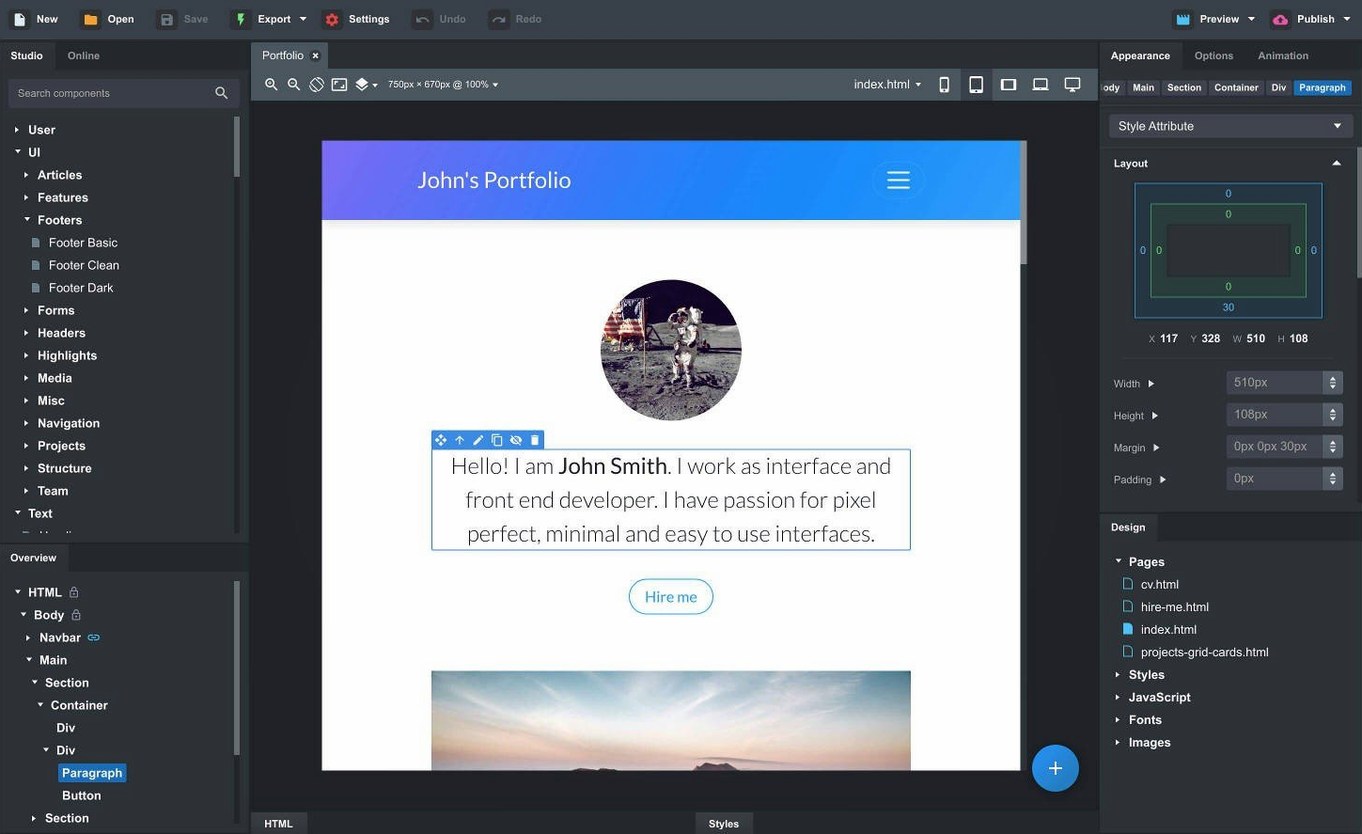
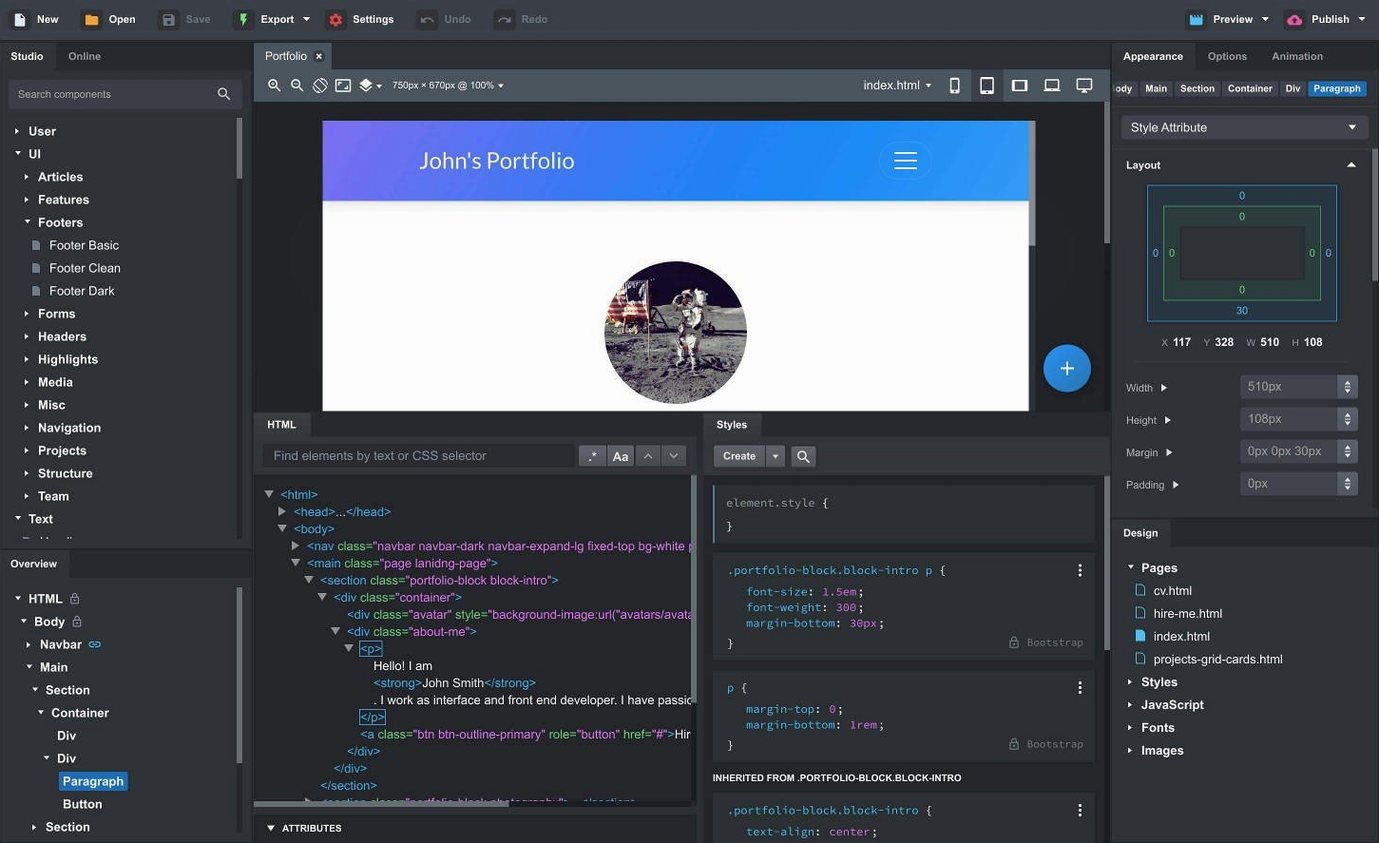
OpenAI key entry fixed and new AI models added
The OpenAI API key entry dialog now accepts keys it previously rejected. The AI Assistant adds gpt-4o-mini and gpt-4o. Navbars get a Sticky On option, modals a Click Outside to Close toggle, and the Icon Dialog shows counts per set.
Building a page, step by step
- Start with a layout. Drag a header, footer, or spacer from the built-in components. Nesting works with a drop — drop a row inside a container, columns inside the row.
- Pull in existing work. Drop HTML, CSS, JS, and image files straight into the workspace to import a site. The app picks up Bootstrap-based layouts and components without fuss.
- Check it live. Preview across browsers and device sizes as you edit. Changes show in real time.
- Sync shared pieces. Linked components — navbars, footers — update everywhere they appear when edited once.
- Switch Bootstrap versions. Work in Bootstrap 3.4, 4.6, or 5.3 from the same project. No conversion scripts needed.
Bootstrap Studio sits alongside a Mac user's existing toolkit — text editors for quick CSS tweaks, Git for versioning, and local dev servers. It handles the visual assembly those tools don't, while still letting you edit the underlying code directly.
Under three seconds on Apple Silicon with responsive drag-and-drop
On Apple Silicon Macs the app opens in under three seconds and a medium-sized project with 20-odd pages stays responsive during drag-and-drop. Intel machines feel a touch slower on first launch but settle once the workspace is loaded.
Live preview is the main resource draw. With two browser panes open and the SCSS compiler running, expect around 400–600 MB of RAM. Close the preview when you are wiring up logic rather than tweaking layout and that figure roughly halves. The editor itself idles at low CPU, spiking only during export — a full site export finishes in seconds on an M1 or later.
Stability holds up well in daily use. Crashes are rare and autosave means you lose minutes at worst. The one repeat offender is the built-in browser preview on older macOS versions: it can go blank after heavy JavaScript edits. Switching to an external browser preview sidesteps that entirely.
Palette sluggish from slow online sync, CSS not applying
- Component palette feels sluggish. Happens when the online component library is slow to sync. Switch to offline mode in preferences or wait for the first sync to finish before dragging.
- Custom CSS not applying. Check the SCSS panel — a syntax error in one file blocks compilation across the whole project. The error list at the bottom of the editor pinpoints the line.
- Export includes unused CSS. Bootstrap Studio bundles the full framework by default. Use the Export settings to toggle "Minify and clean CSS" — it strips selectors your pages never reference.
- Linked component not updating. If a navbar refuses to sync, right-click it and pick "Update linked instances". Stale cache is usually the culprit after a Bootstrap version switch.
- Import chokes on a site folder. Drop files in smaller batches — HTML first, then CSS, then JS. Large image folders dragged in one go sometimes time out the parser.
If you grab a bootstrap studio mac build and run into activation hiccups, the included instructions cover the steps. Most issues trace back to leftover files from an older install — a clean removal before reinstalling sorts it.
- Fixed an issue with the OpenAI API key entry dialog not accepting some keys.
- The Icon Dialog now lists the number of icons and type for each icon set.
- Added a Sticky On option for sticky navbars.
- Added a Click Outside to Close option for Bootstrap modals.
- Added gpt-4o-mini and gpt-4o to the AI Assistant.
- macOS 10.13 or later
- Intel and Apple Silicon Macs
Questions the team asks
Yes. Import and edit CSS, JavaScript, and HTML files inside the app.









Comments 0
Sign in or create an account to add a comment.
No comments yet. They go up after moderation.