

ABBYY FineReader PDF — Mac download
Download (900 MB) Earlier builds
Ticked
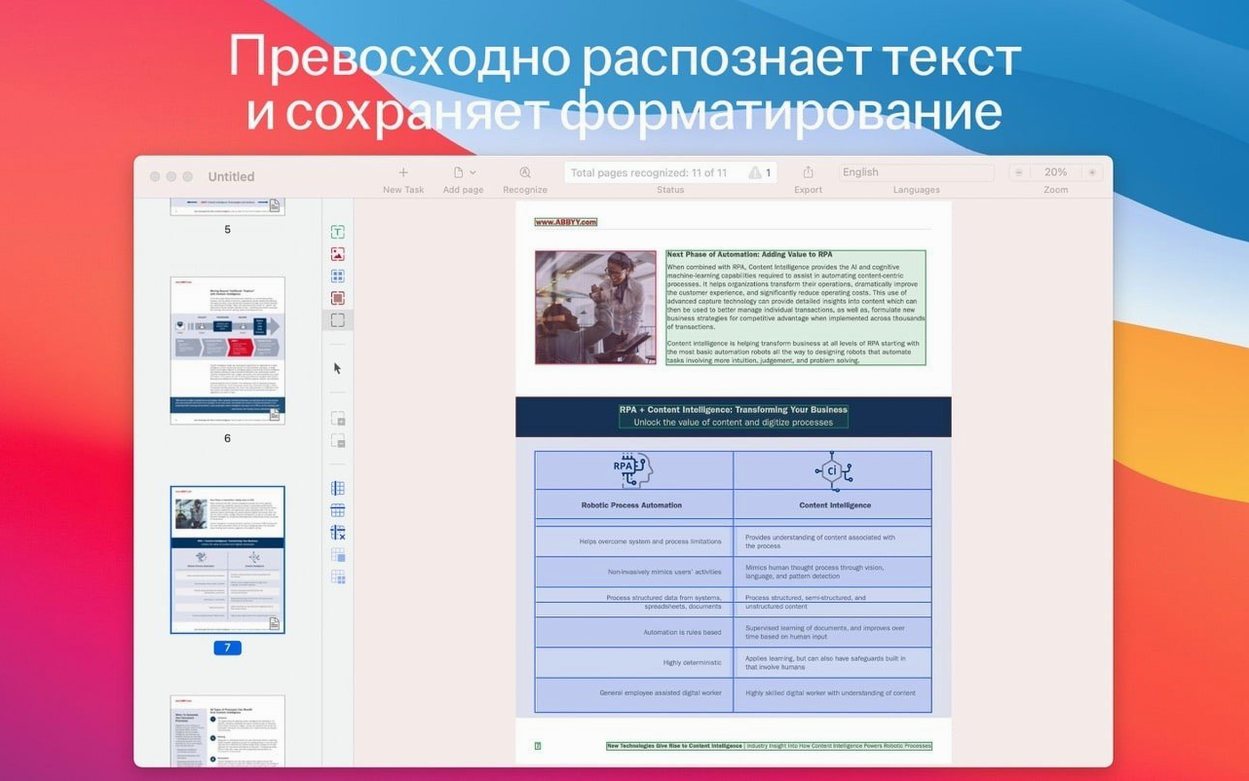
The current release keeps the engine steady — no new bells added, just the same solid OCR core. If you need to pull text out of a scanned contract or reflow a table locked in a PDF, ABBYY FineReader PDF is the tool for that. It is a Mac OCR and PDF conversion app built for Intel machines running macOS 11 or later.
Pull text from a phone photo of a paper document
| Detail | Info |
|---|---|
| Current version | 15.2.14 |
| Architecture | Intel (x86 64-bit) |
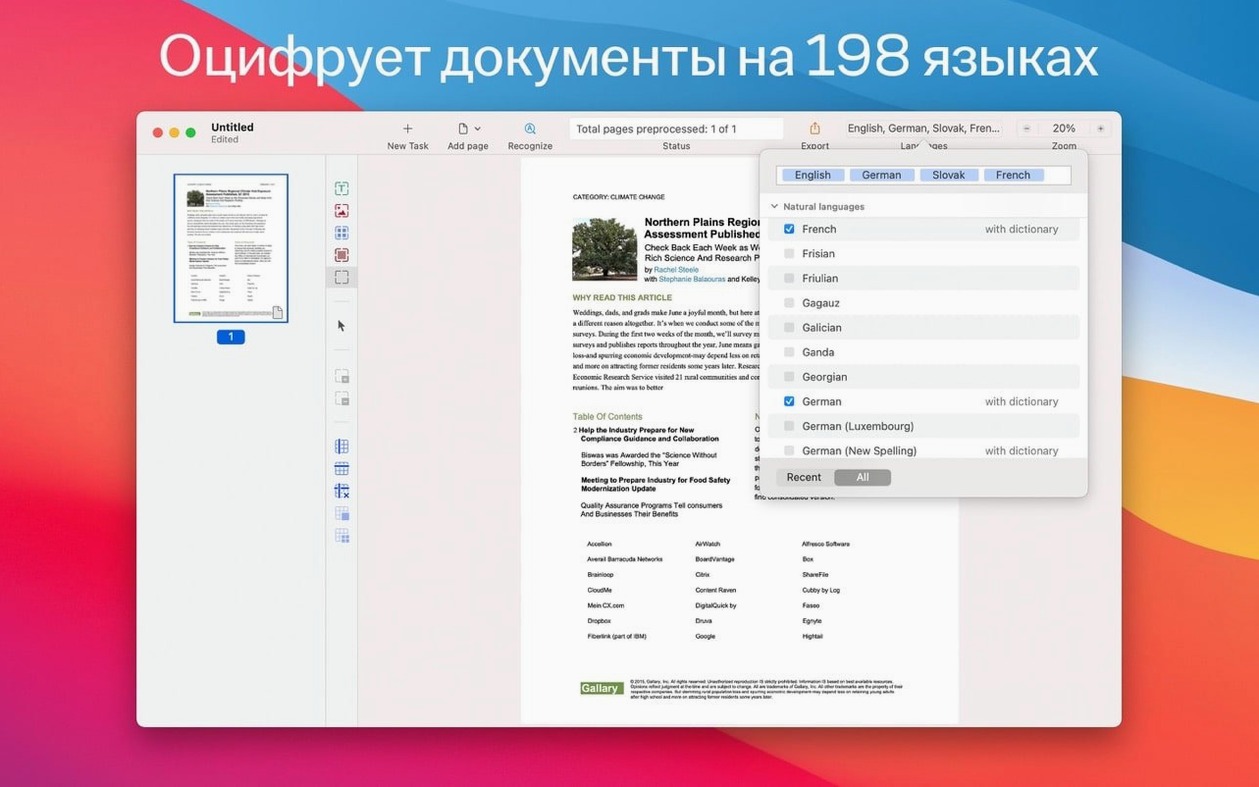
| Recognition languages | 198 |
| Interface languages | Russian, English, German, Italian, Simplified Chinese, French |
Good for pulling editable text from a paper document you photographed on your iPhone. Good for preparing a PDF/A file that archives cleanly for years. Not for someone who only needs to read PDFs — the built-in viewer handles that, but the app earns its keep on the recognition side.
Improved table detection and dark mode arrived with version 15
Version 15.2.14 is a maintenance release. No new features landed. The engine that arrived with 15 — the improved table detection, the dark mode support — is what you get every day.
In daily use, the most noticeable shift came earlier in the 15 cycle:
- Dark mode arrived. No more squinting at a white toolbar when you are pulling an all-nighter on a contract review.
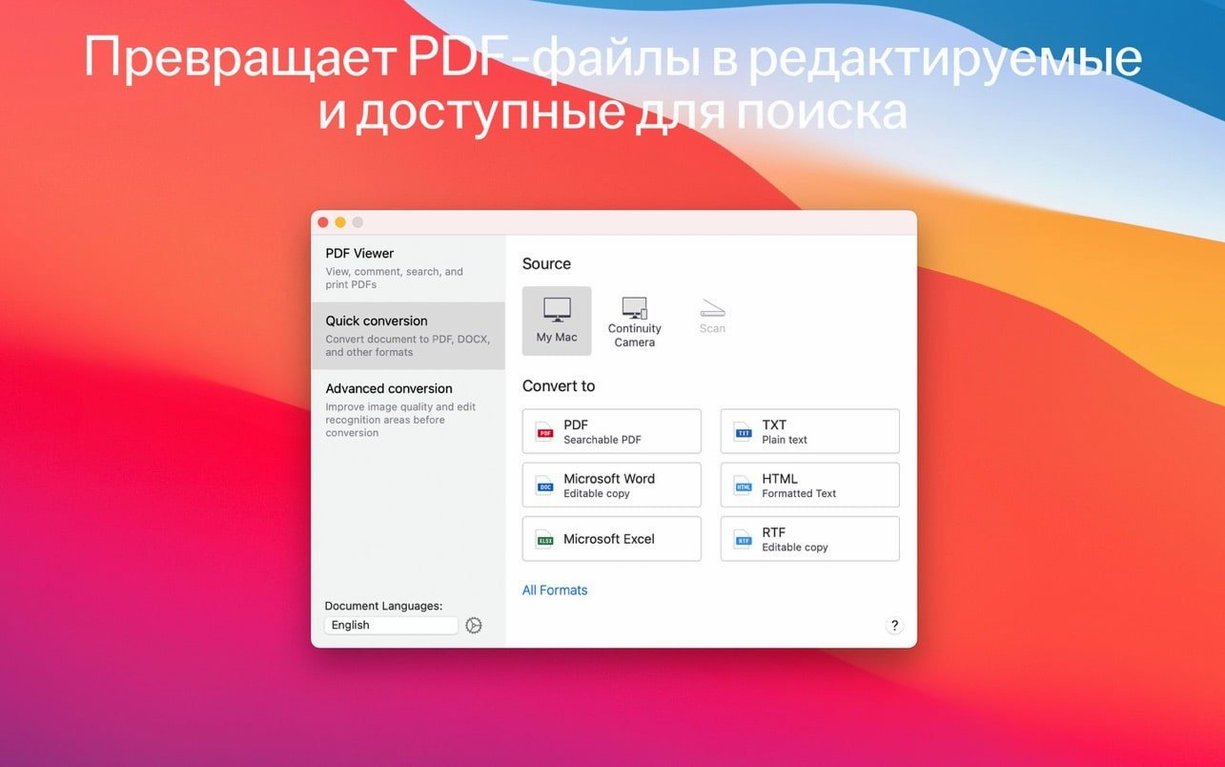
- Continuity Camera support landed. You can now point your iPhone at a paper document and pull it straight into the OCR queue without saving a photo first.
- The PDF viewer got faster at rendering large scanned bundles. A 200-page board pack no longer makes the app freeze while thumbnails load.
For anyone coming from an abbyy finereader mac 14 install, the jump to 15 was mostly about these workflow friction points getting smoothed over. The recognition engine itself is the same one that powers the abbyy 15 line across platforms — stable, predictable, still the benchmark for mixed-language scans.
Three quirks that trip people up and how to handle them
No software is without its quirks. Here are three things that trip people up and what to do about them.
Gatekeeper blocking the installer
On a clean abby finereader download the Gatekeeper-friendly launcher works, but occasionally macOS still flags it. The fix is a Terminal command — press Enter in the window that opens and the block lifts. If that does not stick, drag the app into Applications manually and right-click Open the first time.
Table detection goes sideways
FineReader guesses where tables sit in a scan. With dense legal documents, it sometimes merges two adjacent tables or splits one table into fragments. Switch to the OCR editor mode after recognition. Use the table tool to redraw the boundary. The re-recognition on that zone takes seconds.
Non-Latin scripts mixed with English
A document that switches between, say, Russian and English mid-paragraph can confuse the auto language detection. Manually set the recognition language to Russian+English from the dropdown before you run OCR. The dual-language model handles code-switching far better than the auto setting.
Workflow: turning a scanned contract into an editable DOCX
Here is a real task — a 12-page scanned contract arrives as a PDF. You need it in Word by lunch. No one typed it. Here is the path, step by step.
- Open the PDF. Drag the file onto the FineReader dock icon. The built-in viewer renders it.
- Check the scan quality. If pages are skewed, use the deskew button in the toolbar. Straight pages give better OCR results.
- Set the language. This contract is in Italian. Pick Italian from the recognition language list. If it has English clauses, add English as a second language.
- Mark the zones. Switch to OCR editor mode. The app auto-detects text blocks, tables and images. Scan through the thumbnails quickly — correct any zone that crosses a table border.
- Run recognition. Click the Recognize button. The engine processes all 12 pages in under a minute on an Intel Mac.
- Spot-check the result. Flip to the side-by-side view — original scan on the left, recognised text on the right. Check the signature block and any numbered clauses. Those are where errors cluster.
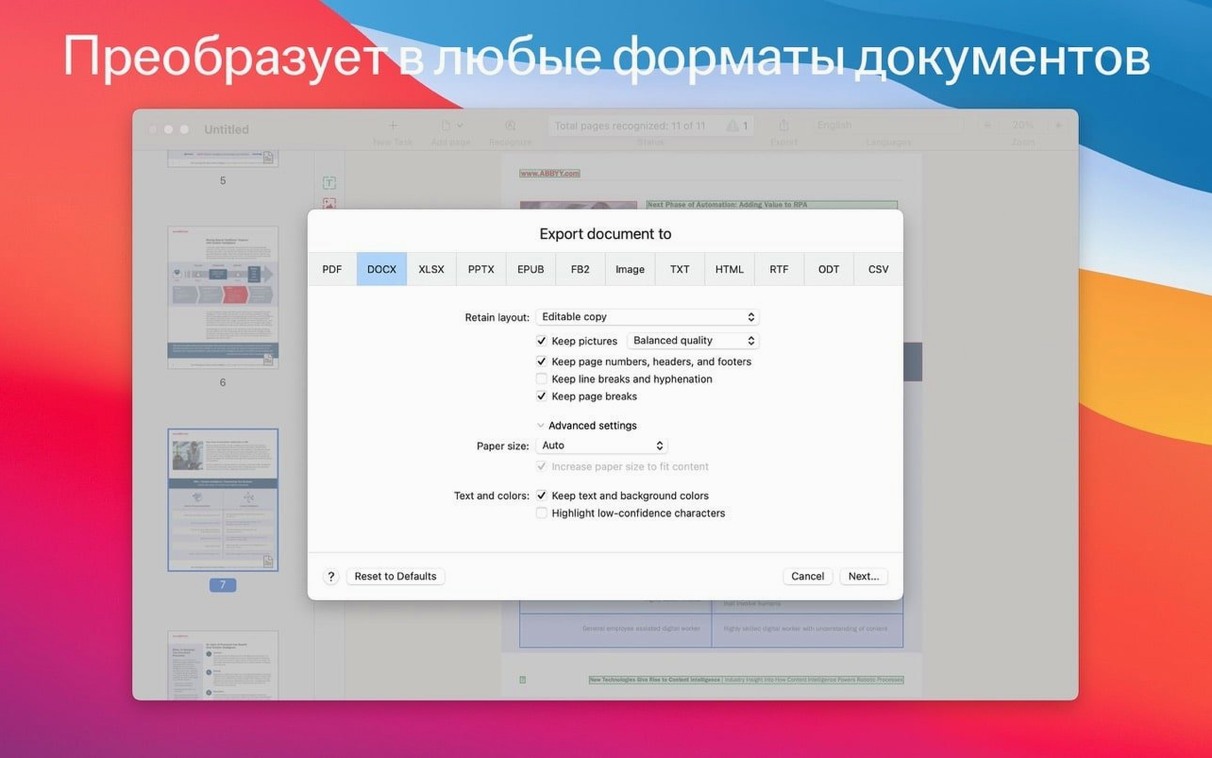
- Export to DOCX. Go to File > Save As, pick Microsoft Word Document. Tick "Retain layout" and "Create headers from formatting." Save.
- Open in Word and polish. The DOCX opens with paragraphs, bold text and tables intact. Fix the odd missed full stop. Done.
The same flow works for a photographed paper document brought in via Continuity Camera. In that case, step 2 matters more — phone photos often need cropping and a brightness bump before OCR.
- macOS 11 or later
- Intel-based Mac (x86 64-bit)
Questions the team asks
Yes. You can edit text and tables locked inside PDF files, scans, or paper documents after recognition.
It can create PDF/A files specifically designed for long-term archiving, plus PDF/UA files for universal access.
The app supports 198 recognition languages. The interface itself is available in Russian, English, German, Italian, Simplified Chinese, and French.






Comments 0
Sign in or create an account to add a comment.
No comments yet. They go up after moderation.