
GoodNotes — Mac download
Download (442 MB) Earlier builds
Ticked
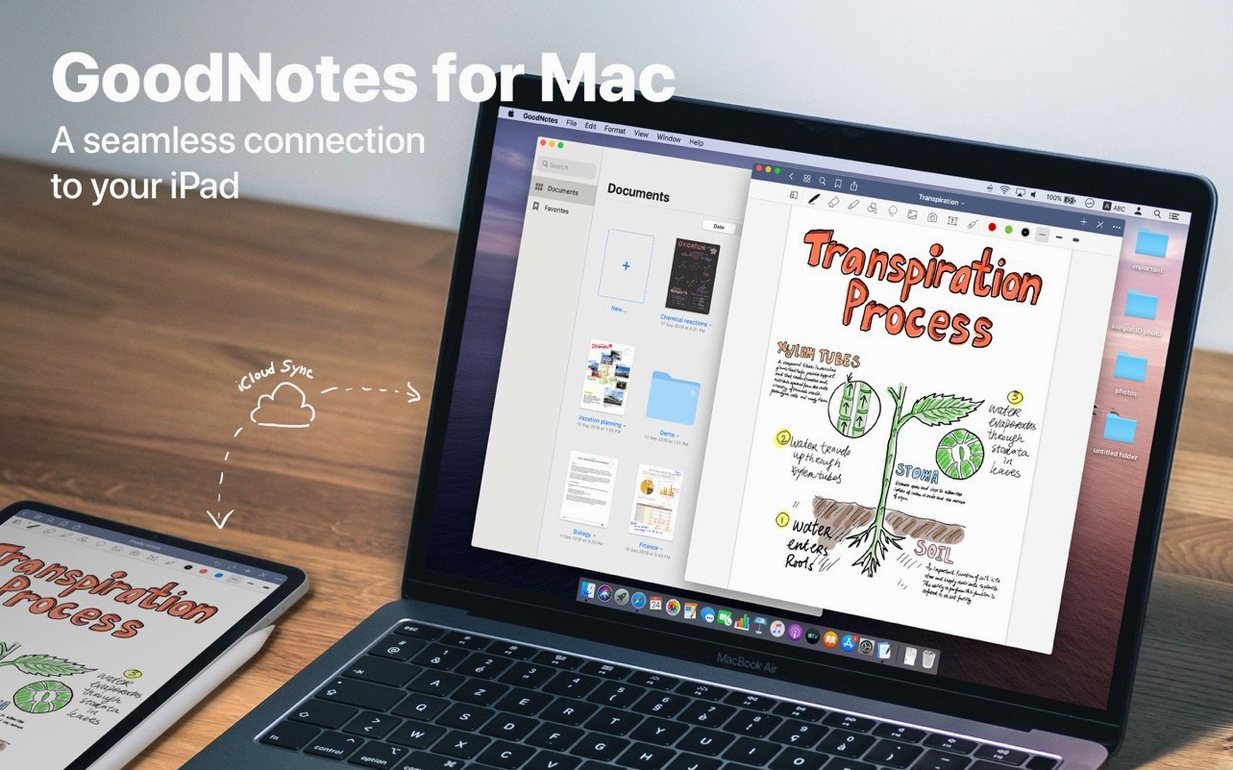
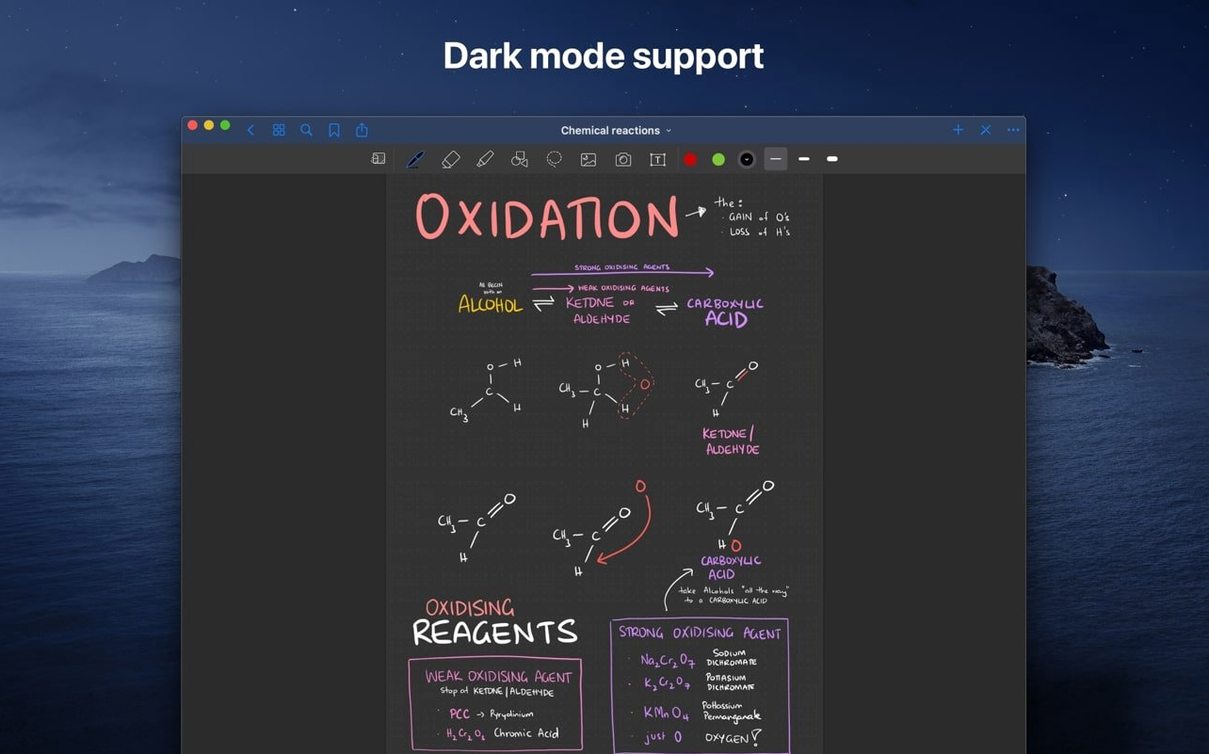
Scattered notes across devices create friction. GoodNotes for Mac solves this by keeping your handwritten meeting minutes, marked-up PDFs and typed lists in one iCloud-synced library you can reach from the desktop.
Tools for a structured workflow
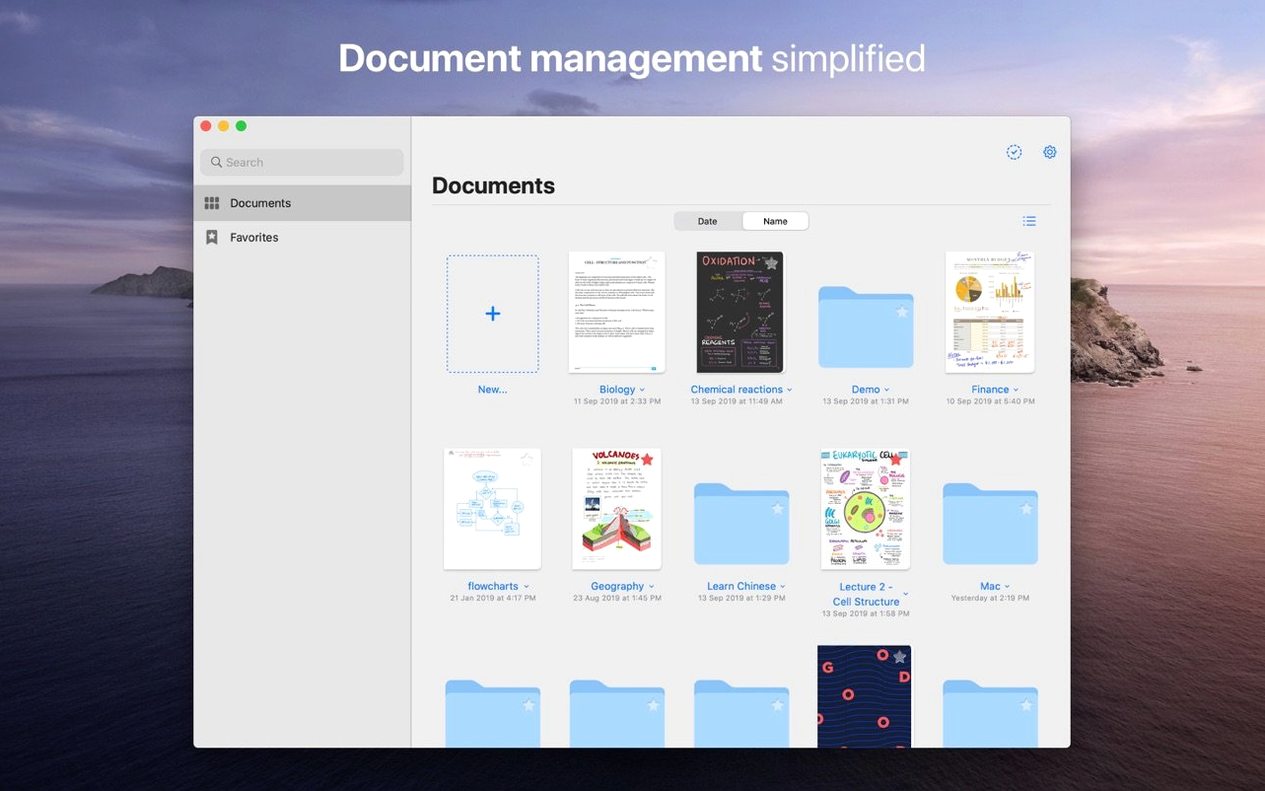
- Drag and drop documents straight from the Mac hard drive into a folder structure built with nested subfolders.
- Use the Shapes tool to snap rough strokes into clean lines, rectangles and circles for diagrams and wireframes.
- Choose the erase-highlighter-only option to remove marker ink without touching the text underneath.
- Import PDFs and images for annotation, then see your changes appear on an iPad or iPhone through iCloud sync.
Where the desktop app fits
The Mac version handles the heavy editing sessions. Type with a keyboard, rearrange pages with a trackpad, and organise large project folders faster than on a touchscreen. It reads the same GoodNotes documents you create on an iPad, so handwritten notes and drawings appear exactly as they were made.
Skip empty-folder syndrome with a one-week test notebook
Students managing course material
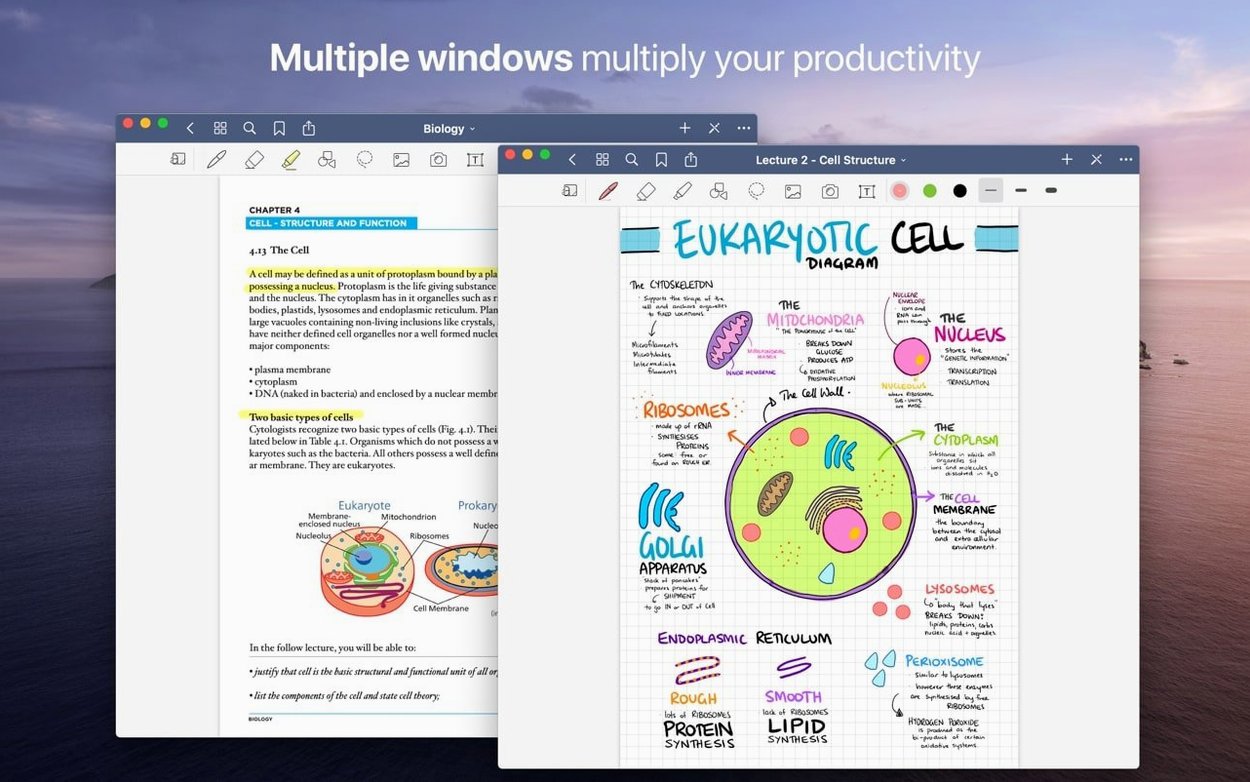
Lecture slides come as PDFs. Drag them in, mark them up during class on an iPad, then review and add typed summaries later on the Mac. The custom table of contents keeps semester modules navigable when a notebook hits 80 pages. Favourites pin the current assignment brief and the reading list so they are two taps away.
Professionals running meeting notebooks
A shared GoodNotes document on iCloud becomes the live record. Hand-drawn whiteboard sketches captured on an iPhone sync back to the Mac where they sit next to typed action items. The erase-whole-stroke setting cleans up a messy diagram without scrubbing at individual pixels. Exporting a page as a PDF by drag and drop means meeting minutes land in an email in seconds.
Anyone annotating long documents
Research papers, contracts, technical manuals: the Mac screen gives room to see a full page while keeping the thumbnail sidebar open. Live hyperlinks in imported PDFs stay clickable, so cross-references and citations work without interruption.
Sync anchor and a single real project before you nest
- Pick one real project as a test notebook. Import its PDFs, create three subfolders, and add two Favourites. Use it for a week before structuring everything else. This stops over-organisation of empty folders.
- Decide on your sync anchor device. If the iPad is your primary handwriting tool, create new notebooks there. The Mac becomes the editor, not the starter. This avoids version conflicts when iCloud is catching up.
- Customise the toolbar once. Pin the Shapes tool, the eraser set to erase-highlighter-only, and the lasso for moving handwriting. These three cover most editing sessions. Leave the rest collapsed.
- Learn the lasso. Circle handwriting to move it, resize it, or change its colour. Recolouring a section of notes from blue to black after a meeting takes three seconds and makes the page readable in different light.
- Export a page to PDF by dragging its thumbnail to the desktop. Confirm it opens cleanly in Preview. This is the fastest way to share a single page and it is worth muscle memory.
GoodNotes makes ink searchable across every notebook you own
GoodNotes vs Apple Notes
Apple Notes is quick for typed snippets and checklists. It falls short on handwritten organisation. GoodNotes gives you a proper folder tree, a page-level table of contents, and tools like the Shapes tool and selective eraser. Apple Notes syncs text and sketches; GoodNotes syncs entire structured notebooks where handwriting behaves like a first-class object you can select, move, and resize.
GoodNotes vs Notability
Notability leans on audio recording synced to note-taking. GoodNotes skips audio and puts its weight into document structure: nested folders, Favourites, and custom tables of contents. The GoodNotes eraser options are more granular, especially the erase-highlighter-only setting. For users who work with imported PDFs and need to navigate large notebooks, GoodNotes on Mac feels closer to a document manager than a simple pad of paper.
GoodNotes vs OneNote
OneNote wins on freeform canvas space and cross-platform reach. GoodNotes wins on page-based PDF handling and export. Dragging a single page out as a PDF is a single gesture in GoodNotes; OneNote requires print-to-PDF workarounds. GoodNotes also treats handwriting as discrete objects that can be recoloured and rearranged after the fact, where OneNote keeps ink more static. For Mac users deep in PDF annotation and iCloud sync between Apple devices, GoodNotes sits tighter in the ecosystem.
- macOS 10.15 or later
- Apple Silicon or Intel 64-bit Mac
Questions the team asks
Yes. Changes made with the Apple Pencil on an iPad sync through iCloud and will appear in the Mac app as editable handwritten notes and drawings.

Comments 0
Sign in or create an account to add a comment.
No comments yet. They go up after moderation.