

Canopy — Mac download
Download (11 MB) Earlier builds
Ticked
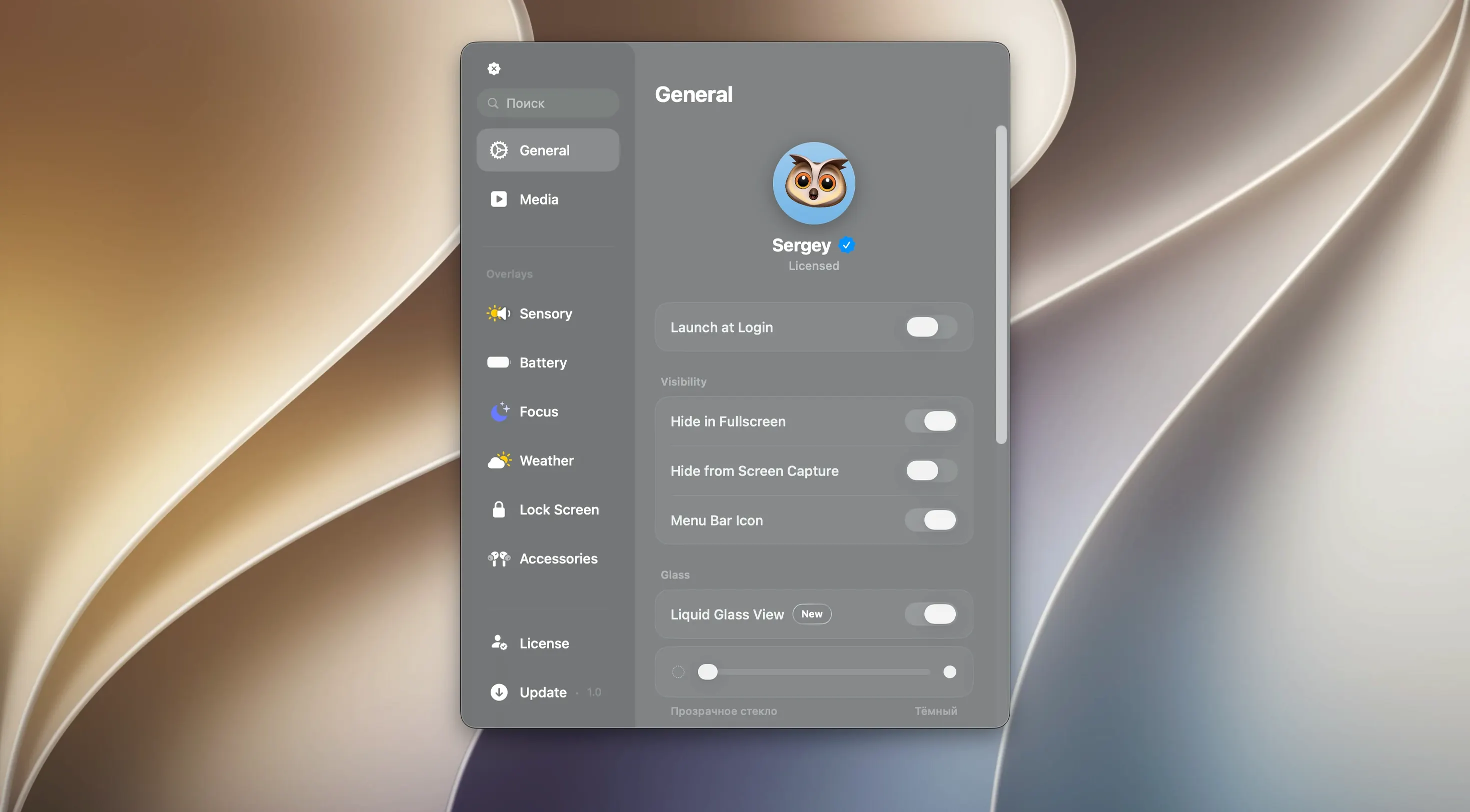
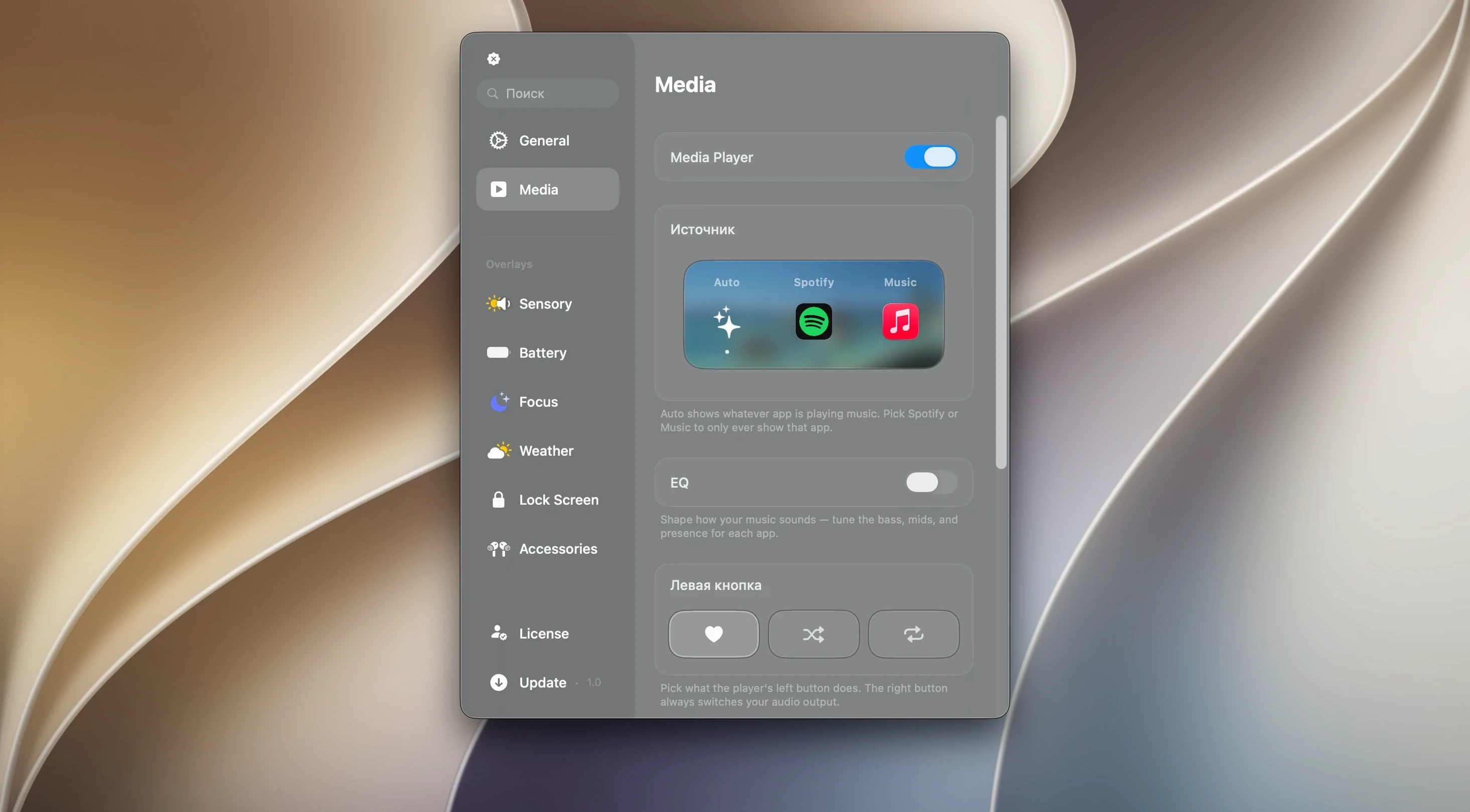
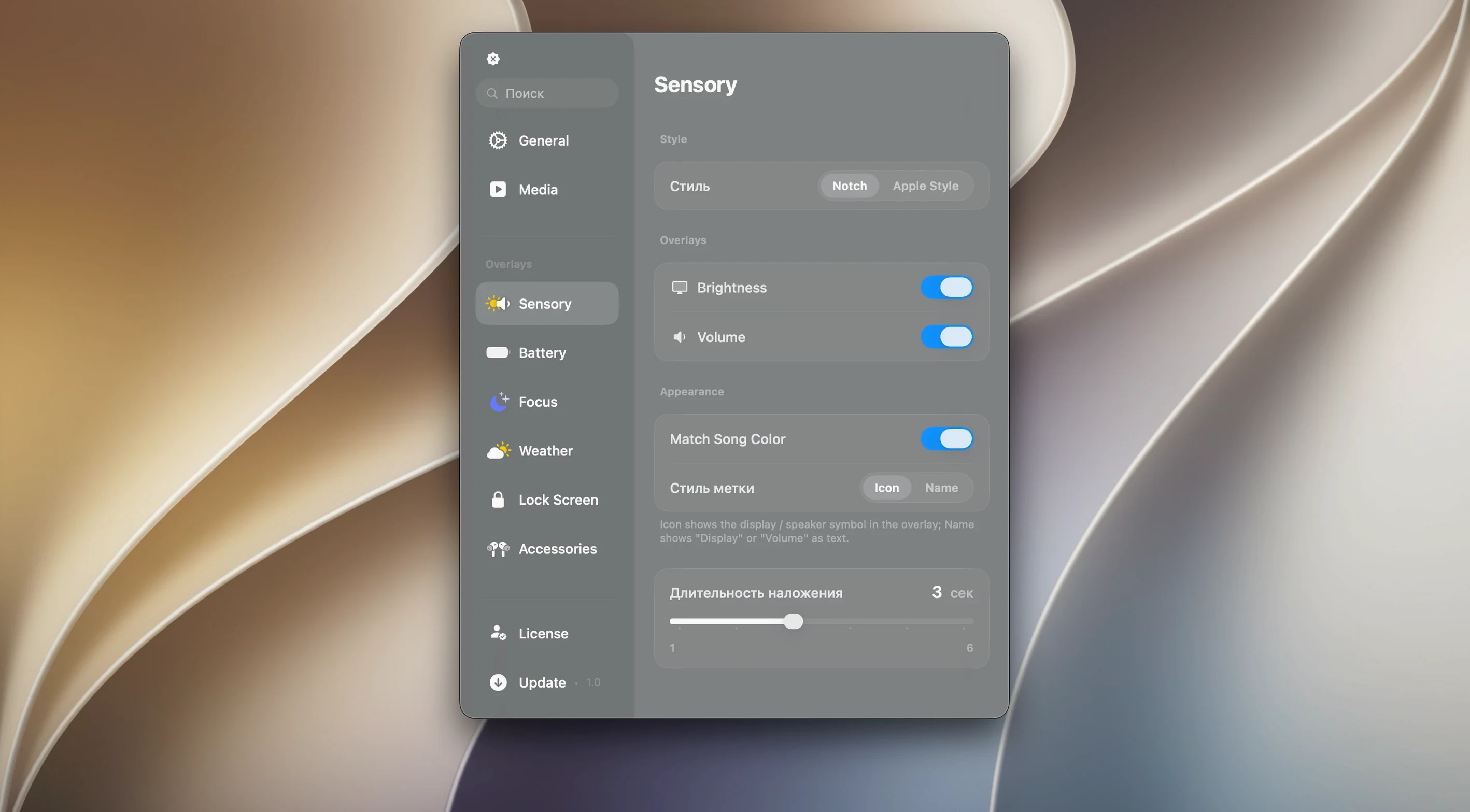
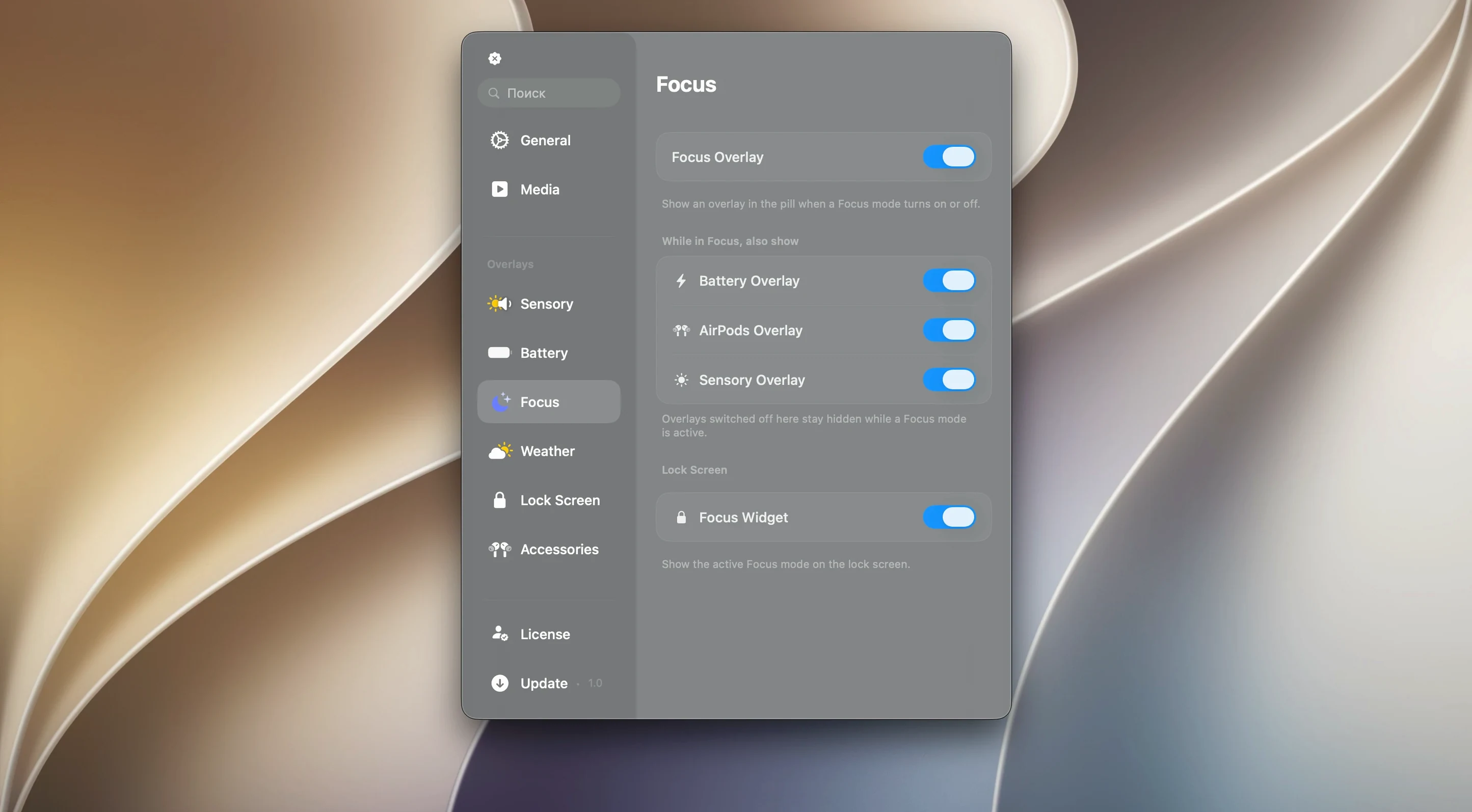
You're playing a track while working, and a compact panel slides out from the menu bar showing the album art, track name, and a pause button — without switching apps. That is the core idea behind Canopy.
macOS 26+ only on Apple Silicon or Intel 64-bit
| Detail | Info |
|---|---|
| Version | 2.1.0 |
| Developer | Canopy |
| macOS | macOS 26 |
| Architecture | Apple Silicon, Intel 64-bit |
| Languages | English |
What Canopy does
Interactive panel — lives in the menu bar or notch area. Click it and a Dynamic Island-style overlay appears with controls.
Media controls — play, pause, skip. Shows what is playing without opening the app.
Notifications — incoming alerts appear in the panel. Glanceable, not intrusive.
Timers and live activities — countdowns and ongoing tasks visible at a glance.
Glanceable music, timers and system info in a live panel
- People who want at-a-glance media and timer info without switching windows
- Anyone who likes the Dynamic Island concept and wants it on macOS
Pre-macOS 26 or a bare menu bar
- Users on macOS versions older than macOS 26
- Anyone who prefers a completely stock menu bar with no extras
A day with Canopy
A freelance designer starts the morning with a 25-minute Pomodoro timer running from the menu bar. When a Slack message arrives, it slides out inside the panel — no dock bounce, no window stealing focus. Halfway through, she taps the panel to skip a track. Later, a calendar reminder pops up while she is presenting a Figma mockup over Zoom. All three interactions happen without leaving the current workspace. That is the rhythm Canopy fits into.
Covers timers and live activities where MediaMate sticks to media
Canopy vs. MediaMate — MediaMate gives you a mini-player and a notification-style popup for volume and brightness changes. It is simpler. Canopy covers more ground: timers, live activities, a consistent panel for notifications and music. If you only want compact media controls, MediaMate is enough. If you want a single place for alerts, playback, and countdowns, Canopy wins.
Canopy vs. NotchNook — NotchNook turns the notch into a drop zone for files and shortcuts, with a hint of media control. It thinks of the notch as a shelf. Canopy thinks of it as a status panel. Different philosophy. NotchNook is about drag-and-drop convenience; Canopy is about passive information and quick taps.
Canopy vs. Alcove — Alcove adds a Dynamic Island look but leans heavily on aesthetics and customisation. Canopy keeps the effects (Liquid Glass) but stays closer to a productivity tool. Alcove feels more like a design experiment; Canopy feels more like a utility you leave running.
It floats as a top-screen widget on Macs without a notch
- Expecting it on the notch alone. On a Mac without a notch, Canopy creates a floating widget at the top of the screen. Users sometimes think it failed to load because they look at the centre of the menu bar instead of the top edge.
- Double-installing from the disk image. The installer is a drag-and-drop
.dmg. Opening the app directly from the mounted image instead of copying it to Applications leads to a "not found" error after ejecting the disk image. Always drag to the Applications folder first, then launch from Launchpad. - Hiding the panel by mistake. A click outside the panel dismisses it. New users often think it crashed. It did not — click the menu bar icon again.
- Overloading notifications. Giving every app permission to send alerts through Canopy turns the panel into a distraction machine. Start with one or two key apps, then add more if the noise level stays comfortable.
- macOS 26 or later
- Apple Silicon or Intel 64-bit Mac









Comments 0
Sign in or create an account to add a comment.
No comments yet. They go up after moderation.