

Carbon Copy Cloner — Mac download
Download (38 MB) Earlier builds
Ticked
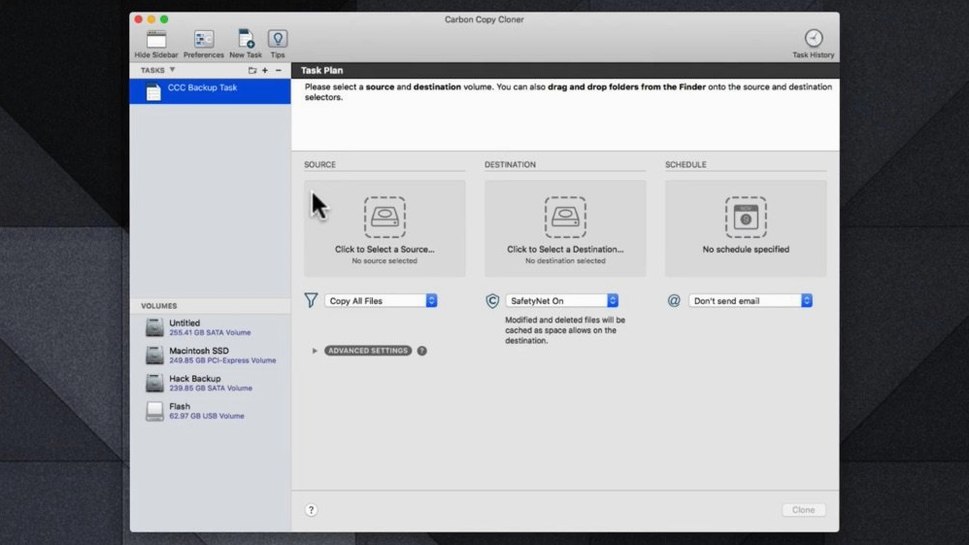
CCC 7 handles APFS snapshots, system files, and recovery partitions in a single run. Its Universal build runs natively on both Intel and Apple Silicon Macs, with full qualification on macOS Golden Gate.
Bootable clone before a macOS upgrade
- Alongside Time Machine — CCC gives you a bootable clone, not just a history of versions
- Before a macOS upgrade — clone your current system first, then roll back in minutes if needed
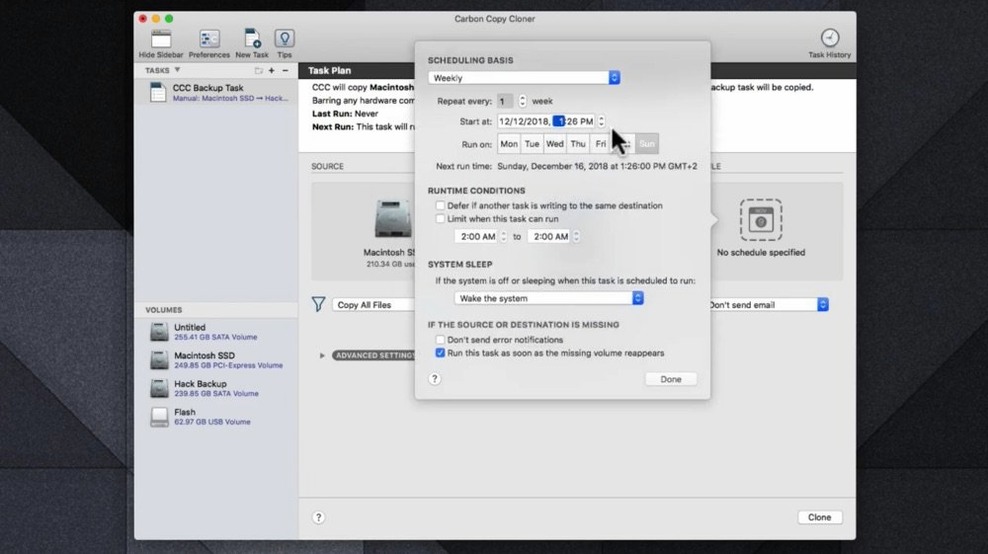
- Next to your file sync tool — scheduled clones run on a chosen day and time, no real-time sync overhead
Interface and scheduling
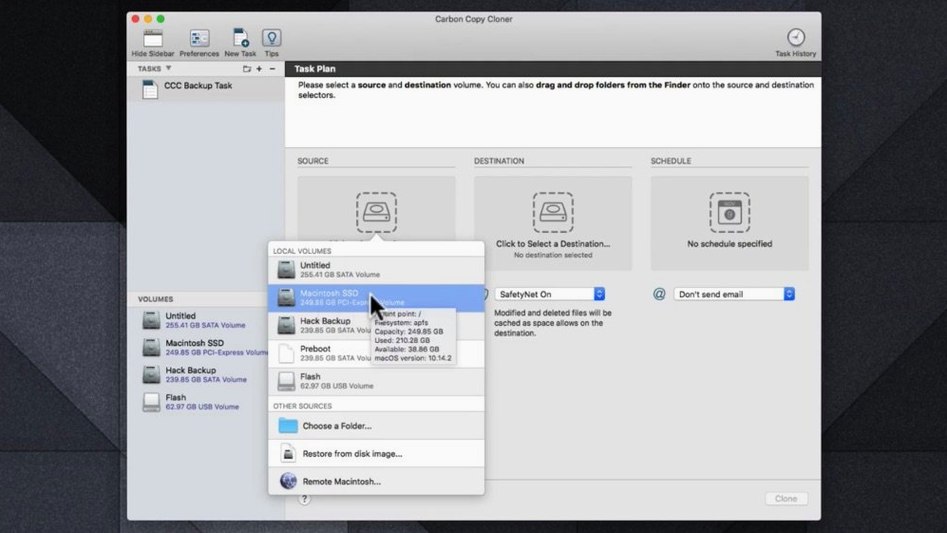
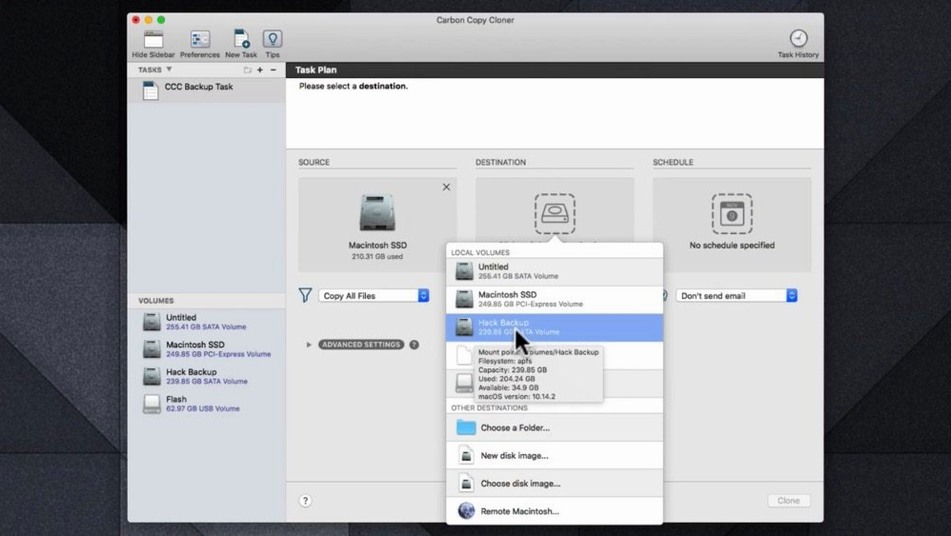
The interface stays simple. Pick a source, pick a destination, set a schedule. CCC handles the rest — no scripting, no terminal commands. The schedule works quietly in the background and only runs when you tell it to.
Three Mac backup tools, one bootable difference
Three Mac backup tools get compared often. Here is how CCC 7 sits alongside them.
CCC 7 vs SuperDuper!
SuperDuper! has a loyal following and a simpler feature set. Both can create bootable clones. The difference shows once you move past the first full backup.
- Scheduling in CCC 7 is built in and flexible — pick a day and time, set it, forget it. SuperDuper! needs an external scheduler or AppleScript for anything beyond a basic repeat.
- CCC 7 gives you APFS snapshot management. You can browse and restore from snapshots on the destination disk. SuperDuper! does not expose this.
- CCC 7 handles recovery partition cloning without extra steps. In SuperDuper! that step is manual or absent.
Good for CCC 7 if you want a scheduler you do not have to think about. SuperDuper! suits people who run a clone once a week and do not need the extra controls.
CCC 7 vs ChronoSync
ChronoSync is a synchronisation tool with backup features. CCC 7 is a backup tool that can also sync folders. The distinction matters.
- ChronoSync can sync between two Macs over a network. CCC 7 backs up to a destination, not between live machines.
- CCC 7 creates a bootable clone in one go. ChronoSync does not aim for bootable clones at all.
- ChronoSync has a steeper interface — lots of options, more trial and error. CCC 7 keeps the surface flat: source, destination, schedule, done.
Good for CCC 7 if your priority is a full-system backup that can get you back to work fast. ChronoSync fits better when you manage multiple Macs and need granular file-level sync.
CCC 7 vs Time Machine
They work best as a pair, not as rivals. Time Machine gives you version history. CCC 7 gives you a bootable clone and a schedule you control.
- Time Machine runs hourly. CCC 7 runs when you tell it to — daily at 2 a.m., weekdays at 6 p.m., whatever fits.
- Time Machine stores snapshots on the same disk or a network volume. CCC 7 puts a full, bootable copy on an external drive.
- Recovery from Time Machine takes a macOS reinstall and a Migration Assistant run. Recovery from a CCC 7 clone takes a restart while holding Option.
Keep Time Machine for the file you deleted three days ago. Keep CCC 7 for the morning your internal drive fails.
Run your first full clone immediately
A few habits make the first week smoother. Here is a checklist for the setup period.
- Run your first full clone immediately. Do not wait for the schedule. Plug in an external drive, pick it as the destination, and let CCC 7 finish the job. This gives you a known-good baseline.
- Check the clone boots. Restart your Mac, hold the Option key, select the external clone. If it boots to the desktop, you have a working safety net. Do this once, then you know.
- Set one simple schedule. Daily at a time your Mac is usually awake. Do not overcomplicate it. You can add more schedules later.
- Browse the snapshots. On the destination disk, CCC 7 keeps APFS snapshots from previous runs. Open the snapshot browser once so you understand how far back you can reach.
- Read the task history. After a few scheduled runs, open the history panel. It shows what copied, what skipped, and any errors. Glance at it once a week.
Rosa’s internal drive fails on a Tuesday
Rosa runs a small graphic design practice from her MacBook Pro. Her working drive holds client files, fonts, and a Lightroom catalogue. Every Friday she clones to an external SSD.
One Tuesday afternoon her internal drive fails — loud clicks, no mount. She has a client review in two hours. Rosa borrows a spare Mac, plugs in her Friday clone, boots from it, and is back in her own desktop in under five minutes. The clone has her fonts, her Lightroom catalogue, her file structure. She works from the external drive for three days while a repair shop replaces her internal SSD.
When the new drive arrives, she clones the external back to internal using CCC 7. By Thursday evening she is running from the internal drive again. She lost no files and missed no deadlines. The Friday habit saved her week.
Sort out stuck clones and permission errors
CCC 7 says the destination is not bootable
This often means the destination disk is formatted as APFS but lacks the correct partition scheme. Open Disk Utility, select the destination drive, and check the scheme. It needs to be GUID Partition Map. If it is Master Boot Record, you need to erase and reformat. CCC 7 will then see it as a valid bootable destination.
Scheduled task does not run
Three things to check. First, the Mac must be awake — CCC 7 does not wake a sleeping Mac for a scheduled task. Second, the destination disk must be connected and mounted. Third, open System Settings, check that CCC 7 has Full Disk Access. Without it, the scheduler cannot touch protected files.
Clone takes much longer than expected
The first clone always takes the longest — it copies everything. Later runs use APFS snapshots and copy only changes. If a later run is still slow, check if the destination disk is nearly full. APFS needs free space to manage snapshots. Also check that you are not cloning over a slow USB 2 connection. A USB 3 or Thunderbolt cable makes a real difference.
Carbon Copy Cloner full downloads from unofficial sources
Some people look for a Carbon Copy Cloner torrent or a Carbon Copy Cloner Mac torrent when setting up a new machine. Others search for a Carbon Copy Cloner Mac crack or Carbon Copy Cloner 7 torrent. When using these, check that snapshot support and the scheduler are functioning correctly before relying on them. The clean build from Bombich Software includes the full activation instructions and works on both Intel and Apple Silicon without extra steps. Stick with the known build and you avoid hours of troubleshooting.
Error about system files not copying
Starting with CCC 7, Bombich Software removed support for Catalina, Big Sur, and Monterey. If you run one of those older systems, CCC 7 is not qualified for it. The fix is either to stay on an earlier CCC version that supports your macOS, or update macOS to a version CCC 7 is qualified on.
- macOS 10.15 Catalina or later
- Intel or Apple Silicon Mac
Questions the team asks
Yes. CCC 7 is a Universal application build, so it runs natively on both Intel and Apple Silicon Macs.
Yes. You can set a clone to run on a specific day of the week and at a chosen time.








Comments 0
Sign in or create an account to add a comment.
No comments yet. They go up after moderation.