

TransData — Mac download
Ticked
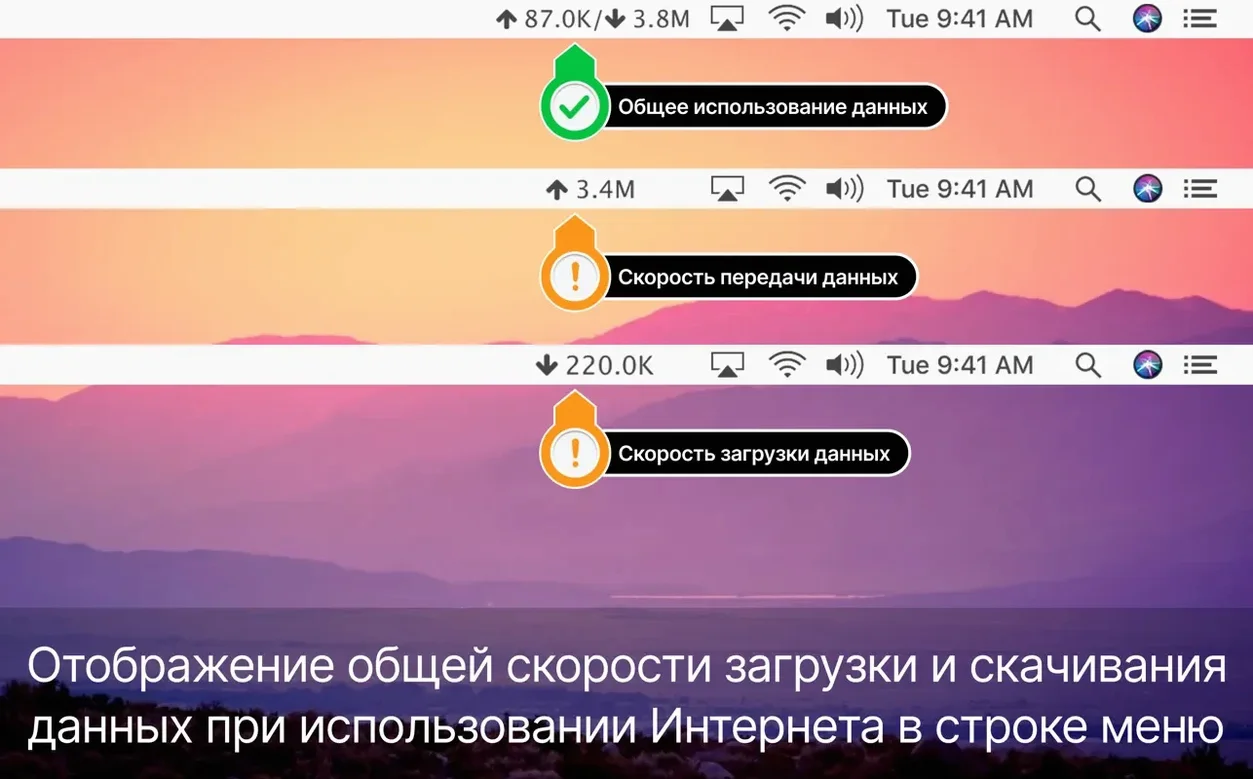
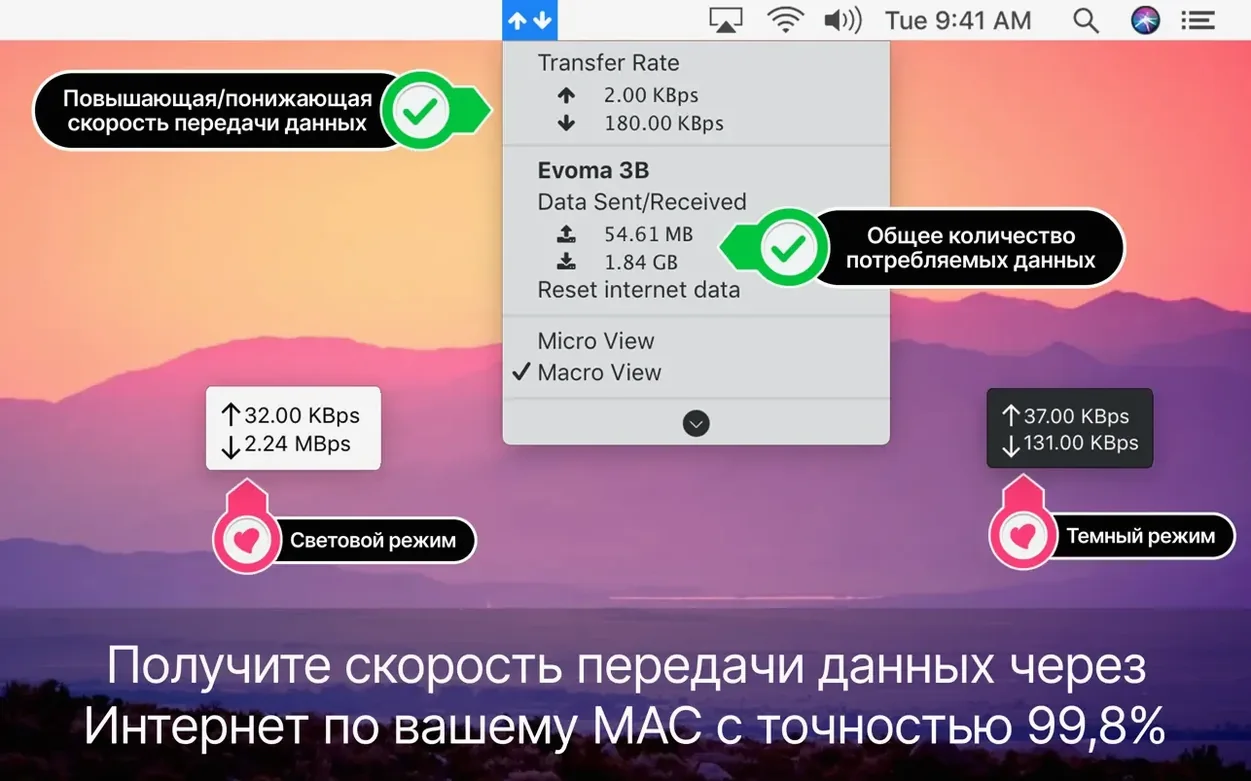
Data tracker Widget TransData Mac torrent is a menu bar app that tracks your Mac’s network data usage and transfer speed in real time.
Features, by the job they do
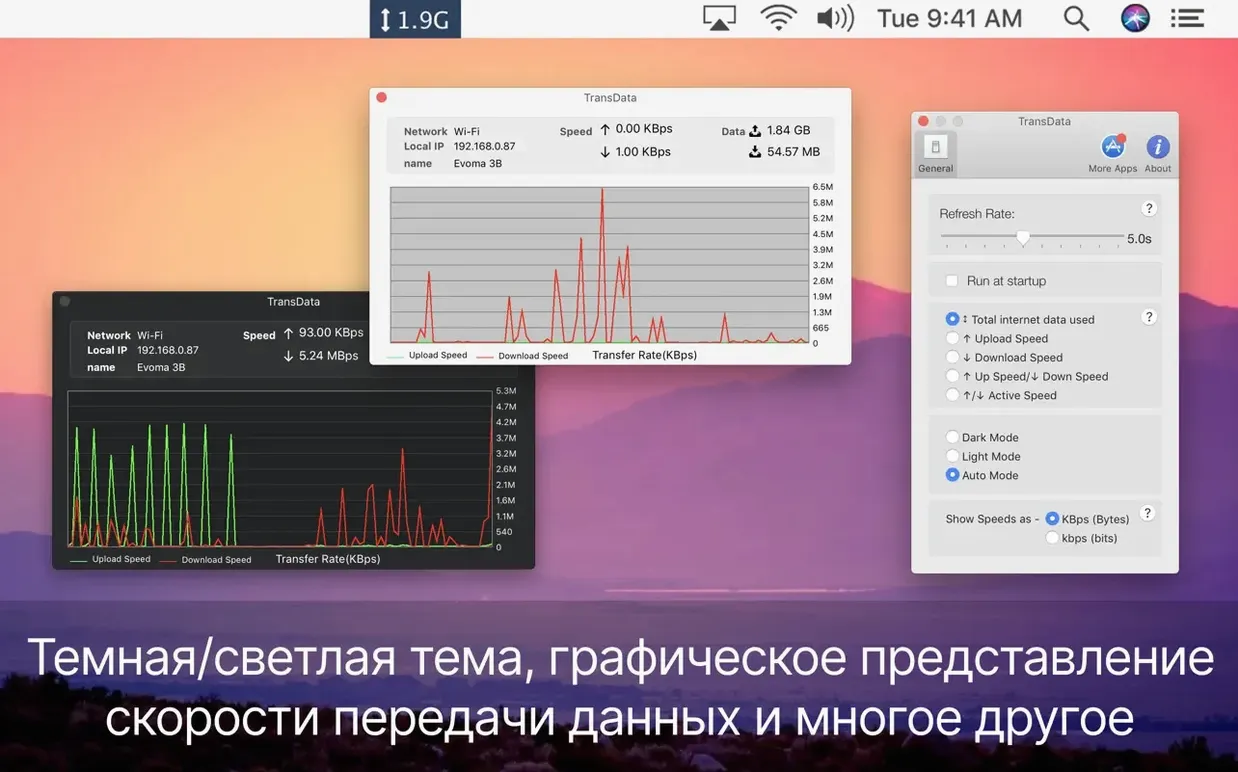
Live transfer speed — Shows upload and download speed per second as a widget or graph in the menu bar. Choose between KB/s or kb/s display.
Session data total — Displays the total data used by your Mac since the current session started.
Custom refresh rate — Set how often the data updates in the app’s settings.
Dark and Light mode support — Adapts to your macOS appearance setting automatically.
Interface languages — Available in 23 languages, including English, Russian, German, Spanish, French, Japanese, and Simplified Chinese.
Before you install: common questions
Will this work alongside other network tools? Yes. Data tracker Widget TransData runs quietly in the menu bar and doesn’t interfere with VPN clients, firewalls, or other monitoring utilities. It reads the same system data other apps read, so no conflicts.
Does it log data after the Mac sleeps? It tracks a continuous session. If your Mac sleeps or the network disconnects, the counter pauses and resumes when the connection returns. You can reset the session count manually in the app menu.
Can I see per-application usage? No — this tool measures total network traffic at the system level, not broken down by app. For per-process data, you would need a separate utility.
Does it affect performance? The widget uses negligible CPU and memory. On an older Mac running OS X 10.11, the graph refresh is smooth at default settings. You can lower the refresh rate in settings if you prefer.
Menu bar icon shows live upload and download rates
You launch the app from Launchpad. The icon appears in the menu bar immediately — a small graph showing your current upload and download rates. No setup window, no prompts.
You open a browser and start a large file download. The widget’s download line jumps from zero to about 45 Mbps and stays there. The upload line stays flat. You switch to a video call; the upload line rises to 2 Mbps.
At lunch you disconnect from Wi-Fi and close the lid. Coming back, you reconnect. The widget picks up where it left off, adding the new data to the existing session total.
You open the settings and switch the unit from KB/s to kb/s to match your ISP’s billing units. The graph rescales immediately. You set the refresh rate to 1 second for a while, then back to 5 seconds to reduce visual flicker.
You click Reset in the menu and the counter goes to zero, ready for tomorrow. You quit the app — it leaves no background process behind.
- macOS 10.10 or later
- Intel or Apple Silicon Mac
Questions the team asks
The app requires macOS 10.10 or above.
Yes. You can switch between KB/s and kb/s in the settings.









Comments 0
Sign in or create an account to add a comment.
No comments yet. They go up after moderation.