

Yoink — Mac download
Download (22 MB) Earlier builds
Ticked
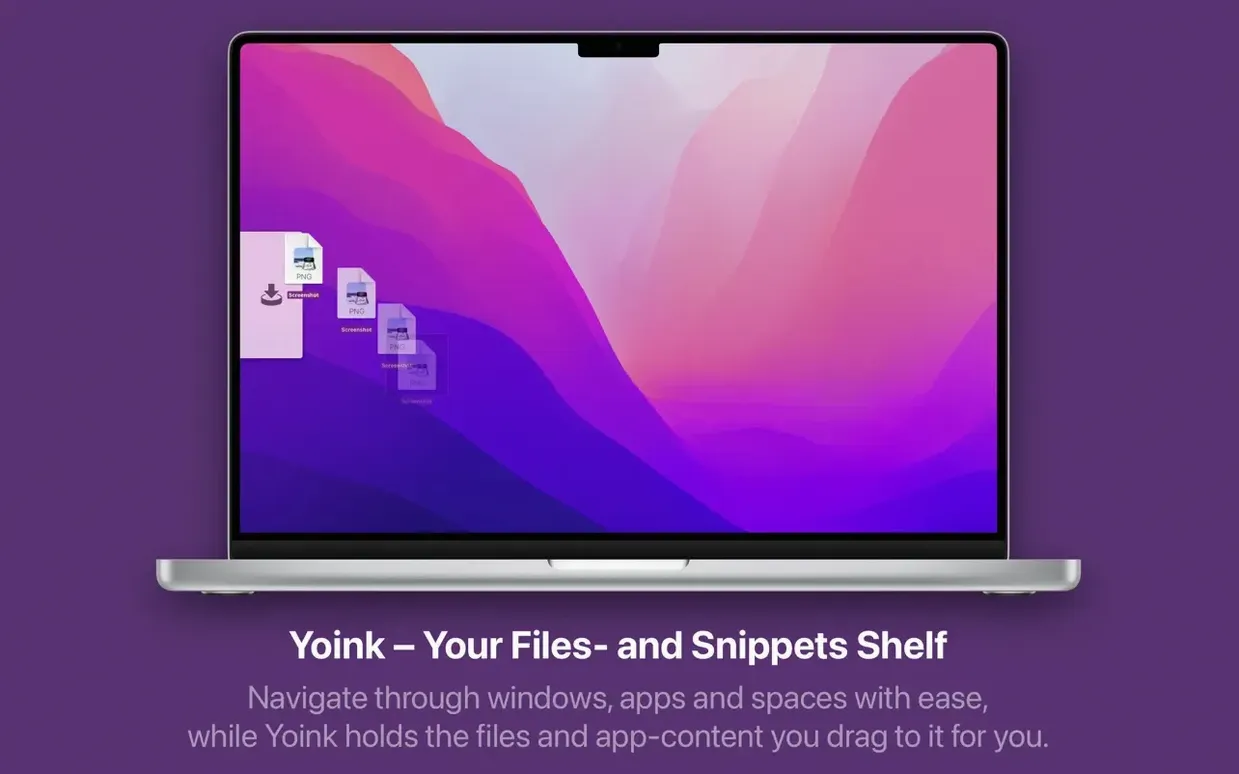
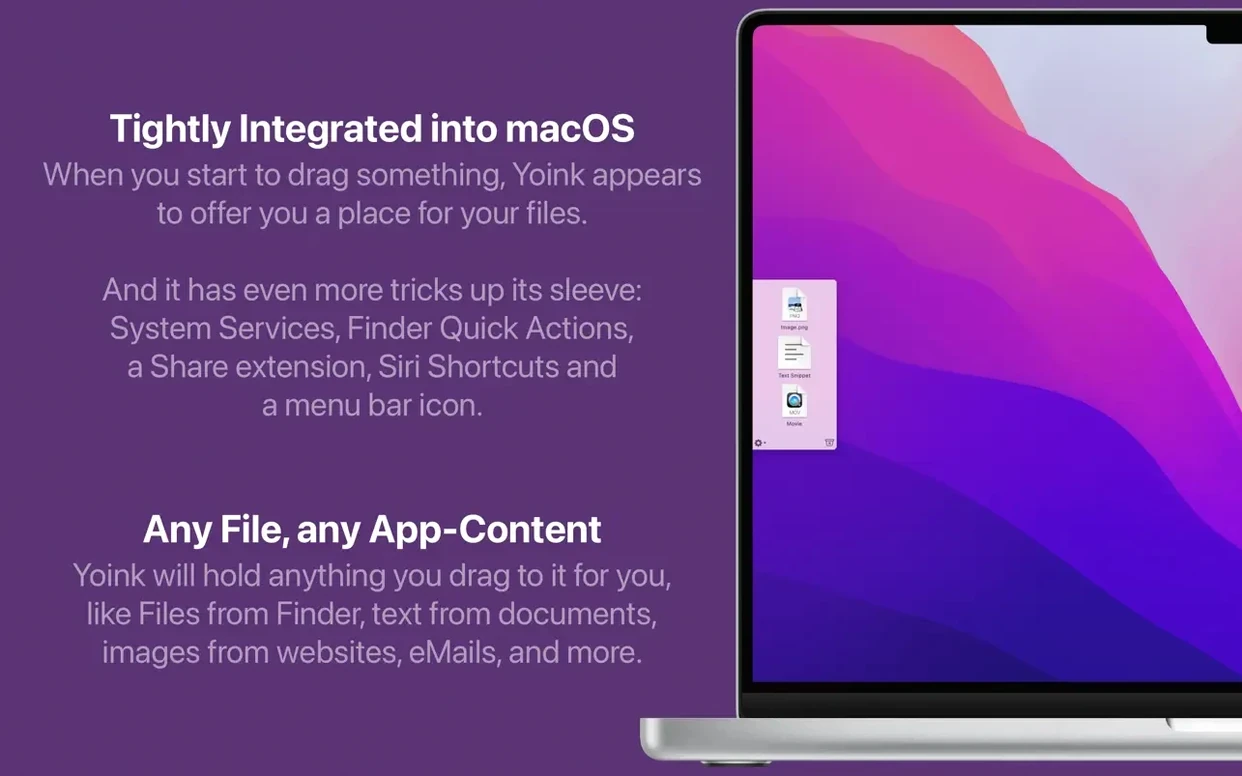
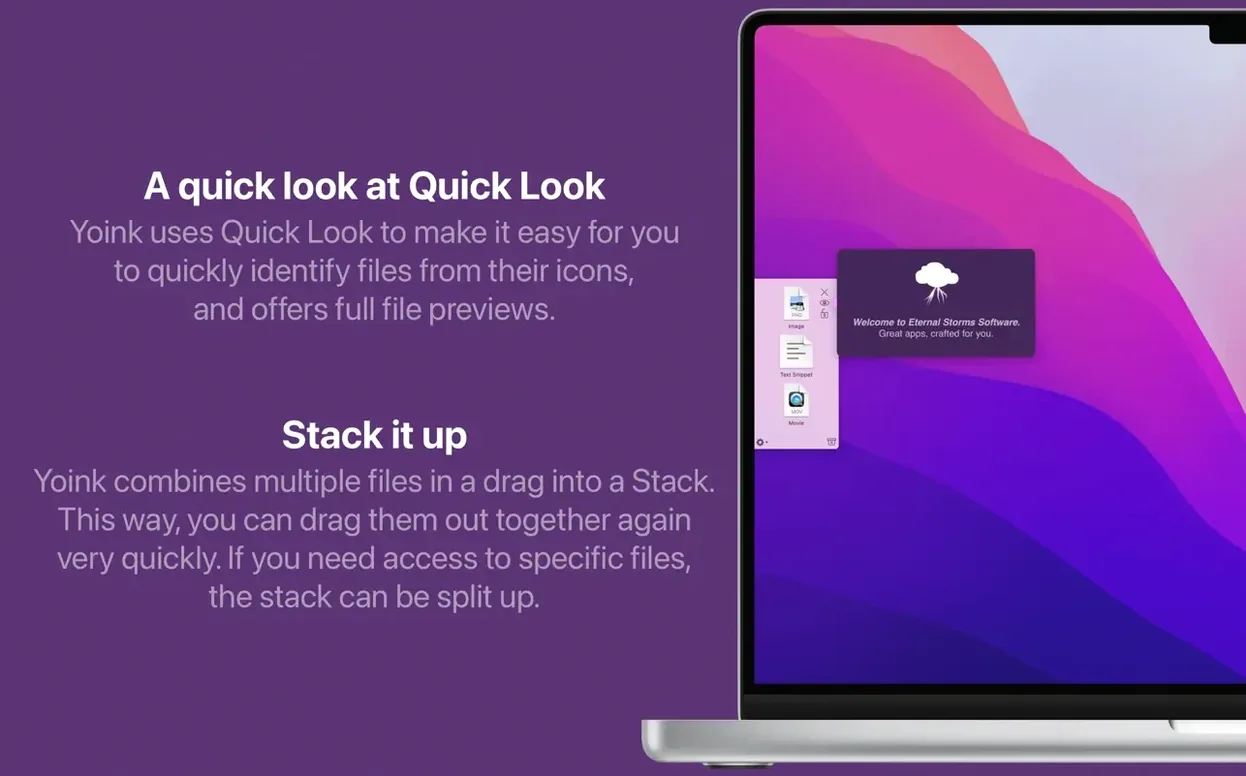
If you use a clipboard manager, you already know the value of keeping things close until you need them. Yoink does that for drag-and-drop. Think of it as a temporary shelf that appears whenever you start dragging a file, image or text snippet. Drop items there, navigate to the actual destination, then pull them off again — no windows to hold open side by side.
Stacks, splits and how files behave
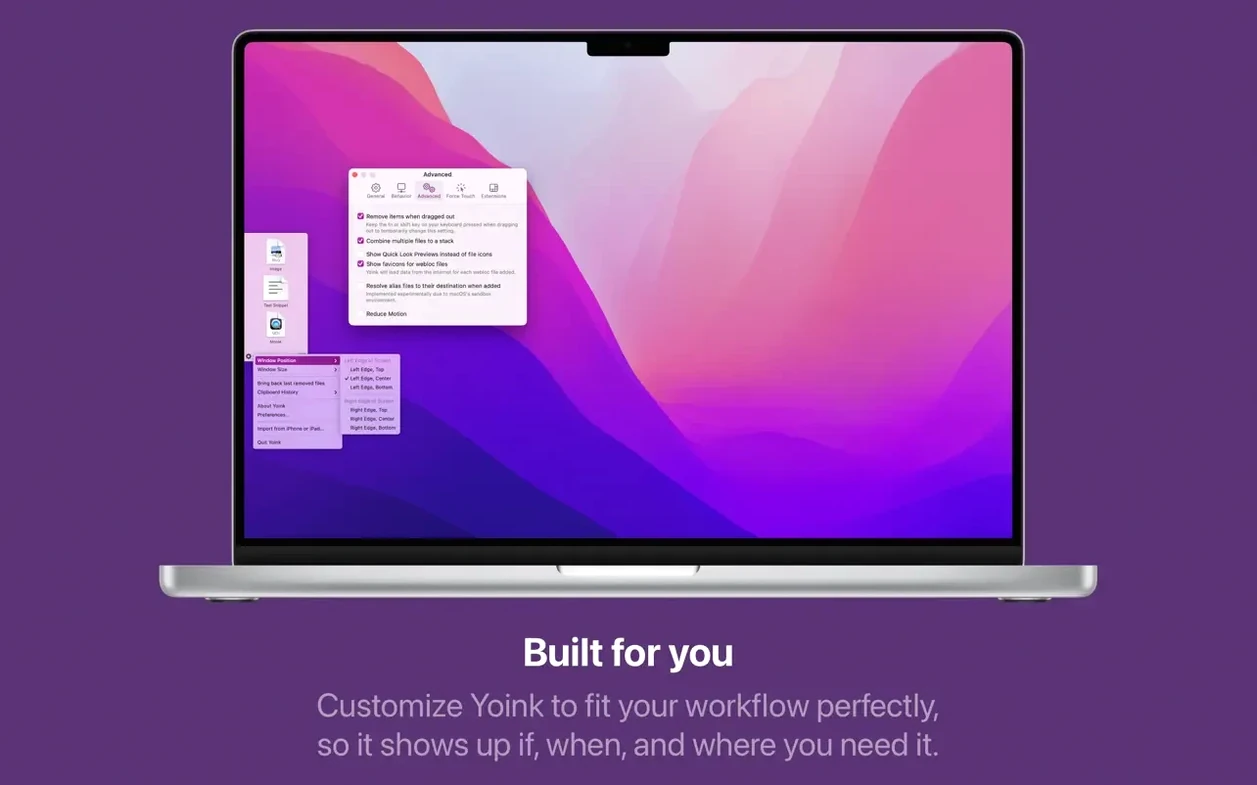
Multiple items dropped together are grouped into a stack automatically. You can split a stack, reorder its contents, or move the whole group in one go. Drag-and-copy works the way Finder does, so holding Option forces a copy instead of a move — no surprises when you drop something onto an external drive. Preferences let you set display conditions, so the shelf only appears when and where you want it.
Clipboard and Handoff
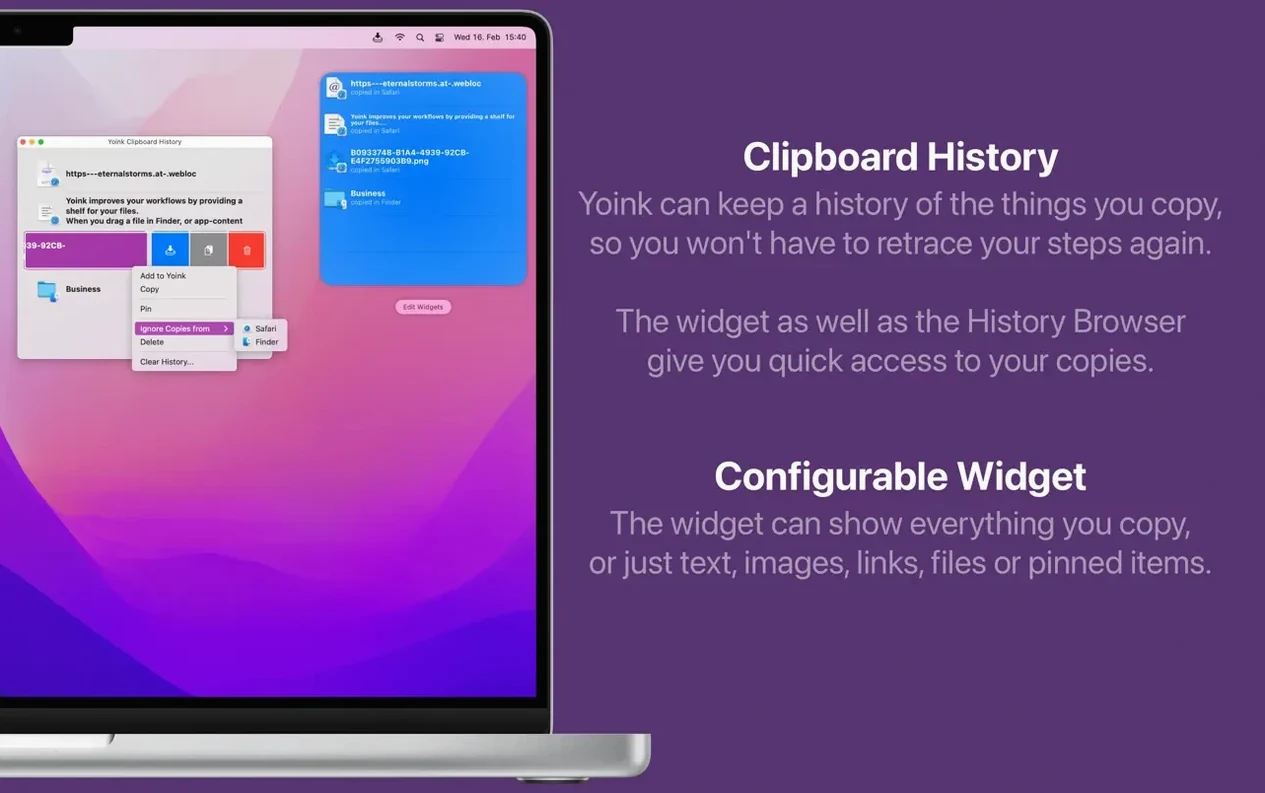
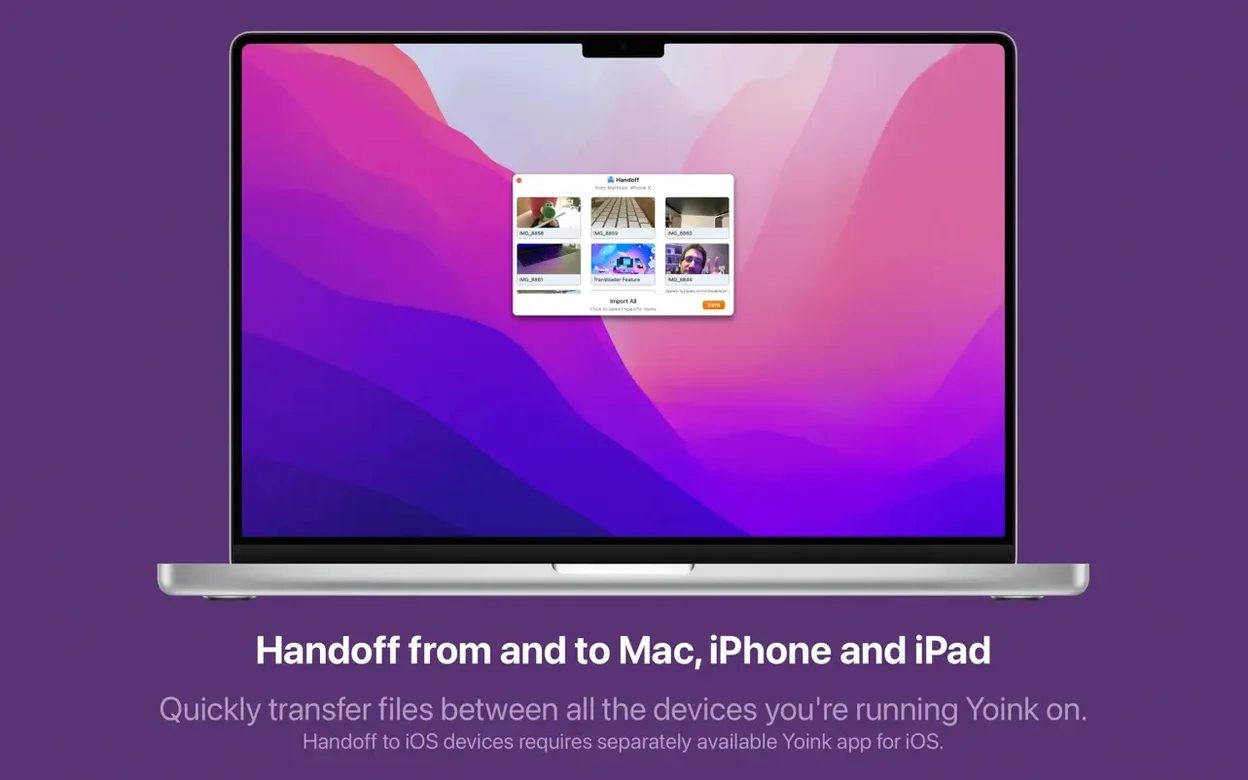
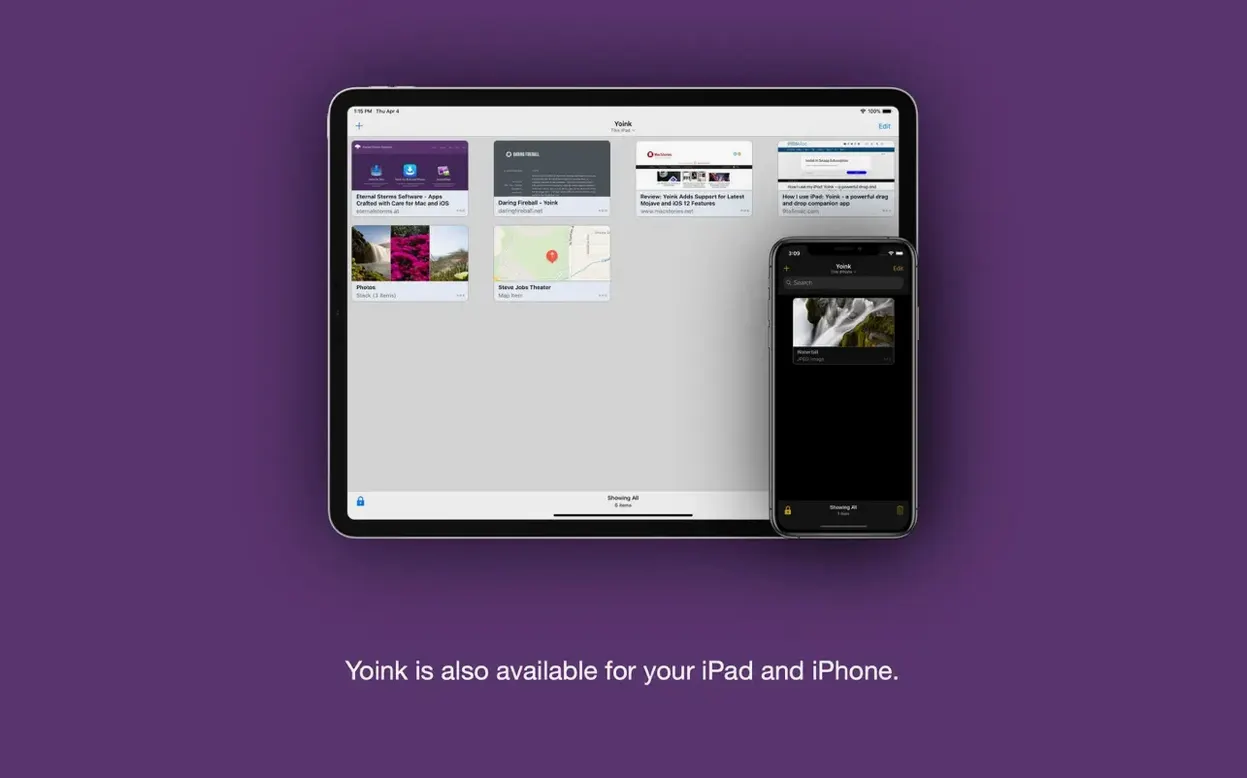
Yoink also watches the clipboard. You can retrieve recent clipboard contents from the widget or the app’s context menu without dragging first. If you run Yoink on an iPhone or iPad, Handoff keeps the shelf synced across devices — pick up where you left off without sending files through another service.
How Yoink fits with other apps and macOS
Yoink works alongside the tools you already use. It doesn’t replace Finder, your clipboard manager, or your file launcher — it sits between them. A few common pairings:
- Finder and Path Finder. Drag files out of deep folder structures into Yoink, switch to the target directory, and drop them in — no spring-loaded folders or extra windows.
- Mail and Messages. Collect attachments from several emails in Yoink, then drop them all into a single reply or a chat thread in one motion.
- Preview and Quick Look. Drop an image or PDF into Yoink, open it with Quick Look from the shelf itself (a double-tap), and decide where it belongs later.
- Notability and GoodNotes. Drag images from a web browser into Yoink, then drop them into your notes app when the right page is in view.
- Xcode and text editors. Drag code snippets or resource files into Yoink while browsing one project, then drop them into another without cluttering the Desktop.
macOS integration is tight. The shelf respects Mission Control spaces, appears on the active screen, and slides out from an edge you set in preferences. The Notification Center clipboard widget shows your last 20 copied items without opening the app at all.
Workflow: collecting web resources for a design brief
You’re pulling together reference images, colour swatches and a client PDF into a single Keynote deck. Here’s the path through Yoink.
- In Safari, find three product photos. Drag each one to the left screen edge. Yoink appears; drop them in. They auto-stack.
- Spot a colour hex value in a spec doc. Select and drag the text into Yoink — it stores as a text clipping.
- Switch to Finder. Locate the client’s brief PDF. Drag it into Yoink. The shelf now holds the stack of images, the text clipping and the PDF.
- Open Keynote and start a new deck. Drag the PDF from Yoink onto slide one. Split the image stack, then drag photos onto slides two through four. Drag the hex value onto a style slide for the developer.
- Clear the shelf. Job done — no Desktop clutter, no extra Finder windows left open.
With Handoff enabled, the same shelf contents are available on your iPad. Start collecting on the Mac, walk to a meeting, and keep working on the tablet. Many who try a yoink free download or a yoink crack find it helpful to check SIP and permissions settings so the app bridges the gaps between apps smoothly.
- File names from browser drags are now cleaner.
- Compatibility improved for Dia and Vivaldi browsers.
- Quick Look panel sizes better for log files.
- macOS 10.13 or later
- Apple Silicon and Intel Macs
Questions the team asks
Yes, it supports Handoff between the Mac, iPhone and iPad apps so you can transfer items across devices.









Comments 0
Sign in or create an account to add a comment.
No comments yet. They go up after moderation.