
Wondershare UniConverter — Mac download
Download (324 MB) Earlier builds
Ticked
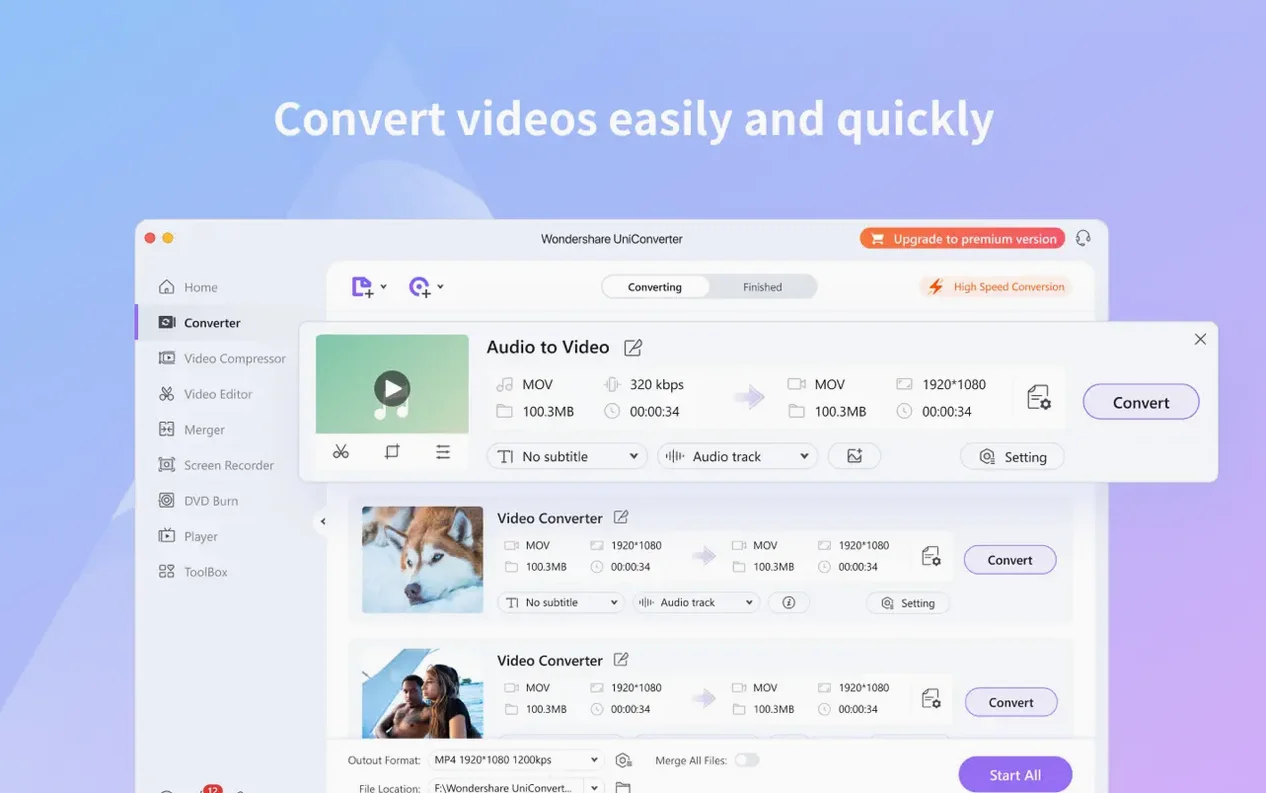
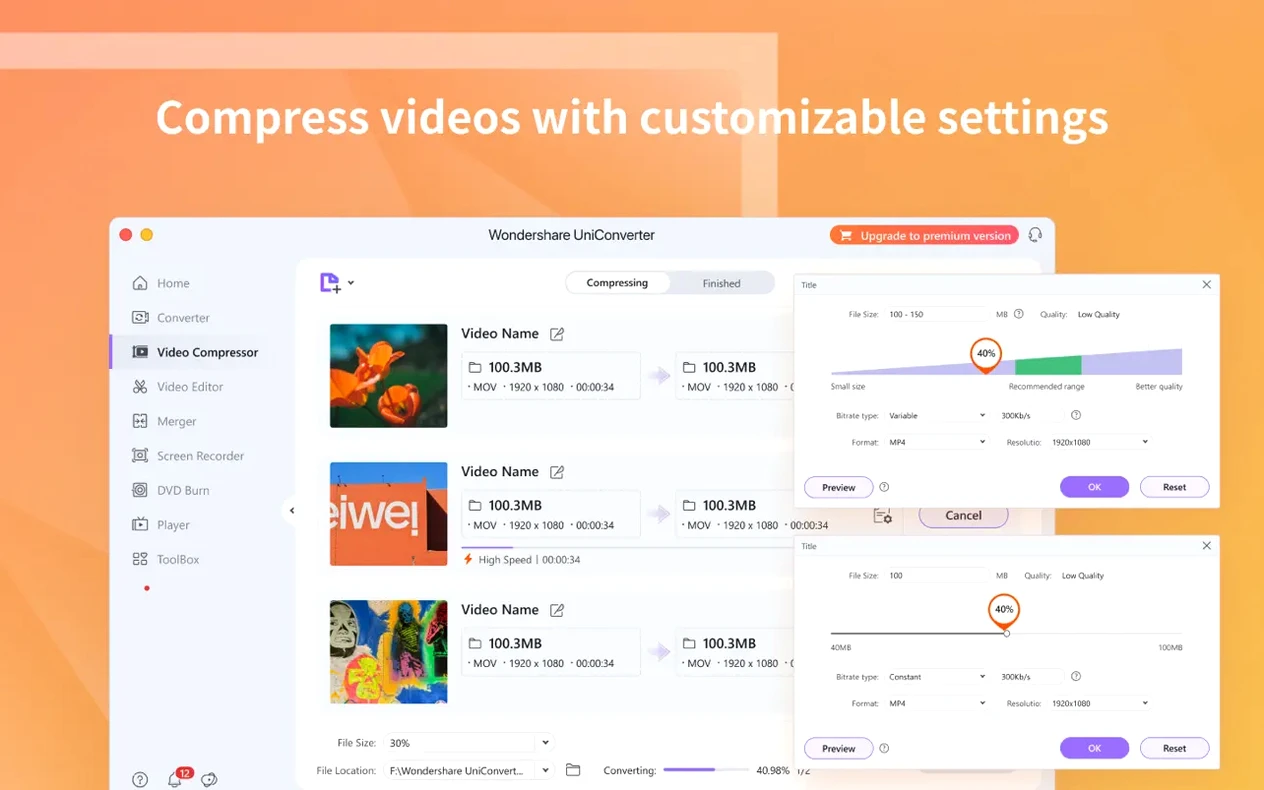
A project lands with a stack of mixed footage: some HEVC from a drone, older clips in AVI, and a DVD you need to pull archival segments from. You queue the batch conversion, set each source to its correct output, and let it run while you move on to the next task.
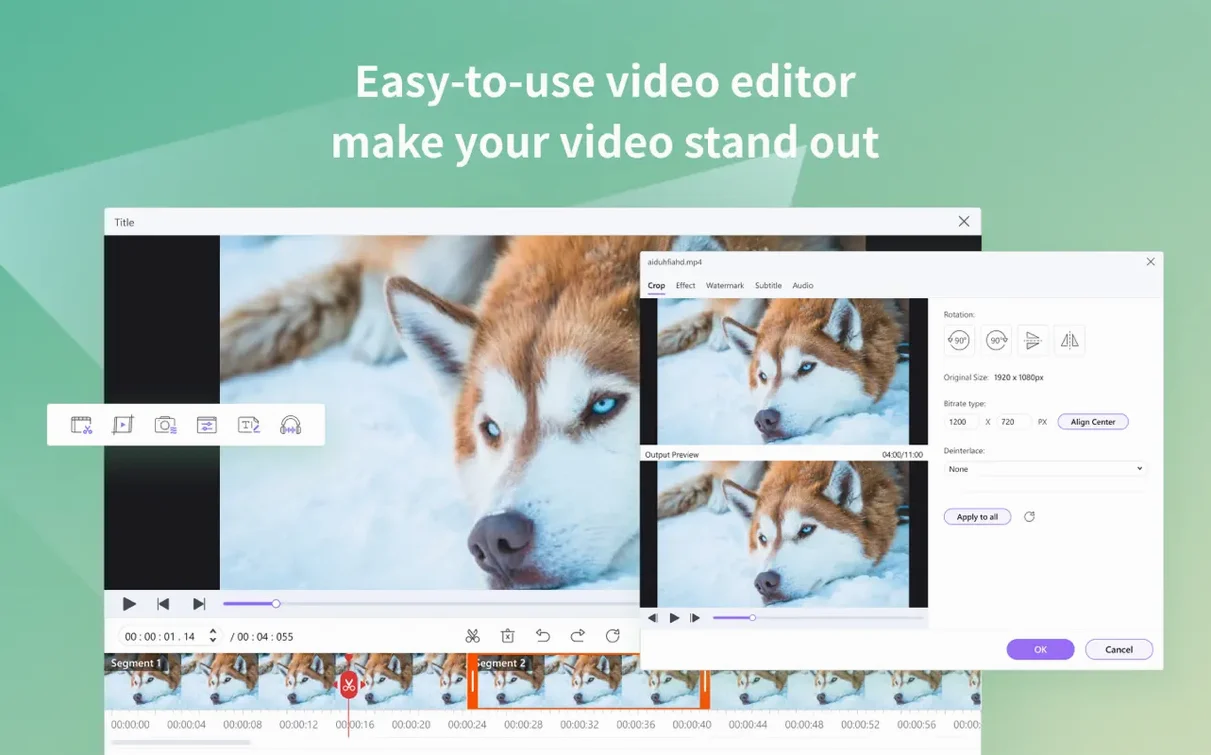
The deeper toolkit matters once the basics are handled. Splitting a long file into marked segments or merging dailies into a single reel happens without leaving the app. Metadata extraction pulls the details you need, and the option to update an iTunes library during transfer keeps your media library in check, not a mess.
Disc workflows still have their place. Converting DVD video directly to editable formats saves hunting down old ripping tools, and burning a clean master to disc works from common video files or DVD folders.
Online video downloads sit alongside these tools, not as an afterthought. Pull a reference clip, convert it to your working format, and trim the segment you need. Silicon or Intel Mac, the app handles both.
Three apps that often share your project checklist
UniConverter sits in a busy corner of the Mac media toolkit market. Three apps often cross the same project checklists.
HandBrake
The free, open-source transcoder focuses on one job and does it well. HandBrake gives you fine control over encode settings, presets galore, and queue management. What it does not do: download online video, handle DVDs with copy protection, burn discs, or extract metadata for iTunes. If your checklist stops at pure conversion, HandBrake covers it. If it also includes pulling clips from YouTube, trimming footage, or burning a master disc, you are switching between three or four different tools.
Permute
Permute is the lightweight converter you keep in the Dock for quick drag-and-drop jobs. It converts fast, looks simple, and supports a decent format list. It lacks the disc-burning module, the downloader, the video editor, and the wireless device transfer. Permute suits the one-off MP4-to-MP3 task. UniConverter suits the afternoon where you rip a DVD, batch-convert the results, trim the clips, and send them to an iPad without a cable.
MacX Video Converter Pro
The closest comparison in scope. MacX Video Converter Pro bundles conversion, downloading, DVD handling, and basic editing. The interface feels busier, and the built-in editor is more limited. UniConverter's editor adds cropping with black-bar removal and cleaner segment splitting. Both support batch work and 4K output. The difference often comes down to which interface you tolerate under deadline pressure.
Assign one preset to an entire batch with a right-click
- Right-click a file in the queue for presets. You can assign an output format to one clip, then right-click and apply that same preset to the whole batch. No need to set each file individually.
- Preview before converting. The built-in player lets you scrub through a source file to confirm it is the right clip. Handy when file names are unhelpful strings like
DJI_0042.MOV. - Drag-and-drop from the Finder onto the app icon. The Dock icon accepts file drops directly. You can skip the file picker entirely.
- iTunes metadata sync during transfer. When sending converted files to iTunes, the app extracts metadata and updates the library entry automatically. A small detail that saves a separate tagging step.
- Wireless transfer to devices. Convert on the Mac, send to an iPhone or Android device over Wi-Fi. No USB cable, no AirDrop fiddling when AirDrop refuses to cooperate.
- Codec library for iMovie and Final Cut. UniConverter installs native codecs that iMovie and Final Cut Pro can read. Footage that normally requires transcoding before import becomes directly usable on the timeline.
When default output settings waste a 4K source
New users tend to hit the same friction points. Spotting these early keeps your conversion queue moving.
- Leaving output settings on default for everything. The default preset is not always the best fit. A 4K source dumped to a 1080p default loses resolution without warning. Check the output profile per file or per batch before clicking Start.
- Ignoring the cropping tool for letterboxed footage. Imported clips with black bars stay that way unless you crop them. The crop module removes the bars and re-frames the image. Many users convert first, then realize the bars are baked into the output.
- Queuing too many DVD rips at once. DVD conversion is disk-intensive. Stacking three or four DVD sources in one batch can slow the whole queue to a crawl. One disc at a time, then move to the next.
- Forgetting to set the output folder. The default output location might bury converted files deep in a temp directory. Set a dedicated folder before the first batch, or you will spend time hunting down the results later.
- Assuming all online downloads work at full resolution. Some sites throttle or limit the source stream quality. The downloader grabs what is available, not necessarily the 4K version. Check the available resolutions in the download dialogue before pulling the clip.
- Not using the segment marker during preview. You can set start and end points for a segment directly in the preview window before adding the file to the queue. Skipping this means converting the entire clip and trimming later in a separate editor.
- Compatible with OS X 10.11 and later
- Runs on both ARM and 64-bit Intel Macs
- OS X 10.11 or later
- Apple Silicon or Intel Mac
Questions the team asks
Yes. You can queue multiple HEVC files alongside other formats and convert them in one batch.
It does. You can convert DVD video directly to common video and audio formats, and also burn files to disc.
Yes, the app can extract metadata and update your iTunes library during a transfer.







Comments 0
Sign in or create an account to add a comment.
No comments yet. They go up after moderation.