

Find Any File — Mac download
Ticked
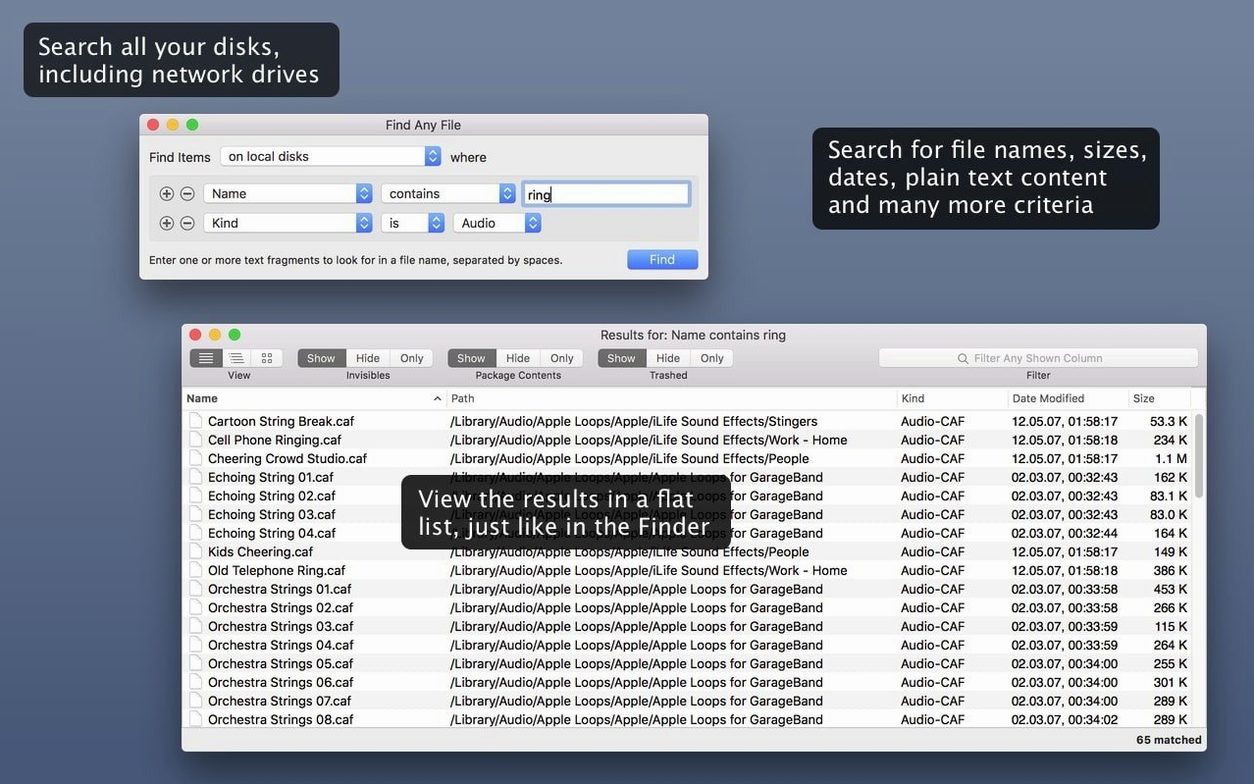
Spotlight misses files tucked inside system folders, bundles and packages. Find Any File fills that gap.
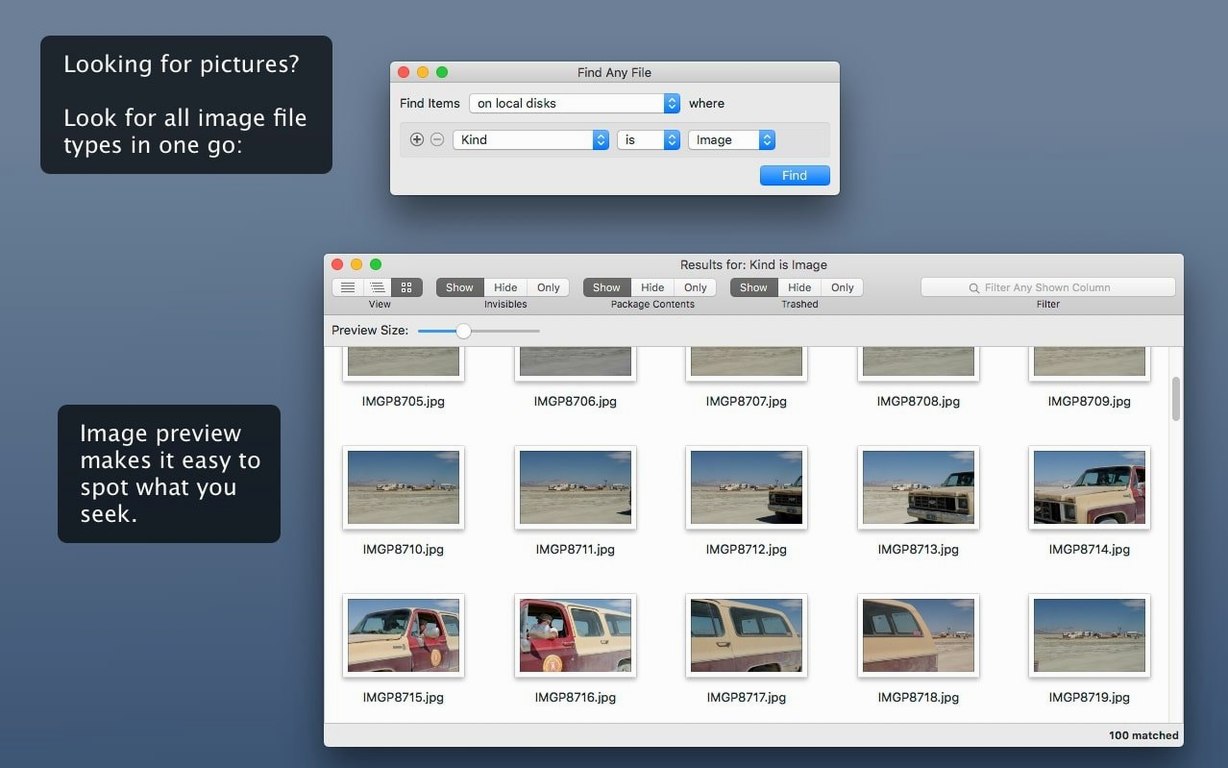
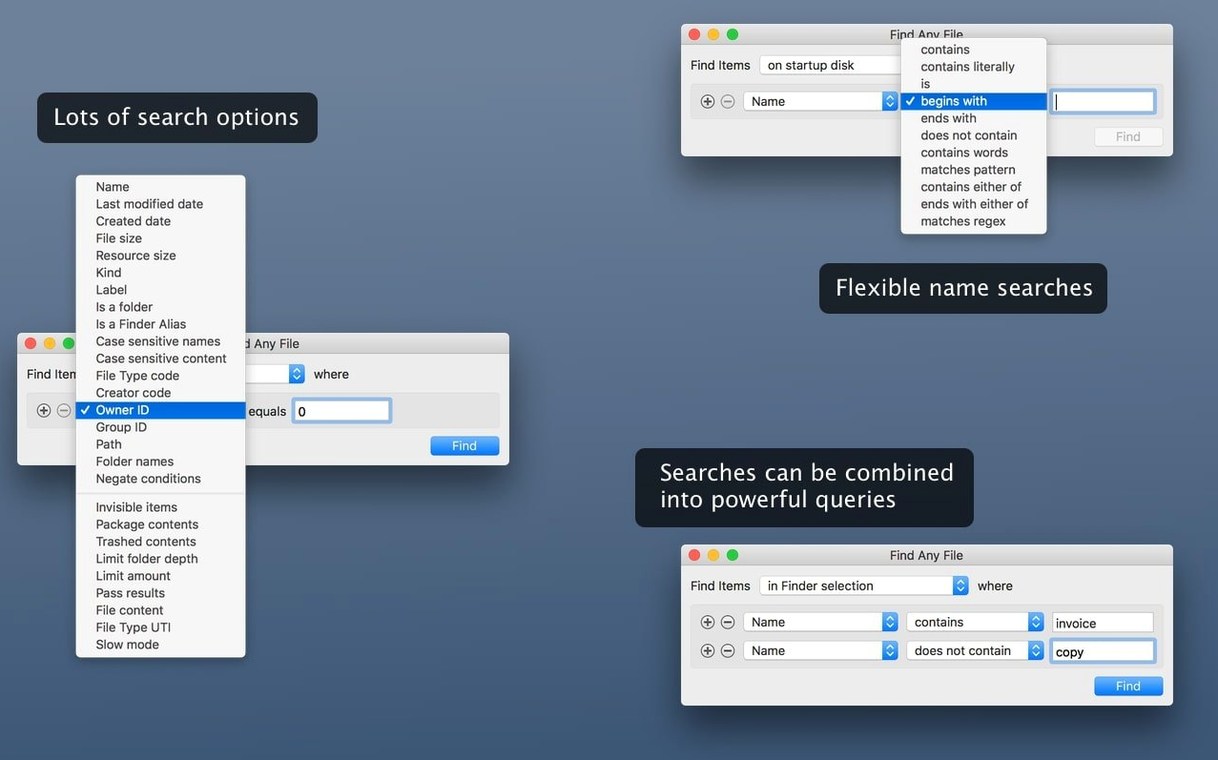
FAF vs Spotlight — A companion, not a replacement. FAF finds files by name, date, size and plain text content. Spotlight handles email, Word and PDF content better.
Bundle search — Looks inside .app bundles, .pkg installers and other packages that normally hide their contents.
System folders — Searches directories Spotlight excludes. Good for tracking down preference files, cache items and buried logs.
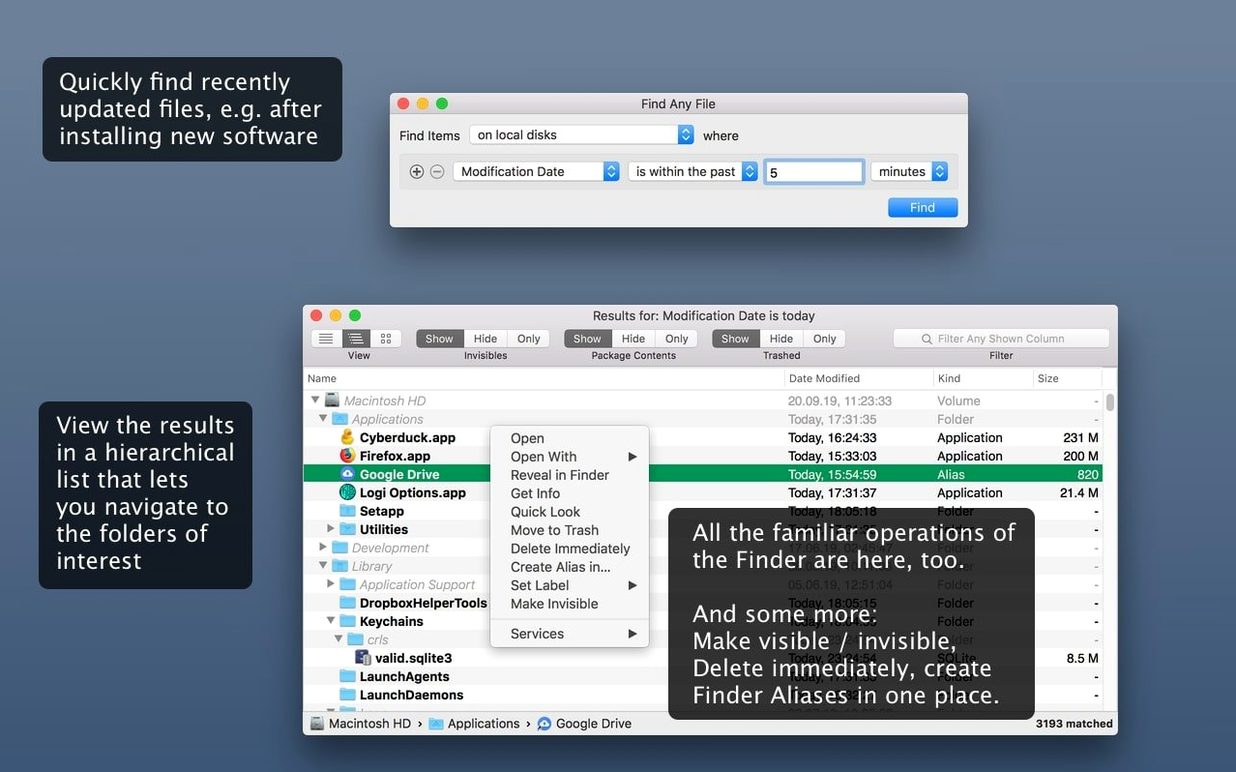
Hierarchical view — Results show the actual folder tree. You see where a file lives, not just that it exists.
Tembo — A separate tool that refines Spotlight results. People sometimes compare the two, but Tembo builds on Spotlight; FAF works independently.
First days with FAF
Give yourself ten minutes to set up before you need it in a rush. These steps make the next search faster.
- Add it to the Dock — drag the app from Applications and leave it there. You will reach for it more than you think.
- Set a default search location — open Preferences, pick a starting folder. Your home folder works for most hunts; switch to the root of the drive when you need system files.
- Widen the results window — drag the right edge out so you can read full paths without horizontal scrolling. The hierarchy view only helps if paths are visible.
- Test with a known file — search for something you can already find, like a preference file you edited last week. Note how the folder tree shows its exact location.
- Try a plain text search — pick a word you remember from a log or readme. Limit the search to a single folder first to keep it quick.
Worked example: finding leftover preference files
An app you removed six months ago still shows a launch agent warning. Spotlight cannot see inside /Library properly. Here is the FAF workflow from start to finish.
- Pick the search location. Click the folder icon next to the search field, choose Other…, then navigate to
/Libraryon your startup disk. - Set the name filter. Type the app or developer name — just the core word, not the full bundle ID. FAF matches partial strings.
- Narrow by date. Open the date dropdown. Choose Last modified and set a range that covers when you deleted the app. This weeds out current system files with similar names.
- Check the hierarchy. Results appear as a folder tree. Expand each branch to see whether files sit in
LaunchAgents,PreferencesorCaches. - Reveal and decide. Right-click any result, choose Reveal in Finder. Confirm it belongs to the old app, then delete or archive it.
Repeat the same logic for ~/Library to catch user-level leftovers. Two searches, under three minutes each.
Shortcuts most people overlook for weeks
These shortcuts sit in plain sight but most people overlook them for weeks.
- Drag a folder onto the search field. Instead of clicking through the file browser, drop any folder from Finder straight into the location area. FAF switches the search scope instantly.
- Right-click to copy paths. Select a result, right-click, pick Copy Path. Paste it into Terminal or a document without typing a single slash.
- Sort by clicking column headers. Click Name, Size or Date to reorder results. Click again to reverse. The hierarchy stays intact — only the order within each branch changes.
- Use the Comments column. Added in version 2.6, it shows Finder comments attached to files. Enable it from View → Columns if you tag important files with notes.
- Save frequent searches. The search field keeps a dropdown history. If you run the same findanyfile mac query weekly — say, hunting large log files — pick it from the list instead of rebuilding criteria.
- Limit to plain text files. When searching by content, set the file type filter to Text. It skips binaries and keeps the scan fast on deep folder trees.
- Use the Hidden column. Another 2.6 addition. Sort by it to group invisible files together, handy when you are cleaning up dotfiles or old
.DS_Storeclutter.
- AppleScript support added — automate searches from scripts.
- New columns: Comments, Trashed and Hidden.
- Comment-finding is more reliable than in previous versions.
- macOS 10.11 or later
- Intel and Apple Silicon Macs
Questions the team asks
No. FAF complements Spotlight by finding files in system folders, bundles and packages, but it does not search inside email, Word or PDF documents the way Spotlight does.
Yes. It can find files stored inside .app bundles, .pkg packages and similar containers that Spotlight normally skips.
It finds files by name, modification date, file size and plain text content. It also shows results in a hierarchical folder view.









Comments 0
Sign in or create an account to add a comment.
No comments yet. They go up after moderation.