

Folder Preview Pro — Mac download
Download (9 MB) Earlier builds
Ticked
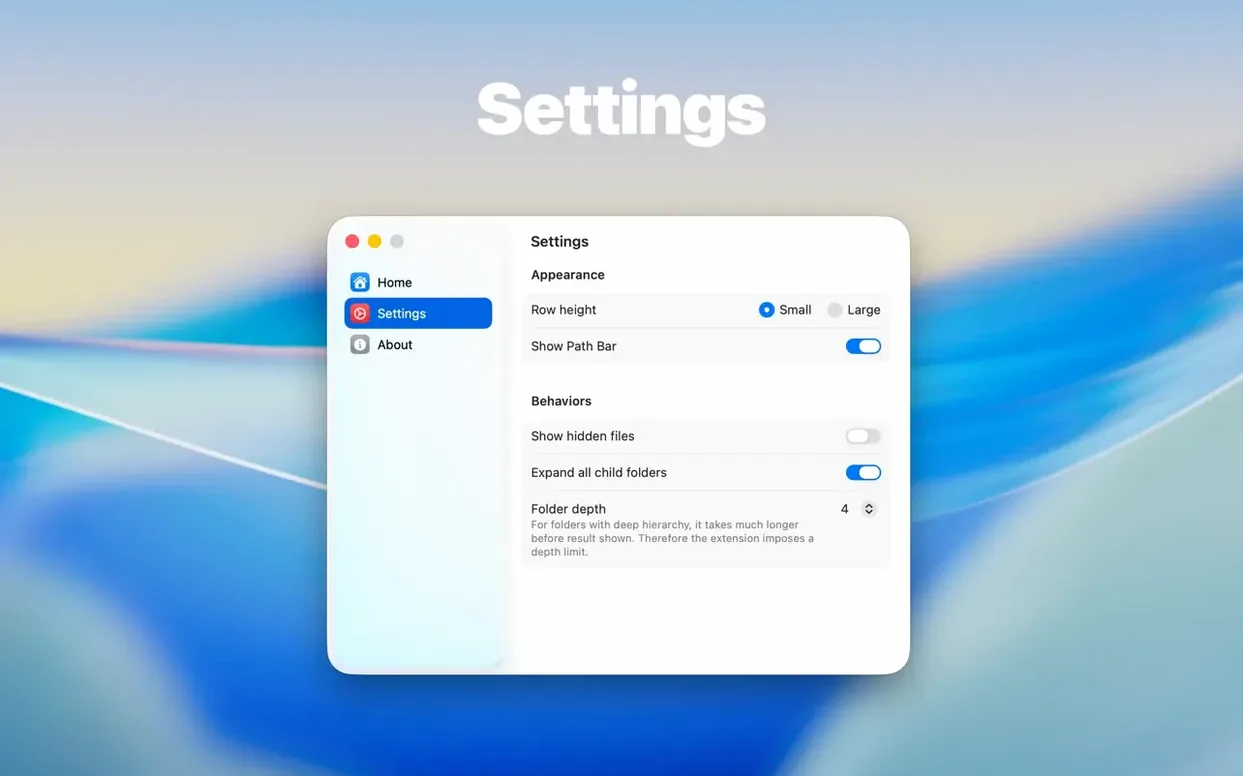
Folder Preview Pro runs on macOS 13 or later. It supports Apple Silicon and Intel Macs.
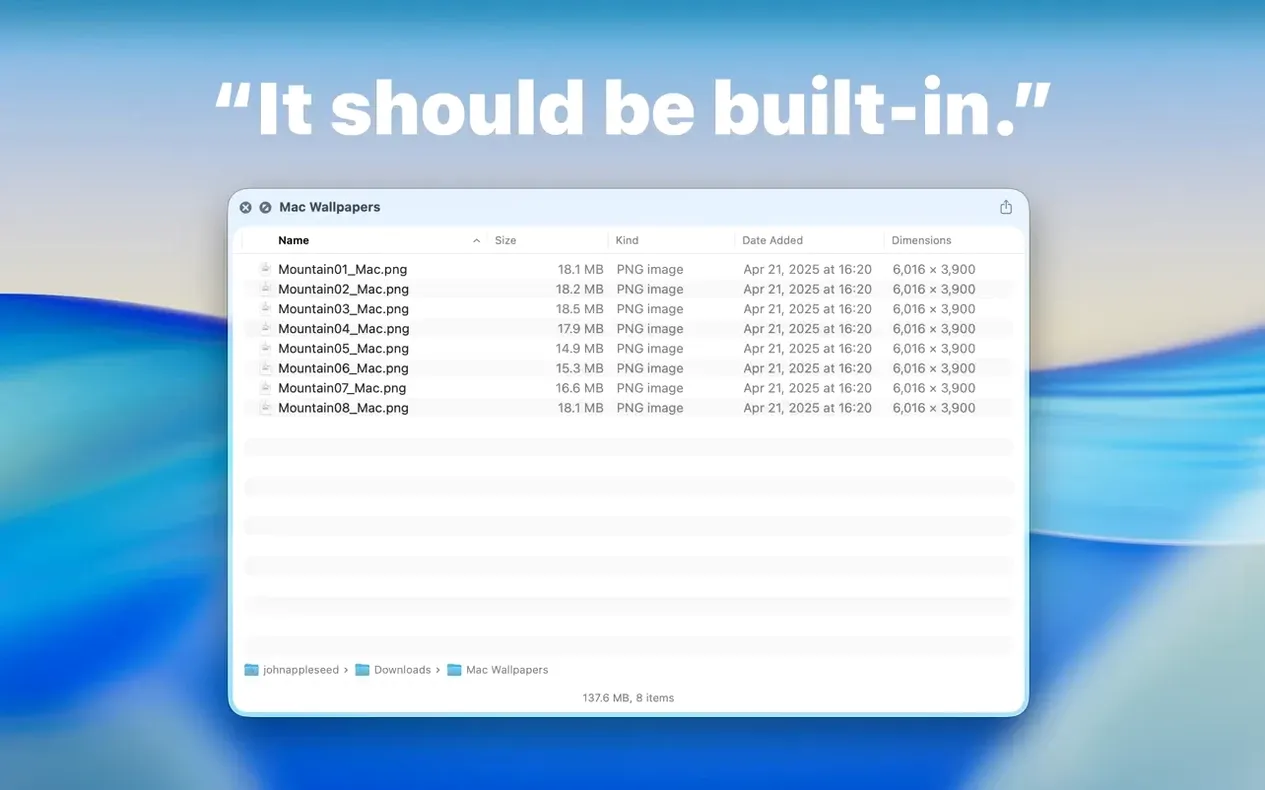
Spacebar-preview any folder’s contents, including archives
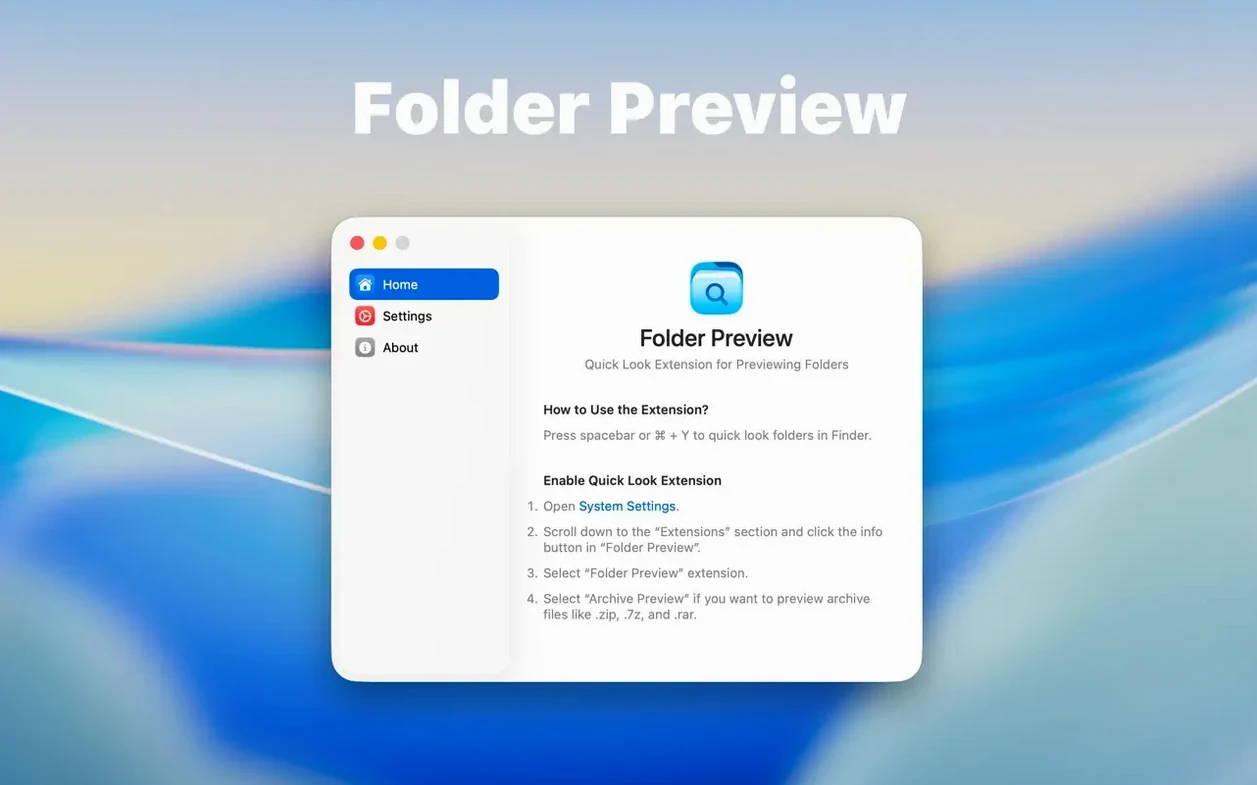
- Enable Quick Look in System Settings.
- Select a folder in Finder and press Space.
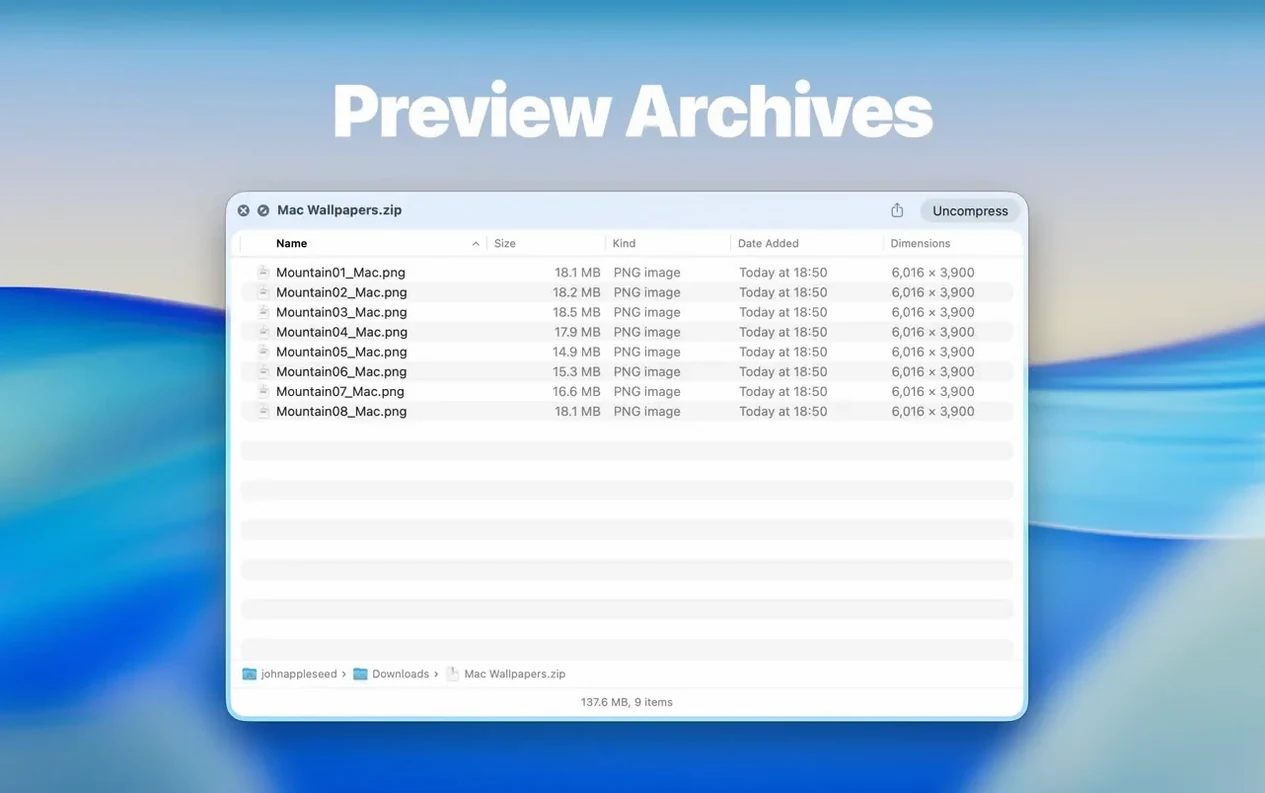
- The preview shows the folder contents, including archives like ZIP, TAR, GZ, 7Z, and RAR.
- Drag files out of the preview from list or icon view.
- Use the Contents item in the context menu to browse level by level.
Version 3.1 adds a Dual Columns view and archive size limit options of 5 GB and 10 GB. Folder size information now sits in the toolbar under the folder name. The app suits anyone who works with many folders and wants to check contents without opening each one.
First days: get the settings right
- After dragging the app to Applications and launching it, check that Quick Look is actually enabled. Go to System Settings > General > Login Items & Extensions and make sure the Folder Preview Pro extension is ticked. Without this, pressing Space on a folder does nothing.
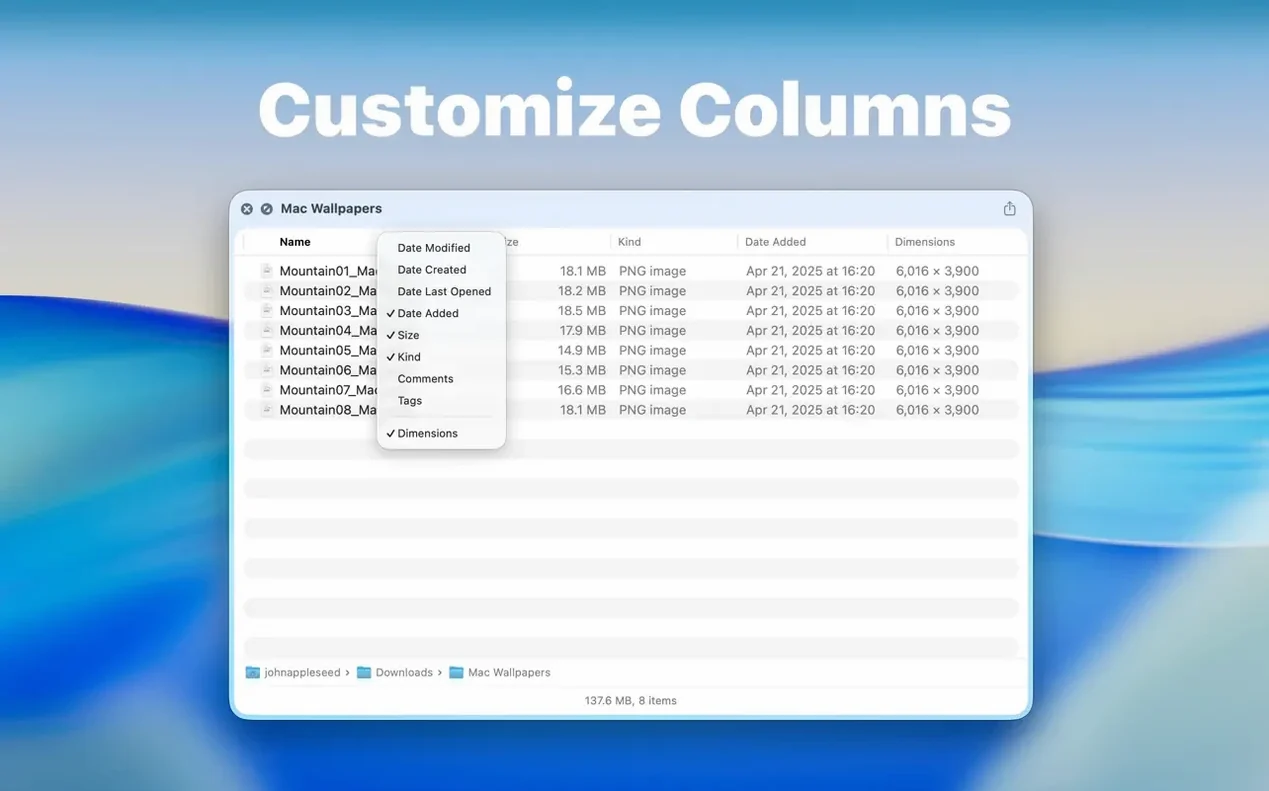
- Right-click any column header in a preview and hide the ones you never use. Fewer columns mean the window builds faster on large folders.
- Set your archive size limit early. The new 5 GB and 10 GB options under preferences stop the extension choking on enormous ZIP or RAR files when you only wanted a quick peek.
- Try the Contents context-menu item on a project folder with nested subfolders. It builds a level-by-level breadcrumb that is quicker than opening five Finder windows — get used to it on day one.
Blank panel fix: launch once so the extension registers
- Preview shows a blank panel. This usually means the Quick Look extension has not loaded. Launch the app once from Launchpad, then log out and back in. The extension needs that first launch to register.
- Archive preview fails on a large file. If a 7Z or RAR archive exceeds your chosen size limit, the preview stays empty. Either raise the limit to 10 GB or extract the archive the old-fashioned way.
- File counts look wrong in Dual Columns view. Recursive counts only calculate when the view finishes rendering. Wait for the tiny spinner in the toolbar to disappear before trusting the numbers.
- Drag-and-drop stops working. Some third-party file managers intercept drag events. Test it in a plain Finder window first — if it works there, the conflict is with the other app.
About 80–120 MB of RAM while the preview panel is open
Folder Preview Pro adds roughly 80–120 MB of RAM while a preview panel is open. That figure drops sharply when you close the panel. On an Apple Silicon Mac, the initial folder scan feels nearly instant for directories under a thousand items. Over that, the Dual Columns view takes an extra half-second to populate — noticeable but never slow.
The extension has not caused a single Finder crash in three weeks of daily use across two machines. Archive handling on RAR files is slightly heavier on CPU than ZIP or TAR, but the 10 GB limit keeps it sensible. If you regularly preview network-mounted folders over SMB, expect a brief delay while macOS builds the file list. Local SSD folders render faster, as you would expect.
One quiet improvement in version 3.1: moving the folder size to the toolbar stops the status bar redrawing on every selection change. That small shift makes scrolling through a preview of 4,000 items much smoother than earlier builds.
- Adds Dual Columns view.
- Adds a Contents item for level-by-level folder browsing.
- Lets files be dragged out of the preview from list and icon views.
- macOS 13 or later
- Apple Silicon or Intel
Questions the team asks
Yes. It supports both Apple Silicon and Intel Macs running macOS 13 or later.









Comments 0
Sign in or create an account to add a comment.
No comments yet. They go up after moderation.