

ForkLift — Mac download
Download (19 MB) Earlier builds
Ticked
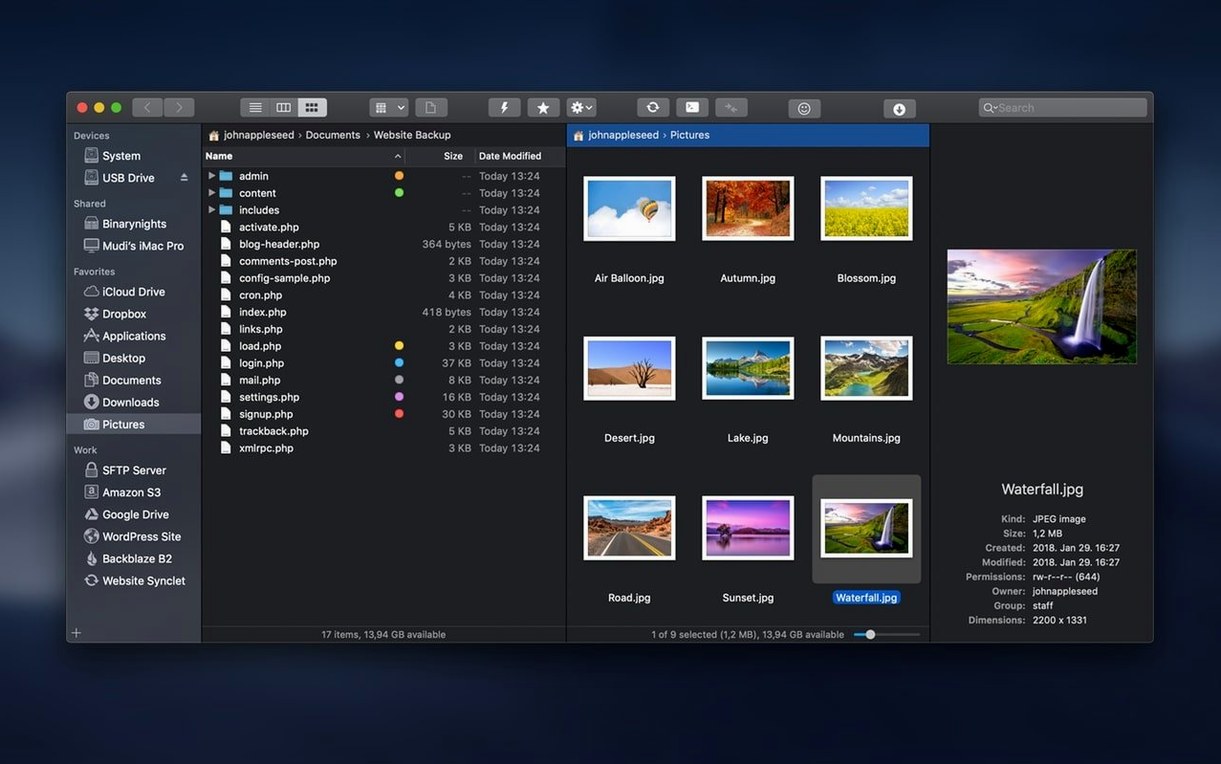
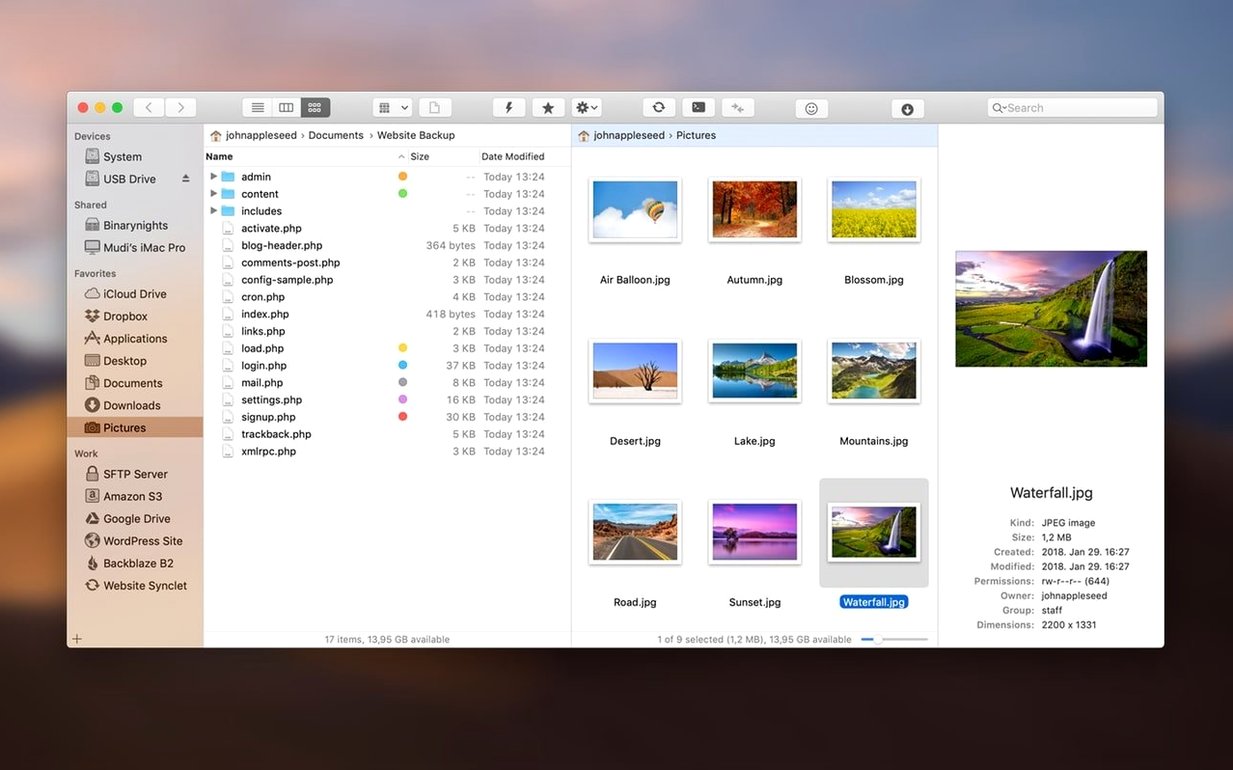
File interaction fixes on macOS 27 Golden Gate
BinaryNights smoothed out file interactions and patched two bugs that crept up on macOS 27 Golden Gate. The fixes are surgical. The feel is tighter.
A Finder you can connect
- Open two panes. Local files on the left. A remote server on the right.
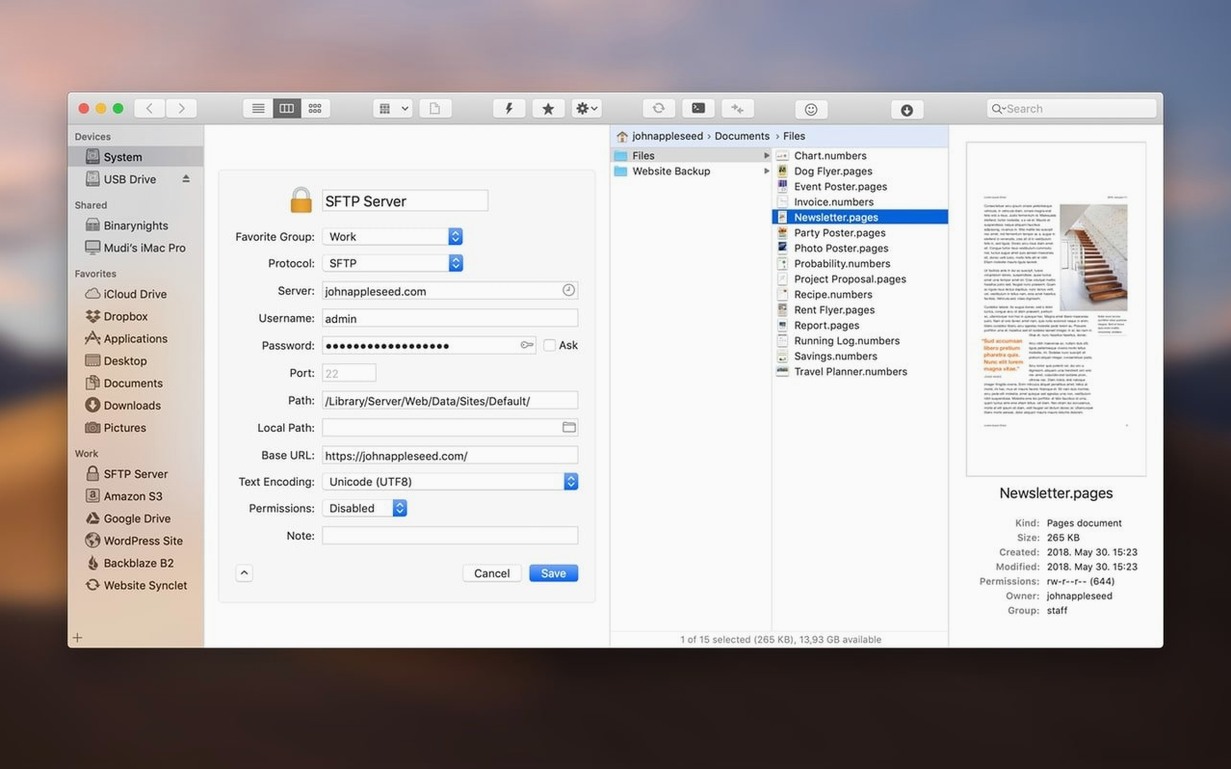
- Connect via SFTP, S3, WebDAV, SMB, AFP, or NFS. Add multiple servers at once.
- Edit a text file directly on the remote volume. No download‑edit‑upload dance.
- Compare a local folder against its remote twin. Changed files highlight instantly.
- Preview a PDF, photo, or document with Quick Look, right inside the pane.
ForkLift sits next to your existing tools. It does not replace the Finder so much as give it a second lane—one that reaches servers just as easily as it reaches your Desktop.
Keepalive setting prevents SFTP connection drops
- Connection drops on SFTP. Check the server’s keepalive interval. In ForkLift, go to Preferences → Advanced and enable Send keepalive. Set it to 30 seconds. Most servers respond.
- Remote editing opens the wrong app. ForkLift uses the default macOS handler. Change it in Finder: right‑click a file, Get Info, pick your editor, hit Change All.
- Dual‑pane layout resets after restart. Save your workspace. Window → Save Workspace locks the layout and open connections. Restore it from the same menu.
- Preview pane stays blank. Quick Look relies on system plug‑ins. Install
qlcolorcodeorQLStephenfor unsupported types. Restart ForkLift after adding them. - SMB shares won’t mount. macOS 27 Golden Gate tightened SMB signing. In ForkLift, prefix the path with
smb://and tick Force SMB2 in the connection dialogue.
Sync a local project to an S3 bucket, step by step
- Open ForkLift. Left pane: navigate to
~/Projects/site‑build. - Right pane: hit Connect, choose Amazon S3, paste your access key and secret. Name the connection “staging”.
- Navigate into the target bucket on the right pane.
- Press ⌘⇧S to open the sync tool.
- Set Direction to Left to Right. Tick Delete orphaned files if you want a mirror. Untick it for additive uploads.
- Click Analyse. ForkLift scans both sides and lists what will change.
- Review the list. Untick any file you want to keep on the server.
- Click Sync. The pane shows progress per file. Errors get logged to a sheet you can copy.
After the first sync, save the workspace. Next deployment is two clicks.
Import server connections from Transmit or Cyberduck
Does ForkLift need SIP disabled?
For most functions, no. The disk image includes a Gatekeeper‑friendly launcher. If the app requires full system access for a specific tool—like opening Terminal from a remote pane—you may need to adjust SIP, but the core file manager and transfer engine run without it.
Reads XML and JSON bookmark files from other clients
ForkLift imports favourites from Transmit and Cyberduck on first launch. For other clients, export your connections as a generic bookmark file. ForkLift reads XML and JSON bookmark formats. The import dialogue appears in File → Import.
Can I try it alongside the Finder without committing?
Yes. ForkLift does not override the default file handler. Drag and drop still goes through Finder. You can pin the app to one Space and use it only for remote work, search, or batch renames. It sits in your dock as a separate tool, not a shell replacement.
ForkLift 4.7.7 ships a fresh round of maintenance updates. Details are in the developer’s release notes.
- macOS 12 or later
- Intel 64-bit
Questions the team asks
Yes. You can open and edit text files directly on FTP, SFTP, S3, and other supported remote volumes without copying them locally first.
ForkLift works with FTP, SFTP, Amazon S3, AFP, WebDAV, SMB, and NFS volumes, often with multiple servers connected at the same time.









Comments 0
Sign in or create an account to add a comment.
No comments yet. They go up after moderation.