

Gemini — Mac download
Download (47 MB) Earlier builds
Ticked
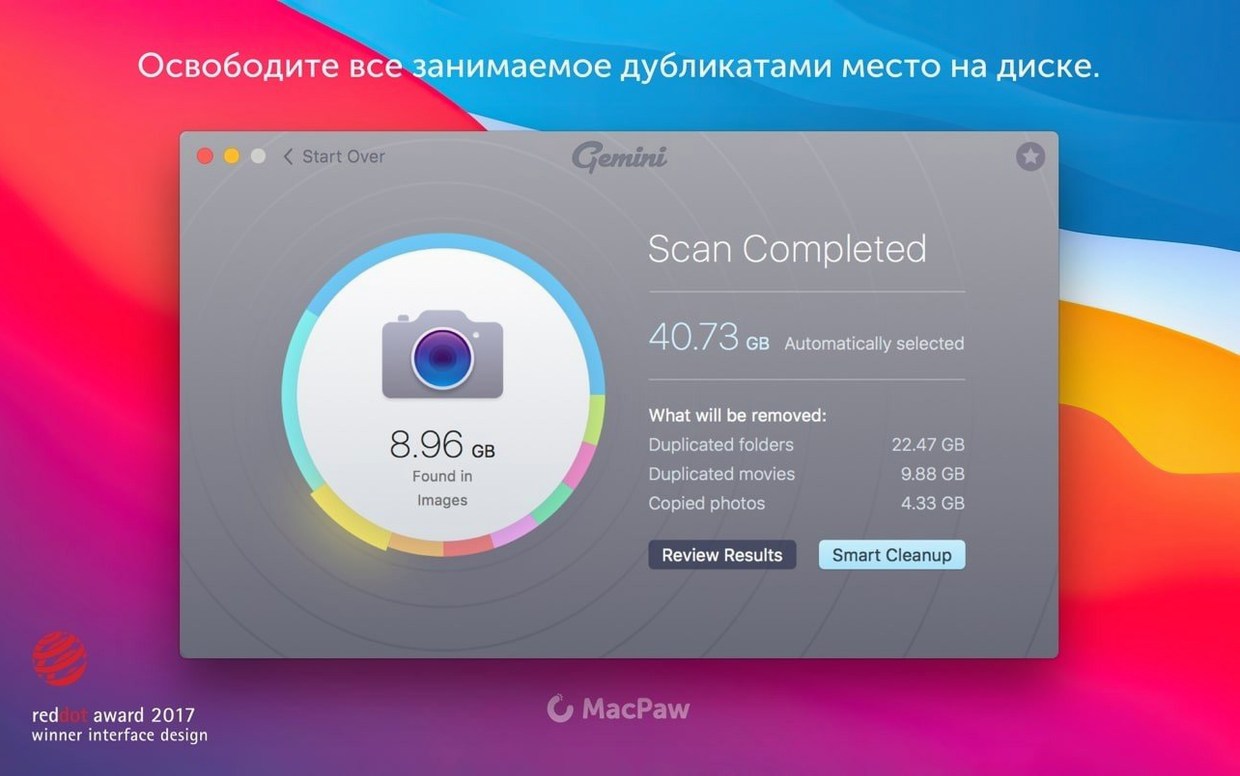
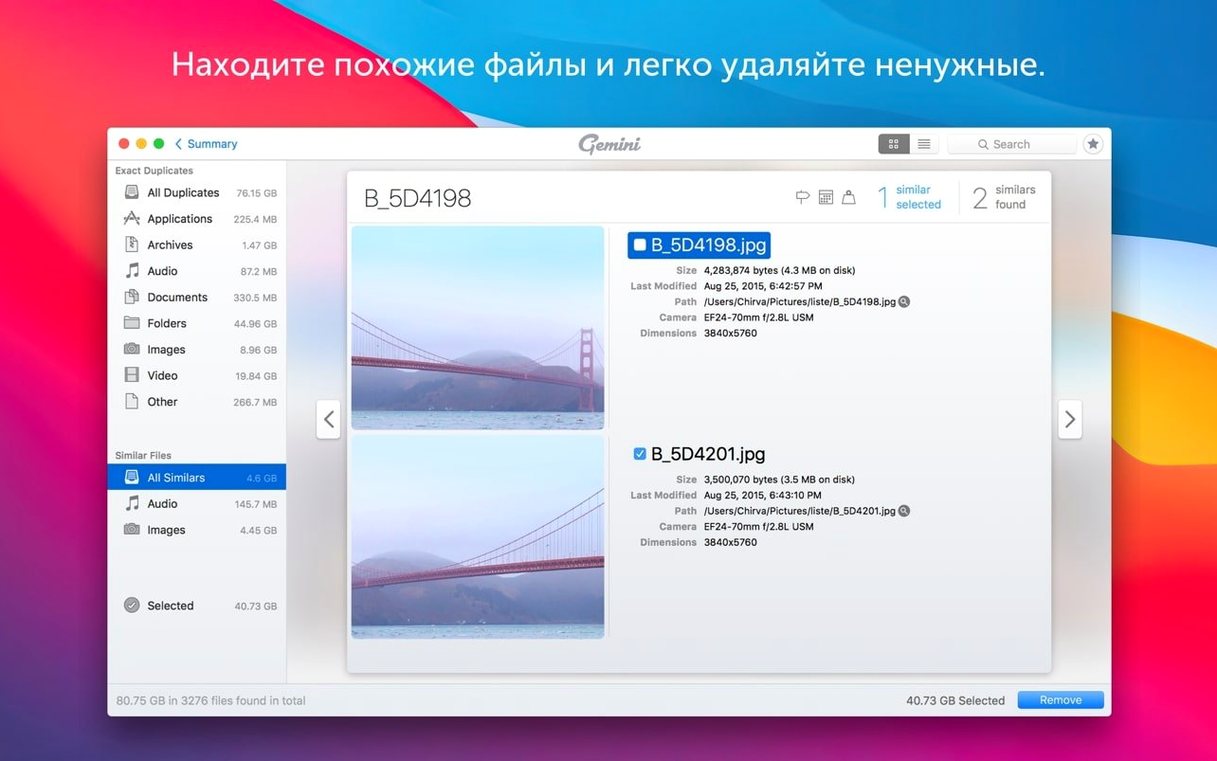
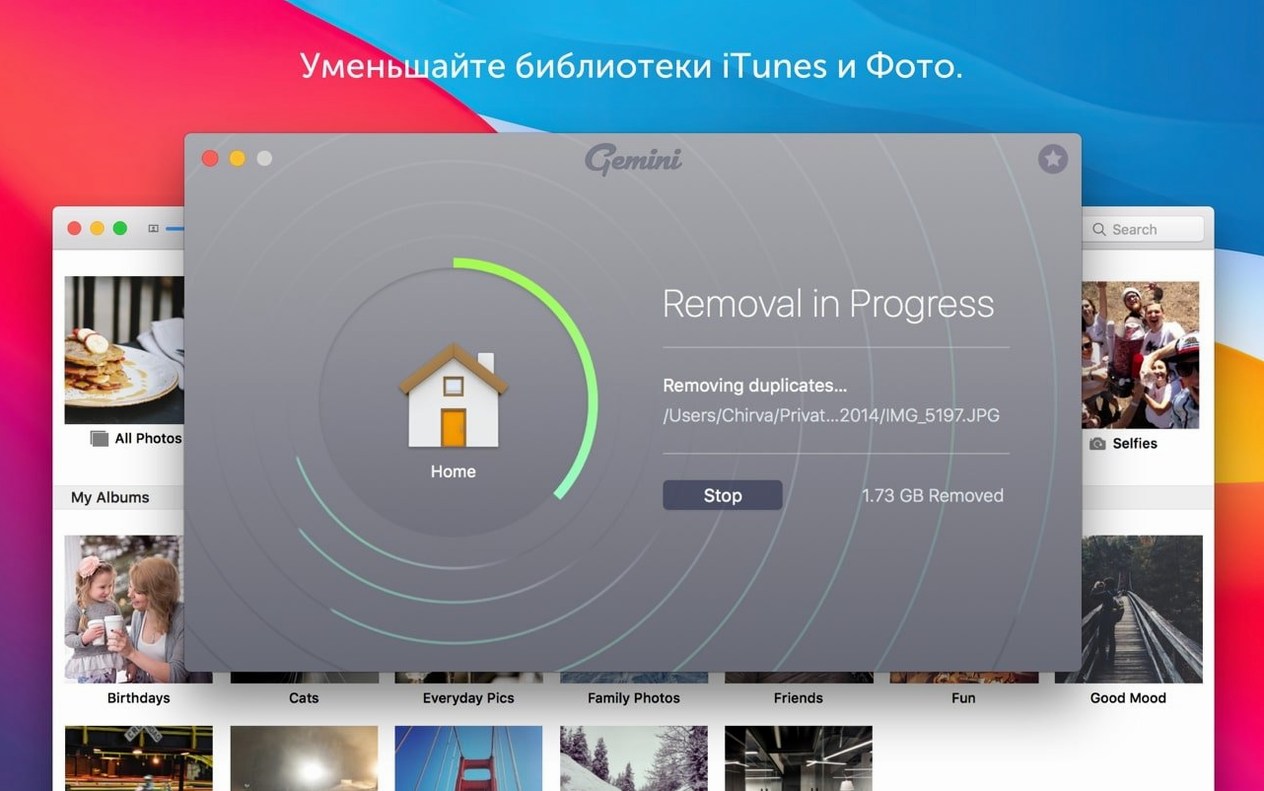
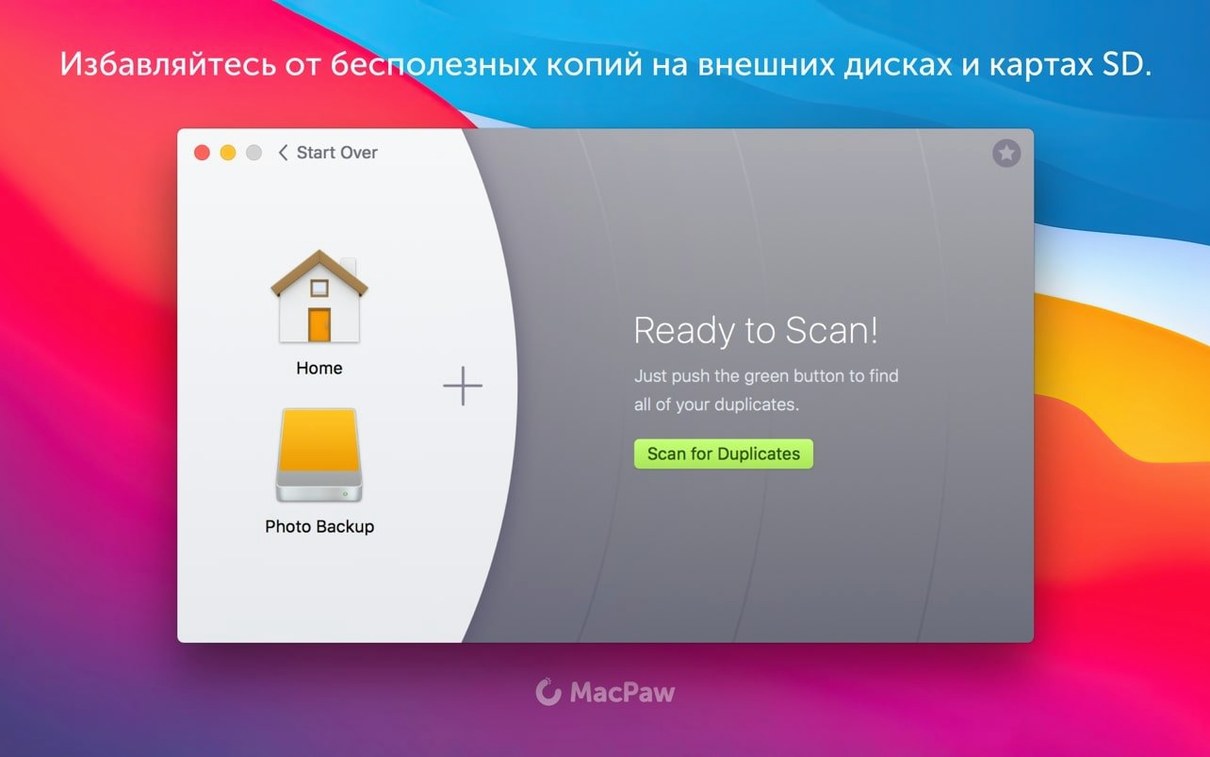
Gemini gets used by people who have already tried the obvious and still have duplicates hiding in old folders, remote corners of the hard drive, or inside Photos and iTunes libraries. They want the deeper tools — the ones that go beyond a quick scan.
- Multi-source scanning. Point it at Photos, iTunes, the main drive, or a forgotten archive folder. It searches each source without merging them into one messy result.
- Near-identical file groups. Files that look alike but are not byte-for-byte identical — different resolutions, slight edits — still get grouped. You judge what stays.
- Learned deletion patterns. After a few sessions, Gemini reuses your earlier choices. If you always keep the newest version of a file, it starts suggesting that automatically.
- Recently Deleted area. Removed files sit in a recoverable holding space inside the app. You can restore them later, without digging through the Trash.
- Library-level awareness. When scanning Photos or iTunes, it understands the library structure. Duplicates inside those libraries are found and can be removed without breaking the database.
- Selection and grouping controls. Select duplicates manually, group them by type, and move them to a chosen destination — not just delete. Useful when you want to archive rather than erase.
These tools suit someone who wants to set the rules, not just press a single clean-up button. The app leans on Intel Macs running High Sierra or later, and the interface switches between twelve languages for teams spread across regions.
Duplicates found inside Photos and one messy project folder
Say it is Thursday afternoon. You notice the Mac feels sluggish. Downloads folder: a mess. Photos: years of imports. You open Gemini.
- Pick a source. Not the whole drive — just the Photos library and a project folder called
Client_Assets_2023. Click scan. - Wait about four minutes. The progress bar fills, then stops. Results appear in groups: exact duplicates, then a section labelled Similar — images cropped differently, video clips with near-identical footage.
- Start with the exact matches. Gemini has already pre-selected the smaller file sizes. You skim the list, deselect three files you want to keep, then click Remove.
- Move to the similar files. A grid shows two versions of the same photo — one brightened, one original. You tag the brightened one as Keep, the rest go. Rinse and repeat for twelve groups.
- Open the Recently Deleted area. Skim it once. Nothing you regret. Close the app.
Total time: under ten minutes. Space reclaimed: 14 GB. No Finder hunt. No manual compare.
Press space bar for a full preview right in the results list
- Space bar preview. Highlight any file in the results list and press the space bar. Quick Look opens. You see the full image or video without leaving Gemini. Works on documents too.
- Sort by folder path. Right-click a column header and enable Path. Now you can group duplicates by where they live — useful when you want to clean one directory but leave another untouched.
- Drag-to-select in grid view. In the similar-files grid, click and drag across several thumbnails to select them at once. No need to tick each box individually.
- Re-scan a single folder. Hold the Option key while clicking a source button. Gemini rescans only that source, not the whole list. Saves time when you have added files since the last pass.
- Undo from the menu. Deleted a file too quickly? Press Cmd-Z. If the file is still in the Recently Deleted area, it pops right back to its original location.
Snags and how to sort them out
Scan hangs on a large library
A Photos library with 60,000 items can take a while. If the progress bar stalls, do not force-quit. Give it a few minutes — Gemini is comparing file hashes and thumbnails, not just names. If it truly freezes, restart the app and scan smaller chunks: one album at a time, or a single year.
Gemini misses a duplicate you know is there
Check the scan settings. By default, Gemini ignores files under 10 KB and system folders. If the missing duplicate is a tiny text file or sits inside a hidden directory, add that folder manually as a custom source. Also check that the file type is not excluded — you can adjust file-size and type filters in preferences.
iTunes duplicates reappear after removal
This happens when the iTunes library database still references the deleted files. After a Gemini clean, open Music (or iTunes on older macOS), choose File > Library > Organise Library, and tick Consolidate files. That rebuilds the index. Run Gemini again — the ghost duplicates should be gone. Users searching for a Gemini 2 crack or Gemini torrent will find that the TNT release handles this library awareness smoothly.
Recently Deleted area fills up and you want it cleared
Gemini keeps removed files until you empty the area manually. Open the Recently Deleted tab, review the list once more, then click Empty. Files go to the system Trash, not immediate oblivion — you still have one last safety net. If you grabbed a Gemini 2 TNT build, this feature works exactly the same as in the standard MacPaw release.
- macOS 10.13 High Sierra or later
- Intel 64-bit processor









Comments 0
Sign in or create an account to add a comment.
No comments yet. They go up after moderation.