

Haptyk — Mac download
Download (18 MB) Earlier builds
Ticked
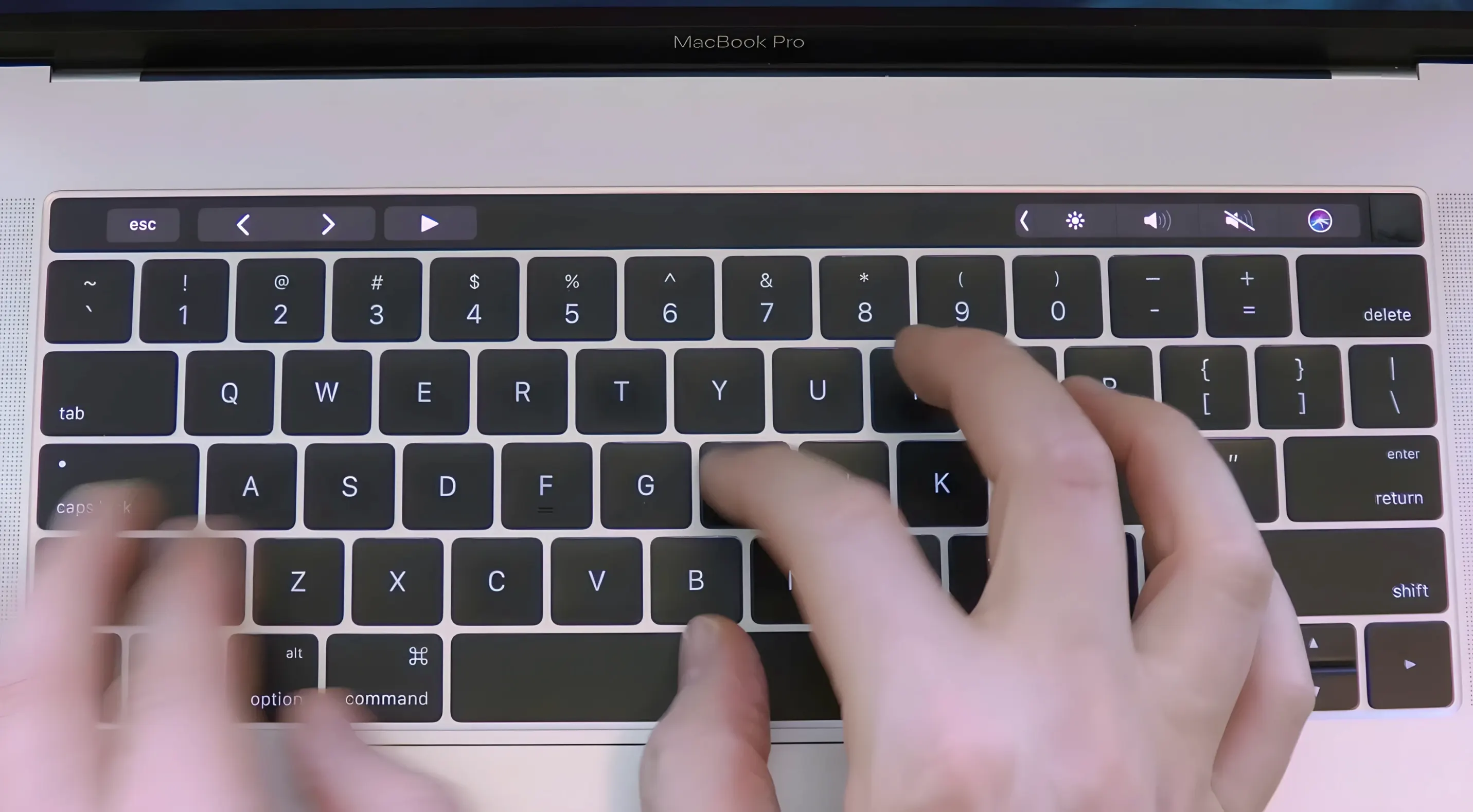
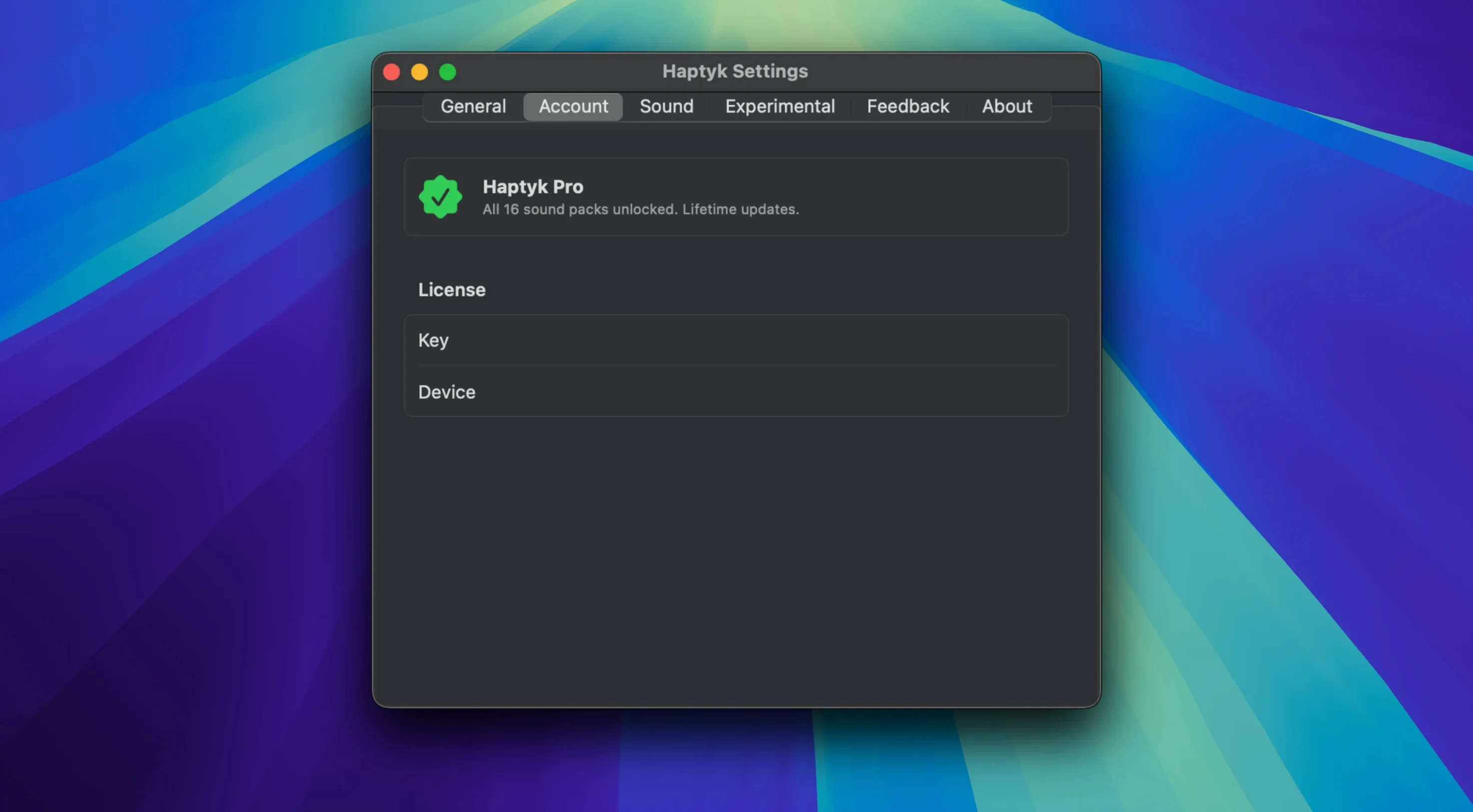
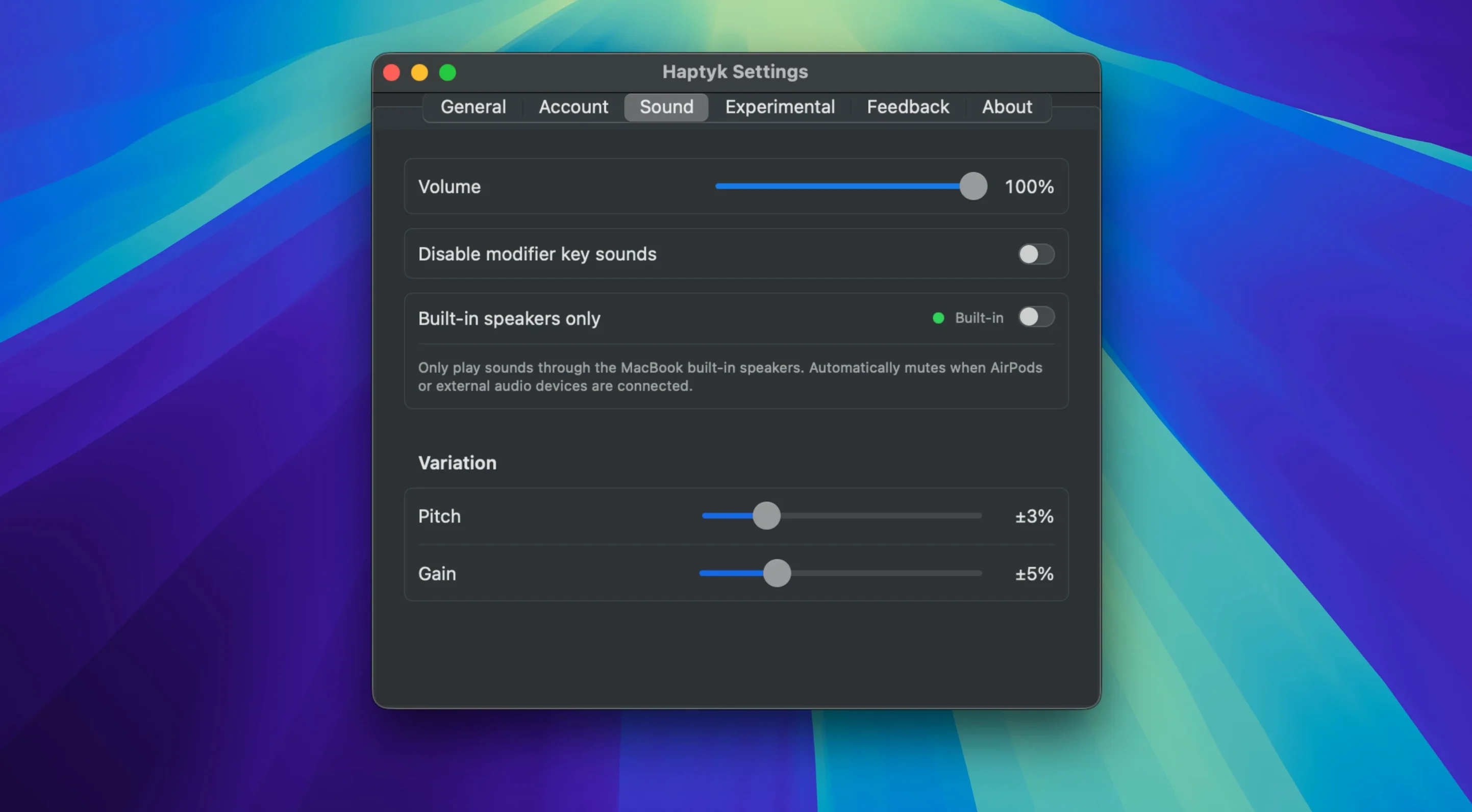
Haptyk runs on recent MacBooks. You need an Apple Silicon model with an M2 Pro chip or newer, and macOS 13 Ventura or later. The M1 MacBook Air and 13-inch M1 MacBook Pro lack the required sensor, so they are not supported. The M2 MacBook Air and 13-inch M2 MacBook Pro work fine.
Tactile audio feedback that reacts to key pressure
- Adding subtle mechanical or tactile sounds to the built-in keyboard
- Getting real-time audio feedback that matches how hard you press
- Making a flat laptop keyboard feel more responsive through sound
Limited to M2 Pro MacBooks and the built-in keyboard
- Requires an Apple Silicon MacBook with M2 Pro or later; older models are not supported
- Works only with the built-in keyboard, not external ones
- Needs macOS 13 or newer
No sound? Check the Accessibility permission first
Most issues trace back to two things: unsupported hardware or macOS permissions. Check these first.
- No sound at all. Open System Settings, then Privacy & Security, then Accessibility. Haptyk needs to be listed and toggled on. Without this permission it cannot read keypress force, so no sounds play.
- App launches but sits silent on an M1 MacBook Air or 13-inch M1 MacBook Pro. These models lack the accelerometer the app relies on. There is no workaround — the sensor is physically absent.
- Sound cuts out when another audio app takes focus. Some DAWs and video editors grab exclusive audio control. Quit the competing app, relaunch Haptyk, and test again.
- Volume feels inconsistent. Keypress force detection depends on how evenly you type and where your MacBook sits. A soft surface like a lap or cushion dampens vibration. Move the machine to a solid desk.
- App crashes on launch. Confirm macOS is 13 Ventura or newer. If the version is older, the crash is expected — the frameworks it uses are not present.
Idles at 0.1% CPU and 35 MB of RAM
Haptyk is lightweight in daily use. On a 14-inch MacBook Pro with an M2 Pro chip, it idles at around 0.1% CPU and roughly 35 MB of RAM. That figure stays flat even during fast typing sessions. There is no measurable battery drain from the accelerometer polling — the sensor runs at low frequency regardless.
Stability holds up well across long sessions. Leaving the app active for a full workday does not cause memory creep or gradual slowdown. It plays nicely with common writing tools, browsers, and IDEs. Audio latency is imperceptible; the sound fires in sync with each keystroke. If you run a haptyk mac setup alongside resource-heavy apps like Xcode or Final Cut Pro, you will not notice a performance hit.
The one area worth watching is multi-audio-device setups. Switching output devices while Haptyk is running occasionally mutes it until you restart the app. A quick quit and relaunch sorts it.
Assuming any Apple Silicon chip qualifies
- Downloading haptyk on an unsupported MacBook. People see “Apple Silicon required” and assume any M-series chip qualifies. It does not. M1 and base M2 models lack the sensor. Check the list on the developer’s site before you grab the haptyk download.
- Expecting external keyboard support. The app works only with the built-in keyboard. Plugging in a mechanical board and hoping for haptic-style audio through Haptyk leads nowhere.
- Skipping the Accessibility permission step. macOS prompts for it on first launch, but some users dismiss the dialog out of habit. Without it, the app stays silent and the cause is not obvious.
- Running haptyk for mac on a version of macOS older than Ventura. The disk image mounts and the app copies across fine, but it will not launch. The error message is generic, which confuses new users.
- Placing the MacBook on a pillow or blanket. Soft surfaces absorb the tiny vibrations the accelerometer reads. The result is weaker, less reliable sound. A hard, flat surface fixes keypress detection instantly.
- Searching for a haptyk free version with extra features. The app does one thing and ships as a single build. There are no hidden panels, no in-app purchases, and no alternate editions.
- macOS 13 or later
- Apple Silicon or Intel 64-bit
Questions the team asks
It works on Apple Silicon MacBooks with an M2 Pro chip or later. The M1 MacBook Air and 13-inch M1 MacBook Pro are explicitly listed as unsupported on the developer's site.
No, it only adds sound feedback to the built-in keyboard of a supported MacBook.





Comments 0
Sign in or create an account to add a comment.
No comments yet. They go up after moderation.