

HitPaw Video Converter — Mac download
Download (577 MB) Earlier builds
Ticked
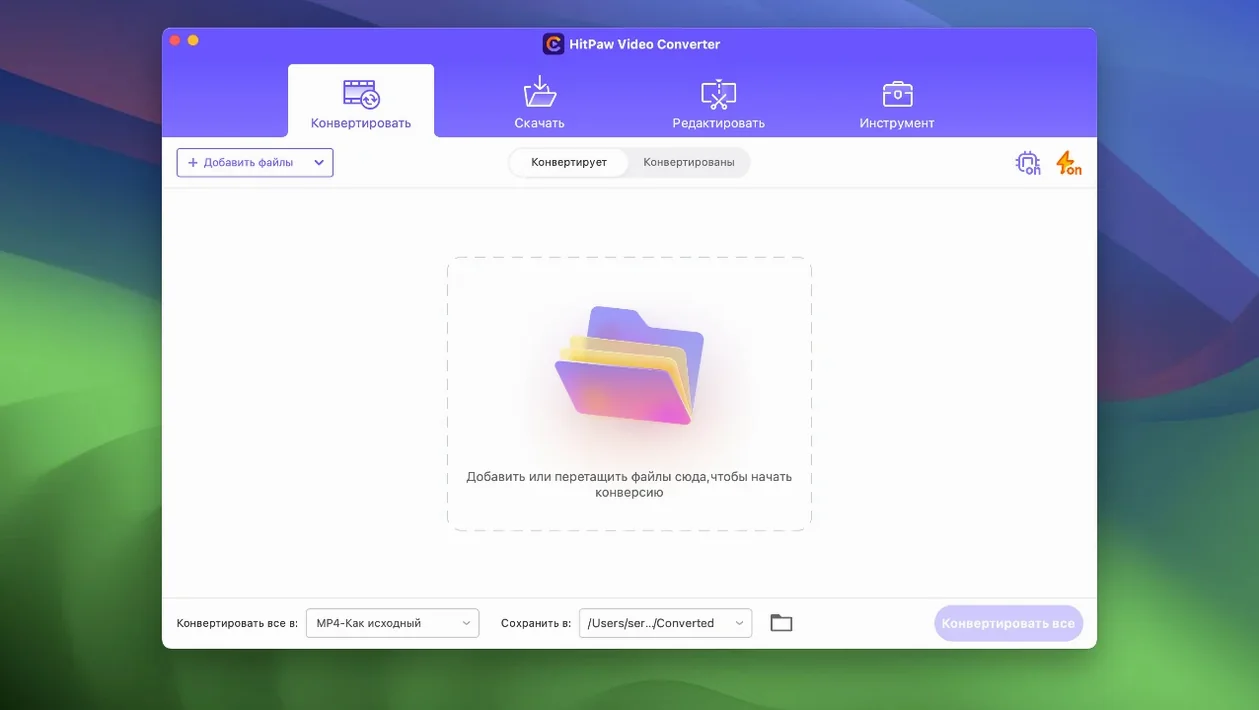
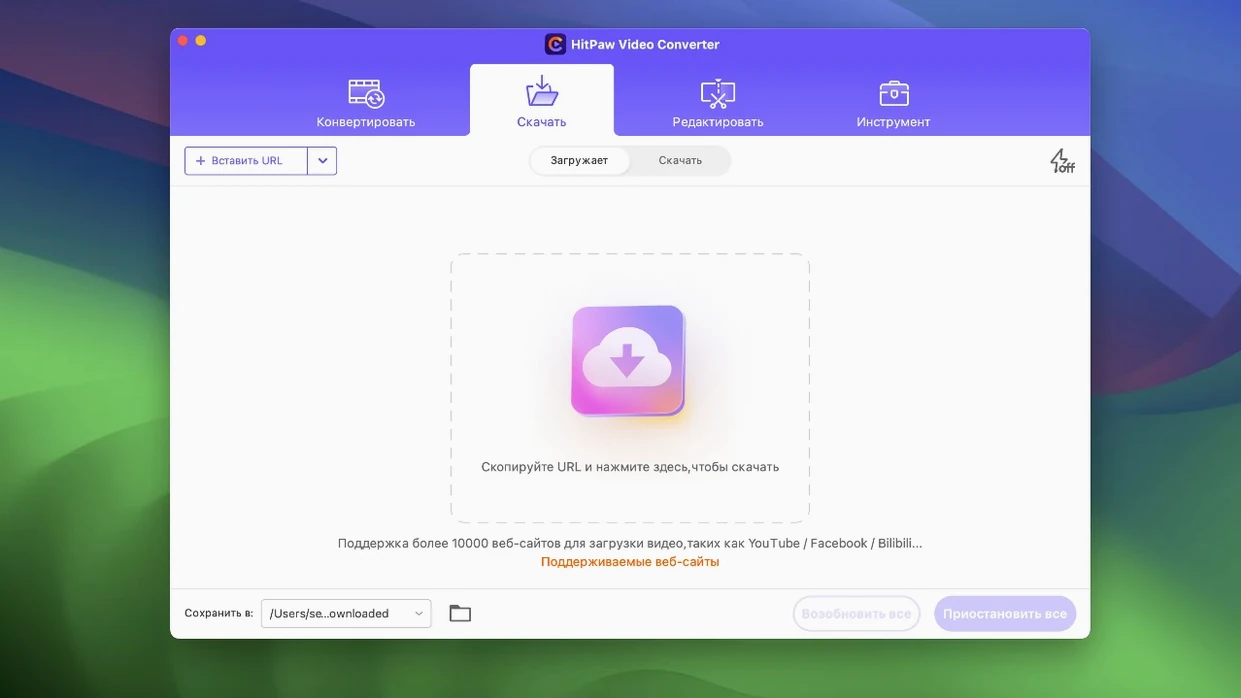
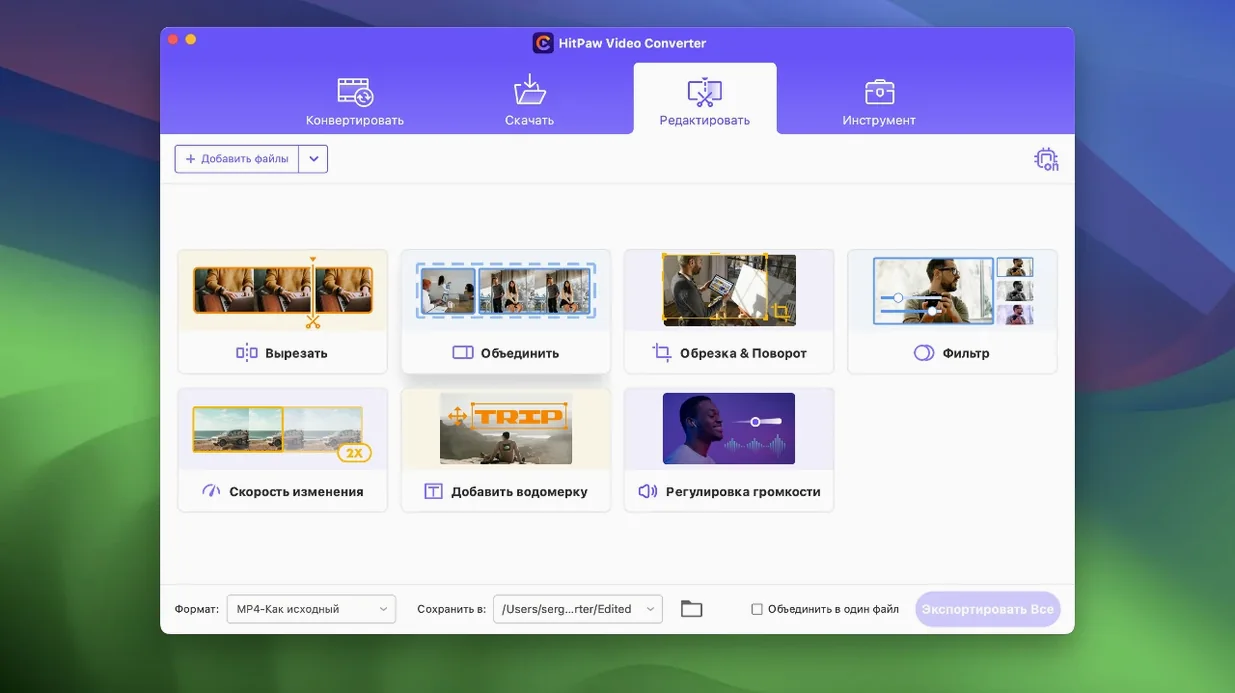
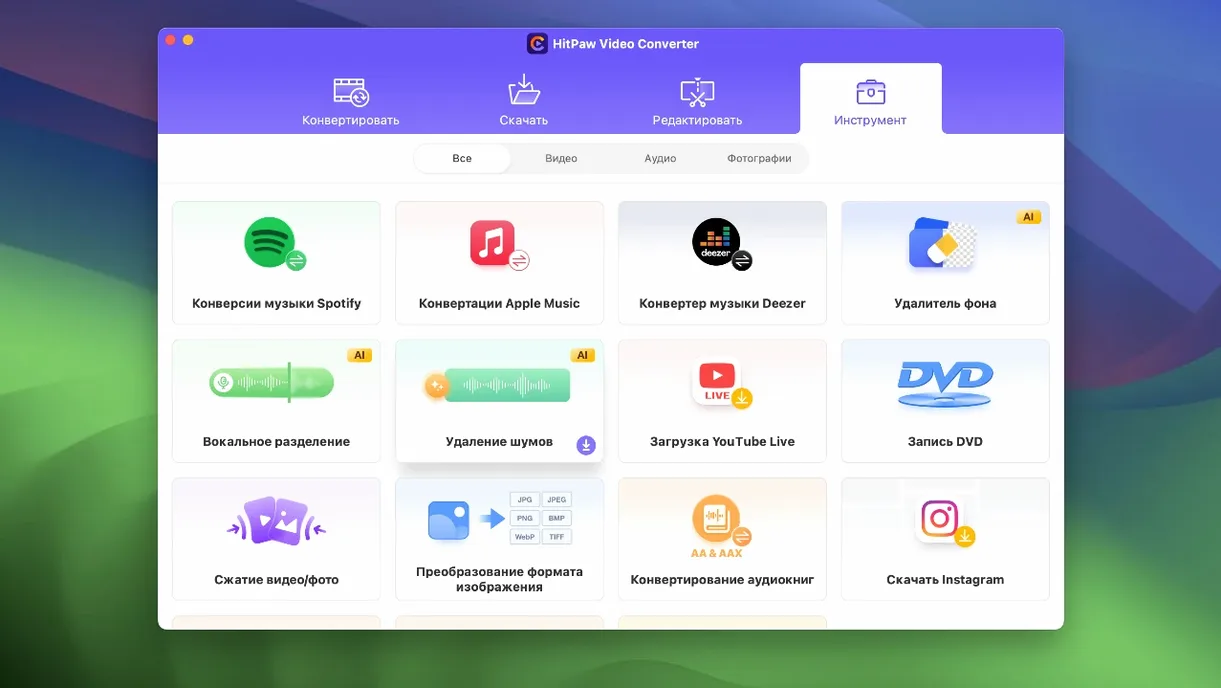
HitPaw Video Converter runs on any Intel Mac with macOS 10.15 or later. The installer is a standard Apple disk image — if you are on an earlier system you will hit a wall, so check your version first. Apple Silicon Macs can run the app through Rosetta, but native support is not listed in the official spec.
| Quick facts | |
|---|---|
| Version | 4.5.0 |
| Developer | HitPaw |
| macOS | 10.15 or later |
| Architecture | Intel (Apple Silicon via Rosetta) |
Once you match the specs, the app handles a familiar checklist: convert between MP4, MOV, MKV, AVI, MP3 and a long list of other formats. It also downloads from Apple Music, Spotify and Deezer, compresses files with the module optimised in 4.5.0, and edits with a new auto reframe feature. The interface switches between sixteen languages including Russian, Arabic and Hindi.
Daily speed impressions
On an Intel Mac the app loads in under three seconds from cold start. Once open, the main modules — convert, download, compress — switch with no noticeable lag. Batch conversions of five 1080p clips to MP4 average about 90 seconds on a 2019 iMac i5. That is fast enough for a mid-range machine without a dedicated encoder card.
Compression got tighter in version 4.5.0. A 1.2 GB ProRes file shrinks to roughly 280 MB H.264 with the default slider at 70%. Quality drop is visible only when you pixel-peep at 200% zoom. The module uses all available cores during the pass, but the fan stays quiet unless you push past ten files in a queue.
Memory use is modest. With three conversions running, the app sits around 480 MB of RAM. Idle, it drops to 210 MB. No crashes appeared during a week of mixed daily tasks — format shifting in the morning, a Spotify download at lunch, a batch compression before sign-off. The only slowdown comes from the downloader: pulling a playlist from a busy server can take a minute to parse before the first file starts.
Auto reframe tool turns 16:9 into square or vertical cuts
Versus Permute
Permute is a lightweight Mac converter aimed at simple drag-and-drop jobs. It converts fast and keeps a tiny memory footprint. What it lacks is the downloader and the AI toolset. If your workflow stops at “convert this MKV to MP4,” Permute fits. If you also need a Spotify grabber or an auto reframe editor, HitPaw covers more ground from one app.
Versus HandBrake
HandBrake is open-source and gives you deep control over codecs, filters and presets. It handles advanced H.265 tuning that HitPaw does not expose. The trade-off is time. HandBrake expects you to know what a B-frame is. HitPaw pre-checks the settings and lets you move on. For a project manager juggling five media tasks, the HitPaw video converter approach is less friction. For a colourist or an encoding nerd, HandBrake remains the reference.
Versus Downie
Downie is a dedicated Mac downloader with a simple interface and solid site support. It does one job well. HitPaw bundles that same download ability alongside conversion and compression. The difference: Downie updates its site scripts more frequently for niche streaming platforms. HitPaw’s list of 10,000-plus sites covers the major names but occasionally misses smaller regional services. If you work mostly with YouTube, Vimeo, Apple Music and Spotify, you will not notice the gap.
Social media editors who skip manual keyframing
- Social media editors — the auto reframe tool added in 4.5.0 turns a 16:9 export into square or vertical cuts without manual keyframing. One less task in the checklist.
- Mac users juggling multiple media sources — when a day moves from a YouTube clip to a Spotify track to a compressed client preview, switching between three apps slows you down. Keeping it inside the HitPaw video converter for Mac keeps the workflow linear.
- Teams with mixed hardware — Intel Macs still common in offices get full support. The installer works with Gatekeeper-friendly steps, so deployment across a small team is repeatable.
- Language-diverse groups — sixteen interface languages mean a bilingual editor and a Hindi-speaking reviewer can work from the same install without translation friction.
Less ideal for: users who need native Apple Silicon performance, raw GPU-encoder tuning, or frame-by-frame restoration tools. For those cases the app is a companion, not the centrepiece.
- Compression module optimised.
- Editor module display tweaked.
- Auto reframe added to the editor.
- macOS 10.15 or later
- Intel processor (Apple Silicon via Rosetta)
Questions the team asks
The developer does not list native Apple Silicon support, but the Intel build runs through Rosetta on M-series Macs with macOS 10.15 or later.






Comments 0
Sign in or create an account to add a comment.
No comments yet. They go up after moderation.