

HitPaw Univd — Mac download
Ticked
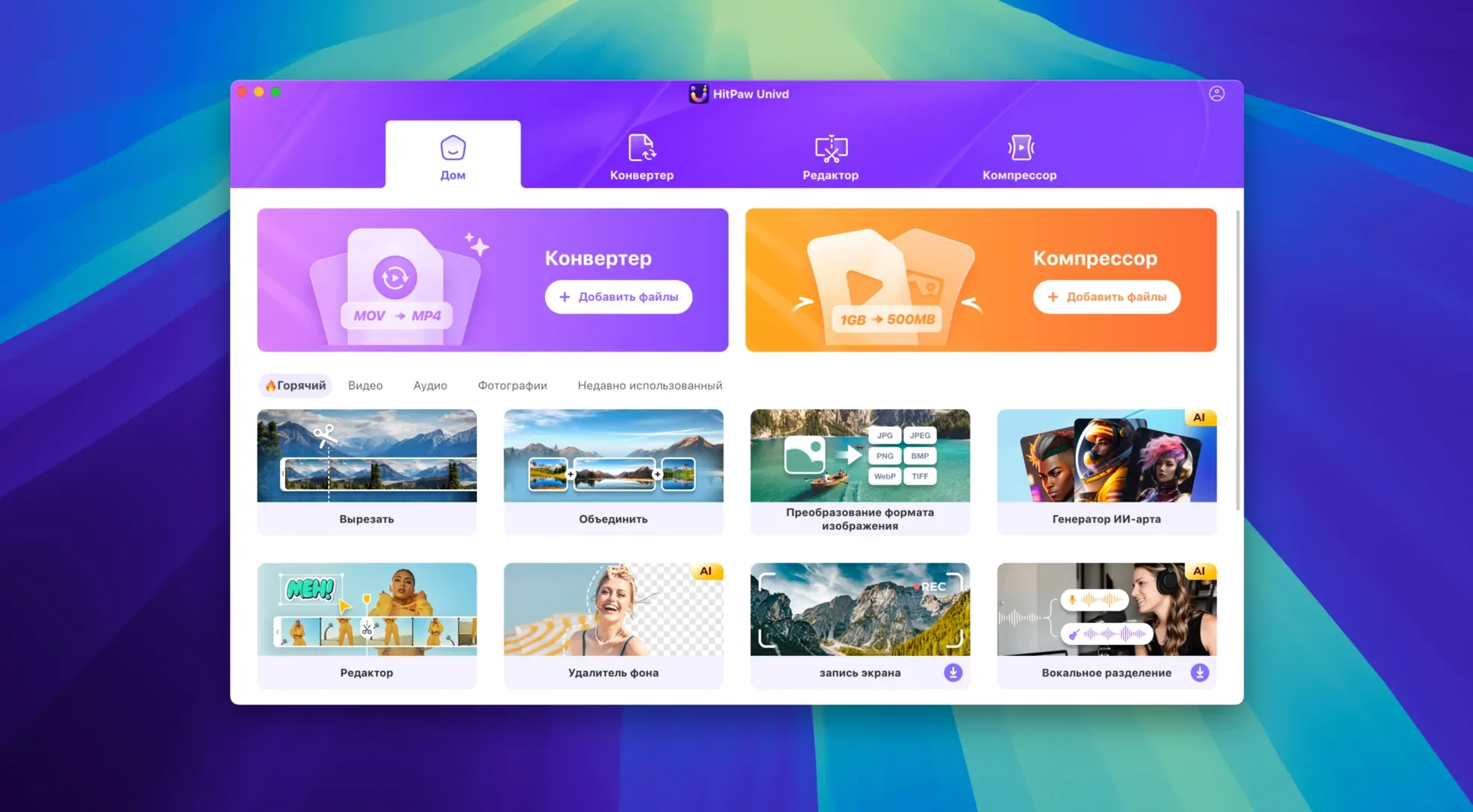
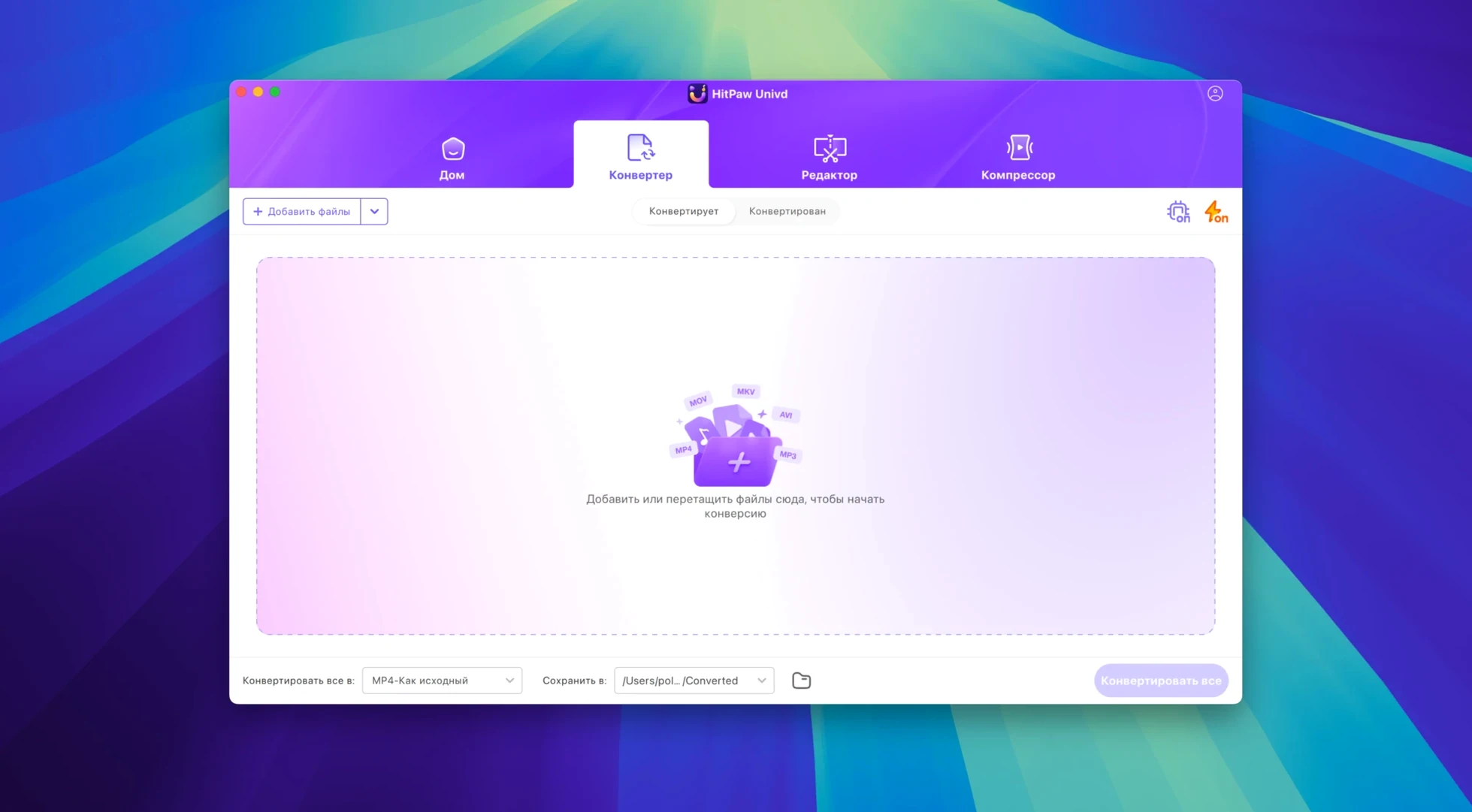
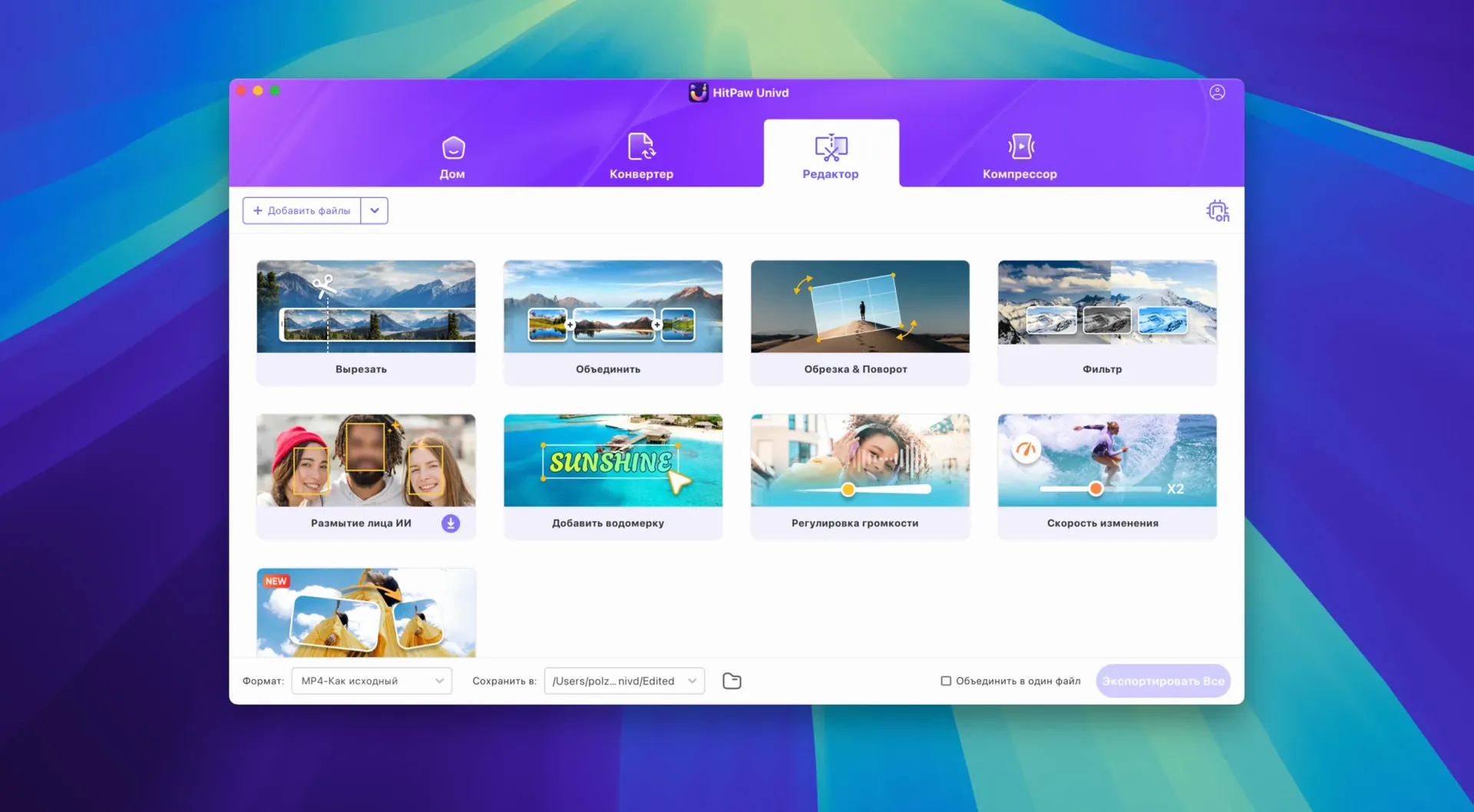
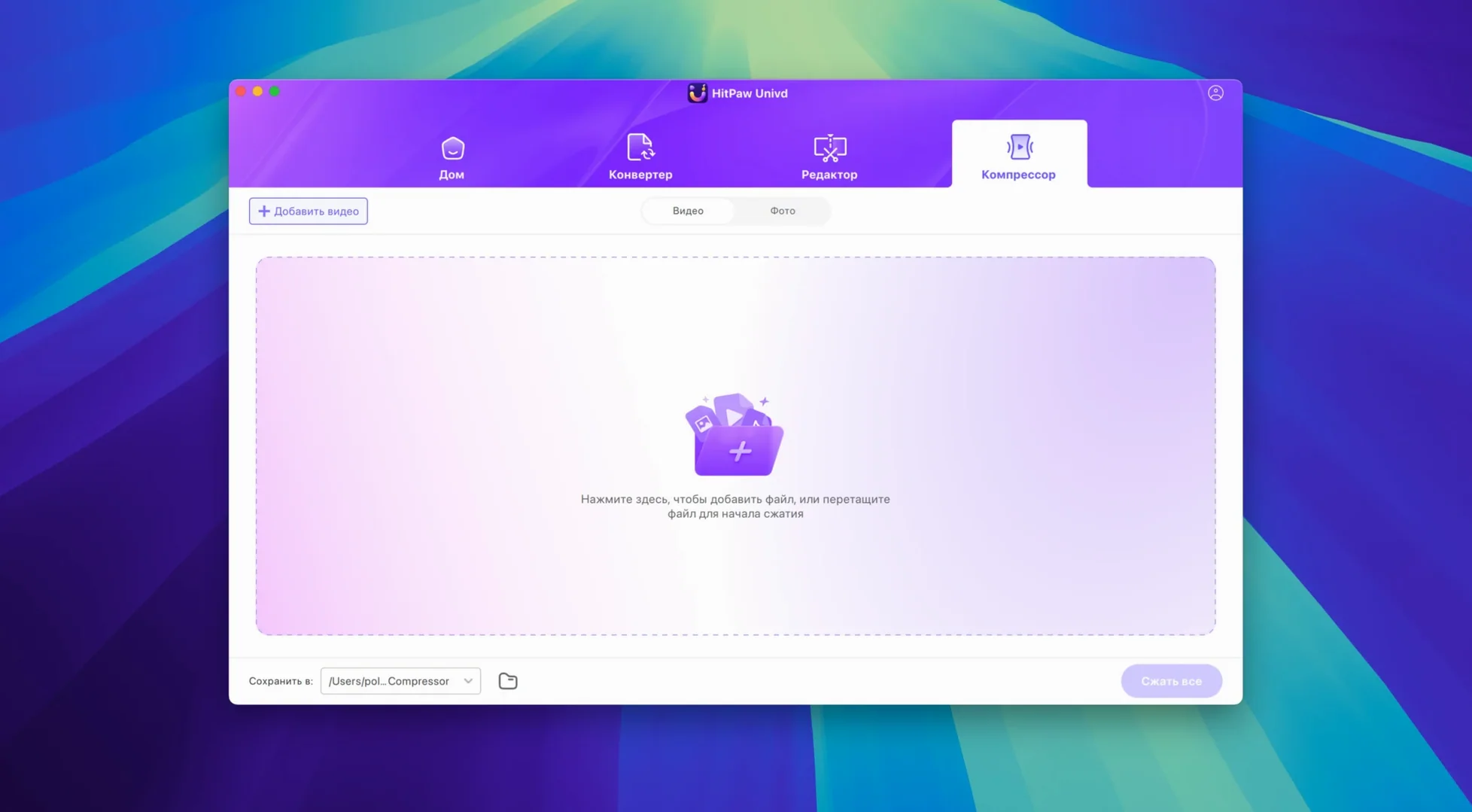
Intel Macs with macOS 10.15 or later
HitPaw Univd runs on Intel-based Macs with macOS 10.15 or later. The current build is Intel 64-bit.
The workflow
- Download a source. Grab video, films or music from over 10,000 sites.
- Convert the file. Choose from more than 1,000 output formats — MP4, MOV, AVI, VOB, MKV and many others.
- Edit with AI. Trim, crop or apply AI enhancements inside the same window.
Version 4.7.0 ships a redesigned interface that keeps the three steps closer together, so you spend less time switching between tools. The app covers everything from a quick YouTube grab to batch-converting a folder of MOV files for an edit suite. It suits anyone who wants one tool for the whole chain instead of three separate utilities.
Pick a dedicated output folder right away
Open preferences right after the first launch. The defaults work, but a few tweaks save time later.
- Output folder. Set a dedicated folder instead of the default location. A folder named
HitPaw_Outputon the desktop keeps converted files visible and easy to clear out. - Hardware acceleration. Turn on VideoToolbox under encoding settings. It uses the Mac's GPU and speeds up H.264 and HEVC conversions noticeably on Intel machines.
- Post-task action. Tell the app what to do after a queue finishes — play a sound, sleep the Mac, or do nothing. Pick the sound option when you work nearby; pick "do nothing" for overnight batches.
- File naming. Switch off "add suffix" if you prefer clean filenames. The default adds
_convertedto every output, which gets annoying in large projects. - Audio bitrate defaults. The preset for MP3 conversion starts at 128 kbps. Bump it to 256 kbps once and it sticks for future sessions.
A specific workflow: YouTube video to ProRes clip
Here is a start-to-finish task for an editor who needs a clean ProRes file from a YouTube source.
- Grab the link. Copy the YouTube URL. Open HitPaw Univd, click the Downloader tab, and paste the link. The app parses it and shows available resolutions.
- Pick the best source. Select 1080p or 4K, depending on what the uploader provided. Hit download and wait — the file lands in your output folder as an MP4.
- Switch to Converter. Drag the downloaded MP4 onto the converter window. From the format list, choose
MOVand pick the ProRes 422 profile under the codec dropdown. - Trim if needed. Before converting, use the built-in editor to mark in and out points. Cut the exact segment you need rather than re-encoding the whole file.
- Run the conversion. Click Convert. The GPU encoder handles the heavy lifting, and the ProRes file appears in your output folder, ready for Final Cut or DaVinci Resolve.
The whole process stays inside one application. No intermediate tools, no round-tripping.
Check sync with a 30-second sample first
- Test with a small file first. Before batch-converting a folder of 50 clips, run a single 30-second sample. Check the output plays correctly and the audio sync is tight.
- Save custom presets early. Once you find a format-and-codec combination you will reuse, save it as a named preset. The preset list fills up fast and saves hunting through menus later.
- Use the queue overnight. Stack several conversions in the queue, set the post-task action to sleep, and let it run. Intel Macs get warm — keep the laptop on a hard surface with good airflow.
- Check the downloader formats. Some sites offer multiple audio tracks or subtitle files. Before downloading a film, expand the options and tick only what you need. Skipping extra tracks saves disk space.
- Keep the app updated. Version 4.7.0 brought the new UI, and future updates will likely refine it. HitPaw pushes updates regularly, and the downloader site list changes over time. Grab the latest build when it appears.
- Redesigned UI with a clearer layout.
- Updated product model and smoother user experience.
- macOS 10.15 or later
- Intel 64-bit processor









Comments 0
Sign in or create an account to add a comment.
No comments yet. They go up after moderation.